Windows 7 End of Life Warning: What You Need to Know
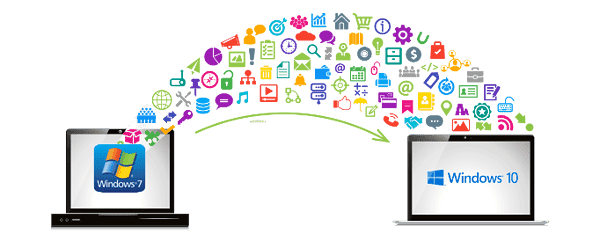
Just like the inevitable march of time, the Windows 7 End of Life is upon us. On January 14th, 2020, Microsoft officially ended support for one of the most beloved operating systems in history. This means that now may be the time to consider upgrading your computer to a more secure and supported version of Windows. Let’s break down what this means for you and your device.
Table of Contents
What Does the End of Windows 7 Mean for You?
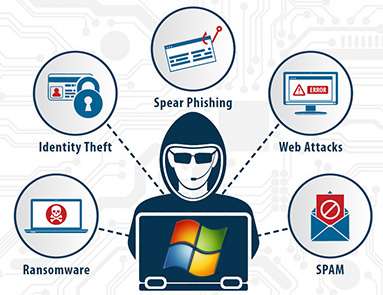
With Windows 7 reaching its end of life, Microsoft will no longer provide technical support, software updates, or security patches for the operating system. While your computer will continue to function, using Windows 7 beyond this date exposes you to increasing risks, such as:
No more security updates: Your computer will be more vulnerable to malware and viruses.
No technical support: If you encounter an issue with your system, you won’t be able to get official help from Microsoft.
Software updates will cease: Without updates, your system will miss out on performance improvements and new features.
RIP-Windows-7
How Does This Affect You?
While you can technically keep using Windows 7, doing so opens your system up to various risks, including:
Greater risk of viruses and malware: Without security updates, your PC is far more vulnerable.
Data loss: Potential for system crashes and hacking attempts could lead to the loss of important files.
Increased risk of hacking: Outdated systems are often targeted by hackers looking to exploit security vulnerabilities.
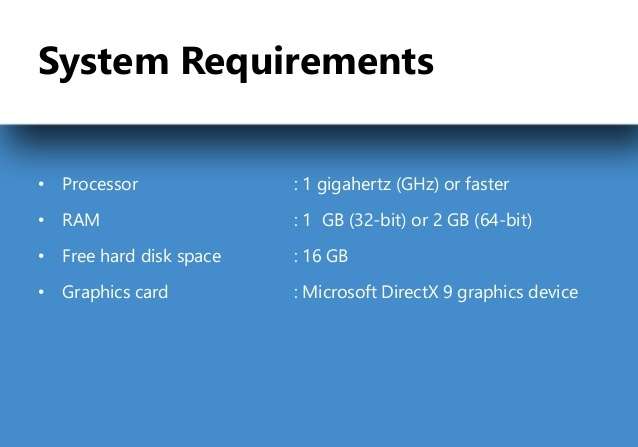
Use a compatibility tool: Tools like the Windows 10 Upgrade Assistant can help you check if your PC is ready for the upgrade.
system-requirements-windows-10
Upgrade your hardware If your device doesn’t meet the requirements for Windows 10, upgrading components like RAM or the hard drive can give your system a new lease of life. A hardware upgrade will not only make it compatible with Windows 10, but it’ll also improve performance.
Consider a new computer If your system is too old, it might be worth considering purchasing a new computer with Windows 10 pre-installed.
How to Backup Your Data Before Upgrading
Before making any changes, it’s vital to back up your data. Whether you choose to upgrade or purchase a new device, backing up your important files ensures you don’t lose valuable data in the process.
Use an external hard drive: Copy your files to an external device to ensure safe storage.
Cloud storage: Services like Microsoft OneDrive or Google Drive can help store your documents online securely.
Before making any changes, it’s vital to back up your data. Whether you choose to upgrade or purchase a new device, backing up your important files ensures you don’t lose valuable data in the process.
Use an external hard drive: Copy your files to an external device to ensure safe storage.
Cloud storage: Services like Microsoft OneDrive or Google Drive can help store your documents online securely.
If you prefer not to upgrade to Windows 10, you might consider trying an alternative operating system like Linux. While Linux has become more user-friendly over the years, it’s still different from Windows and may come with a learning curve.
Windows 7 End Of Life Warning 9
Final Thoughts: Is It Time to Upgrade?
The end of support for Windows 7 means increased risks to your system and data. Whether you choose to upgrade to Windows 10, switch to a different operating system, or buy a new computer, now is the time to make a decision. The most important thing to remember is to back up your data before taking any action.
If you need assistance with upgrading or deciding on the best solution, feel free to contact us at Kingfisher Computers. We’re here to help.
The Illusion of Stability in Modern Updates For most users, operating system updates are something that simply happen. They arrive quietly, often installing in the background, requiring little more than…
Macbook Neo, How Does It Compare To Air & Pro? Over the last few years the laptop market has experienced one of the most significant architectural changes in its history.…
Apple’s latest product announcements mark one of the most significant shifts in the Mac lineup in more than a decade. While Apple routinely updates its hardware with faster chips, incremental…
There is a particular kind of frustration that only a slow computer can produce. It is not dramatic. It is not urgent. It does not scream for attention. Instead, it…
In an era where nearly every aspect of personal computer maintenance and professional life is mediated through digital systems, your computer is no longer a luxury device — it is…
Phone says charging but battery not increasing is one of the most frustrating problems smartphone users face. You plug it in.The lightning bolt appears.It says “Charging.” But the battery percentage…
Apple’s rumour cycle always looks like a thousand disconnected leaks — until you line them up and notice the same themes repeating: AI-first silicon, camera and display differentiation, form-factor experiments (foldables / spatial…
Wi-Fi connected but no internet is one of the most frustrating messages you can see on a computer or laptop. The Wi-Fi icon shows full bars.It says “Connected.”But websites won’t…
Unfortunately, there was an error submitting your request.
Please try again later, or reach out to us directly. You can call us at +44 1429 280955 or email us at sales@kingfishercomputers.co.uk for assistance. We’re here to help you get your computer back up and running!
We’ve received your booking, Our team will get in touch with you shortly to confirm the details. You’re one step closer to having your computer fixed! If you have any urgent questions, feel free to contact us. Otherwise, sit back, and we’ll handle the rest.