Wi-Fi Connected But No Internet: 9 Proven Solutions You Need
Connor Boyle
February 12th, 2026
Wi-Fi connected but no internet is one of the most frustrating messages you can see on a computer or laptop.
The Wi-Fi icon shows full bars. It says “Connected.” But websites won’t load. Emails won’t send. Nothing works.
When Wi-Fi connected but no internet appears, it feels confusing because everything looks fine on the surface — yet you’re completely offline.
The good news? In most cases, this issue is fixable without replacing hardware.
This guide explains why Wi-Fi can show as connected but still have no internet, what causes it, and what actually solves it.
Table of Contents
What “Wi-Fi connected but no internet” actually means
When you see Wi-Fi connected but no internet, your device is successfully talking to the router — but the router isn’t successfully talking to the wider internet.
Think of it like this:
Your laptop → can see the router
The router → cannot reach your internet provider
Or…
Your laptop → connected to Wi-Fi
But your laptop’s network settings are broken
This is why the issue can either be:
A router problem
An internet provider issue
A device-specific fault
Diagnosis matters.
Why Wi-Fi connected but no internet feels so confusing
Unlike a total disconnection, this problem looks “half-working.”
Wi-Fi shows as connected
Signal strength looks strong
Other devices may work
But nothing loads.
This makes users think:
The router is broken
The PC is broken
The internet provider is down
In reality, Wi-Fi connected but no internet usually has a specific, logical cause.
The most common reasons Wi-Fi connected but no internet appears
There isn’t just one cause.
A Wi-Fi connected but no internet message can appear for both simple and serious reasons — which is why random guessing often wastes time.
Wi-Fi connected but no internet due to router losing internet access
Wi-Fi connected but no internet caused by DNS issues
DNS translates website names into addresses.
If DNS fails:
The internet technically works
But websites don’t load
You may see:
“DNS server not responding”
Pages timing out
Some apps working, others not
This is a very common cause of Wi-Fi connected but no internet.
Is this worth fixing?
✅ Yes
Changing DNS settings often fixes this immediately.
Wi-Fi connected but no internet due to IP conflicts
Every device needs its own IP address.
If two devices share the same one:
Communication breaks
Internet stops
Wi-Fi still appears connected
This can happen after:
Router resets
Network configuration changes
Manual IP setup errors
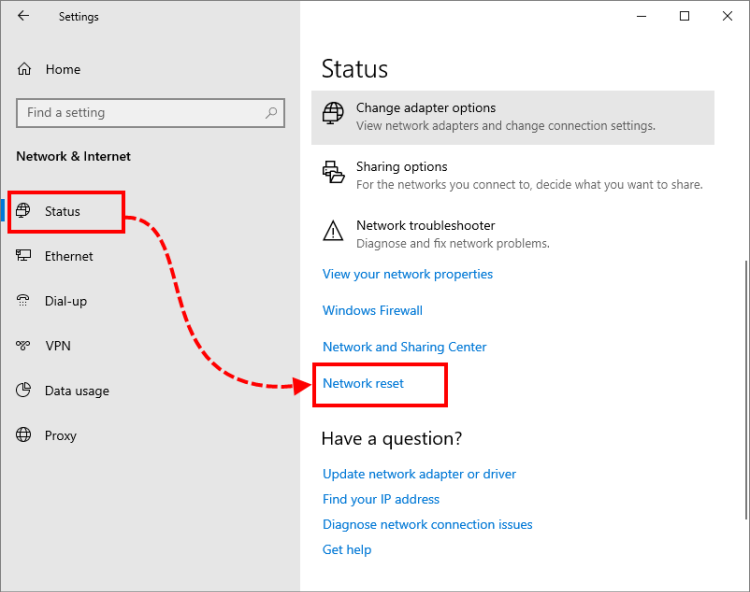
Resetting network settings often resolves this.
Wi-Fi connected but no internet because of driver problems
Drivers tell Windows how to communicate with hardware.
If the Wi-Fi driver:
Is outdated
Was replaced during an update
Is corrupted
You may see connection without access.
This is especially common after:
Major Windows updates
Clean installs
System restores
Is this worth fixing?
✅ Yes
Reinstalling or updating the correct driver often restores internet access.
Wi-Fi connected but no internet due to firewall or security software
Wi-Fi connected but no internet caused by security software
Some security programs are designed to monitor and filter internet traffic very closely. While this is important for protection, it can sometimes go too far.
If a firewall, antivirus, or internet security suite becomes misconfigured or corrupted, it may accidentally block legitimate internet traffic.
When this happens:
Wi-Fi still shows as connected
The signal appears strong
But websites won’t load
Apps fail to access the internet
From the outside, everything looks normal. Inside the system, however, the security software may be silently blocking outgoing or incoming connections.
This can happen after:
A recent security software update
A Windows update that changed network permissions
Installing or removing another security program
In many cases, temporarily disabling the security software (safely and briefly) can help confirm whether it’s responsible for the Wi-Fi connected but no internet problem.
If internet access returns while protection is disabled, the issue is almost certainly configuration-related rather than a hardware fault.
Wi-Fi connected but no internet caused by VPN software
VPNs (Virtual Private Networks) reroute your internet traffic through secure remote servers. This adds privacy and encryption — but it also introduces another layer where things can go wrong.
If the VPN:
Disconnects incorrectly
Fails to authenticate with its server
Blocks traffic due to a “kill switch” feature
Becomes stuck during startup
Your device may still show as connected to Wi-Fi, but no internet traffic will pass through.
This creates the confusing situation where Wi-Fi connected but no internet appears, even though the underlying network connection is technically active.
VPN-related issues are especially common after:
System restarts
Network changes
Expired VPN subscriptions
Updates to the VPN client software
Temporarily disabling or fully closing the VPN application is often the quickest way to confirm whether it’s the cause. If internet access immediately returns, the VPN configuration likely needs adjusting rather than replacing hardware.
How router configuration can cause Wi-Fi connected but no internet
Your router does much more than simply broadcast a Wi-Fi signal.
It manages:
DNS, which translates website names into addresses
DHCP, which automatically assigns IP addresses to devices
IP allocation, ensuring every device has a unique identity
Firewall rules, which control what traffic is allowed through
When everything is configured correctly, this all happens quietly in the background.
But if the router becomes misconfigured:
Devices can still connect to Wi-Fi
The signal can appear strong
Yet internet traffic is blocked or misrouted
This is one of the most common reasons for Wi-Fi connected but no internet, especially in home environments.
Router misconfiguration often happens after:
Firmware updates, where settings are reset or altered
Factory resets, where default configurations don’t match ISP requirements
ISP configuration changes, such as new authentication details or network settings
From the outside, it looks like everything is working — but internally, the router is failing to pass traffic correctly.
Why restarting sometimes works (and sometimes doesn’t)
Restarting is the first thing most people try — and sometimes, it genuinely works.
Restarting helps because it:
Clears temporary memory inside the router
Renews IP addresses assigned to devices
Forces a fresh connection to the ISP
Resets minor software glitches
If the issue was caused by a temporary fault or connection drop, a restart can restore normal service within minutes.
However, restarting is not a universal fix.
If the underlying cause is:
Driver corruption on the device
Incorrect DNS configuration
An active ISP outage
Persistent router misconfiguration
Then restarting alone won’t solve it. The connection may briefly appear restored, only to fail again shortly after.
This is why repeated restarts rarely solve ongoing Wi-Fi connected but no internet issues.
How we diagnose Wi-Fi connected but no internet properly
At Kingfisher Computers, we don’t rely on guesswork or trial-and-error.
When a device shows Wi-Fi connected but no internet, we follow a structured diagnostic process.
We test:
The router’s actual connection to the ISP
The device’s network configuration and IP assignment
DNS resolution and external reachability
Driver stability and compatibility
Background software or security conflicts
By testing each layer individually, we can determine exactly where the breakdown is occurring.
This approach allows us to identify whether the issue is:
Router-related
ISP-related
Device-specific
Software-driven
Or hardware-based
Instead of applying random fixes, we pinpoint the exact cause — and fix the right thing first.
Wi-Fi connected but no internet: safe fixes you can try at home
Before assuming the worst, there are several safe and sensible steps you can take when Wi-Fi connected but no internet appears on your screen.
This message looks serious, but in many cases the cause is temporary or configuration-related. The important thing is to work through simple checks methodically rather than changing lots of settings at once.
The steps below won’t damage your device or your network if followed carefully.
Restart both the router and the device properly
A quick restart is often recommended — but it needs to be done correctly to actually solve the problem.
Many people simply press the power button on the router and turn it back on immediately. That doesn’t always clear internal memory or renew the connection properly.
Instead, follow these steps:
Turn off the router using the power switch.
Unplug it from the wall completely.
Wait at least 60 seconds (this allows internal capacitors to fully discharge).
Plug it back in and power it on.
Wait for all the internet lights to stabilise.
Then restart your computer or laptop fully.
This process forces the router to establish a fresh connection with your internet provider and renews your IP address. It also clears temporary glitches inside the router’s firmware.
If Wi-Fi connected but no internet disappears after this full restart process, the issue was likely a temporary communication fault between your router and your ISP.
Forget the Wi-Fi network and reconnect
Over time, saved Wi-Fi profiles can become corrupted without any obvious warning.
When this happens:
The device connects successfully
Authentication appears to work
The Wi-Fi symbol shows full signal
But internet traffic fails to pass through
In this situation, Windows may believe everything is configured correctly, even though part of the connection is broken internally.
Forgetting the Wi-Fi network and reconnecting forces Windows to completely rebuild the connection profile from scratch. This refreshes:
Security settings
Encryption keys
IP configuration
DNS information
It’s a simple step, but it can be surprisingly effective when Wi-Fi connected but no internet keeps appearing without a clear cause.
Run Windows network troubleshooting
Windows has built-in network diagnostics that can detect:
IP configuration errors
DNS failures
Adapter problems
While it doesn’t fix everything, it can identify why Wi-Fi connected but no internet is happening.
What you should NOT do when Wi-Fi connected but no internet appears
Some actions can make the situation worse or hide the real cause.
Don’t reset Windows immediately
A full Windows reset:
Takes time
Deletes programs
Doesn’t fix router or ISP faults
If the problem is outside the device, resetting Windows won’t solve it.
Don’t randomly change router settings
Changing important network settings without fully understanding what they do can quickly create more problems than it solves.
For example, adjusting:
DNS servers
Firewall rules
DHCP settings
might seem like a quick fix, but these settings control how your entire network communicates.
If configured incorrectly, they can:
Block legitimate internet traffic
Prevent devices from receiving IP addresses
Stop websites from loading entirely
Break working connections on other devices
When multiple devices show Wi-Fi connected but no internet, that’s usually a sign the issue sits at the router or ISP level. In situations like this, the router should be diagnosed methodically — not randomly adjusted in the hope something works.
Making several changes at once can make troubleshooting harder, because you no longer know which setting caused the problem.
Don’t ignore ISP outages
It’s easy to assume the fault is inside your home, but sometimes the issue isn’t your equipment at all.
Internet service providers can experience:
Local outages
Maintenance work
Network congestion
Temporary authentication failures
If:
All devices show no internet access
Router lights look unusual or flashing differently
The issue started suddenly without any changes at home
there’s a strong chance the problem is external.
Before resetting devices or changing settings, check your ISP’s service status page or contact them directly. Confirming an outage early can save a lot of unnecessary troubleshooting.
When Wi-Fi connected but no internet becomes a hardware issue
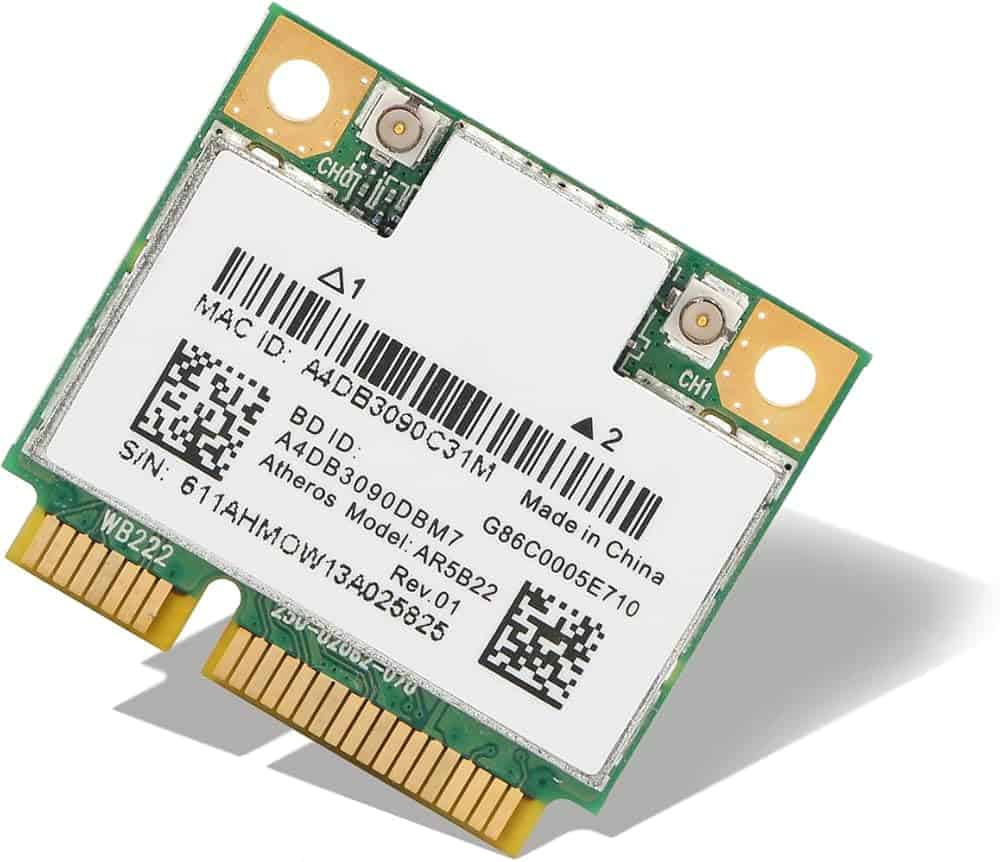
In rare cases, the Wi-Fi adapter itself may be failing.
Signs include:
Frequent disconnects
Network disappearing entirely
Inconsistent connection behaviour
At this stage, hardware testing becomes important.
How we fix Wi-Fi connected but no internet at Kingfisher Computers
When a device comes in with this issue, we don’t rely on trial and error. We follow a structured and methodical diagnostic process designed to identify the exact cause of the problem rather than making assumptions.
Instead of immediately resetting the system or replacing hardware, we test each part of the connection step by step.
We check:
Router connectivity, to confirm the device can properly communicate with the network
DNS resolution, to ensure websites can be translated into reachable addresses
IP configuration, to verify the device has been assigned a valid and unique network identity
Driver integrity, to confirm the Wi-Fi adapter is functioning correctly
Security software interference, to rule out blocked traffic
VPN behaviour, to check whether traffic is being misrouted or restricted
By working through each layer carefully, we can pinpoint exactly why Wi-Fi connected but no internet is happening. This structured approach avoids unnecessary resets, prevents data loss, and ensures the correct fix is applied the first time — rather than guessing and hoping it works.
When repair makes sense
Repair is usually worthwhile when:
Only one device is affected
The device is under 6–7 years old
The issue is driver or configuration-related
Data is important
When replacement is the better option
Replacement may make more sense when:
The system is very old
Multiple hardware issues exist
Repair cost approaches replacement value
We always explain the options clearly before proceeding.
Wi-Fi connected but no internet is usually fixable
Seeing Wi-Fi connected but no internet on your screen is frustrating because it feels completely contradictory.
You’re connected — but you’re not.
The Wi-Fi icon shows full bars. It says “Connected.” Everything looks normal.
Yet nothing loads.
That confusion is what makes this issue so annoying. It feels like something serious has broken, when in reality the problem is often much smaller and more specific than it first appears.
In most cases:
The router is recoverable and simply needs resetting or reconfiguring
The device configuration can be repaired without reinstalling Windows
The issue is temporary rather than permanent
No hardware replacement is required
The key is identifying the cause instead of applying random fixes or repeatedly restarting everything.
When Wi-Fi connected but no internet appears, there is always a reason. It may be DNS, drivers, IP conflicts, router firmware, or ISP issues — but there is a logical explanation behind it.
With proper diagnosis, most cases can be resolved quickly and without data loss.
Need help with Wi-Fi connected but no internet?
If your laptop or PC connects to Wi-Fi but won’t access the internet, bring it in and let us take a proper look.
We’ll run structured diagnostics, identify the exact cause, and explain the best solution clearly and honestly — so you’re not left guessing or wasting time on fixes that don’t work.
Whether it’s a simple configuration problem or something deeper, we’ll help you get back online properly.
The Illusion of Stability in Modern Updates For most users, operating system updates are something that simply happen. They arrive quietly, often installing in the background, requiring little more than…
Macbook Neo, How Does It Compare To Air & Pro? Over the last few years the laptop market has experienced one of the most significant architectural changes in its history.…
Apple’s latest product announcements mark one of the most significant shifts in the Mac lineup in more than a decade. While Apple routinely updates its hardware with faster chips, incremental…
There is a particular kind of frustration that only a slow computer can produce. It is not dramatic. It is not urgent. It does not scream for attention. Instead, it…
In an era where nearly every aspect of personal computer maintenance and professional life is mediated through digital systems, your computer is no longer a luxury device — it is…
Phone says charging but battery not increasing is one of the most frustrating problems smartphone users face. You plug it in.The lightning bolt appears.It says “Charging.” But the battery percentage…
Apple’s rumour cycle always looks like a thousand disconnected leaks — until you line them up and notice the same themes repeating: AI-first silicon, camera and display differentiation, form-factor experiments (foldables / spatial…
Wi-Fi connected but no internet is one of the most frustrating messages you can see on a computer or laptop. The Wi-Fi icon shows full bars.It says “Connected.”But websites won’t…
Unfortunately, there was an error submitting your request.
Please try again later, or reach out to us directly. You can call us at +44 1429 280955 or email us at [email protected] for assistance. We’re here to help you get your computer back up and running!
We’ve received your booking, Our team will get in touch with you shortly to confirm the details. You’re one step closer to having your computer fixed! If you have any urgent questions, feel free to contact us. Otherwise, sit back, and we’ll handle the rest.