To free up computer storage, start with the drive that is short of space and the files you need to protect. This overview helps you choose a sensible cleanup route for a Windows PC or Mac. The separate guides below explain the controls for each system.
Table of Contents
Protect the files you cannot replace
Before removing anything, check where your important documents, photographs and project files are backed up. Open a few files from that backup to check the copy. Moving the only copy to an external drive leaves you with one copy on a different device.
Cloud folders need particular care. A file listed on your computer may also be synchronised with an online account and other devices. Deleting it can remove those other copies too. Use the provider’s supported controls for releasing a local copy when that is your intention.
Match the space warning to the task
An update, game installation or video export may need working space as well as room for its final files. Note the drive named in the warning and the task that failed. Space on a different drive does not automatically solve that shortage.
Storage capacity and RAM are separate. Clearing files will not increase installed memory, and adding RAM will not make a full drive larger. If the computer is slow without a capacity warning, record the symptoms before assuming that deleting files will fix it.
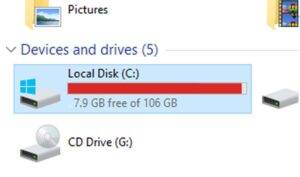
Earlier Windows 10 Drive View. Check The Drive Involved In Your Own Storage Warning.
Mac: check the version and the volume
Our Mac storage capacity guide explains the figures. The Mac cleanup guide then covers files, apps, cloud copies and device backups. Use the instructions for your macOS version rather than relying on an older screenshot.
Earlier Macos Storage View. Current Versions Use General And Storage In System Settings.
Choose how to free up computer storage
1. Review files you recognise
Start with personal downloads and large files you can identify. Check what each file contains and whether another application needs it. Avoid deleting unfamiliar system folders or whole photo libraries simply because they are large.
2. Remove apps through their proper controls
Use the operating system’s uninstall process or the developer’s documented uninstaller. Keep any project files, licence details and installers you may need later. Removing an app does not necessarily cancel its subscription or remove its documents.
3. Review the built in storage recommendations
Read each category before approving removal. Temporary files, downloads and items in the Bin have different purposes. A large suggested saving is a reason to inspect a selection, rather than approve everything together.
4. Use documented app cleanup options
Downloaded videos, game files and offline media can often be managed inside the application that created them. Avoid routinely emptying entire Library or cache folders. If an app is misbehaving, follow guidance for that specific problem.
5. Check copies before removing originals
Copy selected files to another suitable location, open them there and check that your backup plan still covers them. For cloud services, distinguish an online copy from a file available without an internet connection. Check the account’s available space before a large upload.
Recheck after one change
Read the free capacity again and retry the original task. This shows what helped and can prevent unnecessary deletion. If space fills again quickly, investigate the source, such as an application’s downloads or a repeated error, rather than repeating a broad cleanup.
Get help when the next step is unclear
A disappearing drive, unreadable files or repeated copy errors calls for assessment before more cleanup attempts. If you need help to free up computer storage, tell our Hartlepool team the device, drive figures and exact message. We can discuss suitable checks and capacity options before any work is agreed.
The Illusion of Stability in Modern Updates For most users, operating system updates are something that simply happen. They arrive quietly, often installing in the background, requiring little more than…
Macbook Neo, How Does It Compare To Air & Pro? Over the last few years the laptop market has experienced one of the most significant architectural changes in its history.…
Apple’s latest product announcements mark one of the most significant shifts in the Mac lineup in more than a decade. While Apple routinely updates its hardware with faster chips, incremental…
There is a particular kind of frustration that only a slow computer can produce. It is not dramatic. It is not urgent. It does not scream for attention. Instead, it…
Small business computer maintenance planning starts with the work you cannot afford to lose. Identify the computers, accounts and files behind those tasks, then agree when maintenance can happen and…
Phone says charging but battery not increasing is one of the most frustrating problems smartphone users face. You plug it in.The lightning bolt appears.It says “Charging.” But the battery percentage…
Apple’s rumour cycle always looks like a thousand disconnected leaks — until you line them up and notice the same themes repeating: AI-first silicon, camera and display differentiation, form-factor experiments (foldables / spatial…
Wi-Fi connected but no internet is one of the most frustrating messages you can see on a computer or laptop. The Wi-Fi icon shows full bars.It says “Connected.”But websites won’t…
Unfortunately, there was an error submitting your request.
Please try again later, or reach out to us directly. You can call us at +44 1429 280955 or email us at sales@kingfishercomputers.co.uk for assistance. We’re here to help you get your computer back up and running!
We’ve received your booking, Our team will get in touch with you shortly to confirm the details. You’re one step closer to having your computer fixed! If you have any urgent questions, feel free to contact us. Otherwise, sit back, and we’ll handle the rest.
Contact Kingfisher Computers
No appointment required. You’re welcome to pop into the shop during opening hours.
ENQUIRY RECEIVED
Thank you
Monday–Friday
9am–5pm
Saturday
9am–4:30pm
Sunday
Closed
Bank holidays
Closed
38 Church Street, Hartlepool, TS24 7DG For home visits and callouts, please wait for us to arrange a time.
Contact Kingfisher Computers
No appointment required. You’re welcome to pop into the shop during opening hours.
ENQUIRY RECEIVED
Thank you
Monday–Friday
9am–5pm
Saturday
9am–4:30pm
Sunday
Closed
Bank holidays
Closed
38 Church Street, Hartlepool, TS24 7DG For home visits and callouts, please wait for us to arrange a time.