To choose a PC power supply, start with the exact components it must power, the connectors they require and the space available in the case. The wattage on the box matters, but it does not tell you whether the cables fit, how the unit behaves under changing loads or what the warranty covers.
This guide explains the buying checks for a desktop build or upgrade. If an existing computer is losing power, our power supply troubleshooting guide covers that different starting point. A restart or black screen alone does not prove the PSU has failed.
Table of Contents
Start with a complete component list
Record the exact processor, graphics card, motherboard, drives and powered accessories. Include a planned upgrade only when you know what it will require. An office computer and a graphics workstation may need very different connections even when both are described as desktop PCs.
Check whether an existing branded computer uses a standard supply. Some compact or business systems have proprietary dimensions, mounting points or motherboard connections. A generic replacement with the same advertised wattage may not be suitable.
Check output capacity against the actual build
The rated output is the power the supply can deliver under its specified conditions. It is not a statement that the computer continuously draws that amount from the wall. Component demand changes with the work being done.
Begin with the graphics card manufacturer’s system recommendation and the processor’s documented power requirements. Add the remaining hardware, then consider the PSU manufacturer’s guidance for that combination. A calculator can help organise an estimate, but its result depends on the components and assumptions entered.
Avoid treating a fixed allowance or a gaming tier as a universal rule. Short changes in demand, sustained work, operating temperature and the model’s documented limits all matter. Enough capacity for a particular build cannot be established from a CPU or GPU name alone.
Leave useful room without buying a label
Consider the likely workload and any definite upgrade when comparing capacities. Paying for output you will not use may leave less money for a better supported model. Equally, a unit that only meets an optimistic estimate may not suit the actual system. Compare exact models rather than assuming a larger number always means a better supply.
Separate efficiency from output and reliability
Efficiency describes how much incoming electrical power becomes usable output rather than losses. As a simple illustration, supplying 400 watts at 90 per cent efficiency requires about 444 watts at the input. That example is arithmetic, not a prediction for a particular product or electricity bill.
The 80 PLUS certification directory distinguishes test programmes and efficiency levels. Check the exact model and applicable input voltage. A table for a different test programme is not a universal specification for every supply sold in the UK.
An efficiency badge does not establish every aspect of electrical performance, noise, protection behaviour or service life. Compare those separately. Estimate any running cost difference using realistic hours, loads and your tariff rather than an old calculator screenshot.
Compare the exact model and its support
A brand can sell several different ranges and revisions. Look for the complete product code, published output specification, operating conditions, warranty terms and meaningful independent testing of that model. A recommendation for another unit from the same brand is not a substitute.
Reviews are more useful when they explain their equipment and methods, including voltage regulation, electrical ripple, noise and behaviour under changing loads. A star rating or a photograph of the label cannot establish those results.
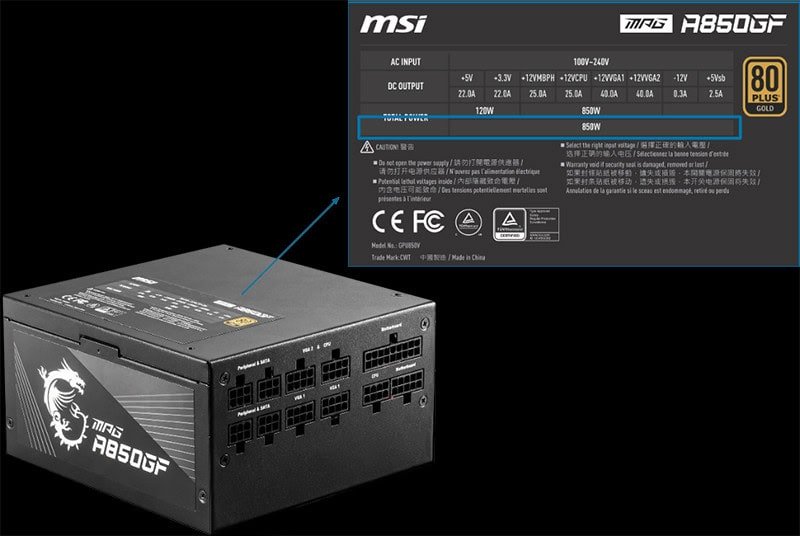
Read The Specification For The Exact Model. This Label Illustrates The Information To Check, Rather Than A Recommendation For Every Build.
Understand what protection claims cover
Manufacturers may list protection against excessive voltage, current, power or temperature and short circuits. Check the exact specification and credible testing rather than assuming a list of abbreviations guarantees that every fault is harmless.
A PSU’s internal protections do not replace suitable protection against mains disturbances or a backup power plan. Do not open the PSU enclosure, even after unplugging it. Internal components can retain hazardous electrical energy. A suspected damaged supply needs an appropriate replacement or qualified assessment.
Check every cable against the supply
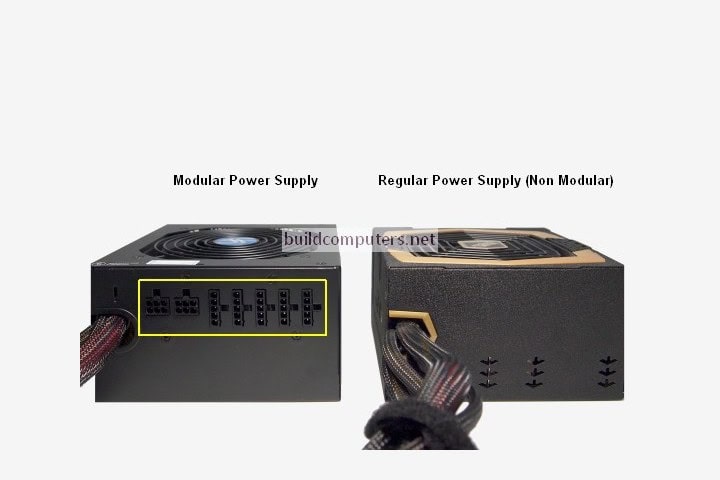
A modular supply lets you detach some or all output cables. A fixed cable supply keeps them attached. Either arrangement can be suitable; choose around the case, access and connections you need rather than assuming modular construction proves higher quality.
Use the cables supplied with the exact PSU or cables explicitly confirmed as compatible by its manufacturer. The PSU end is not universally wired. A connector that physically fits can still use a different pin arrangement and damage the attached hardware.
When replacing a modular PSU, do not leave the previous unit’s cables installed without an explicit compatibility check. Corsair’s cable compatibility chart illustrates why the precise cable family matters. It is guidance for the listed Corsair products, not approval for another brand.
Detachable And Fixed Cable Arrangements. Cable Compatibility Still Needs To Be Confirmed For The Exact Supply.
Count the required connections
List the motherboard, CPU power, graphics and drive connections separately. CPU and graphics power cables are not interchangeable simply because they have a similar number of pins. Follow the component and PSU manuals for cable selection, seating and routing.
For a graphics card, check the exact connector specification and the manufacturer’s instructions for any included adapter. Account for cable bend clearance as well as card length. Do not force a connector, improvise a pin arrangement or assume an unapproved adapter fixes an unsuitable supply.
Measure the unit and the installed cables
Confirm the supported PSU form factor, mounting arrangement and maximum length in the case manual. Then allow room for the plugs and cable routing. A drive cage, radiator or side panel can reduce usable space even when the bare unit fits.
Check the intended fan intake and ventilation path. Route cables so they do not press against connectors or obstruct moving fans. Use the specified mounting hardware and installation procedure, with the computer disconnected from power.
Compare the complete cost for your workload
For a gaming build, check the exact graphics card recommendation and its connectors. For long rendering or computation jobs, consider sustained demand, cooling and acoustic behaviour. For a quiet office system, compare useful low load noise information rather than paying for a gaming label.
Include compatible cables, any necessary mounting hardware and delivery in the price. Check who handles a fault, the return arrangements and the manufacturer’s actual warranty conditions. A longer warranty is useful information, but it is not a promise that every connected component or every possible incident is covered.
Keep a short final buying record
Before ordering, make sure you can answer these questions:
What exact PSU model and revision have I selected?
What component requirements support the output capacity?
Which approved cables and connectors will each component use?
Will the supply, plugs and cable bends fit the case together?
What evidence supports the efficiency, noise and protection claims?
Who provides support if the unit is unsuitable or develops a fault?
Keep that record with the manuals and purchase details. Use our PC build planning guide for the complete system and the component compatibility guide for checks across the other parts. If you need help assessing an existing desktop, contact the Hartlepool team with its model and symptoms. We agree suitable work and costs before proceeding.
The Illusion of Stability in Modern Updates For most users, operating system updates are something that simply happen. They arrive quietly, often installing in the background, requiring little more than…
Macbook Neo, How Does It Compare To Air & Pro? Over the last few years the laptop market has experienced one of the most significant architectural changes in its history.…
Apple’s latest product announcements mark one of the most significant shifts in the Mac lineup in more than a decade. While Apple routinely updates its hardware with faster chips, incremental…
There is a particular kind of frustration that only a slow computer can produce. It is not dramatic. It is not urgent. It does not scream for attention. Instead, it…
Small business computer maintenance planning starts with the work you cannot afford to lose. Identify the computers, accounts and files behind those tasks, then agree when maintenance can happen and…
Phone says charging but battery not increasing is one of the most frustrating problems smartphone users face. You plug it in.The lightning bolt appears.It says “Charging.” But the battery percentage…
Apple’s rumour cycle always looks like a thousand disconnected leaks — until you line them up and notice the same themes repeating: AI-first silicon, camera and display differentiation, form-factor experiments (foldables / spatial…
Wi-Fi connected but no internet is one of the most frustrating messages you can see on a computer or laptop. The Wi-Fi icon shows full bars.It says “Connected.”But websites won’t…
Unfortunately, there was an error submitting your request.
Please try again later, or reach out to us directly. You can call us at +44 1429 280955 or email us at sales@kingfishercomputers.co.uk for assistance. We’re here to help you get your computer back up and running!
We’ve received your booking, Our team will get in touch with you shortly to confirm the details. You’re one step closer to having your computer fixed! If you have any urgent questions, feel free to contact us. Otherwise, sit back, and we’ll handle the rest.
Contact Kingfisher Computers
No appointment required. You’re welcome to pop into the shop during opening hours.
ENQUIRY RECEIVED
Thank you
Monday–Friday
9am–5pm
Saturday
9am–4:30pm
Sunday
Closed
Bank holidays
Closed
38 Church Street, Hartlepool, TS24 7DG For home visits and callouts, please wait for us to arrange a time.
Contact Kingfisher Computers
No appointment required. You’re welcome to pop into the shop during opening hours.
ENQUIRY RECEIVED
Thank you
Monday–Friday
9am–5pm
Saturday
9am–4:30pm
Sunday
Closed
Bank holidays
Closed
38 Church Street, Hartlepool, TS24 7DG For home visits and callouts, please wait for us to arrange a time.