Windows 11 Optimization Tips for Faster Boot Times
Adam Fornal
May 22nd, 2025
Table of Contents
Slow boot times can be one of the most frustrating aspects of computer ownership, turning your morning routine into a waiting game. Fortunately, implementing the right Windows 11 Optimization Tips can dramatically reduce your system’s startup time and get you working faster than ever before. This comprehensive guide provides proven strategies to accelerate your Windows 11 boot process through systematic optimization techniques.
Modern computers should boot quickly, and Windows 11 includes numerous features designed to improve startup performance. However, many users unknowingly compromise their boot speed through poor configuration choices or accumulated system bloat. By applying these Windows 11 Optimization Tips, you can restore your computer to peak startup performance and maintain it long-term. Whether you’re dealing with a sluggish older machine or want to maximize a new system’s potential, these techniques will deliver measurable improvements.
Understanding Windows 11 Boot Process and Performance Factors
Before diving into specific optimization techniques, it’s essential to understand how Windows 11 handles the boot process and what factors influence startup speed. Modern Windows systems use several technologies to accelerate boot times, including Fast Startup, UEFI firmware, and solid-state drive optimization. These Windows 11 Optimization Tips leverage these built-in capabilities while addressing common bottlenecks that slow down your system.
The Windows 11 boot process involves multiple stages, from initial hardware detection through loading the desktop environment. Each stage presents opportunities for optimization, and understanding these phases helps you apply Windows 11 Optimization Tips more effectively. Hardware specifications, installed software, system configuration, and background services all play crucial roles in determining how quickly your computer starts up and becomes usable.
Identifying Boot Time Bottlenecks
The first step in applying effective Windows 11 Optimization Tips involves identifying what’s actually slowing down your system. Windows 11 includes built-in tools for measuring boot performance and identifying problematic startup programs. The Task Manager’s Startup tab shows which applications launch automatically and their impact on boot time, while Event Viewer provides detailed timing information for advanced users seeking deeper insights.
Your hardware configuration significantly affects which Windows 11 Optimization Tips will provide the greatest benefit. Systems with traditional hard drives see different bottlenecks than those with solid-state drives. Similarly, computers with limited RAM face different challenges than well-equipped machines. Understanding your system’s specific limitations helps prioritize optimization efforts for maximum impact on boot performance.
Common Causes of Slow Boot Times
Many factors can slow down Windows 11 startup, but several culprits appear frequently across different systems. Excessive startup programs represent the most common issue, with many applications automatically configuring themselves to launch at boot without user awareness. These Windows 11 Optimization Tips address this issue by teaching you to manage startup programs effectively and maintain a clean boot environment.
Driver conflicts, outdated system files, and misconfigured services also contribute to sluggish startup performance. Some security software can significantly impact boot times if not properly configured. Additionally, system fragmentation on traditional hard drives and accumulated temporary files can slow down the boot process. Comprehensive Windows 11 Optimization Tips address all these potential issues systematically.
Essential Windows 11 Optimization Tips for Immediate Speed Improvements
Now let’s explore the most effective optimization techniques that can immediately improve your Windows 11 boot times. These Windows 11 Optimization Tips are arranged by impact level, starting with changes that typically provide the most dramatic improvements with minimal effort.
1. Startup Program Management and Control
Managing startup programs represents one of the most effective Windows 11 Optimization Tips for improving boot times. Many applications automatically add themselves to your startup sequence, consuming system resources and extending boot time unnecessarily. By carefully controlling which programs launch at startup, you can dramatically reduce the time it takes for Windows 11 to become fully responsive.
Using Task Manager for Startup Control
Windows 11’s Task Manager provides powerful tools for implementing Windows 11 Optimization Tips related to startup management. Access the Startup tab to see all programs configured to launch automatically, along with their performance impact ratings. Programs marked as “High” impact should be prime candidates for disabling unless absolutely necessary. The “Startup impact” column helps prioritize which applications to address first for maximum boot time improvement.
When applying these Windows 11 Optimization Tips, be selective about which programs you disable. Essential security software should generally remain enabled, while media players, messaging apps, and productivity software can often be launched manually when needed. Many users find that disabling non-essential startup programs can reduce boot times by 30-50% without affecting daily functionality.
Advanced Startup Management Techniques
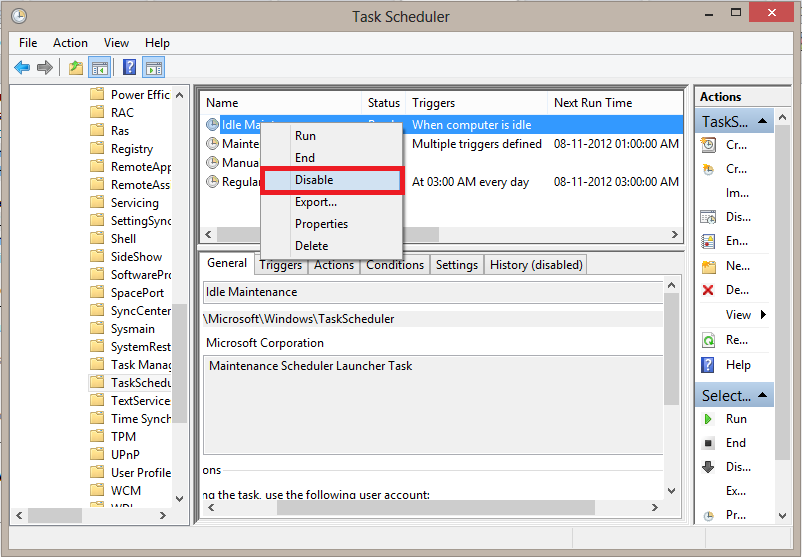
Beyond basic Task Manager controls, advanced Windows 11 Optimization Tips include using System Configuration (msconfig) and Windows Settings to fine-tune startup behavior. The System Configuration utility provides additional control over startup processes and services, while Windows Settings allows you to manage which apps can run in the background and access system resources during startup.
Consider implementing a delayed startup strategy as part of your Windows 11 Optimization Tips approach. Some programs can be configured to launch several minutes after Windows boots, allowing essential system processes to complete first. This technique maintains access to needed applications while preventing them from interfering with the critical boot sequence.
Windows 11 Optimization Tips For Faster Boot Times 5
2. Fast Startup Configuration and Optimization
Windows 11’s Fast Startup feature represents one of the most impactful Windows 11 Optimization Tips available, though it requires proper configuration to work effectively. This feature creates a hybrid shutdown state that preserves system information, allowing subsequent boots to complete much faster than traditional cold starts.
Enabling and Configuring Fast Startup
To implement this crucial set of Windows 11 Optimization Tips, access Power Options through Control Panel or Windows Settings. Ensure Fast Startup is enabled in the shutdown settings, but understand that this feature requires hibernation support and adequate free disk space. Systems with solid-state drives benefit most from Fast Startup, while traditional hard drives see more modest improvements.
Some users experience issues with Fast Startup, making troubleshooting an important part of these Windows 11 Optimization Tips. If you encounter problems with hardware detection, driver conflicts, or system instability after enabling Fast Startup, temporarily disable the feature to isolate the issue. Most problems stem from outdated drivers or incompatible hardware configurations that can be resolved with proper updates.
Hibernate File Optimization
The hibernation file plays a crucial role in Fast Startup functionality, making its optimization an essential component of Windows 11 Optimization Tips. By default, Windows creates a hibernation file sized at 75% of your RAM capacity. For systems with large amounts of memory, this file can consume significant disk space without proportional benefits to boot performance.
Advanced Windows 11 Optimization Tips include resizing the hibernation file to balance space usage with performance benefits. Use administrative command prompts to adjust hibernation file size, but be cautious not to reduce it so much that Fast Startup becomes unreliable. Monitor system stability after making changes and be prepared to revert settings if issues arise.
Windows 11 Optimization Tips For Faster Boot Times 6
3. System Services and Background Process Management
Windows 11 runs numerous background services that contribute to system functionality but can impact boot performance if not properly managed. These Windows 11 Optimization Tips focus on identifying and optimizing services that affect startup speed without compromising system stability or security.
Identifying Resource-Heavy Services
Effective Windows 11 Optimization Tips require understanding which services consume significant resources during startup. Use Task Manager’s Services tab and Resource Monitor to identify processes with high CPU, memory, or disk usage during boot. Services related to indexing, updates, and third-party software often present optimization opportunities without affecting core system functionality.
When implementing these Windows 11 Optimization Tips, exercise caution with service modifications. Disabling critical Windows services can cause system instability or functionality loss. Focus on third-party services and optional Windows features that you don’t actively use. Research unfamiliar services before making changes, and document your modifications for easy reversal if needed.
Safe Service Optimization Practices
Conservative Windows 11 Optimization Tips for service management emphasize changing startup types rather than completely disabling services. Many services can be set to “Manual” startup, allowing them to run when needed without automatically launching during boot. This approach maintains functionality while reducing startup resource consumption.
Create system restore points before implementing these Windows 11 Optimization Tips to ensure you can revert changes if problems arise. Test your system thoroughly after service modifications, paying attention to application functionality and system behavior. Some services have dependencies, so disabling one service might affect others in unexpected ways.
4. Storage and File System Optimization
Storage performance directly impacts boot times, making disk optimization a crucial component of Windows 11 Optimization Tips. Whether you’re using traditional hard drives or solid-state drives, specific optimization techniques can significantly improve startup performance and overall system responsiveness.
SSD Optimization for Faster Boot Times
Solid-state drives benefit from specific Windows 11 Optimization Tips that differ from traditional hard drive optimization. Ensure TRIM is enabled to maintain SSD performance over time, and verify that Windows 11 recognizes your SSD correctly. The system should automatically disable defragmentation for SSDs while enabling optimization features designed specifically for flash storage.
Advanced Windows 11 Optimization Tips for SSD users include optimizing page file settings and temporary file locations. Consider moving the page file to a separate drive if available, or sizing it appropriately for your usage patterns. Relocating temporary files and browser caches to secondary storage can also improve boot performance by reducing activity on the primary system drive.
Hard Drive Optimization Strategies
Traditional hard drives require different Windows 11 Optimization Tips compared to solid-state storage. Regular defragmentation remains important for mechanical drives, though Windows 11 handles this automatically in most cases. However, you can optimize the defragmentation schedule and ensure it doesn’t interfere with your typical usage patterns.
File system maintenance represents another crucial aspect of Windows 11 Optimization Tips for hard drive users. Use built-in disk cleanup tools to remove temporary files, system cache, and other unnecessary data that accumulates over time. Consider relocating user folders like Documents and Downloads to secondary partitions or drives to reduce activity on the system partition during boot.
Advanced Windows 11 Optimization Tips for Power Users
Beyond basic optimization techniques, several advanced strategies can further improve Windows 11 boot performance. These Windows 11 Optimization Tips require more technical knowledge but can provide additional speed improvements for users willing to invest the effort.
5. Registry Optimization and Cleanup
The Windows Registry contains configuration data that affects boot performance, making registry optimization an important component of advanced Windows 11 Optimization Tips. However, registry modifications require extreme caution, as incorrect changes can render your system unbootable.
Safe Registry Optimization Practices
When implementing registry-based Windows 11 Optimization Tips, always create complete system backups and registry exports before making changes. Focus on well-documented optimizations with proven benefits rather than experimental modifications. Common registry optimizations include adjusting timeout values for startup processes and removing orphaned entries left by uninstalled software.
Use reputable registry cleaning tools to implement these Windows 11 Optimization Tips safely, but avoid aggressive cleaning that might remove necessary entries. Manual registry editing should be reserved for specific, well-researched optimizations. Many registry optimizations provide modest benefits compared to the risks involved, so prioritize safer optimization methods first.
Boot-Specific Registry Modifications
Certain registry settings directly affect Windows 11 boot behavior, making them valuable targets for Windows 11 Optimization Tips. These include timeout values for boot menus, startup delay settings, and service configuration parameters. However, each modification should be researched thoroughly and tested carefully to ensure it doesn’t cause unintended consequences.
Document all registry changes as part of your Windows 11 Optimization Tips implementation process. This documentation proves invaluable if you need to troubleshoot issues or revert changes later. Consider using registry monitoring tools to track modifications made by optimization software, ensuring you understand what changes are being applied to your system.
Windows 11 Optimization Tips For Faster Boot Times 7
6. Hardware Configuration and Driver Optimization
Hardware configuration plays a crucial role in boot performance, making hardware-related optimizations important Windows 11 Optimization Tips for users seeking maximum startup speed. These techniques focus on both physical hardware settings and driver management.
BIOS/UEFI Optimization Settings
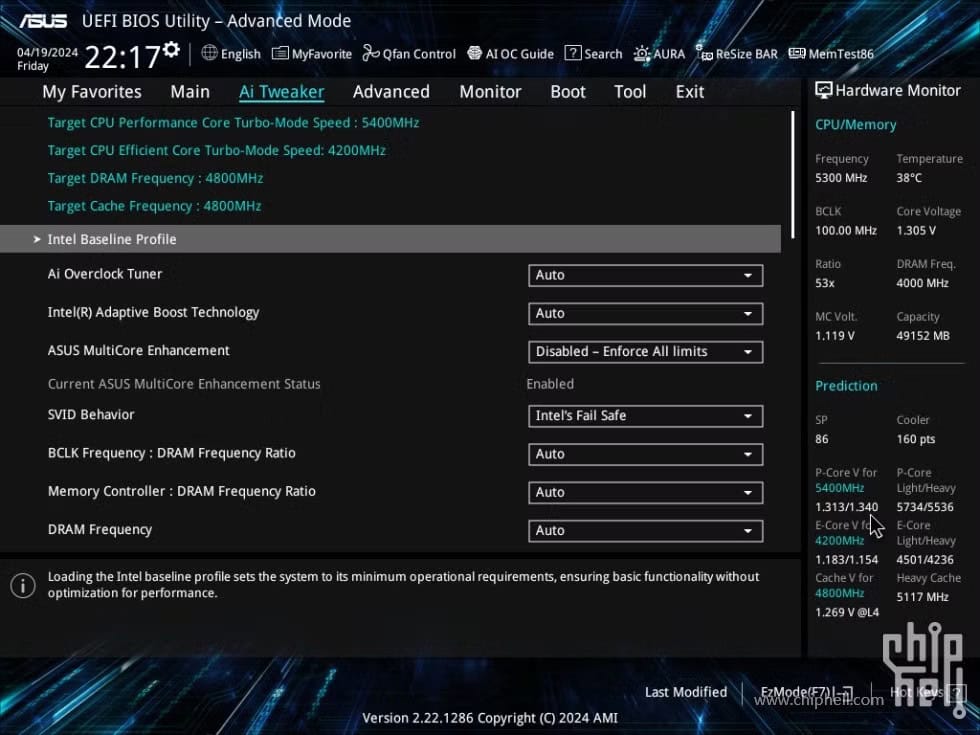
Modern systems offer numerous firmware settings that affect boot performance, making BIOS/UEFI optimization essential Windows 11 Optimization Tips. Enable Fast Boot options in your system firmware, disable unnecessary hardware detection routines, and ensure your system is configured for UEFI boot mode rather than legacy BIOS mode when possible.
Advanced Windows 11 Optimization Tips include optimizing memory timing settings and ensuring proper hardware initialization sequences. However, firmware modifications require careful attention to compatibility and stability. Incorrect firmware settings can prevent your system from booting at all, so research your specific hardware thoroughly before making changes.
Driver Management for Optimal Boot Performance
Outdated or inefficient drivers can significantly impact boot times, making driver optimization crucial Windows 11 Optimization Tips. Keep all system drivers updated, particularly those for storage controllers, network adapters, and graphics hardware. Windows Update typically handles most driver updates automatically, but manually checking manufacturer websites ensures you have the latest optimized versions.
Some Windows 11 Optimization Tips involve removing unnecessary drivers that remain installed after hardware changes or software uninstallation. Use Device Manager to identify unknown or problematic devices, and consider using driver management tools to maintain a clean driver environment. However, be cautious when removing drivers, as some seemingly unused drivers may be required for system stability.
Windows 11 Optimization Tips For Faster Boot Times 8
7. Power Management and Performance Settings
Windows 11’s power management features can significantly affect boot performance, making power optimization an important component of Windows 11 Optimization Tips. Proper configuration ensures your system allocates resources efficiently during startup while maintaining appropriate power consumption levels.
Performance Mode Configuration
Windows 11 offers several power plans that affect system performance, including boot times. These Windows 11 Optimization Tips recommend using High Performance or Ultimate Performance power plans for desktop systems where power consumption isn’t a primary concern. Laptop users may need to balance performance gains with battery life considerations.
Custom power plan creation allows for more sophisticated implementation of Windows 11 Optimization Tips related to power management. You can configure specific settings for processor performance, disk timeout values, and sleep states that optimize boot performance while maintaining reasonable power consumption during normal operation.
Sleep and Hibernation Optimization
Proper sleep and hibernation configuration represents another important aspect of Windows 11 Optimization Tips for boot performance. While these features don’t directly affect cold boot times, they provide alternatives to full shutdowns that can dramatically reduce the time needed to resume work. Configure sleep settings appropriately for your usage patterns and hardware capabilities.
Advanced Windows 11 Optimization Tips include optimizing wake-from-sleep behavior and configuring hybrid sleep modes. These features can provide near-instant system availability while maintaining data protection benefits. However, some systems experience compatibility issues with advanced sleep modes, so test thoroughly to ensure reliable operation.
8. Background App and Notification Management
Windows 11’s background app system can impact boot performance by consuming resources during startup. These Windows 11 Optimization Tips focus on managing background applications and notifications to reduce startup resource consumption without eliminating useful functionality.
Background App Permission Control
Windows 11 allows granular control over which applications can run in the background, making this an effective area for Windows 11 Optimization Tips. Access Privacy & Security settings to review which apps have background permissions and disable those that aren’t essential for your workflow. Many apps run background processes unnecessarily, consuming resources without providing meaningful benefits.
Implementing these Windows 11 Optimization Tips requires balancing functionality with performance. Some apps legitimately need background access for notifications, syncing, or real-time updates. Focus on disabling background access for applications that provide minimal value when running continuously, such as games, media players, or productivity tools that you use occasionally.
Notification System Optimization
The Windows 11 notification system can impact boot performance by loading notification services and checking for updates during startup. These Windows 11 Optimization Tips suggest reviewing your notification settings and disabling notifications for non-essential applications. This reduces the number of processes that need to initialize during boot while cleaning up your notification experience.
Configure notification timing and delivery methods as part of your Windows 11 Optimization Tips strategy. Some notifications can be delivered less frequently or during specific hours, reducing the system resources needed during startup. Focus on maintaining notifications for truly important applications while eliminating noise from less critical sources.
Maintaining Optimal Windows 11 Boot Performance
After implementing initial optimization techniques, maintaining optimal boot performance requires ongoing attention and periodic maintenance. These Windows 11 Optimization Tips focus on sustainable practices that prevent performance degradation over time.
Creating a Boot Performance Monitoring System
Regular monitoring helps ensure your Windows 11 Optimization Tips continue providing benefits over time. Use built-in Windows tools like Performance Monitor and Event Viewer to track boot times and identify emerging issues before they significantly impact performance. Establish baseline measurements after optimization to quantify improvements and detect future degradation.
Automated monitoring tools can implement Windows 11 Optimization Tips for ongoing performance tracking. These tools can alert you to significant changes in boot performance, helping you identify when maintenance or additional optimization becomes necessary. However, ensure monitoring tools themselves don’t consume excessive resources or impact the performance they’re designed to measure.
Establishing Performance Baselines
Document your system’s boot performance before and after implementing Windows 11 Optimization Tips to quantify improvements and establish reference points for future maintenance. Record cold boot times, resume-from-sleep times, and time-to-desktop measurements under consistent conditions. This data helps you evaluate the effectiveness of different optimization techniques and detect performance changes over time.
Regular baseline updates ensure your Windows 11 Optimization Tips remain effective as your system configuration evolves. Software installations, Windows updates, and hardware changes can all affect boot performance. By maintaining current baselines, you can quickly identify when additional optimization becomes necessary.
Long-term Maintenance Strategies
Sustaining the benefits of Windows 11 Optimization Tips requires regular maintenance and periodic re-evaluation of your optimization strategy. Schedule monthly reviews of startup programs, quarterly driver updates, and semi-annual comprehensive system cleanups. This proactive approach prevents gradual performance degradation that occurs naturally over time.
Develop a systematic approach to maintenance that incorporates Windows 11 Optimization Tips into your regular computer care routine. This might include automated cleanup scripts, scheduled optimization tasks, and periodic manual reviews of system configuration. Consistent maintenance proves more effective than occasional intensive optimization sessions.
Troubleshooting Boot Performance Issues
Even with proper maintenance, boot performance issues may occasionally arise. Effective Windows 11 Optimization Tips include developing troubleshooting skills to identify and resolve performance problems quickly. Learn to use Windows diagnostic tools, system logs, and performance monitoring utilities to pinpoint issues and implement appropriate solutions.
Create a troubleshooting checklist based on common causes of boot performance degradation. This checklist should incorporate Windows 11 Optimization Tips for quickly identifying and resolving typical issues like new startup programs, driver conflicts, or system file corruption. Having a systematic approach reduces the time needed to restore optimal performance when problems occur.
Maximizing Your Windows 11 Boot Experience
Implementing these comprehensive Windows 11 Optimization Tips can transform your computing experience by dramatically reducing boot times and improving overall system responsiveness. The key to success lies in systematic application of these techniques, starting with high-impact optimizations and gradually implementing more advanced strategies as needed.
Building Your Personal Optimization Strategy
Effective Windows 11 Optimization Tips implementation requires tailoring techniques to your specific hardware configuration, usage patterns, and performance requirements. Start with fundamental optimizations like startup program management and Fast Startup configuration before progressing to advanced techniques like registry optimization and hardware configuration tuning. This approach ensures you achieve meaningful improvements while minimizing the risk of system instability.
Remember that Windows 11 Optimization Tips should be implemented gradually, with testing and verification at each step. Document your changes and maintain system backups to ensure you can revert modifications if unexpected issues arise. The goal is sustained performance improvement rather than short-term gains that might compromise system stability.
The Long-term Benefits of Optimized Boot Performance
Consistently applying these Windows 11 Optimization Tips delivers benefits that extend far beyond faster startup times. Optimized systems tend to be more stable, secure, and efficient in all aspects of operation. You’ll experience improved productivity, reduced frustration, and extended hardware lifespan as your system operates more efficiently.
The time invested in implementing Windows 11 Optimization Tips pays dividends through improved daily computing experiences and reduced need for troubleshooting or system replacement. A well-optimized Windows 11 system can maintain excellent boot performance for years, providing reliable, fast startup performance that enhances your productivity and computing satisfaction.
By following these comprehensive Windows 11 Optimization Tips, you’ve taken control of your system’s boot performance and established a foundation for long-term computing efficiency. Regular application of these techniques ensures your Windows 11 system continues delivering optimal startup performance regardless of how your computing needs evolve over time.
The Illusion of Stability in Modern Updates For most users, operating system updates are something that simply happen. They arrive quietly, often installing in the background, requiring little more than…
Macbook Neo, How Does It Compare To Air & Pro? Over the last few years the laptop market has experienced one of the most significant architectural changes in its history.…
Apple’s latest product announcements mark one of the most significant shifts in the Mac lineup in more than a decade. While Apple routinely updates its hardware with faster chips, incremental…
There is a particular kind of frustration that only a slow computer can produce. It is not dramatic. It is not urgent. It does not scream for attention. Instead, it…
In an era where nearly every aspect of personal computer maintenance and professional life is mediated through digital systems, your computer is no longer a luxury device — it is…
Phone says charging but battery not increasing is one of the most frustrating problems smartphone users face. You plug it in.The lightning bolt appears.It says “Charging.” But the battery percentage…
Apple’s rumour cycle always looks like a thousand disconnected leaks — until you line them up and notice the same themes repeating: AI-first silicon, camera and display differentiation, form-factor experiments (foldables / spatial…
Wi-Fi connected but no internet is one of the most frustrating messages you can see on a computer or laptop. The Wi-Fi icon shows full bars.It says “Connected.”But websites won’t…
Unfortunately, there was an error submitting your request.
Please try again later, or reach out to us directly. You can call us at +44 1429 280955 or email us at sales@kingfishercomputers.co.uk for assistance. We’re here to help you get your computer back up and running!
We’ve received your booking, Our team will get in touch with you shortly to confirm the details. You’re one step closer to having your computer fixed! If you have any urgent questions, feel free to contact us. Otherwise, sit back, and we’ll handle the rest.