Blue Screen of Death in 2025: What It Means and How to Fix It
Adam Fornal
June 2nd, 2025
Table of Contents
The Blue Screen of Death remains one of the most feared error messages in computing, even as we navigate through 2025. Despite significant improvements in Windows stability over the years, encountering this critical system error can still cause panic among users who worry about data loss and system damage. Understanding what triggers these crashes and knowing how to respond effectively can save you time, money, and considerable frustration.
In 2025, the Blue Screen of Death has evolved alongside modern hardware and software configurations, presenting new challenges and solutions for users across all experience levels. While the fundamental concept remains unchanged—a critical system error that forces Windows to halt all operations—the underlying causes and diagnostic approaches have become more sophisticated. This comprehensive guide explores everything you need to know about these system crashes in today’s computing environment, from identifying common triggers to implementing both quick fixes and long-term solutions.
Understanding the Modern Blue Screen of Death
The Blue Screen of Death in 2025 serves the same protective function it has for decades: preventing potential data corruption and hardware damage by immediately stopping all system processes when Windows detects a critical error. However, modern implementations provide significantly more detailed diagnostic information than earlier versions, making troubleshooting more precise and effective.
When you encounter a Blue Screen of Death today, Windows automatically collects crash dump files, performs basic diagnostic checks, and attempts to identify the problematic component or driver. These improvements mean that while experiencing this error remains disruptive, the recovery process has become more streamlined and user-friendly. The system typically restarts automatically and provides options for accessing advanced troubleshooting tools.
Evolution of Error Codes and System Crashes
Modern crash screens feature QR codes and simplified error messages designed to help users quickly identify solutions. Unlike older versions that displayed cryptic hexadecimal codes, current error displays often include plain-language descriptions of the problem and suggestions for resolution. Common error codes like SYSTEM_THREAD_EXCEPTION_NOT_HANDLED and DRIVER_IRQL_NOT_LESS_OR_EQUAL now appear alongside explanatory text that guides users toward appropriate troubleshooting steps.
The Blue Screen of Death in 2025 also integrates with Microsoft’s online diagnostic services, automatically uploading crash data to help improve Windows stability. This telemetry allows Microsoft to identify widespread issues and push automatic updates to resolve common crash triggers. Users benefit from this collective troubleshooting approach, as solutions developed for one user’s problem often prevent similar issues for others.
Blue Screen Of Death In 2025: What It Means And How To Fix It 6
Hardware Compatibility and System Stability
As hardware continues to evolve rapidly, compatibility issues remain a significant cause of critical system errors in 2025. New processors, graphics cards, and storage devices sometimes interact unexpectedly with existing system configurations, triggering crashes. These errors serve as an early warning system, alerting users to potential hardware conflicts before they cause permanent damage.
Modern diagnostic tools have become particularly sophisticated at identifying hardware-related issues. Memory testing tools, driver signature verification, and real-time hardware monitoring help pinpoint the exact components responsible for system instability. When hardware causes system crashes, the error message often identifies the specific device driver or system component involved, significantly reducing diagnostic time.
Common Causes of Blue Screen of Death in 2025
Understanding what triggers a Blue Screen of Death helps users both prevent these errors and respond appropriately when they occur. In 2025, the most common causes span across hardware failures, driver conflicts, software incompatibilities, and system file corruption. Each category requires different diagnostic approaches and solutions for resolving these critical errors.
Driver-Related System Crashes
Outdated, corrupted, or incompatible device drivers represent the leading cause of Blue Screen of Death errors in modern Windows systems. As hardware manufacturers continuously update their products and Microsoft releases new Windows versions, driver compatibility becomes an ongoing challenge. A crash caused by driver issues typically occurs during system startup, hardware detection, or when accessing specific devices.
Identifying Driver-Caused Errors
When a faulty driver triggers a Blue Screen of Death, Windows usually identifies the problematic file in the error message. Look for references to .sys files, which represent system drivers, in the crash display. Common culprits include graphics drivers (nvlddmkm.sys for NVIDIA cards), audio drivers, and network adapter drivers. The error screen may also reference the driver by name, making identification straightforward.
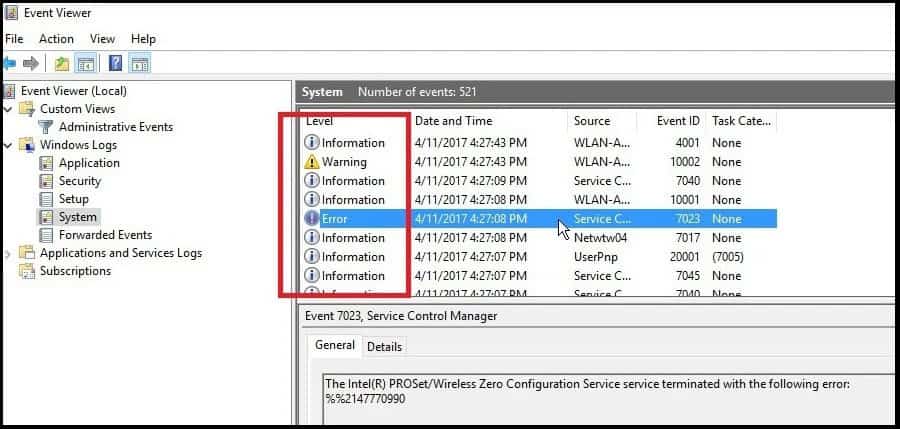
Modern Windows versions maintain detailed logs of Blue Screen of Death, accessible through Event Viewer or Reliability Monitor. These logs often contain additional context about driver activity leading up to system failures, helping identify patterns or specific triggers. Third-party diagnostic tools can also analyze crash dump files to pinpoint driver-related causes with greater precision.
Blue Screen Of Death In 2025: What It Means And How To Fix It 7
Preventing Driver-Related Problems
Proactive driver management significantly reduces system crash frequency. Enable automatic driver updates through Windows Update, but maintain awareness of what changes occur on your system. When you experience crashes shortly after installing new hardware or updating drivers, roll back the recent changes to test stability. Manufacturer-specific update utilities like NVIDIA GeForce Experience or Intel Driver & Support Assistant help maintain current, stable drivers for critical components.
Physical hardware problems often manifest as Blue Screen of Death errors before complete component failure occurs. Memory modules, storage devices, power supplies, and overheating components can all trigger critical system errors. Recognizing hardware-related crash patterns helps users address problems before data loss or permanent damage occurs.
Memory Issues and System Crashes
Faulty RAM frequently causes crashes with error codes like MEMORY_MANAGEMENT or SYSTEM_SERVICE_EXCEPTION. These incidents often occur randomly during normal computer use, making them particularly frustrating to diagnose. Memory-related Blue Screen of Death may increase in frequency over time as the hardware degrades.
Windows includes built-in memory diagnostic tools accessible through the Windows Memory Diagnostic utility. Running comprehensive memory tests helps identify whether RAM problems cause your system crashes. Third-party tools like MemTest86 provide more thorough testing capabilities, especially useful for intermittent memory problems that trigger occasional critical errors.
Blue Screen Of Death In 2025: What It Means And How To Fix It 8
Storage and Power-Related Crashes
Failing hard drives or solid-state drives can trigger system crashes when Windows encounters read/write problems or file system corruption. Power supply instability also causes critical errors, particularly during high-demand operations like gaming or video editing. These hardware-related crashes often coincide with other system symptoms like unusual noises, performance degradation, or random shutdowns.
Monitoring tools can track storage device health and power stability to predict potential crash triggers. SMART data from storage devices reveals developing problems, while power monitoring utilities can identify voltage irregularities that might cause system failures. Addressing these underlying hardware issues prevents both crashes and potential data loss.
Software Conflicts and System Errors
While hardware problems cause many Blue Screen of Death errors, software conflicts represent another significant category. Incompatible applications, corrupted system files, malware infections, and problematic Windows updates can all trigger critical system errors. Software-related issues often follow identifiable patterns related to specific programs or system operations.
Third-Party Software and System Stability
Certain types of software interact more deeply with Windows system components, increasing Blue Screen of Death risk. Antivirus programs, system optimization utilities, overclocking software, and virtualization applications all operate at low system levels where errors can trigger critical failures. Security software conflicts represent a particularly common crash trigger when multiple antivirus programs run simultaneously.
Identifying software-related crash causes requires systematic troubleshooting. Note when errors occur—during startup, when launching specific programs, or during particular activities. Safe Mode testing helps isolate software-related triggers by loading only essential system components. Uninstalling recently added software or performing system restore operations can resolve software-induced problems.
System File Corruption and Crash Prevention
Windows system file corruption can trigger crashes when critical operating system components become damaged or missing. These incidents often occur during system startup or when accessing core Windows functions. Malware infections, improper shutdowns, and storage device problems can all corrupt system files that later cause critical errors.
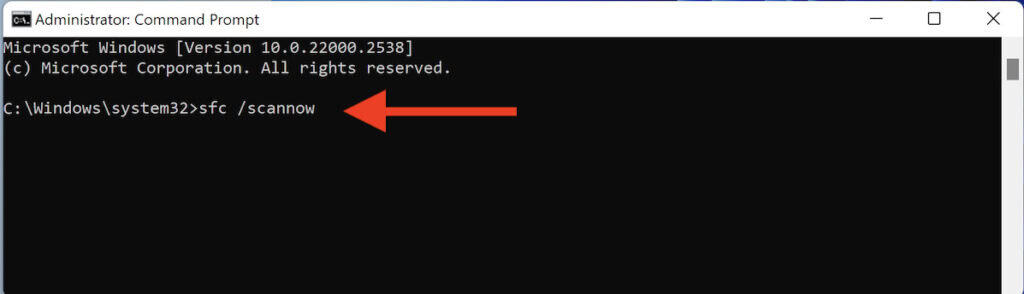
Windows includes built-in repair tools like System File Checker (SFC) and Deployment Image Servicing and Management (DISM) that can fix corrupted files responsible for Blue Screen of Death crashes. Running these utilities regularly helps prevent system file corruption from triggering critical errors. When standard repair tools cannot resolve problems, Windows Reset or clean installation options provide more comprehensive solutions.
Blue Screen Of Death In 2025: What It Means And How To Fix It 9
Immediate Response to Blue Screen of Death Errors
When you encounter a Blue Screen of Death, your immediate response significantly impacts both data recovery and troubleshooting success. Modern crash screens provide more information than previous versions, but knowing how to interpret and act on this information remains crucial for effective problem resolution.
Initial System Crash Assessment
The first step when facing a Blue Screen of Death involves carefully reading the error message and noting any specific error codes or driver names mentioned. Modern crash displays include QR codes that link to Microsoft’s troubleshooting resources, providing immediate access to relevant solutions. Take a photograph of the error screen if possible, as this information proves valuable during later troubleshooting steps.
After the automatic restart following a Blue Screen of Death, Windows typically offers options for advanced startup or safe mode access. These recovery options help diagnose whether the error resulted from recent system changes or represents an ongoing stability problem. Pay attention to whether crashes recur immediately, as this pattern indicates more serious underlying issues.
Documenting Crash Patterns
Effective troubleshooting requires tracking when and why these Blue Screen of Death occur. Note the activities you were performing when the crash appeared, any recent hardware or software changes, and the specific error codes displayed. Pattern recognition helps identify crash triggers and guides appropriate troubleshooting approaches.
Windows automatically logs crash events in the system event log, accessible through Event Viewer. These logs contain detailed technical information about crash causes, including memory dumps and driver information. Third-party utilities can analyze these logs to identify patterns and suggest specific solutions based on the error characteristics.
Blue Screen Of Death In 2025: What It Means And How To Fix It 10
Safe Mode and System Diagnostics
Safe Mode provides a controlled environment for troubleshooting by loading only essential Windows components and drivers. If your system boots successfully in Safe Mode after a Blue Screen of Death, the problem likely involves third-party software or non-essential drivers. This diagnostic information significantly narrows the potential causes and guides targeted troubleshooting efforts.
Using Safe Mode to Isolate Crash Causes
Boot into Safe Mode immediately after experiencing a system crash to test stability with minimal software loading. If crashes do not recur in Safe Mode, begin systematically enabling normal boot components to identify the problematic element. This process helps distinguish between hardware-related causes and software conflicts.
While in Safe Mode, access Device Manager to check for driver problems that might trigger crashes. Look for devices marked with warning symbols or error codes, as these often correlate with system failures. You can also run system diagnostic tools like memory tests or disk checks to identify hardware problems responsible for critical errors.
System Restore and Crash Recovery
Windows System Restore provides an effective method for resolving Blue Screen of Death issues caused by recent system changes. If crashes began appearing after installing new software, updating drivers, or making system modifications, restoring to a previous configuration often eliminates the problem. System Restore works particularly well for software-related triggers.
Implementing System Restore for Error Resolution
Access System Restore through the Advanced Startup options available after a crash or by booting from Windows installation media. Choose a restore point dated before the problems began, ensuring the restoration point predates any recent system changes. System Restore affects system files and installed programs but preserves personal data files.
After completing System Restore, monitor your system for recurring errors. If problems return, the issue may involve hardware failures or deeper system corruption requiring more comprehensive troubleshooting approaches. Document which changes trigger crash recurrence to guide future troubleshooting efforts.
Advanced Blue Screen of Death Troubleshooting Techniques
When basic troubleshooting fails to resolve Blue Screen of Death errors, advanced diagnostic techniques help identify complex underlying causes. These methods require more technical knowledge but provide detailed insights into crash triggers that simpler approaches might miss.
Memory Dump Analysis for Crash Diagnosis
Windows creates memory dump files during critical system errors, capturing detailed system state information at the moment of failure. Analyzing these dump files reveals specific crash causes, including problematic drivers, memory addresses, and system processes involved in the error. Professional-grade diagnostic tools can extract comprehensive information from crash dump files.
Tools for Dump Analysis
Microsoft provides WinDbg (Windows Debugger) for advanced dump analysis, though this tool requires significant technical expertise. User-friendly alternatives like BlueScreenView and WhoCrashed automatically analyze crash dump files and present findings in accessible formats. These tools identify the specific drivers or system components responsible for errors and suggest potential solutions.
Effective dump analysis requires understanding common error patterns and their typical causes. Memory-related crashes often point to specific memory addresses, while driver problems usually reference particular .sys files. Learning to interpret these patterns helps identify root causes and implement targeted fixes.
Hardware Testing for Error Resolution
Comprehensive hardware testing helps identify physical component problems that trigger Blue Screen of Death errors. Memory, storage devices, power supplies, and cooling systems all require specific testing approaches to verify their role in critical errors. Systematic hardware testing eliminates uncertainty about whether problems stem from software or hardware issues.
Comprehensive Memory Testing
Memory problems frequently cause crashes, requiring thorough testing to identify intermittent faults. Windows Memory Diagnostic provides basic testing capabilities, but third-party tools like MemTest86 offer more comprehensive examination of RAM modules. Run memory tests for several hours or overnight to catch intermittent problems that cause sporadic errors.
When memory testing reveals errors, determine whether the problem affects specific memory modules or memory slots on the motherboard. Testing individual RAM sticks in different slots helps isolate causes to particular components. Replace faulty memory modules promptly, as continued use of damaged RAM increases crash frequency and risks data corruption.
Storage and System Component Testing
Storage device problems can trigger crashes when Windows encounters read/write failures or file system corruption. Built-in tools like CHKDSK and manufacturer-specific diagnostics help identify storage-related crash causes. Monitor storage device SMART data to predict potential failures before they cause system errors.
Power supply instability represents another hardware cause of crashes, particularly during high-demand operations. Power monitoring software can detect voltage irregularities that correlate with crash occurrences. Temperature monitoring helps identify overheating components that might trigger thermal protection and cause system failures.
Registry and System File Repair
Corrupted system files and registry entries can trigger crashes when Windows encounters damaged critical components. Advanced repair techniques address deeper system corruption that standard troubleshooting methods cannot resolve. These approaches require careful execution to avoid causing additional problems.
System File Checker and Error Resolution
The System File Checker (SFC) utility scans for and repairs corrupted Windows system files that might cause crashes. Run SFC /scannow from an elevated command prompt to check system file integrity and automatically repair detected problems. If SFC cannot fix all corruption, the DISM utility can repair the Windows image from which SFC draws replacement files.
For persistent problems related to system file corruption, consider using Windows installation media to access advanced repair options. The startup repair process can fix boot-related issues, while system reset options provide more comprehensive solutions for severely corrupted systems. Always backup important data before attempting major system repairs.
Prevention Strategies for Blue Screen of Death Errors
Preventing Blue Screen of Death errors proves more effective than repeatedly troubleshooting these disruptive incidents. Proactive system maintenance, careful software management, and regular hardware monitoring significantly reduce crash frequency and severity. Implementing comprehensive prevention strategies creates a more stable computing environment that minimizes critical error occurrences.
Regular System Maintenance
Consistent system maintenance addresses many conditions that lead to crashes before they trigger critical failures. Driver updates, system file verification, and hardware monitoring help identify potential crash causes during routine maintenance rather than emergency troubleshooting situations. Scheduled maintenance activities prevent problems more effectively than reactive repairs.
Automated Maintenance and Crash Prevention
Configure Windows to automatically download and install critical updates that address known crash triggers. Enable automatic driver updates for essential components while maintaining awareness of what changes occur on your system. Automated maintenance helps prevent errors caused by outdated drivers and security vulnerabilities.
Schedule regular system scans for malware, corrupted files, and hardware problems that might trigger crashes. Weekly maintenance routines should include checking system event logs for warnings that precede critical errors. Monitoring system temperatures, disk health, and memory usage helps identify developing problems before they cause system failures.
Software Installation Best Practices
Careful software management prevents many Blue Screen of Death errors caused by incompatible applications or problematic installations. Research software compatibility before installation, paying particular attention to system-level utilities that interact with Windows at low levels. Create system restore points before installing new software to provide easy rollback options if problems develop.
Managing System-Level Software
Antivirus programs, system optimization utilities, and overclocking software require special attention due to their crash potential. Avoid running multiple antivirus programs simultaneously, as conflicts between security software frequently trigger critical errors. Research compatibility requirements for system utilities before installation, and monitor system stability after adding new software.
When crashes follow software installations, uninstall the problematic application and test system stability. Use safe mode to remove software that triggers errors during normal boot operations. Maintain documentation of software that causes problems to avoid future compatibility issues.
Hardware Management and Crash Prevention
Proactive hardware management prevents many crashes related to component failures and compatibility issues. Regular cleaning removes dust buildup that can cause overheating and trigger thermal protection errors. Monitor component temperatures and performance metrics to identify developing problems before they cause system failures.
Temperature Management and System Stability
Overheating components frequently trigger Blue Screen of Death errors as thermal protection mechanisms activate to prevent permanent damage. Ensure adequate case ventilation and clean dust from fans and heat sinks regularly. Monitor CPU and GPU temperatures during normal use and high-demand operations to identify cooling inadequacies that might cause critical errors.
Replace thermal paste on processors periodically, as degraded thermal interface materials can lead to overheating and system crashes. Consider upgrading cooling solutions if temperature monitoring reveals concerning trends. Laptop users should use cooling pads and avoid blocking ventilation openings to prevent thermal crash triggers.
Mastering Blue Screen of Death Management in 2025
Successfully managing Blue Screen of Death errors in 2025 requires understanding both immediate response techniques and long-term prevention strategies. While encountering these crashes remains disruptive, modern diagnostic tools and systematic troubleshooting approaches make resolution more predictable and effective than in previous years.
Building System Resilience
The key to crash management lies in preparation and proactive maintenance rather than reactive troubleshooting. Systems maintained with regular updates, hardware monitoring, and careful software management experience critical errors less frequently and recover more quickly when problems occur. Developing systematic approaches to diagnosis and resolution builds confidence and reduces the stress associated with these system failures.
Understanding crash patterns and causes enables more effective communication with technical support when professional assistance becomes necessary. Documenting incidents, error codes, and successful resolution techniques creates valuable references for future troubleshooting efforts. This knowledge proves particularly valuable when helping others resolve similar problems.
Long-Term Strategies for System Stability
Preventing Blue Screen of Death errors requires ongoing attention to system health rather than one-time configuration changes. Regular hardware monitoring, proactive driver management, and systematic software evaluation create environments where critical errors become rare exceptions rather than recurring problems. Investing time in prevention activities pays dividends through improved system reliability and reduced troubleshooting demands.
As hardware and software continue evolving rapidly, staying informed about new crash triggers and solutions remains important for maintaining system stability. Participating in technical communities and following manufacturer support resources helps identify emerging issues before they affect your system. This proactive approach to system management ensures continued reliability as technology advances.
The Blue Screen of Death will likely remain part of the Windows experience for the foreseeable future, serving as a critical protection mechanism against system damage and data corruption. However, with proper understanding, systematic troubleshooting approaches, and proactive prevention strategies, these errors become manageable incidents rather than catastrophic system failures. Your investment in learning crash management techniques pays long-term dividends in system reliability and reduced frustration.
The Illusion of Stability in Modern Updates For most users, operating system updates are something that simply happen. They arrive quietly, often installing in the background, requiring little more than…
Macbook Neo, How Does It Compare To Air & Pro? Over the last few years the laptop market has experienced one of the most significant architectural changes in its history.…
Apple’s latest product announcements mark one of the most significant shifts in the Mac lineup in more than a decade. While Apple routinely updates its hardware with faster chips, incremental…
There is a particular kind of frustration that only a slow computer can produce. It is not dramatic. It is not urgent. It does not scream for attention. Instead, it…
In an era where nearly every aspect of personal computer maintenance and professional life is mediated through digital systems, your computer is no longer a luxury device — it is…
Phone says charging but battery not increasing is one of the most frustrating problems smartphone users face. You plug it in.The lightning bolt appears.It says “Charging.” But the battery percentage…
Apple’s rumour cycle always looks like a thousand disconnected leaks — until you line them up and notice the same themes repeating: AI-first silicon, camera and display differentiation, form-factor experiments (foldables / spatial…
Wi-Fi connected but no internet is one of the most frustrating messages you can see on a computer or laptop. The Wi-Fi icon shows full bars.It says “Connected.”But websites won’t…
Unfortunately, there was an error submitting your request.
Please try again later, or reach out to us directly. You can call us at +44 1429 280955 or email us at sales@kingfishercomputers.co.uk for assistance. We’re here to help you get your computer back up and running!
We’ve received your booking, Our team will get in touch with you shortly to confirm the details. You’re one step closer to having your computer fixed! If you have any urgent questions, feel free to contact us. Otherwise, sit back, and we’ll handle the rest.