Clean Install vs Reset in Windows 11: What’s Best?
Adam Fornal
July 17th, 2025
Table of Contents
Clean Install vs Reset in Windows 11: What’s Best?
When your Windows 11 computer starts experiencing performance issues, crashes, or mysterious problems, you face a crucial decision: should you perform a clean install or simply reset your system? Understanding the differences between Clean Install vs Reset options can save you hours of frustration and help you make the right choice for your specific situation.
This comprehensive guide explores both approaches, examining their benefits, drawbacks, and ideal use cases. Whether you’re dealing with persistent malware, system corruption, or just want to start fresh, knowing when to choose between Clean Install vs Reset will empower you to restore your Windows 11 system effectively and efficiently.
Understanding the Fundamental Differences
The Clean Install vs Reset debate centers on two distinct approaches to system restoration. A clean install involves completely wiping your hard drive and installing a fresh copy of Windows 11 from scratch. This process removes everything on your system, including the operating system, applications, and personal files. In contrast, a reset uses Windows 11’s built-in recovery feature to restore your system to its original state while offering options to preserve personal files.
What Happens During Each Process
When considering Clean Install vs Reset, it’s essential to understand what occurs during each procedure. A clean install formats your primary drive, removing all traces of the previous installation. You’ll need to reinstall all applications, restore data from backups, and reconfigure system settings. This process typically takes several hours, depending on your system’s speed and the amount of software you need to reinstall.
A Windows 11 reset, on the other hand, uses recovery partitions or cloud-based resources to restore your system. The process can preserve your personal files while removing installed applications and resetting system settings to defaults. This approach is generally faster and more convenient, but it may not address deeper system issues that a clean install would resolve.
Clean Install Vs Reset In Windows 11: What's Best? 6
Prerequisites and Preparation
Before deciding between Clean Install vs Reset, ensure you have necessary resources available. For a clean install, you’ll need a Windows 11 installation media (USB drive or DVD), your product key, and comprehensive backups of important data. Additionally, gather installation files for essential software and drivers for your hardware components.
For a reset, the requirements are simpler. Windows 11 includes built-in reset functionality, though you should still back up important files as a precaution. Ensure your system can boot properly, as the reset feature requires access to Windows recovery options. If your system is severely corrupted, a reset may not be possible, making a clean install your only option.
Clean Install Vs Reset In Windows 11: What's Best? 7
When to Choose Clean Install vs Reset
Determining whether to perform a Clean Install vs Reset depends on your specific circumstances, technical expertise, and the nature of problems you’re experiencing. Each approach offers distinct advantages and serves different purposes in system maintenance and troubleshooting.
Scenarios Favoring Clean Installation
A clean install becomes the preferred choice in the Clean Install vs Reset decision when dealing with severe system corruption, persistent malware infections, or major hardware changes. If your system experiences frequent blue screens, random crashes, or boot failures that resist other troubleshooting methods, a clean install provides the most thorough solution.
Hardware Upgrades and Major Changes
When upgrading from an older version of Windows or making significant hardware changes, the Clean Install vs Reset choice typically favors clean installation. Installing Windows 11 on a new solid-state drive, changing motherboards, or upgrading from 32-bit to 64-bit architecture requires a fresh installation. Clean installs ensure optimal compatibility and performance with new hardware configurations.
Transferring Windows 11 to a new computer also necessitates a clean install, as Windows licenses are tied to specific hardware configurations. While Windows 11 includes improved hardware detection, a clean install eliminates potential driver conflicts and ensures all components work harmoniously together.
Maximum Performance and Reliability
For users seeking optimal system performance, the Clean Install vs Reset comparison strongly favors clean installation. Over time, Windows accumulates registry entries, temporary files, and configuration remnants that can impact performance. A clean install eliminates these accumulated inefficiencies, providing the fastest possible system startup and application performance.
Professional users, gamers, and power users often prefer clean installs for critical systems where maximum reliability is essential. While time-consuming, this approach guarantees a pristine system environment free from legacy issues that might affect performance or stability.
Clean Install Vs Reset In Windows 11: What's Best? 8
Scenarios Favoring System Reset
Windows 11’s reset feature excels in situations where you need quick system restoration without the complexity of a full reinstallation. When evaluating Clean Install vs Reset, choose reset for software-related issues, minor system corruption, or when you need to prepare a computer for sale or transfer.
Time-Sensitive Situations
If you need your computer operational quickly, the Clean Install vs Reset decision often favors reset. This approach typically completes in 1-2 hours compared to the 4-8 hours required for a clean install and software reinstallation. For business users or students facing deadlines, reset provides adequate system restoration without extensive downtime.
Reset also works well when troubleshooting unclear problems. If you’re unsure whether issues stem from software conflicts, corrupted settings, or malware, starting with a reset can resolve many common problems without the commitment of a full clean install.
Preserving Personal Data and Settings
The Clean Install vs Reset comparison heavily favors reset when data preservation is crucial. Windows 11’s reset feature offers options to keep personal files while removing applications and resetting system settings. This approach works well for users who haven’t maintained recent backups or have extensive personal data that would be difficult to restore.
However, remember that reset preserves files but removes installed applications. You’ll still need to reinstall software, though the process is generally faster than starting completely from scratch with a clean install.
Performance and Security Considerations
The Clean Install vs Reset decision significantly impacts both system performance and security. Understanding these implications helps you choose the approach that best meets your needs and provides the level of system cleanliness you require.
Security Implications
From a security perspective, the Clean Install vs Reset comparison reveals important differences. A clean install provides the highest level of security by completely removing all potential malware, rootkits, and persistent threats. Advanced malware sometimes embeds itself so deeply in system files that only complete drive formatting can guarantee removal.
Reset operations, while effective against most threats, may not eliminate sophisticated malware that has infected recovery partitions or firmware. If your system has been compromised by advanced persistent threats or rootkits, the Clean Install vs Reset decision should favor clean installation for maximum security assurance.
Performance Impact Analysis
Both approaches in the Clean Install vs Reset comparison can significantly improve system performance, but through different mechanisms. Clean installs provide the most dramatic performance improvements by eliminating years of accumulated system cruft, registry bloat, and orphaned files. You’ll experience faster boot times, quicker application launches, and more responsive system behavior.
Reset operations also improve performance by removing software conflicts and resetting system configurations to defaults. However, some performance limitations may persist if they stem from hardware issues or deep system corruption that reset cannot address. The Clean Install vs Reset choice depends on whether you need maximum performance restoration or acceptable improvement with minimal effort.
Step-by-Step Implementation Guide
Successfully executing either option in the Clean Install vs Reset decision requires careful planning and systematic execution. This section provides detailed guidance for both approaches, helping you avoid common pitfalls and ensure successful system restoration.
Preparing for Clean Installation
Before beginning a clean install, thorough preparation is essential for a smooth Clean Install vs Reset process. Start by creating comprehensive backups of all important data, including documents, photos, videos, and application settings. Use multiple backup methods such as external drives, cloud storage, or network locations to ensure data safety.
Creating Installation Media and Gathering Resources
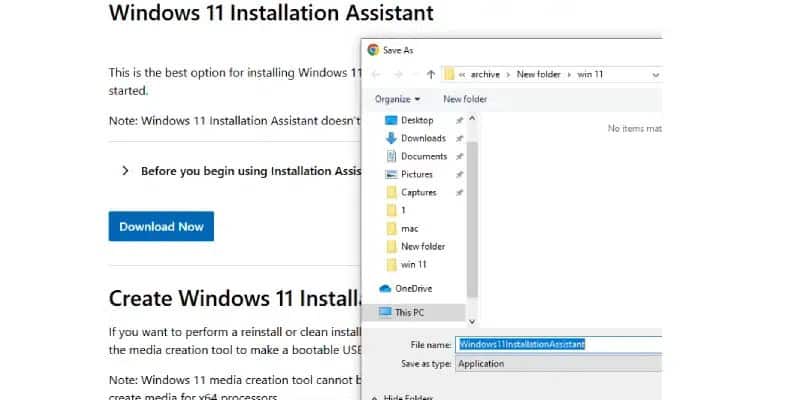
Download the Windows 11 installation tool from Microsoft’s official website and create bootable installation media on a USB drive with at least 8GB capacity. Verify that your system meets Windows 11 hardware requirements, including TPM 2.0 and Secure Boot capability. Gather product keys for Windows 11 and essential software applications you’ll need to reinstall.
Create a list of installed programs and their settings to streamline the reinstallation process. Screenshot important configuration screens and export browser bookmarks and saved passwords. This preparation significantly reduces the time required to restore your system to a functional state after the Clean Install vs Reset process completes.
Hardware Driver Collection
Collect drivers for all hardware components, especially network adapters, graphics cards, and specialized peripherals. While Windows 11 includes extensive driver support, having manufacturer-specific drivers ensures optimal hardware performance. Download the latest drivers from manufacturers’ websites rather than relying on generic Windows drivers.
Store all drivers on a separate USB drive or accessible network location. Organization is key—create folders for different device types and include version numbers in file names. This preparation allows you to quickly restore full hardware functionality after completing the clean install portion of your Clean Install vs Reset decision.
Clean Install Vs Reset In Windows 11: What's Best? 9
Executing the Clean Install Process
The actual clean install process requires attention to detail and patience. Boot from your installation media and follow the setup wizard, paying careful attention to drive partitioning options. When prompted, select “Custom” installation and delete all existing partitions to ensure a completely clean slate.
Installation and Initial Configuration
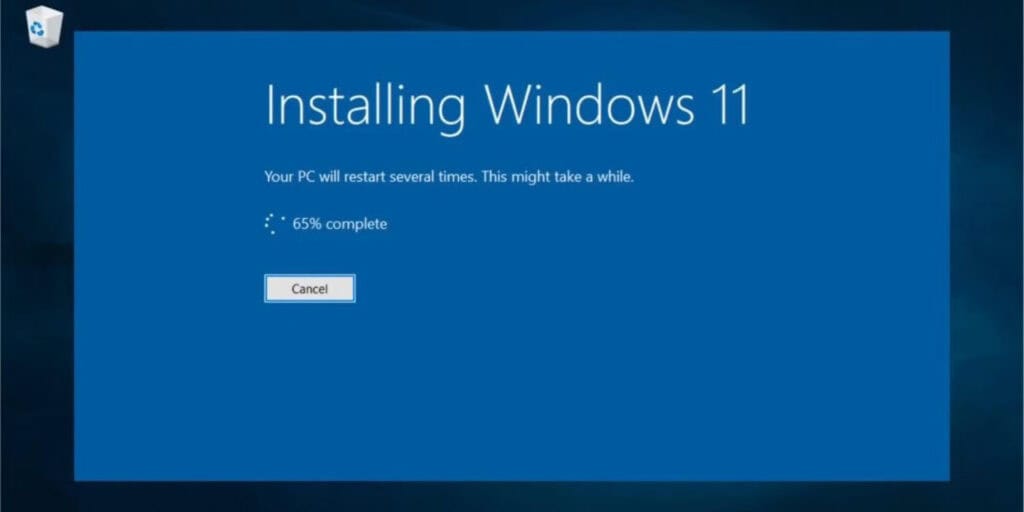
During the Clean Install vs Reset process, Windows 11 will create new partitions and copy system files. This phase typically takes 30-60 minutes depending on your storage device speed. After the initial installation, Windows will restart several times and present configuration screens for user accounts, privacy settings, and basic preferences.
Create a local administrator account initially, even if you plan to use Microsoft accounts later. This provides a fallback option if online account services experience issues. Configure basic settings conservatively—you can always adjust privacy and feature settings after ensuring system stability.
Post-Installation Setup and Software Restoration
After completing the base installation, begin systematic software restoration. Start with essential security software and system utilities before moving to productivity applications and personal software. Install programs in order of importance, testing system stability after each major addition.
Restore personal data gradually, verifying file integrity as you go. This methodical approach helps identify any issues early in the Clean Install vs Reset process. Configure Windows Update to download and install the latest security patches and system updates before declaring the installation complete.
Implementing System Reset
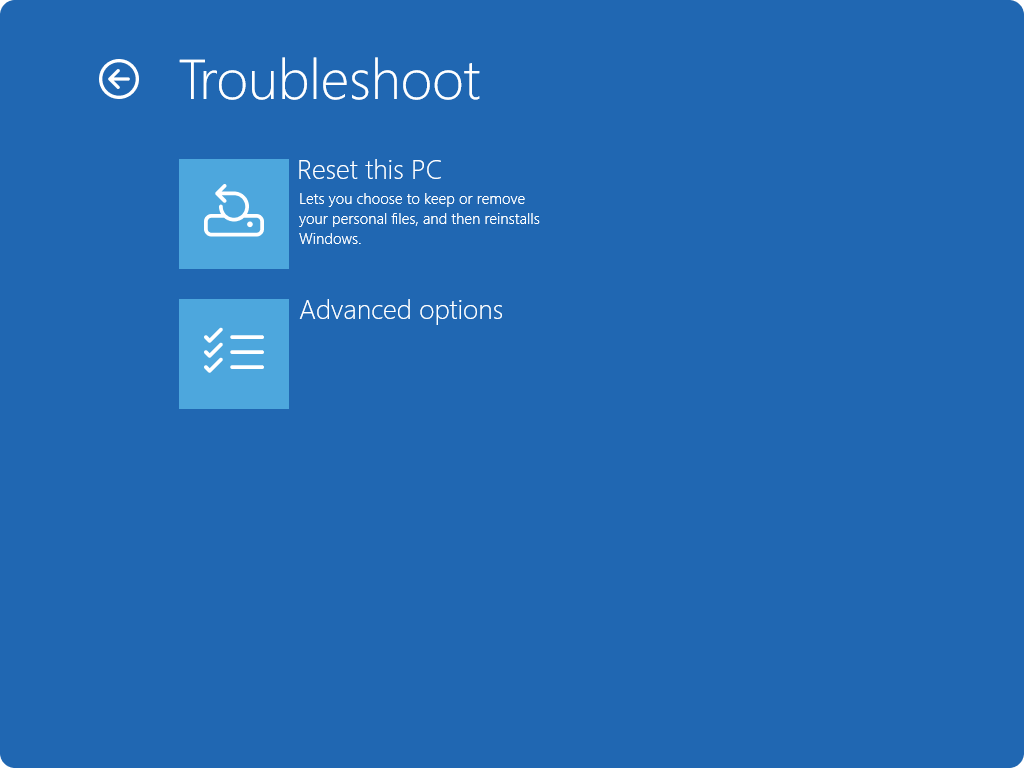
The reset process in the Clean Install vs Reset comparison offers a more streamlined approach to system restoration. Access the reset feature through Windows 11 Settings under “System” > “Recovery” > “Reset this PC.” The interface provides clear options for keeping or removing personal files and selecting reset methods.
Clean Install Vs Reset In Windows 11: What's Best? 10
Reset Configuration Options
Windows 11 offers two primary reset options when considering Clean Install vs Reset. “Keep my files” preserves personal data while removing applications and resetting system settings. “Remove everything” provides a more thorough reset similar to a clean install but using existing recovery partitions rather than fresh installation media.
Choose between local reset using existing system files or cloud-based reset that downloads fresh Windows 11 files from Microsoft servers. Cloud reset ensures the latest system files but requires internet connectivity and takes longer to complete. Local reset is faster but uses existing system files that might contain minor corruption.
Monitoring and Troubleshooting Reset Process
The reset process typically takes 1-3 hours depending on your system speed and chosen options. Monitor progress carefully and ensure your system remains powered throughout the process. Unlike the Clean Install vs Reset clean install option, reset provides limited interaction opportunities once started.
If the reset process fails or encounters errors, you may need to resort to a clean install. Keep installation media readily available as a backup option. Document any error messages or codes for troubleshooting purposes, as these can provide valuable information for resolving persistent issues.
Advanced Considerations and Best Practices
Beyond the basic Clean Install vs Reset decision, several advanced factors can influence your choice and improve outcomes. Understanding these considerations helps you make informed decisions and avoid common pitfalls that can complicate system restoration.
Data Migration and Backup Strategies
Successful data migration is crucial regardless of your Clean Install vs Reset choice. Develop a comprehensive backup strategy that includes not just personal files but also application settings, browser data, and system configurations. Use both automated and manual backup methods to ensure complete data protection.
Automated Backup Solutions
Implement automated backup solutions before making your Clean Install vs Reset decision. Windows 11 includes File History and System Image backup features, while third-party solutions offer more comprehensive options. Regular automated backups ensure you always have recent data available for restoration.
Consider cloud-based backup services for critical data, as they provide off-site storage and version history. Document your backup procedures and test restoration processes periodically to ensure backups remain viable when needed. A well-planned backup strategy makes both clean install and reset options more practical and less stressful.
Application and Settings Backup
Beyond personal files, backing up application settings and configurations saves significant time during system restoration. Many applications store settings in predictable locations, while others provide export functions for preferences and configurations. Research backup procedures for your most important applications before making the Clean Install vs Reset decision.
Some applications, particularly professional software, may require deactivation before system restoration and reactivation afterward. Plan these procedures in advance to avoid licensing complications. Document software serial numbers and activation requirements to streamline the restoration process.
Hardware Compatibility and Driver Management
Hardware compatibility plays a crucial role in the Clean Install vs Reset decision, particularly with older systems or specialized peripherals. Windows 11 has stricter hardware requirements than previous versions, potentially affecting device compatibility after restoration.
Pre-Installation Hardware Assessment
Before choosing between Clean Install vs Reset, verify that all hardware components have Windows 11 compatible drivers available. Check manufacturers’ websites for driver availability and support status. Some older peripherals may require third-party drivers or compatibility mode configuration.
Test critical hardware components after initial system restoration to ensure proper functionality. This includes network adapters, graphics cards, printers, and specialized input devices. Having backup driver options available prevents extended downtime if automatic driver installation fails.
Performance Optimization After Restoration
Both options in the Clean Install vs Reset comparison benefit from post-restoration optimization. After completing system restoration, implement performance optimization measures such as disabling unnecessary startup programs, configuring power settings, and optimizing storage allocation.
Monitor system performance during the first few days after restoration to identify any issues early. Use built-in Windows performance monitoring tools to establish baseline performance metrics. This data helps you evaluate the success of your Clean Install vs Reset decision and identify areas for further optimization.
Long-term Maintenance and Prevention
Regardless of your Clean Install vs Reset choice, implementing proper maintenance practices prevents the need for future system restoration. Develop regular maintenance routines that include system updates, disk cleanup, and security scanning.
Proactive System Maintenance
Establish regular maintenance schedules to prevent issues that might necessitate future Clean Install vs Reset decisions. This includes monthly disk cleanup, quarterly system optimization, and annual comprehensive system health checks. Automated maintenance tools can handle routine tasks while you focus on more complex system management.
Keep detailed records of system changes, software installations, and configuration modifications. This documentation proves invaluable when troubleshooting future issues or planning system upgrades. Regular maintenance reduces the likelihood of needing drastic restoration measures.
Future-Proofing Your System
Plan for future system needs when making your Clean Install vs Reset decision. Consider factors such as software upgrade requirements, hardware compatibility, and long-term support availability. Making informed decisions now prevents complications during future system maintenance or upgrades.
Stay informed about Windows 11 updates and feature changes that might affect your system. Microsoft regularly releases updates that can impact system behavior and compatibility. Understanding these changes helps you anticipate potential issues and plan appropriate responses.
Making the Final Decision: Clean Install vs Reset
After examining all factors involved in the Clean Install vs Reset decision, the optimal choice depends on your specific circumstances, technical expertise, and system requirements. Both approaches offer valid solutions to system problems, but they serve different needs and situations.
Weighing the Pros and Cons
The Clean Install vs Reset comparison ultimately comes down to balancing thoroughness against convenience. Clean installs provide the most comprehensive system restoration but require significant time investment and technical knowledge. Reset operations offer quicker restoration with reasonable effectiveness but may not address deeper system issues.
Time and Resource Considerations
Consider your available time and technical resources when making the Clean Install vs Reset decision. Clean installs require dedicated time for preparation, installation, and restoration—typically a full day or weekend. Reset operations can often be completed in an evening with minimal hands-on involvement.
Factor in your backup preparedness and data recovery capabilities. If you maintain comprehensive backups and have experience with system restoration, clean installs become more manageable. Users with limited backup infrastructure or technical experience may find reset operations more practical and less risky.
System Requirements and Goals
Your system’s specific needs and your restoration goals heavily influence the Clean Install vs Reset choice. Systems with persistent malware, severe corruption, or performance issues often benefit more from clean installs. Computers with minor software conflicts or configuration problems may respond adequately to reset operations.
Consider your long-term system usage plans. If you’re preparing a computer for sale or transfer, either approach works well. For systems you’ll continue using intensively, clean installs often provide better long-term performance and reliability.
Your Path Forward
The Clean Install vs Reset decision represents a significant choice in computer maintenance and troubleshooting. Both approaches offer effective solutions to system problems, but they serve different situations and user needs. Clean installs provide maximum system restoration at the cost of time and complexity, while reset operations offer convenient restoration with reasonable effectiveness.
Key Takeaways for Your Decision
When facing the Clean Install vs Reset choice, prioritize your specific needs and circumstances. Consider factors such as system problem severity, available time, technical expertise, and backup preparedness. Neither approach is universally superior—the best choice depends on your unique situation.
Remember that both options in the Clean Install vs Reset comparison can significantly improve system performance and reliability when properly executed. Focus on choosing the approach that best fits your needs and capabilities rather than seeking a universally “correct” answer.
Final Recommendations
If you’re dealing with severe system problems, have comprehensive backups, and can dedicate time to thorough restoration, the Clean Install vs Reset decision should favor clean installation. This approach provides maximum system cleanliness and performance improvement.
For users seeking quick restoration with minimal complexity, reset operations offer an effective compromise. While not as thorough as clean installs, reset procedures can resolve many common system issues with significantly less time investment and technical complexity.
Regardless of your Clean Install vs Reset choice, implement proper backup procedures and maintenance practices to prevent future system problems. Proactive system care reduces the likelihood of needing drastic restoration measures and keeps your Windows 11 system running smoothly for years to come.
The Clean Install vs Reset decision marks an important step in maintaining your computer’s health and performance. Choose the approach that best aligns with your needs, execute it carefully, and enjoy the improved system performance that follows proper restoration procedures.
The Illusion of Stability in Modern Updates For most users, operating system updates are something that simply happen. They arrive quietly, often installing in the background, requiring little more than…
Macbook Neo, How Does It Compare To Air & Pro? Over the last few years the laptop market has experienced one of the most significant architectural changes in its history.…
Apple’s latest product announcements mark one of the most significant shifts in the Mac lineup in more than a decade. While Apple routinely updates its hardware with faster chips, incremental…
There is a particular kind of frustration that only a slow computer can produce. It is not dramatic. It is not urgent. It does not scream for attention. Instead, it…
In an era where nearly every aspect of personal computer maintenance and professional life is mediated through digital systems, your computer is no longer a luxury device — it is…
Phone says charging but battery not increasing is one of the most frustrating problems smartphone users face. You plug it in.The lightning bolt appears.It says “Charging.” But the battery percentage…
Apple’s rumour cycle always looks like a thousand disconnected leaks — until you line them up and notice the same themes repeating: AI-first silicon, camera and display differentiation, form-factor experiments (foldables / spatial…
Wi-Fi connected but no internet is one of the most frustrating messages you can see on a computer or laptop. The Wi-Fi icon shows full bars.It says “Connected.”But websites won’t…
Unfortunately, there was an error submitting your request.
Please try again later, or reach out to us directly. You can call us at +44 1429 280955 or email us at [email protected] for assistance. We’re here to help you get your computer back up and running!
We’ve received your booking, Our team will get in touch with you shortly to confirm the details. You’re one step closer to having your computer fixed! If you have any urgent questions, feel free to contact us. Otherwise, sit back, and we’ll handle the rest.