This CPU cooler buying guide starts with the processor, case and workload you actually have. A suitable cooler needs the correct mounting hardware, enough physical room and appropriate cooling for the way the computer is configured. The largest radiator or highest advertised wattage is not automatically the best fit.
Compare the exact model and its installation documents before ordering. The examples below explain different cooler types; they are not a ranked product test or a claim that Kingfisher has measured their performance in a laboratory.
Table of Contents
Identify the processor and the intended workload
Record the complete CPU model, motherboard and case. Note whether the computer is mainly used for everyday applications, gaming or sustained rendering and other intensive work. Check the processor manufacturer’s thermal guidance and the settings the motherboard applies.
A temperature reading needs context. The workload, room temperature, power settings, fan behaviour and the processor’s documented limits all affect its meaning. Do not assume one temperature target applies to every CPU, or that changing the cooler will fix an unrelated fault.
Read power figures in context
Processor base power or TDP is not always the highest power the CPU may use. Intel explains that turbo operation and certain workloads can exceed that baseline. Check the exact CPU specification and cooling requirements for the intended configuration.
Cooler wattage claims also need their manufacturer’s definition. Avoid treating ratings from different brands as a common measurement of cooling performance. Where a compatibility tool lists the exact CPU and cooler, review its conditions and limitations alongside the installation manual.
Choose an air cooler or a complete liquid cooler
An air cooler transfers heat through its base and heatpipes to a fin stack, with a fan moving air through it. A complete liquid cooler uses a CPU block, pump, tubes, radiator and fans. Both depend on a suitable installation and effective case ventilation.
Air cooling can offer a straightforward setup with fewer powered components. A liquid cooler may suit a particular thermal requirement or case layout, but it needs room for its radiator, fans and tubes. Include pump noise, replacement arrangements and installation access in the comparison.
An Example Of A Tower Air Cooler. Check The Exact Product Code, Mounting Kit And Dimensions Before Purchase.
The single tower example above illustrates the layout of a conventional air cooler. Its appearance does not establish which processors it supports or how quietly it will run in your case.
Check the whole physical installation
For an air cooler, compare the installed height, including fans, with the case limit. Check memory clearance, motherboard heatsinks, the first graphics slot and access to connectors. Do not assume that moving a fan to clear tall memory leaves the total height unchanged.
Noctua’s memory clearance guidance explains this interaction: raising a fan can improve memory clearance while increasing the space needed below the case panel. Use the dimensions for the precise cooler and fan arrangement.
For a liquid cooler, check the radiator and fan thickness together, not just the nominal radiator size. Verify that the chosen mounting position leaves room for the motherboard, graphics card, memory and cable routes. Follow the manufacturer’s permitted orientation and tube routing.
A Dual Tower Example Shows Why Memory, Fan Height And Case Clearance Need To Be Checked Together.
Confirm the socket and mounting kit
Check the cooler’s supported socket list and the hardware actually included in the box. An older unit or used purchase may need a different kit even when a current version of the same range supports the socket.
Keep the backplate, spacers, brackets and screws matched to the documented installation. A broadly similar bracket or a claim of universal fit is not enough. Branded desktop systems can have additional mounting constraints, so confirm the exact machine rather than relying on its processor alone.
Plan the power and control connections
List the fan, pump and any controller connections before buying. Check the motherboard manual for supported headers and electrical limits, then compare the cooler’s instructions for power and speed monitoring. Some complete coolers also need a separate power connection or an internal USB header.
Lighting connections have their own compatibility requirements. A lighting plug is not a substitute for fan or pump power. Check connector type and voltage rather than matching plugs by appearance, and use only the connections approved in the manuals.
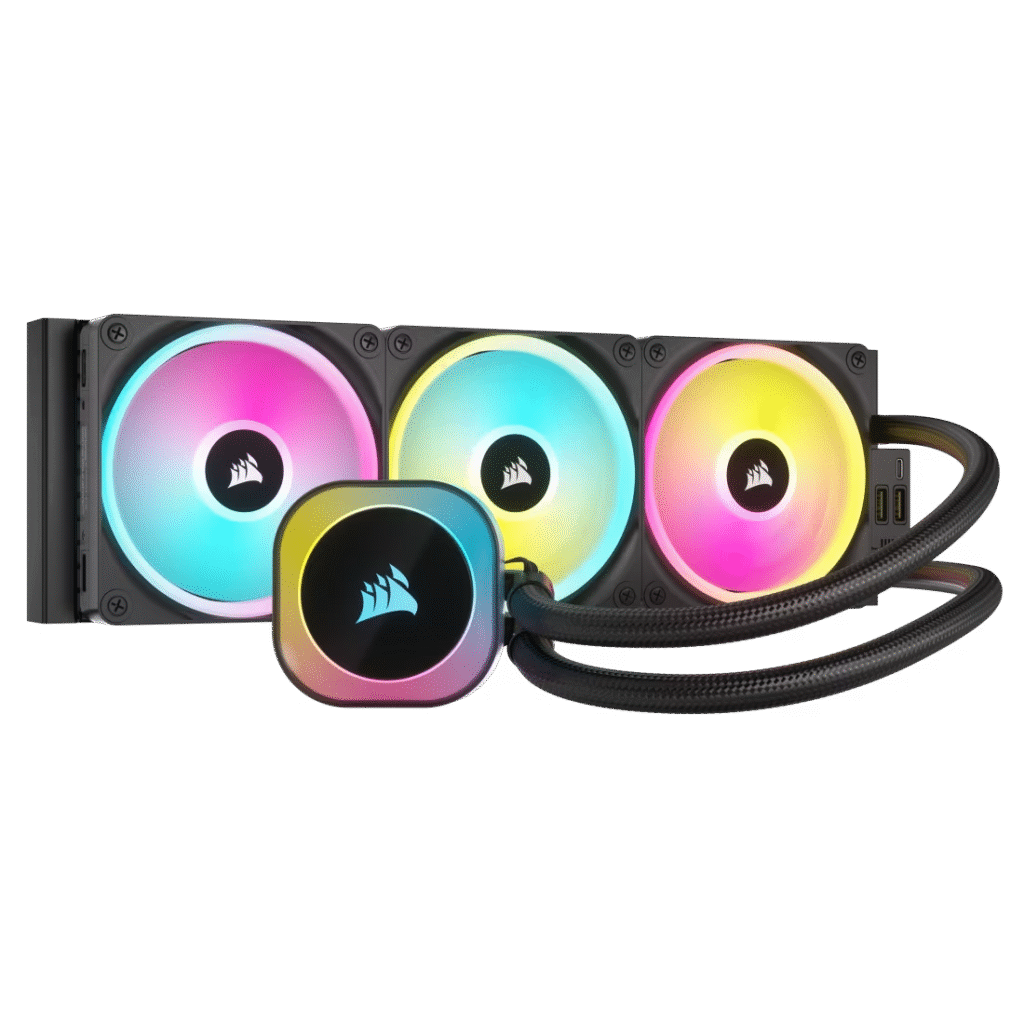
An Example Of A Complete Liquid Cooler. Allow For Radiator And Fan Thickness As Well As The Mounting Position.
This example shows a complete liquid cooler with a radiator, three fans and a CPU block. Check the product code and documents for your chosen unit; the photograph alone cannot confirm its controller, mounting hardware or supported sockets.
Compare cooling and noise under useful conditions
A meaningful review identifies the processor, power settings, workload, room conditions and noise method. Results from different test systems are not directly interchangeable. Prefer comparisons that hold relevant conditions consistent and explain how fans and pumps are controlled.
Think about the sound you will hear at your desk as well as cooling under a sustained task. A fan that repeatedly speeds up during brief background work can be distracting. Use the supported control options to find an appropriate balance without disabling cooling or protection features.
Include the complete ownership cost
Compare the cooler, required mounting kit, compatible controller if needed and any replacement fans as one purchase. Check how accessible routine cleaning and component replacement will be in the finished computer.
Review the manufacturer’s warranty terms and support arrangements. Do not assume an advertised warranty guarantees coverage for every other component or every installation problem. A future mounting kit or compatibility with an unreleased processor should not be treated as certain unless it is explicitly confirmed.
Distinguish CPU coolers from graphics water blocks
A graphics card water block is designed for particular graphics hardware and is not a CPU cooler. For example, EK’s Vector² range described here covers specified graphics cards. A compatible block still requires the other appropriate parts of a custom cooling loop.
A custom CPU loop likewise needs a suitable CPU block and a complete, compatible system. It is a different project from buying a sealed complete cooler. If you are comparing a product listing, confirm what is included and which component it is designed to cool before comparing its price.
Prepare before changing the cooler
Read the full installation sequence first. Disconnect power and follow appropriate handling precautions. Check whether a backplate needs access behind the board and whether other parts must be removed. Follow the manufacturer’s instructions for the thermal interface, tightening sequence and connections.
After installation, verify that the documented fan and pump signals are present and monitor the system under an appropriate workload. Stop if there are temperature warnings, unexpected shutdowns, a suspected leak or another abnormal condition. Repeatedly stressing a failing setup is not a useful substitute for checking the installation.
If the issue is an existing overheating computer, contact the Hartlepool team with its model, symptoms and any recent changes. We can discuss suitable assessment and agree work and costs first. Avoid sending passwords or private files in an enquiry.
Finish with a clear buying checklist
Record the exact CPU, motherboard, case and cooler product codes.
Confirm socket support and the correct mounting kit.
Check the installed cooler or radiator dimensions together with neighbouring parts.
Identify every required power, control and optional lighting connection.
Compare relevant cooling and noise evidence rather than unsupported rankings.
Check the full cost, installation access and support terms.
The Illusion of Stability in Modern Updates For most users, operating system updates are something that simply happen. They arrive quietly, often installing in the background, requiring little more than…
Macbook Neo, How Does It Compare To Air & Pro? Over the last few years the laptop market has experienced one of the most significant architectural changes in its history.…
Apple’s latest product announcements mark one of the most significant shifts in the Mac lineup in more than a decade. While Apple routinely updates its hardware with faster chips, incremental…
There is a particular kind of frustration that only a slow computer can produce. It is not dramatic. It is not urgent. It does not scream for attention. Instead, it…
Small business computer maintenance planning starts with the work you cannot afford to lose. Identify the computers, accounts and files behind those tasks, then agree when maintenance can happen and…
Phone says charging but battery not increasing is one of the most frustrating problems smartphone users face. You plug it in.The lightning bolt appears.It says “Charging.” But the battery percentage…
Apple’s rumour cycle always looks like a thousand disconnected leaks — until you line them up and notice the same themes repeating: AI-first silicon, camera and display differentiation, form-factor experiments (foldables / spatial…
Wi-Fi connected but no internet is one of the most frustrating messages you can see on a computer or laptop. The Wi-Fi icon shows full bars.It says “Connected.”But websites won’t…
Unfortunately, there was an error submitting your request.
Please try again later, or reach out to us directly. You can call us at +44 1429 280955 or email us at sales@kingfishercomputers.co.uk for assistance. We’re here to help you get your computer back up and running!
We’ve received your booking, Our team will get in touch with you shortly to confirm the details. You’re one step closer to having your computer fixed! If you have any urgent questions, feel free to contact us. Otherwise, sit back, and we’ll handle the rest.
Contact Kingfisher Computers
No appointment required. You’re welcome to pop into the shop during opening hours.
ENQUIRY RECEIVED
Thank you
Monday–Friday
9am–5pm
Saturday
9am–4:30pm
Sunday
Closed
Bank holidays
Closed
38 Church Street, Hartlepool, TS24 7DG For home visits and callouts, please wait for us to arrange a time.
Contact Kingfisher Computers
No appointment required. You’re welcome to pop into the shop during opening hours.
ENQUIRY RECEIVED
Thank you
Monday–Friday
9am–5pm
Saturday
9am–4:30pm
Sunday
Closed
Bank holidays
Closed
38 Church Street, Hartlepool, TS24 7DG For home visits and callouts, please wait for us to arrange a time.