Windows won’t install on this PC: 8 Critical Fixes You Need
Connor Boyle
February 4th, 2026
Windows won’t install on this PC is one of the most common and confusing problems we see in our repair shop.
You’ve got the installer ready. The USB boots correctly. Everything looks fine.
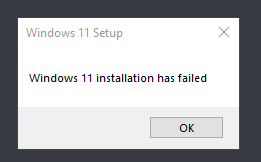
Then suddenly, Windows stops and refuses to continue.
For many people, this feels like hitting a brick wall — especially when the computer should be compatible.
This guide explains why Windows won’t install on this PC, what the error really means, and which fixes actually work in the real world.
Windows won’t install on this PC: common causes and fixes
What “Windows won’t install on this PC” actually means
When Windows displays this message, it isn’t being vague for no reason.
It’s telling you that something about the system does not meet the installation requirements — but frustratingly, it doesn’t always explain which part is causing the problem.
That “something” could be related to:
Hardware configuration
Storage layout or partition style
BIOS or firmware settings
Missing or incorrect drivers
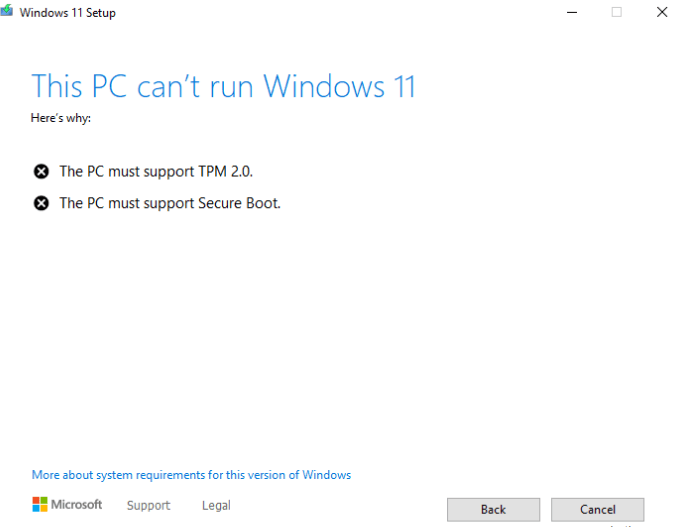
Security requirements like TPM or Secure Boot
From Windows’ point of view, one of these checks has failed, so the installation is stopped to prevent an unstable or insecure system from being created. When this happens, Windows won’t install on this PC until the underlying requirement is met.
From a user’s point of view, however, all you see is a message with no clear next step and no obvious explanation of what’s wrong.
That lack of detail is what makes the error feel so frustrating. Everything appears to be working, yet Windows won’t install on this PC and refuses to continue — leaving you stuck without a clear indication of what needs to change.
Why this error feels especially confusing
Most people see this error after doing everything “right”.
The installer loads. The keyboard and mouse work. The drive appears. The PC seems powerful enough.
There are no obvious warnings, no red flags, and nothing to suggest that the installation is about to fail.
Then Windows suddenly refuses to continue.
Because the installer has already started, it creates a strong impression that the system should be compatible. From a user’s point of view, everything looks correct — which makes the failure feel unexpected, confusing, and unfair.
It often leaves people questioning whether they missed a step, used the wrong installer, or somehow broke something along the way.
From a repair perspective, however, Windows won’t install on this PC is an extremely common issue, especially on newer systems, freshly built PCs, and machines that have recently been upgraded. In many cases, the hardware is perfectly capable — it simply isn’t configured in the exact way Windows expects.
Windows won’t install on this PC: the most common reasons
There is no single cause behind this message.
The Windows won’t install on this PC error can appear for both simple and serious reasons, which is why diagnosis matters before trying random fixes.
Windows won’t install on this PC due to unsupported hardware
This is one of the biggest causes we see.
Common hardware issues
Unsupported CPU
Missing TPM 2.0
No Secure Boot support
This is especially common with Windows 11, which has much stricter requirements than older versions.
Even powerful PCs can be blocked if they don’t meet specific security criteria.
Is this worth fixing?
⚠️ Sometimes
In some cases, settings can be changed. In others, the hardware simply isn’t supported.
Many people try installing Windows again and again, hoping it will eventually work.
They change USB ports. They restart the computer. They run the installer from scratch.
Unfortunately, if Windows won’t install on this PC, repeating the same process rarely helps.
Instead, it often:
Doesn’t fix the root cause of the problem
Makes partition and boot issues worse
Overwrites or damages existing setup files
Risks existing data that might still be recoverable
Each failed attempt leaves the system in a more confused state, making the next install even less likely to succeed.
When Windows refuses to install, it isn’t being random or stubborn — it’s telling you something specific is wrong. The key is to stop repeating the same steps and find out what that problem actually is before continuing.
How we diagnose “Windows won’t install on this PC” errors
At Kingfisher Computers, we don’t guess.
When Windows won’t install on this PC, guessing can waste time, risk data, and make the problem harder to fix. Instead, we follow a structured diagnostic process designed to find the exact cause before any changes are made.
We check:
Hardware compatibility, to confirm the system actually meets Windows requirements
BIOS configuration, including boot mode, Secure Boot, and TPM settings
Drive health and layout, making sure the storage is working and correctly prepared
Installer integrity, to rule out faulty USB media or corrupted installation files
Required drivers, especially for modern storage controllers and chipsets
By working through these checks in order, we remove uncertainty from the process. This tells us exactly why Windows won’t install on this PC, whether the issue is a simple setting, a missing driver, or a genuine compatibility problem — and most importantly, what the correct fix is, without trial and error.
Windows won’t install on this PC: what you can safely try at home
Before assuming the system is broken, there are a few safe checks you can try yourself. These won’t damage your hardware or data if done carefully.
Check BIOS boot mode (UEFI vs Legacy)
Windows 10 and Windows 11 expect modern systems to use UEFI boot mode.
UEFI is the newer, more secure way a computer starts up, and it’s what modern versions of Windows are designed around. If the system is still set to Legacy or CSM mode, Windows may refuse to install even though the hardware itself is perfectly capable.
If the system is set to Legacy or CSM:
Windows may refuse to install without a clear reason
The installer may show confusing or misleading errors
The drive may appear incompatible or unusable
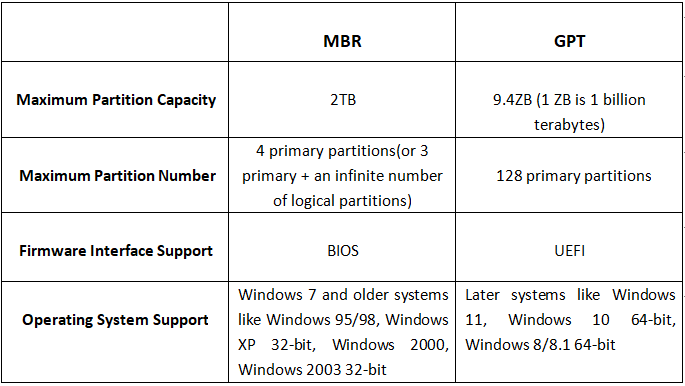
Switching to UEFI often resolves this instantly — but only if the drive is prepared correctly. In most cases, the drive must be formatted using the GPT layout, as UEFI systems cannot boot properly from older MBR disks without additional work.
Confirm Secure Boot and TPM status
On newer systems, especially those installing Windows 11, security settings play a much bigger role than they used to.
Windows now expects:
Secure Boot to be enabled, allowing only trusted startup files
TPM 2.0 to be present, enabled, and active
If either of these is disabled, Windows won’t install on this PC, even if the processor, memory, and storage all meet the requirements.
These settings are often turned off by default or disabled after BIOS updates, resets, or motherboard replacements, which is why they’re frequently overlooked.
Always check Secure Boot and TPM status before reinstalling Windows, as correcting these settings early can save a lot of time and frustration later on.
Disconnect unnecessary drives and devices
Multiple drives can confuse the installer.
During installation:
Disconnect secondary drives
Remove external storage
Leave only the target drive connected
This reduces conflicts and helps Windows identify the correct installation target.
Windows won’t install on this PC: what you should NOT do
Some common online advice causes more harm than good.
Don’t force unsupported installations
Workarounds do exist to bypass installation checks — but they always come with risks, and those risks are often hidden until later.
Forced installs can appear successful at first, but they commonly lead to:
Broken or blocked updates, where Windows refuses to install future patches
Security features being disabled, sometimes without warning
Ongoing compatibility problems, especially after major updates
In other words, the system may install, but it may never run properly or securely. If the hardware isn’t supported, there is usually a clear technical reason — and bypassing that reason often creates more problems than it solves.
Don’t repeatedly change BIOS settings at random
When Windows won’t install, it’s tempting to start switching settings just to see what happens.
This can quickly cause new problems.
Changing BIOS settings without understanding them can:
Hide drives that were previously visible
Break configurations that were working correctly
Make data recovery or repair far more difficult
Once multiple settings have been altered, it becomes much harder to tell what the original issue was.
If you’re unsure what a setting does, the safest option is to stop and get proper diagnostics before things get more complicated.
Don’t assume the drive is faulty immediately
Many people immediately assume the SSD or HDD has failed when this error appears.
That’s an understandable reaction, especially when the system won’t boot at all. Storage drives feel like the “heart” of the computer, so when something goes wrong, they’re often the first thing blamed.
In reality, the situation is usually far less dramatic.
The drive is often fine and still fully readable
The issue is usually configuration-related, such as boot mode, firmware settings, or corrupted startup files
Data is usually still safe, even if Windows can’t currently see how to start
This is why proper diagnostics matter so much.
Replacing a drive without understanding the cause can:
Waste money
Put recoverable data at risk
Hide the real problem
Diagnosis always comes before replacement — and in many cases, that diagnosis reveals a fix that doesn’t involve new hardware at all.
When Windows won’t install on this PC becomes a hardware decision
Sometimes, the error is a sign that the system is reaching its limits.
When upgrading makes sense
Upgrading is often worthwhile when the system only just misses the required specifications and doesn’t need a full replacement.
This commonly applies when:
The system narrowly misses requirements by a small margin
A BIOS update adds support for newer operating systems
Storage or memory is outdated and holding the system back
In these cases, the core hardware is usually still perfectly capable. The problem isn’t that the PC is “too old” — it’s that one or two components are stopping Windows from installing.
Simple upgrades, such as increasing memory, replacing a slow drive with an SSD, or updating the system firmware, can often unlock full compatibility and allow Windows to install normally without unnecessary expense.
If the upgrade cost is reasonable, this approach can extend the life of the system by several years while avoiding the need for a full replacement.
Replacement may be the better option when the system is being held back by limitations that can’t realistically be fixed.
This usually applies when:
The CPU is unsupported, meaning Windows can’t be installed or updated properly
Security features are missing, such as TPM or Secure Boot, which modern versions of Windows now require
Multiple components need upgrading at the same time, pushing the cost close to — or beyond — the value of the machine
In these situations, upgrading individual parts often leads to diminishing returns, where you spend money but still end up with a system that feels outdated or restricted.
We’ll always explain when a repair or upgrade isn’t worth the cost, and help you decide whether replacing the system will give you better performance, reliability, and long-term value instead.
How we fix Windows installation problems at Kingfisher Computers
When a system comes in with this issue, we follow a clear process.
Our diagnostic approach
We check every part of the system methodically, rather than guessing or jumping straight to replacements.
That includes:
Hardware compatibility, to confirm the system actually meets Windows requirements
BIOS configuration, making sure settings like UEFI, Secure Boot, and TPM are correct
Drive format and health, checking that storage is prepared properly and isn’t failing
Installer integrity, ruling out corrupted USB media or incomplete downloads
Required drivers, ensuring Windows can see and use the hardware correctly
This structured approach allows us to fix the issue without unnecessary replacements or wasted costs, and without risking your data.
Clear advice, no guesswork
Once we identify the cause, we take the time to explain everything clearly and in plain English.
We’ll walk you through:
Why Windows won’t install on this PC, in simple terms
What the fix involves, step by step
Whether it’s actually worth doing, based on cost and long-term reliability
There’s no pressure to proceed, no confusing jargon, and no upselling.
Just clear options, honest advice, and the information you need to decide what makes sense for you.
Final thoughts: Windows won’t install on this PC is usually fixable
TThat message feels final — but it rarely is.
When Windows won’t install on this PC, it can look like the system has hit a dead end. In reality, that message usually appears because Windows has detected a specific requirement that hasn’t been met — not because the computer is broken.
In many cases:
The hardware is fine and fully capable of running Windows
The drive is fine and working exactly as it should
The fix is configuration-based, not hardware-related
This means the solution is often found in settings, preparation, or compatibility checks rather than expensive repairs or replacements.
The key is understanding why Windows won’t install on this PC before taking action. Once the underlying cause is identified, the correct fix becomes clear — and in many situations, the installation can continue without any loss of data or unnecessary changes.
Need help with a Windows installation problem?
If Windows refuses to install and you’re stuck at this message, bring the system in and let us take a proper look.
We’ll identify the cause and help you choose the best next step.
The Illusion of Stability in Modern Updates For most users, operating system updates are something that simply happen. They arrive quietly, often installing in the background, requiring little more than…
Macbook Neo, How Does It Compare To Air & Pro? Over the last few years the laptop market has experienced one of the most significant architectural changes in its history.…
Apple’s latest product announcements mark one of the most significant shifts in the Mac lineup in more than a decade. While Apple routinely updates its hardware with faster chips, incremental…
There is a particular kind of frustration that only a slow computer can produce. It is not dramatic. It is not urgent. It does not scream for attention. Instead, it…
In an era where nearly every aspect of personal computer maintenance and professional life is mediated through digital systems, your computer is no longer a luxury device — it is…
Phone says charging but battery not increasing is one of the most frustrating problems smartphone users face. You plug it in.The lightning bolt appears.It says “Charging.” But the battery percentage…
Apple’s rumour cycle always looks like a thousand disconnected leaks — until you line them up and notice the same themes repeating: AI-first silicon, camera and display differentiation, form-factor experiments (foldables / spatial…
Wi-Fi connected but no internet is one of the most frustrating messages you can see on a computer or laptop. The Wi-Fi icon shows full bars.It says “Connected.”But websites won’t…
Unfortunately, there was an error submitting your request.
Please try again later, or reach out to us directly. You can call us at +44 1429 280955 or email us at [email protected] for assistance. We’re here to help you get your computer back up and running!
We’ve received your booking, Our team will get in touch with you shortly to confirm the details. You’re one step closer to having your computer fixed! If you have any urgent questions, feel free to contact us. Otherwise, sit back, and we’ll handle the rest.