How to Upgrade Your GPU Without Bottlenecking Your System
Adam Fornal
June 30th, 2025
Table of Contents
How to Upgrade Your GPU Without Bottlenecking Your System
Graphics processing has become increasingly crucial for modern computing, whether you’re gaming, creating content, or working with demanding applications. When you decide to Upgrade Your GPU, the goal extends beyond simply installing a more powerful graphics card. The real challenge lies in ensuring your entire system works harmoniously to deliver the performance improvements you’re seeking. A poorly planned GPU upgrade can result in bottlenecks that limit your new hardware’s potential and waste your investment.
Understanding system balance is essential when you Upgrade Your GPU. Your graphics card doesn’t operate in isolation—it relies on your processor, memory, storage, and power supply to deliver optimal performance. Each component plays a vital role in the overall system equation. When one component significantly outperforms or underperforms relative to others, bottlenecks occur, preventing you from realizing the full benefits of your upgrade. This comprehensive guide will help you navigate the complexities of GPU upgrades while maintaining system harmony.
The Science Behind GPU Bottlenecks
Before you Upgrade Your GPU, it’s crucial to understand what bottlenecks are and how they impact system performance. A bottleneck occurs when one component limits the performance of other components, creating a constraint that prevents your system from reaching its full potential. In graphics-intensive scenarios, bottlenecks commonly occur between the CPU and GPU, though other components can also create limitations.
When you Upgrade Your GPU to a significantly more powerful model, your processor might struggle to feed it enough data to stay busy. This CPU bottleneck manifests as lower-than-expected frame rates in games or longer rendering times in creative applications. Conversely, pairing a powerful processor with an inadequate graphics card creates a GPU bottleneck, where the graphics card becomes the limiting factor. The key to successful upgrades lies in maintaining balanced performance across all system components.
Understanding Performance Scaling and Diminishing Returns
Performance scaling becomes increasingly important as you Upgrade Your GPU to higher-tier models. While a mid-range graphics card might deliver substantial improvements over integrated graphics, upgrading from one high-end card to another might yield smaller gains. This phenomenon, known as diminishing returns, affects all computer components but is particularly noticeable with graphics cards due to their significant cost differences between performance tiers.
When you Upgrade Your GPU, consider the resolution and refresh rate of your display. A powerful graphics card paired with a 1080p 60Hz monitor won’t demonstrate its full capabilities, while a 4K 144Hz display demands significant graphics processing power. Understanding these relationships helps you make informed decisions about which GPU tier provides the best value for your specific use case and ensures your upgrade delivers meaningful improvements.
Pre-Upgrade Assessment and Planning
Successfully executing a plan to Upgrade Your GPU requires thorough preparation and system analysis. Rushing into an upgrade without proper assessment often leads to compatibility issues, performance disappointments, or unexpected expenses. Taking time to evaluate your current system and define your upgrade goals will guide you toward the most appropriate graphics card choice.
Current System Analysis
Before you Upgrade Your GPU, conduct a comprehensive analysis of your existing hardware. Document your current processor model, installed memory capacity and speed, motherboard specifications, power supply wattage and efficiency rating, and case dimensions. This information forms the foundation for making compatibility and performance decisions throughout the upgrade process.
Pay particular attention to your processor’s age and performance tier when planning to Upgrade Your GPU. Processors more than four to five years old might struggle to keep pace with modern high-end graphics cards, especially at lower resolutions where the CPU workload increases. Research your processor’s performance in current games and applications to establish realistic expectations for your GPU upgrade. Online databases and benchmarking websites provide valuable comparisons between different processor and graphics card combinations.
Identifying Current Performance Limitations
Understanding where your system currently struggles helps you make informed decisions when you Upgrade Your GPU. Run performance monitoring software during typical usage scenarios to identify which components reach maximum utilization first. If your current graphics card consistently operates at 100% while your processor usage remains low, a GPU upgrade will likely deliver significant improvements. However, if both components reach high utilization simultaneously, you might need to consider upgrading multiple components.
When you Upgrade Your GPU, consider your specific use cases and performance requirements. Gaming at 1080p resolution places different demands on your system than 4K gaming or professional content creation. Creative applications like video editing or 3D rendering might benefit more from certain graphics card features than raw gaming performance. Clearly defining your performance goals helps narrow down suitable GPU options and prevents overspending on unnecessary capabilities.
Power supply compatibility represents one of the most critical factors when you Upgrade Your GPU. Modern graphics cards consume significantly more power than their predecessors, and inadequate power supplies can cause system instability, unexpected shutdowns, or prevent your computer from starting altogether. Never attempt to Upgrade Your GPU without first verifying your power supply can handle the increased electrical demands.
Calculating Power Requirements and Headroom
When you Upgrade Your GPU, calculate total system power consumption rather than focusing solely on the graphics card’s requirements. Add up the power consumption of your processor, graphics card, memory, storage devices, and other components, then add a 20-30% buffer for system stability and efficiency. This headroom ensures your power supply operates within its optimal efficiency range and provides room for future upgrades or component aging.
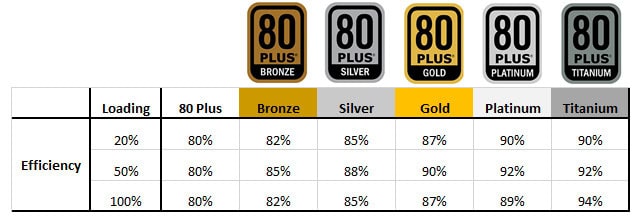
Quality matters as much as wattage when you Upgrade Your GPU. A high-quality 650-watt power supply from a reputable manufacturer often provides more reliable power delivery than a 750-watt unit from an unknown brand. Look for 80 Plus certification ratings, which indicate energy efficiency standards. Modular power supplies offer cable management advantages that can improve airflow around your new graphics card, contributing to better cooling performance.
How To Upgrade Your Gpu Without Bottlenecking Your System 6
Motherboard Compatibility and PCIe Standards
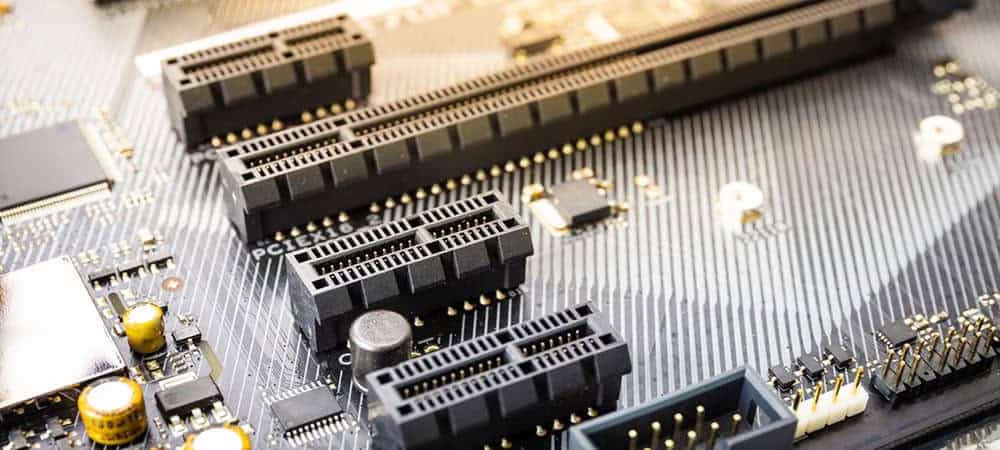
Motherboard compatibility extends beyond simple physical fit when you Upgrade Your GPU. While most modern graphics cards use PCIe x16 slots, the PCIe generation and lane configuration can impact performance. Understanding these specifications helps ensure your motherboard won’t limit your new graphics card’s performance potential.
PCIe Generation Impact on Performance
When you Upgrade Your GPU, verify your motherboard’s PCIe generation and available bandwidth. PCIe 3.0 x16 provides sufficient bandwidth for most current graphics cards, while PCIe 4.0 offers double the bandwidth for future-proofing. However, the practical performance difference between PCIe generations is minimal for most graphics cards, with even high-end models rarely saturating PCIe 3.0 x16 bandwidth in real-world scenarios.
Consider your motherboard’s age and feature set when planning to Upgrade Your GPU. Older motherboards might lack newer connectivity options like USB-C or high-speed network interfaces that complement modern graphics cards. While these limitations don’t prevent GPU upgrades, they might influence your overall system upgrade strategy. Sometimes upgrading multiple components simultaneously provides better value than piecemeal improvements.
How To Upgrade Your Gpu Without Bottlenecking Your System 7
Choosing the Right GPU for Your System
Selecting the appropriate graphics card when you Upgrade Your GPU requires balancing performance requirements, budget constraints, and system compatibility. The graphics card market offers numerous options across different price points, each targeting specific use cases and performance levels. Making an informed choice prevents buyer’s remorse and ensures your upgrade delivers the improvements you’re seeking.
Performance Tier Matching
When you Upgrade Your GPU, choose a performance tier that complements your processor and display setup. Pairing a high-end graphics card with an aging processor often results in CPU bottlenecks that prevent you from utilizing the GPU’s full potential. Conversely, installing a budget graphics card in a high-performance system might leave processing power unused and fail to deliver satisfactory improvements.
CPU and GPU Balance Guidelines
Achieving proper balance when you Upgrade Your GPU requires understanding the relationship between different performance tiers. As a general guideline, pair entry-level graphics cards with budget processors, mid-range GPUs with mainstream processors, and high-end graphics cards with enthusiast-level processors. However, these relationships aren’t absolute, and specific use cases might warrant different combinations.
Consider your target resolution and frame rate when you Upgrade Your GPU. Higher resolutions place greater demands on the graphics card while reducing CPU bottlenecks, allowing you to pair powerful GPUs with older processors more successfully. Lower resolutions increase CPU importance, making processor upgrades more beneficial for overall system performance. Understanding these dynamics helps you make informed decisions about component priorities.
Budget Considerations and Value Analysis
Budget planning becomes crucial when you Upgrade Your GPU, as graphics cards span a wide price range with varying price-to-performance ratios. Establish a realistic budget that includes not only the graphics card cost but also potential supporting upgrades like power supplies or cooling solutions. Remember that the most expensive option isn’t always the best choice for your specific needs.
Identifying Sweet Spots in GPU Pricing
When you Upgrade Your GPU, look for performance sweet spots where price increases deliver proportional performance gains. Graphics card pricing often includes premium charges for flagship models that provide minimal performance improvements over slightly lower-tier options. Research price-to-performance ratios across different GPU models to identify the best value for your budget and performance requirements.
Consider the longevity of your investment when you Upgrade Your GPU. While budget graphics cards provide immediate improvements at lower costs, mid-range options might offer better long-term value by remaining relevant longer. Factor in your upgrade frequency and performance requirements over the next 2-3 years to determine the most cost-effective approach for your situation.
Modern graphics cards offer various features beyond raw performance when you Upgrade Your GPU. Hardware-accelerated ray tracing, AI-enhanced rendering, content creation acceleration, and advanced display connectivity can significantly impact your computing experience. Evaluating these features helps ensure your upgrade remains relevant as software and gaming technologies evolve.
Emerging Technologies and Standards
When you Upgrade Your GPU, consider support for emerging technologies that might become important during your ownership period. Features like hardware ray tracing, DLSS or FSR upscaling, and AV1 encoding provide tangible benefits in supported applications. While these features might not be essential today, their growing adoption makes them valuable for future-proofing your system.
Display connectivity options become increasingly important as monitor technologies advance. When you Upgrade Your GPU, ensure your chosen card supports your current and planned display setup. Features like DisplayPort 2.0, HDMI 2.1, and USB-C video output enable high-resolution, high-refresh-rate displays that enhance your computing experience. Consider your display upgrade plans when selecting graphics card features.
Installation Process and Best Practices
The physical installation process when you Upgrade Your GPU requires careful attention to detail and proper preparation. While the basic procedure involves removing your old graphics card and installing the new one, several important steps ensure optimal performance and system stability. Following established best practices prevents common installation problems and maximizes your upgrade’s success.
Pre-Installation Preparation
Before you Upgrade Your GPU, prepare your system and workspace for the installation process. Create a clean, well-lit workspace with adequate room to maneuver your computer case. Gather necessary tools including a Phillips head screwdriver, anti-static wrist strap, and cable ties for organization. Download the latest drivers for your new graphics card but don’t install them until after the physical installation is complete.
Driver Cleanup and System Preparation
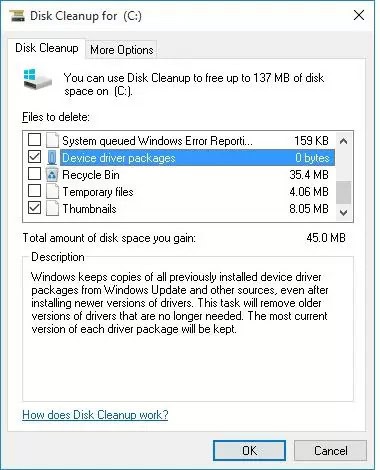
Proper driver management is crucial when you Upgrade Your GPU, especially when switching between different manufacturers. Use display driver uninstaller utilities to completely remove existing graphics drivers before installing your new card. This process prevents conflicts between old and new driver files that can cause stability issues or prevent your new graphics card from functioning correctly.
Create a system restore point before you Upgrade Your GPU to provide a recovery option if installation problems occur. Back up important files and ensure you have access to your Windows installation media in case of serious system issues. While GPU installations rarely cause major problems, preparation protects your data and reduces recovery time if issues arise.
How To Upgrade Your Gpu Without Bottlenecking Your System 8
Physical Installation Steps
When you Upgrade Your GPU, follow systematic installation procedures to ensure proper seating and connection. Power down your system completely and disconnect all cables before opening the case. Remove the old graphics card by releasing the PCIe slot retention mechanism and disconnecting power cables. Many users forget this step, so take time to locate and properly release all connection points.
Proper Seating and Connection Verification
Installing your new graphics card when you Upgrade Your GPU requires gentle but firm pressure to ensure proper seating in the PCIe slot. The card should slide smoothly into position and sit level in the slot. If you encounter resistance, stop and check for obstructions or misalignment rather than forcing the installation. Properly seated cards will have their connector fully inserted and the retention mechanism engaged.
Connect all required power cables when you Upgrade Your GPU, ensuring each connector is fully seated and locked in place. Modern high-performance graphics cards often require multiple power connections, and missing any connection will prevent the card from functioning. Route power cables to avoid interfering with fans or other components, and use cable ties to maintain clean cable management that promotes good airflow.
Post-Installation Testing and Optimization
After you Upgrade Your GPU and complete the physical installation, systematic testing ensures everything functions correctly before finalizing the upgrade. Start with basic functionality tests like display output and system stability before moving to performance benchmarks and optimization. This methodical approach helps identify and resolve issues early in the process.
Initial System Verification
Begin post-installation testing when you Upgrade Your GPU by verifying basic system functionality. Check that your display connects properly and shows the correct resolution. Verify that your system boots normally and recognizes the new graphics card in device manager. Run basic stability tests to ensure the system remains stable under normal operating conditions before proceeding to performance testing.
Install the latest graphics drivers when you Upgrade Your GPU and configure basic settings for optimal performance. Enable any hardware features like ray tracing or upscaling technologies that your new card supports. Run driver optimization utilities if available to automatically configure game-specific settings. These initial optimizations ensure you get the best possible performance from your upgrade from the start.
Monitoring and Optimization Strategies
Successfully completing the installation when you Upgrade Your GPU is only the beginning of the optimization process. Ongoing monitoring and fine-tuning ensure your new graphics card delivers optimal performance while maintaining system stability. Developing good monitoring habits helps you identify potential issues early and maintain peak performance throughout your graphics card’s lifespan.
Performance Monitoring Tools and Techniques
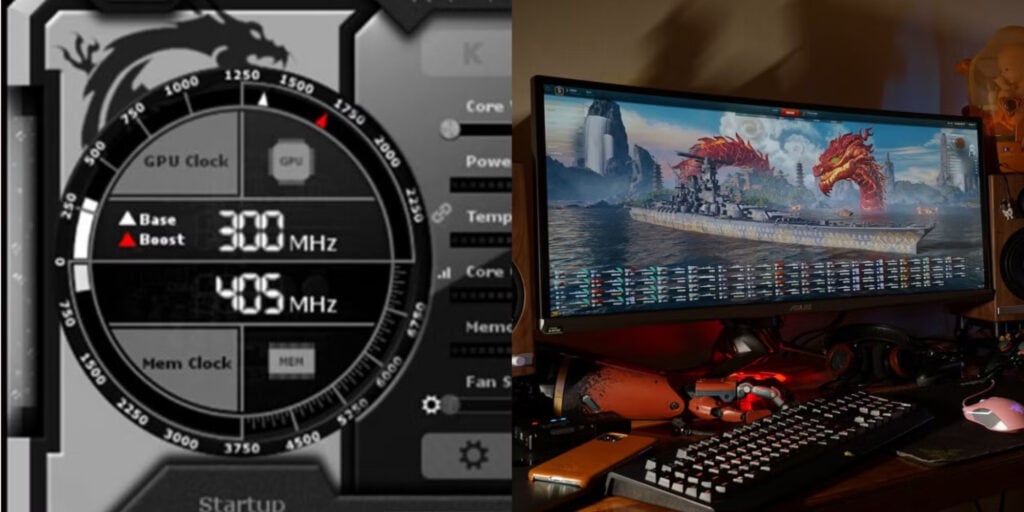
When you Upgrade Your GPU, establish baseline performance metrics using reliable monitoring tools. Software like MSI Afterburner, GPU-Z, and HWiNFO provide real-time information about temperatures, clock speeds, memory usage, and power consumption. Understanding these metrics helps you identify when your system is performing optimally and when adjustments might be necessary.
How To Upgrade Your Gpu Without Bottlenecking Your System 9
Temperature and Thermal Management
Thermal monitoring becomes particularly important when you Upgrade Your GPU to a more powerful model that generates additional heat. Graphics cards typically operate safely up to 80-85°C, but lower temperatures generally provide better performance and longevity. Monitor GPU temperatures during various workloads to ensure your cooling solution adequately handles the increased thermal output from your upgrade.
Consider case airflow optimization when you Upgrade Your GPU if temperatures exceed comfortable ranges. Adding case fans, improving cable management, or adjusting fan curves can significantly impact graphics card temperatures. Some users find that undervolting their new graphics card reduces temperatures while maintaining performance levels, extending component lifespan and reducing noise levels.
Fine-Tuning and Optimization
After you Upgrade Your GPU, spend time optimizing settings for your specific use cases and preferences. Graphics card manufacturers provide software utilities that simplify overclocking, fan control, and performance profiling. Start with conservative settings and gradually increase performance parameters while monitoring stability and temperatures. This iterative approach prevents system instability while maximizing performance gains.
Game and Application Optimization
When you Upgrade Your GPU, revisit graphics settings in games and applications to take advantage of your increased performance headroom. Many users continue using settings optimized for their previous graphics card, missing opportunities to improve visual quality or frame rates. Systematically review and update graphics settings to match your new hardware capabilities and display specifications.
Consider enabling new graphics features that become available when you Upgrade Your GPU. Technologies like ray tracing, DLSS, or FSR can dramatically improve visual quality or performance in supported titles. Experiment with different combinations of settings to find the optimal balance between visual quality and performance for your preferences and system capabilities.
Troubleshooting Common Issues
Even carefully planned upgrades can encounter problems when you Upgrade Your GPU. Understanding common issues and their solutions helps you quickly resolve problems and get your system running optimally. Most GPU upgrade problems fall into a few categories, and systematic troubleshooting approaches can identify and resolve the majority of issues.
Hardware Compatibility Problems
Physical compatibility issues sometimes arise when you Upgrade Your GPU, particularly in compact systems or older computers. Graphics card length, width, or height might exceed case clearances, while power supply limitations can prevent proper operation. Addressing these hardware constraints might require case modifications, component relocations, or additional hardware purchases.
Power and Electrical Issues
Power-related problems are among the most common when you Upgrade Your GPU to a significantly more powerful model. Insufficient power supply capacity, inadequate power connectors, or poor power quality can cause system instability, crashes, or failure to boot. Symptoms include random shutdowns during graphics-intensive tasks, artifacts on screen, or the system failing to power on completely.
When troubleshooting power issues after you Upgrade Your GPU, verify that all power connectors are properly seated and that your power supply meets the graphics card’s requirements. Calculate total system power consumption including all components, not just the graphics card. Consider that power supplies lose capacity over time, and an aging unit might not deliver its original rated capacity.
Driver and Software Conflicts
Software conflicts can prevent optimal performance when you Upgrade Your GPU, particularly when switching between different graphics card manufacturers. Residual driver files, conflicting software, or corrupted installations can cause various problems ranging from poor performance to system crashes. Systematic driver management resolves most software-related issues.
Performance and Bottleneck Issues
Performance problems after you Upgrade Your GPU often indicate system bottlenecks or configuration issues rather than hardware defects. If your new graphics card isn’t delivering expected performance improvements, systematic testing can identify the limiting factors. Monitor CPU usage, memory utilization, and storage performance during typical workloads to identify potential constraints.
When diagnosing performance issues after you Upgrade Your GPU, compare your results against published benchmarks using similar hardware configurations. Significant performance discrepancies suggest configuration problems, thermal throttling, or other system issues. Methodical testing and comparison help isolate problems and guide appropriate solutions.
How To Upgrade Your Gpu Without Bottlenecking Your System 10
Maximizing Your GPU Upgrade Success
Successfully completing your project to Upgrade Your GPU requires careful planning, methodical execution, and ongoing optimization. The process extends far beyond simply installing new hardware—it involves understanding system balance, ensuring compatibility, and optimizing performance for your specific needs. By following the comprehensive guidelines outlined in this guide, you’ll maximize the benefits of your graphics card investment while avoiding common pitfalls that can compromise system performance.
Long-Term Maintenance and Care
After you Upgrade Your GPU, establish maintenance routines that preserve performance and extend component lifespan. Regular driver updates, thermal monitoring, and system cleaning help maintain optimal performance over time. Monitor performance trends to identify when additional optimizations or component upgrades become beneficial. Understanding your upgraded system’s characteristics enables you to make informed decisions about future improvements.
The knowledge gained from successfully completing your first major GPU upgrade provides valuable experience for future system improvements. Each upgrade teaches important lessons about system compatibility, performance optimization, and troubleshooting techniques. When you Upgrade Your GPU again in the future, this experience will guide you toward even better results with greater confidence and efficiency.
Remember that graphics technology continues evolving rapidly, and today’s high-end graphics card will eventually become tomorrow’s mainstream option. Planning your upgrade strategy with future expandability in mind helps maximize the longevity of your investment and prepares your system for subsequent improvements when they become necessary or desirable.
The Illusion of Stability in Modern Updates For most users, operating system updates are something that simply happen. They arrive quietly, often installing in the background, requiring little more than…
Macbook Neo, How Does It Compare To Air & Pro? Over the last few years the laptop market has experienced one of the most significant architectural changes in its history.…
Apple’s latest product announcements mark one of the most significant shifts in the Mac lineup in more than a decade. While Apple routinely updates its hardware with faster chips, incremental…
There is a particular kind of frustration that only a slow computer can produce. It is not dramatic. It is not urgent. It does not scream for attention. Instead, it…
In an era where nearly every aspect of personal computer maintenance and professional life is mediated through digital systems, your computer is no longer a luxury device — it is…
Phone says charging but battery not increasing is one of the most frustrating problems smartphone users face. You plug it in.The lightning bolt appears.It says “Charging.” But the battery percentage…
Apple’s rumour cycle always looks like a thousand disconnected leaks — until you line them up and notice the same themes repeating: AI-first silicon, camera and display differentiation, form-factor experiments (foldables / spatial…
Wi-Fi connected but no internet is one of the most frustrating messages you can see on a computer or laptop. The Wi-Fi icon shows full bars.It says “Connected.”But websites won’t…
Unfortunately, there was an error submitting your request.
Please try again later, or reach out to us directly. You can call us at +44 1429 280955 or email us at sales@kingfishercomputers.co.uk for assistance. We’re here to help you get your computer back up and running!
We’ve received your booking, Our team will get in touch with you shortly to confirm the details. You’re one step closer to having your computer fixed! If you have any urgent questions, feel free to contact us. Otherwise, sit back, and we’ll handle the rest.