Windows computers inevitably slow down and develop problems over time, leaving users wondering when they should take drastic action to restore performance. Determining whether it’s Time to Reinstall Windows requires understanding the difference between minor issues that can be resolved with simple fixes and systemic problems that demand a complete operating system refresh. Making the right decision can save hours of frustration and restore your computer to like-new performance.
Many users delay reinstalling their operating system, hoping that temporary fixes will resolve persistent issues. However, recognizing when it’s Time to Reinstall Windows can prevent weeks of declining productivity and mounting frustration. This comprehensive guide will help you identify the warning signs that indicate your system needs a fresh start, understand when alternative solutions might work, and make informed decisions about the best path forward for your computer’s health and performance.
Common Warning Signs That Indicate System Problems
Windows systems provide numerous indicators when they’re struggling with accumulated issues that simple maintenance cannot resolve. Understanding these warning signs helps determine when it’s Time to Reinstall Windows rather than continuing to apply temporary fixes to deeper systemic problems. These symptoms often develop gradually, making them easy to dismiss initially, but they typically worsen over time until they significantly impact daily computer use.
Boot time serves as one of the most reliable indicators of system health, as startup processes reveal accumulated software conflicts and system inefficiencies. When computers that previously started quickly begin taking several minutes to become usable, this often signals that it’s Time to Reinstall Windows. The boot process involves loading hundreds of system files and services, making it particularly vulnerable to conflicts and corruption that develop over extended use periods.
Application crashes and freezes represent another critical warning sign that shouldn’t be ignored when evaluating system health. While occasional program crashes are normal, frequent failures across multiple applications suggest underlying system instability that may indicate it’s Time to Reinstall Windows. These crashes often result from corrupted system files, incompatible software installations, or registry problems that have accumulated over months or years of system use.
Performance Degradation Patterns
System performance degradation follows predictable patterns that help identify when problems have progressed beyond simple fixes. Gradual slowdowns that affect multiple applications and system functions simultaneously often indicate it’s Time to Reinstall Windows rather than addressing individual symptoms. This systemic slowdown differs from specific application problems or hardware-related performance issues that can be resolved through targeted troubleshooting.
Memory usage patterns provide valuable insights into system health, particularly when available RAM decreases significantly without corresponding increases in active applications. Excessive memory consumption by system processes or unexplained memory leaks often suggest it’s Time to Reinstall Windows to resolve accumulated software conflicts and corrupted system components. These memory issues frequently compound over time, making computers increasingly unresponsive during normal use.
Hard drive activity indicators can reveal system health problems through constant disk access during idle periods or extremely slow file operations. While some disk activity is normal, persistent high disk usage without obvious cause may indicate it’s Time to Reinstall Windows to eliminate problematic background processes and corrupted system files that create unnecessary storage access patterns.
Error Message Frequency and Types
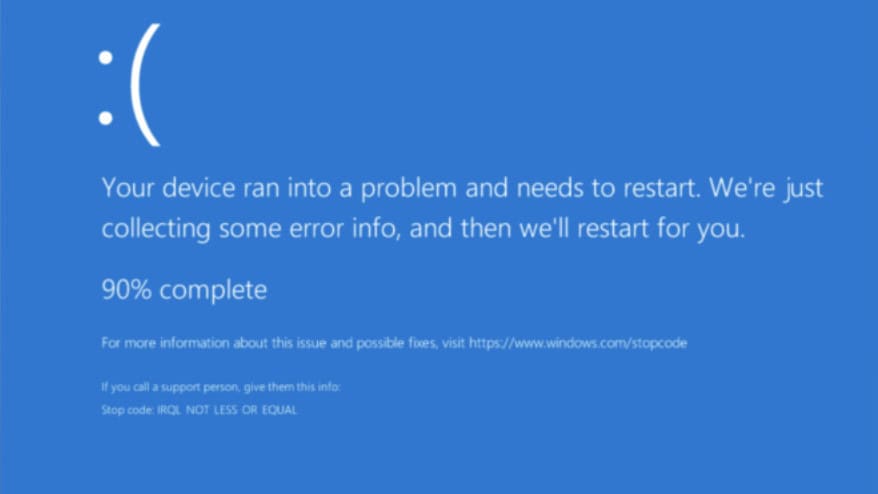
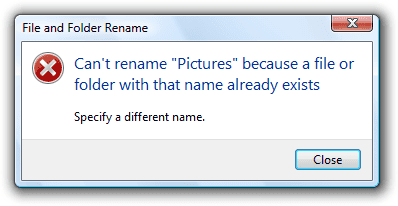
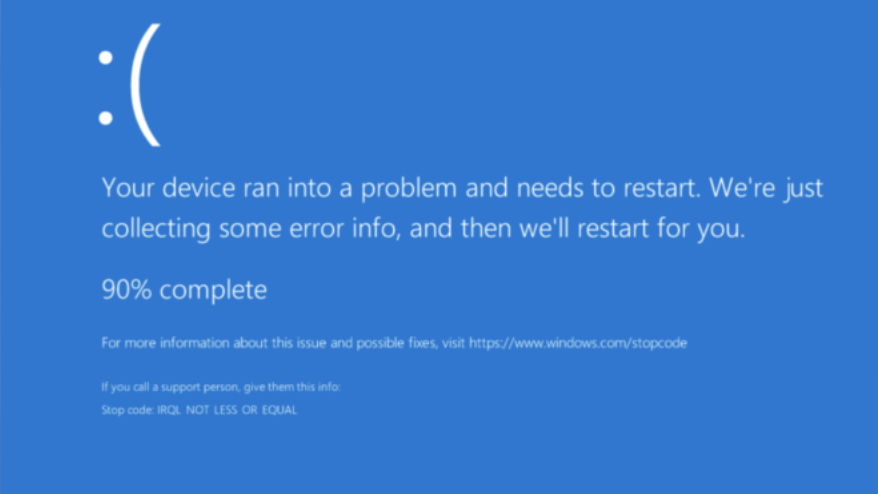
The frequency and types of error messages your system displays provide important clues about underlying stability issues. Blue screen errors, application error dialogs, and system warning messages that occur regularly suggest fundamental problems that may require determining if it’s Time to Reinstall Windows. These errors often indicate hardware driver conflicts, corrupted system files, or incompatible software that has destabilized core system functions.
How To Tell If It's Time To Reinstall Windows 9
Windows Event Viewer contains detailed error logs that reveal patterns of system problems invisible during normal computer use. Critical errors, warnings, and application failures recorded in event logs help determine whether issues are isolated incidents or systemic problems that suggest it’s Time to Reinstall Windows. Regular review of these logs provides early warning of developing issues before they become severe enough to affect daily productivity.
How To Tell If It's Time To Reinstall Windows 10
System file corruption errors represent particularly serious warning signs that often indicate it’s Time to Reinstall Windows. When Windows reports missing or corrupted system files, or when system file checker utilities find unfixable problems, these issues typically indicate deep-seated problems that resist conventional repair attempts. These corruption issues often worsen over time and can lead to complete system failure if not addressed promptly.
Diagnosing Performance Issues Before Taking Action
Before concluding that it’s Time to Reinstall Windows, systematic diagnosis can help distinguish between problems that require complete system reinstallation and issues that can be resolved through less drastic measures. This diagnostic process saves time and effort while ensuring that reinstallation is truly necessary rather than simply the most obvious solution to complex problems. Proper diagnosis also helps identify underlying causes that might recreate problems even after system reinstallation.
System Resource Analysis and Monitoring
Understanding current system resource utilization helps determine whether performance problems stem from inadequate hardware, software conflicts, or accumulated system issues. Task Manager and Resource Monitor provide detailed insights into CPU usage, memory consumption, disk activity, and network utilization that reveal whether it’s Time to Reinstall Windows or if other solutions might resolve performance problems more efficiently.
Baseline performance measurements taken during different usage scenarios help identify specific conditions that trigger performance degradation. Comparing current performance metrics with historical data or similar systems reveals whether problems are severe enough to warrant determining if it’s Time to Reinstall Windows. These measurements should include startup times, application launch speeds, file transfer rates, and system responsiveness during typical usage patterns.
Long-term monitoring reveals performance trends that help distinguish between temporary system stress and persistent problems requiring more drastic intervention. Performance degradation that continues despite routine maintenance and optimization efforts often indicates it’s Time to Reinstall Windows to address accumulated issues that resist conventional troubleshooting approaches. This monitoring should span several weeks to capture representative performance patterns.
Hardware vs. Software Problem Identification
Distinguishing between hardware and software-related performance issues prevents unnecessary system reinstallation when hardware problems are the root cause. Hardware diagnostic tools can identify failing components that cause performance problems independent of software configuration, helping determine whether it’s Time to Reinstall Windows or if hardware replacement is needed instead. Common hardware issues include failing hard drives, insufficient RAM, overheating components, and power supply problems.
Software-related performance issues typically respond to system optimization, malware removal, and selective program uninstallation, while hardware problems persist regardless of software changes. When performance improvements from software optimization are temporary or minimal, this often indicates it’s Time to Reinstall Windows to address deep-seated software conflicts rather than hardware limitations. Proper diagnosis prevents pursuing software solutions for hardware problems or vice versa.
Driver-related issues occupy a middle ground between hardware and software problems, as they involve software components that directly interface with hardware devices. Outdated, corrupted, or incompatible drivers can create system instability that mimics more serious problems, making it important to update drivers before concluding it’s Time to Reinstall Windows. However, persistent driver problems across multiple devices often indicate system-level corruption that requires complete reinstallation.
Malware and Security Assessment
Malware infections can create performance problems and system instability that mimic the symptoms typically associated with determining if it’s Time to Reinstall Windows. Comprehensive malware scans using multiple security tools help identify infections that might be causing system problems before pursuing more drastic solutions. Some malware infections are so severe or deeply embedded that system reinstallation becomes necessary, but many can be removed through specialized security tools.
Security software conflicts can also create performance problems that appear to require system reinstallation when simpler solutions are available. Multiple antivirus programs, incompatible security tools, or corrupted security software installations can destabilize systems and create symptoms that suggest it’s Time to Reinstall Windows. Identifying and resolving these conflicts often restores normal system performance without requiring complete reinstallation.
System integrity compromised by malware or security breaches may indeed require determining if it’s Time to Reinstall Windows to ensure complete removal of malicious software and restore system security. Advanced malware that modifies system files, installs rootkits, or creates persistent backdoors often cannot be completely removed without system reinstallation. Security assessments help identify these severe infections that necessitate complete system refresh.
Registry and System File Analysis
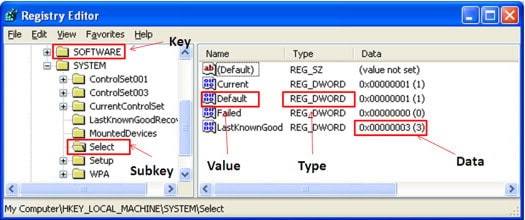
Windows Registry corruption can create widespread system problems that appear to require determining if it’s Time to Reinstall Windows when targeted registry repairs might resolve the issues. Registry cleaning tools and manual registry inspection help identify specific corruption issues that can be repaired without complete system reinstallation. However, extensive registry corruption or damage to critical registry keys often makes reinstallation the most practical solution.
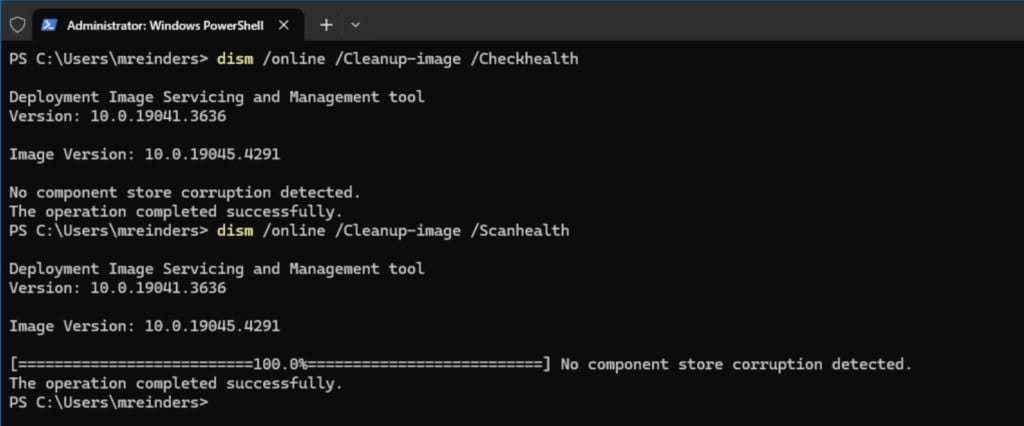
System file corruption analysis using built-in Windows tools like System File Checker (SFC) and Deployment Image Servicing and Management (DISM) helps determine whether system files can be repaired or if it’s Time to Reinstall Windows. These tools can identify and repair many system file problems automatically, potentially avoiding the need for complete reinstallation. When these tools report unfixable corruption or fail to complete their operations, this often indicates that reinstallation is necessary.
How To Tell If It's Time To Reinstall Windows 11
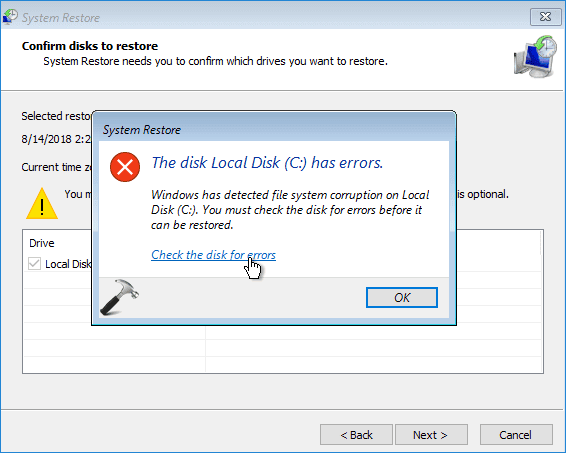
System restore points and backup integrity provide additional diagnostic information about system health and corruption patterns. Systems that cannot create reliable restore points or experience frequent restore point corruption may indicate it’s Time to Reinstall Windows due to underlying system instability. Similarly, backup operations that consistently fail or produce corrupted backups often suggest system-level problems requiring complete refresh.
How To Tell If It's Time To Reinstall Windows 12
Alternative Solutions to Try First
Before determining that it’s Time to Reinstall Windows, several alternative approaches can resolve many common system problems without the time investment and potential complications associated with complete operating system reinstallation. These alternatives range from simple maintenance procedures to more advanced system repair techniques that address specific categories of problems. Trying these solutions first can save significant time and effort while potentially resolving issues completely.
System Maintenance and Optimization Techniques
Regular system maintenance addresses many problems that accumulate over time and can prevent the need to determine if it’s Time to Reinstall Windows. Disk cleanup removes temporary files, system cache, and accumulated junk that can slow system performance and consume valuable storage space. This cleanup process often resolves performance issues related to low disk space and excessive temporary file accumulation without requiring more drastic measures.
Registry cleaning and optimization can resolve many system stability and performance issues without requiring determination of whether it’s Time to Reinstall Windows. Careful registry cleaning removes invalid entries, broken shortcuts, and accumulated registry debris that can slow system performance and cause application conflicts. However, registry cleaning should be approached cautiously, as aggressive cleaning can create new problems if critical registry entries are removed incorrectly.
Startup program management represents another effective optimization technique that can eliminate the need to determine if it’s Time to Reinstall Windows. Disabling unnecessary startup programs reduces boot times, decreases memory usage, and eliminates software conflicts that can destabilize systems. Many performance problems attributed to system corruption actually result from excessive startup programs that overload system resources during boot and normal operation.
Services optimization involves disabling unnecessary Windows services that consume system resources without providing value for typical users. This optimization can significantly improve performance and stability without requiring determination of whether it’s Time to Reinstall Windows. However, service optimization requires careful research to avoid disabling critical services that support system functionality or security.
Power management settings optimization can resolve performance issues on both desktop and laptop systems without requiring more drastic measures. Incorrect power settings can limit processor performance, create thermal issues, and cause system instability that appears to require determining if it’s Time to Reinstall Windows. Optimizing these settings often resolves performance problems while improving energy efficiency.
Network optimization addresses connectivity issues and network-related performance problems that can affect overall system responsiveness. Network configuration problems, DNS issues, and network adapter conflicts can create system-wide performance problems that appear unrelated to network functionality. Resolving these network issues often eliminates symptoms that might otherwise suggest it’s Time to Reinstall Windows.
System Repair and Recovery Options
Windows includes several built-in repair tools that can resolve system problems without requiring complete reinstallation. System File Checker automatically identifies and repairs corrupted system files, potentially eliminating issues that might otherwise indicate it’s Time to Reinstall Windows. This tool should be run regularly and especially when system stability problems develop, as it can resolve many common corruption issues automatically.
System Restore provides a way to revert system changes that may have caused stability or performance problems without determining if it’s Time to Reinstall Windows. Creating and using restore points allows users to undo recent changes that destabilized their systems while preserving personal files and data. However, System Restore effectiveness depends on having recent, uncorrupted restore points available when problems develop.
Windows Reset and Refresh options provide middle-ground solutions between basic repairs and complete reinstallation. These options can resolve many system problems while preserving personal files and some settings, potentially avoiding the need to determine if it’s Time to Reinstall Windows. Reset options vary in scope from preserving personal files while removing applications to complete system refresh that maintains only personal data.
Recovery Environment Utilization
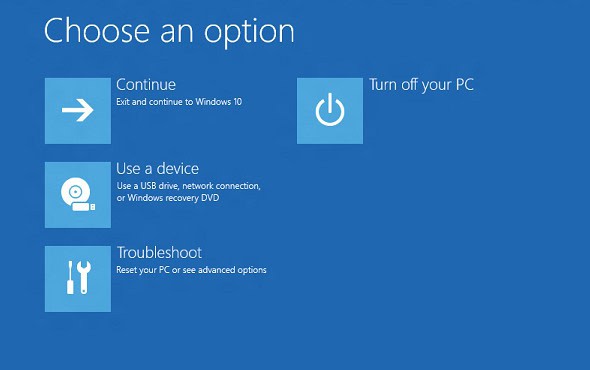
Windows Recovery Environment provides advanced repair options that can resolve boot problems and system corruption without requiring complete reinstallation. These tools can repair boot sectors, rebuild boot configuration data, and perform system repairs that address problems preventing normal Windows startup. Successfully using recovery environment tools often eliminates the need to determine if it’s Time to Reinstall Windows.
How To Tell If It's Time To Reinstall Windows 13
Safe Mode operation enables system diagnosis and repair in a minimal environment that loads only essential drivers and services. Many system problems that appear to require reinstallation can be resolved through Safe Mode operations, including driver removal, malware cleanup, and system configuration changes. Safe Mode provides a stable platform for repair operations when normal Windows operation is unreliable.
Command-line repair tools available through recovery environments provide powerful options for advanced users to repair system problems without reinstallation. Tools like CHKDSK for disk repair, BOOTREC for boot system repair, and DISM for system image repair can resolve many problems that might otherwise indicate it’s Time to Reinstall Windows. These tools require technical knowledge but can be highly effective for specific problem categories.
Despite the availability of alternative solutions, certain conditions make it clear that it’s Time to Reinstall Windows rather than continuing to pursue incremental fixes. These situations typically involve system-wide corruption, security compromises, or accumulated problems that resist conventional repair attempts. Recognizing these conditions helps avoid wasting time on ineffective solutions while ensuring that reinstallation occurs before system problems become catastrophic.
Severe System Corruption Indicators
Multiple blue screen errors with different error codes often indicate system-wide corruption that makes it Time to Reinstall Windows rather than attempting to fix individual problems. When blue screen errors occur frequently and involve different system components or drivers, this pattern suggests fundamental system instability that requires complete refresh. Single or occasional blue screen errors may be repairable, but patterns of multiple different errors typically indicate deeper problems.
System File Checker and DISM utilities reporting unfixable corruption provide clear evidence that it’s Time to Reinstall Windows. When these built-in repair tools cannot restore system integrity, the corruption has typically progressed beyond the point where incremental repairs are practical. These tools are designed to handle most common corruption scenarios, so their failure indicates severe problems requiring complete system refresh.
How To Tell If It's Time To Reinstall Windows 15
Boot system corruption that prevents normal Windows startup often indicates it’s Time to Reinstall Windows, especially when recovery environment repairs fail to restore functionality. Boot sector corruption, damaged boot configuration data, or corrupted system registry hives can prevent successful system startup even after repair attempts. When multiple boot repair attempts fail, complete reinstallation often becomes the most efficient solution.
Hardware Compatibility Issues
Driver conflicts that cannot be resolved through normal troubleshooting methods may indicate it’s Time to Reinstall Windows to establish a clean driver environment. When multiple hardware devices experience simultaneous problems, or when driver installation consistently fails across different hardware components, system-level problems may require complete refresh. Clean installation provides an opportunity to establish proper driver configurations without interference from previous installations.
Hardware upgrade compatibility issues can also indicate that it’s Time to Reinstall Windows to ensure optimal configuration for new components. Major hardware changes like motherboard or processor upgrades often benefit from clean installations to avoid conflicts between old and new hardware configurations. While Windows can sometimes adapt to hardware changes, clean installation ensures optimal performance and stability with new hardware.
Legacy hardware conflicts with modern Windows versions may necessitate determining if it’s Time to Reinstall Windows with appropriate configurations or older Windows versions. Some older hardware lacks drivers for current Windows versions, creating stability issues that can only be resolved through appropriate OS version selection during reinstallation. These compatibility issues often resist conventional troubleshooting approaches.
Security Breach Recovery
Severe malware infections that modify system files or install rootkits often make it Time to Reinstall Windows to ensure complete malware removal and system security restoration. Advanced malware can embed itself so deeply in system files that removal tools cannot guarantee complete elimination. Reinstallation provides the only certain method for removing sophisticated malware that has compromised system integrity.
Data breach incidents involving potential system compromise may require determining if it’s Time to Reinstall Windows to ensure system security and prevent ongoing unauthorized access. When systems show evidence of unauthorized access, unknown network connections, or suspicious file modifications, complete reinstallation helps ensure that backdoors and access mechanisms are eliminated. Security-focused reinstallation should be combined with comprehensive password changes and security audits.
Identity theft concerns related to system compromise often indicate it’s Time to Reinstall Windows as part of comprehensive security recovery measures. When financial information, personal data, or login credentials may have been compromised through system intrusion, reinstallation helps ensure that keyloggers, data collection malware, and other monitoring software are completely removed. This security-focused approach provides peace of mind and helps prevent ongoing data compromise.
System Performance Beyond Repair
Extreme system slowdown that affects all operations and resists optimization attempts often indicates it’s Time to Reinstall Windows rather than continuing incremental performance improvements. When systems become so slow that basic operations like file browsing, application launching, and system navigation require excessive time, the accumulated performance problems typically require complete system refresh. This level of performance degradation often involves multiple contributing factors that are difficult to address individually.
Memory management problems that cause frequent out-of-memory errors despite adequate physical RAM may indicate it’s Time to Reinstall Windows to resolve underlying memory allocation issues. Virtual memory problems, memory leaks, and corrupted memory management components can create persistent memory issues that resist conventional troubleshooting. Fresh installation establishes clean memory management configurations that resolve these accumulated problems.
Application compatibility issues affecting multiple programs simultaneously often suggest it’s Time to Reinstall Windows to establish a clean application environment. When multiple applications experience crashes, compatibility errors, or functionality problems despite individual troubleshooting attempts, system-level conflicts typically require complete refresh. Clean installation provides applications with optimal system environments free from accumulated conflicts and compatibility issues.
Making the Final Decision and Preparing for Reinstallation
Once you’ve determined that it’s Time to Reinstall Windows, proper preparation ensures a smooth transition while minimizing data loss and system downtime. This preparation phase involves backing up important data, documenting current system configurations, and gathering necessary installation materials. Thorough preparation prevents common reinstallation problems and helps restore your system efficiently after the fresh installation is complete.
Data Backup and System Documentation
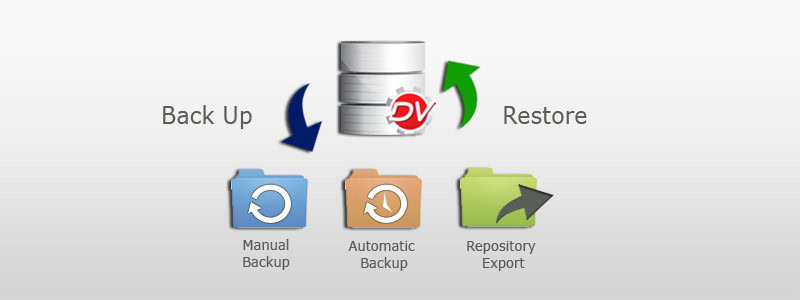
Comprehensive data backup represents the most critical preparation step when determining it’s Time to Reinstall Windows. This backup should include not only personal files but also application settings, browser bookmarks, email data, and other customizations that would be time-consuming to recreate. Creating multiple backup copies and verifying backup integrity helps ensure that important data survives the reinstallation process without corruption or loss.
System configuration documentation helps restore preferred settings and configurations after determining it’s Time to Reinstall Windows. Recording installed applications, hardware configurations, network settings, and system customizations provides a roadmap for system restoration that saves significant time during post-installation setup. This documentation should include license keys, installation files, and configuration details necessary for complete system restoration.
Hardware driver identification and collection ensures that essential devices will function properly after reinstallation. When you’ve determined it’s Time to Reinstall Windows, downloading current drivers for critical hardware components prevents connectivity and functionality issues that could complicate post-installation system setup. Storing these drivers on external media ensures availability even when network connectivity issues occur during initial setup.
How To Tell If It's Time To Reinstall Windows 16
Installation Media and License Preparation
Windows installation media verification ensures successful reinstallation when you’ve determined it’s Time to Reinstall Windows. Creating bootable installation media from current Windows images helps avoid installation failures due to corrupted or outdated installation files. Testing installation media on the target system before beginning reinstallation prevents time-consuming troubleshooting during the installation process.
License key verification and documentation prevents activation issues that can complicate system restoration. When it’s Time to Reinstall Windows, having valid license keys readily available ensures smooth activation without delays or compatibility issues. Digital licenses linked to Microsoft accounts can simplify this process, but having backup documentation prevents activation problems if digital licensing encounters issues.
Third-party software licensing preparation involves gathering license keys and installation files for essential applications that will be reinstalled. This preparation step ensures that critical applications can be restored quickly after determining it’s Time to Reinstall Windows. Organizing these materials in advance prevents delays and ensures that important software is available immediately after system restoration.
Post-Reinstallation Planning
Application prioritization helps focus post-reinstallation efforts on essential software while avoiding unnecessary installations that contributed to previous system problems. When it’s Time to Reinstall Windows, creating a prioritized list of essential applications helps restore critical functionality quickly while providing opportunities to eliminate problematic software that may have contributed to system issues. This selective approach often results in cleaner, more stable systems.
Security software installation should be among the first priorities after determining it’s Time to Reinstall Windows and completing the fresh installation. Installing and updating security software before connecting to networks or restoring data helps protect the fresh system from immediate security threats. This proactive security approach prevents recontamination that could recreate problems that necessitated reinstallation.
System update and patch management becomes critical immediately after fresh installation. When it’s Time to Reinstall Windows, the fresh system typically lacks recent security updates and patches that are essential for stability and security. Prioritizing system updates before installing additional software helps establish a secure, stable foundation for ongoing system use and prevents known issues from affecting the fresh installation.
Long-term System Maintenance Planning
Regular maintenance scheduling helps prevent future situations where it becomes Time to Reinstall Windows due to accumulated system problems. Establishing routine maintenance procedures including disk cleanup, registry maintenance, security scans, and performance monitoring helps maintain system health over extended periods. This proactive approach extends the time between necessary reinstallations while maintaining optimal system performance.
System monitoring implementation provides early warning of developing problems that might eventually require determining if it’s Time to Reinstall Windows. Setting up automated monitoring for system performance, error logs, and resource utilization helps identify issues before they become severe enough to require complete system refresh. Early intervention often prevents minor problems from developing into major system issues.
Backup automation ensures that future reinstallation decisions won’t be complicated by data loss concerns. When systems are properly backed up on regular schedules, determining that it’s Time to Reinstall Windows becomes less stressful and time-sensitive. Automated backup systems provide confidence that system refresh can be performed when necessary without risking important data or system configurations.
Confident Decision-Making for System Health
Understanding when it’s Time to Reinstall Windows empowers users to make informed decisions about system maintenance and restoration that optimize both performance and productivity. The key lies in recognizing the difference between problems that respond to incremental fixes and systemic issues that require complete system refresh. By following systematic diagnostic approaches and understanding the indicators that point toward reinstallation necessity, users can avoid both premature reinstallations and delayed decisions that allow problems to worsen.
Building System Maintenance Expertise
Experience with system diagnosis and maintenance builds valuable skills that improve long-term computer management and reduce the frequency of situations where it’s Time to Reinstall Windows. Understanding system behavior patterns, recognizing early warning signs, and implementing preventive maintenance helps extend system lifespan while maintaining optimal performance. These skills transfer between different computers and Windows versions, providing ongoing value for computer users.
The investment in learning proper diagnostic techniques pays dividends through improved system reliability and reduced downtime. Users who understand when it’s Time to Reinstall Windows versus when alternative solutions might work can make more efficient use of their time and maintain better-performing systems. This knowledge also helps with supporting other users’ systems and making informed decisions about computer purchases and upgrades.
System reinstallation skills become valuable assets for maintaining multiple computers or helping others with system problems. Knowing how to efficiently perform reinstallations when it’s Time to Reinstall Windows makes this maintenance task less daunting and more manageable. These skills also provide confidence to experiment with system configurations and software installations, knowing that reinstallation is always available as a recovery option.
Maintaining Optimal System Performance
Proactive system maintenance and monitoring significantly reduce the frequency of situations where it’s Time to Reinstall Windows while maintaining peak system performance between reinstallations. Regular maintenance routines, automated monitoring systems, and prompt attention to developing issues help prevent minor problems from escalating into major system failures. This preventive approach maximizes productivity while minimizing system downtime and maintenance effort.
Strategic software installation and management practices help avoid many problems that eventually lead to determining it’s Time to Reinstall Windows. Careful evaluation of software installations, regular removal of unused applications, and attention to software conflicts prevent many accumulation issues that degrade system performance over time. These practices extend system lifespan while maintaining responsiveness and stability.
The knowledge gained from understanding system health indicators and reinstallation criteria provides confidence to maintain systems at optimal performance levels. Users who know when it’s Time to Reinstall Windows can make proactive decisions that prevent catastrophic system failures while ensuring that their computers continue meeting their productivity and performance requirements. This expertise transforms system maintenance from a reactive necessity into a proactive advantage that enhances the overall computing experience.
The Illusion of Stability in Modern Updates For most users, operating system updates are something that simply happen. They arrive quietly, often installing in the background, requiring little more than…
Macbook Neo, How Does It Compare To Air & Pro? Over the last few years the laptop market has experienced one of the most significant architectural changes in its history.…
Apple’s latest product announcements mark one of the most significant shifts in the Mac lineup in more than a decade. While Apple routinely updates its hardware with faster chips, incremental…
There is a particular kind of frustration that only a slow computer can produce. It is not dramatic. It is not urgent. It does not scream for attention. Instead, it…
In an era where nearly every aspect of personal computer maintenance and professional life is mediated through digital systems, your computer is no longer a luxury device — it is…
Phone says charging but battery not increasing is one of the most frustrating problems smartphone users face. You plug it in.The lightning bolt appears.It says “Charging.” But the battery percentage…
Apple’s rumour cycle always looks like a thousand disconnected leaks — until you line them up and notice the same themes repeating: AI-first silicon, camera and display differentiation, form-factor experiments (foldables / spatial…
Wi-Fi connected but no internet is one of the most frustrating messages you can see on a computer or laptop. The Wi-Fi icon shows full bars.It says “Connected.”But websites won’t…
Unfortunately, there was an error submitting your request.
Please try again later, or reach out to us directly. You can call us at +44 1429 280955 or email us at [email protected] for assistance. We’re here to help you get your computer back up and running!
We’ve received your booking, Our team will get in touch with you shortly to confirm the details. You’re one step closer to having your computer fixed! If you have any urgent questions, feel free to contact us. Otherwise, sit back, and we’ll handle the rest.