Stop the Unwanted Shift: A Complete Guide to Stopping Windows 10
Has your PC been pushing you to upgrade to Windows 10, but you’re not ready yet? You’re not alone. Many users are seeking ways to prevent the automatic update, and it’s important to know how to take control of your system. Whether you’re comfortable with your current version of Windows or just not ready to deal with the upgrade, there are multiple ways to stop the Windows 10 upgrade.
In this comprehensive guide, we’ll cover the most effective methods for stopping Windows 10, helping you regain control of your system. By the end of this post, you’ll know how to halt unwanted upgrades while maintaining security and performance.
Table of Contents
Why Some Users Want to Stop the Windows 10 Upgrade
While Windows 10 offers many benefits, such as enhanced security features, a better user interface, and regular updates, not everyone is ready or willing to make the switch. Here’s why stopping Windows 10 might be necessary for certain users:
Compatibility Concerns: Some older hardware or software may not be fully compatible with Windows 10, causing performance issues or malfunctions.
Stability: Many users prefer the stability of their current system and fear that upgrading might cause unwanted disruptions.
Personal Preferences: Some users simply enjoy the interface of older Windows versions and aren’t interested in switching to a newer version.
These are just a few reasons why people are interested in stopping Windows 10 and looking for ways to delay or avoid it entirely.
How to Stop Windows 10 Upgrade: Step-by-Step Methods
If you’re looking for ways to prevent your system from forcing an upgrade to Windows 10, you’re in the right place. Here’s a list of effective methods to ensure stopping Windows 10 on your device.
1. Disable the Windows Update Service
One of the most reliable ways to stop the upgrade is to disable the Windows Update service. This service is responsible for downloading and installing updates, including the upgrade to Windows 10.
Steps to disable Windows Update service:
Press Windows + R to open the Run dialog.
Type services.msc and press Enter.
Scroll down and find Windows Update in the list.
Right-click on Windows Update, select Properties, and set the Startup type to Disabled.
Click OK and restart your computer.
By disabling the Windows Update service, you can successfully block updates, including the upgrade to Windows 10. However, this will also stop critical security updates, so make sure you manually check for updates and re-enable the service when needed.
2. Use the Windows 10 Update Blocker Tool
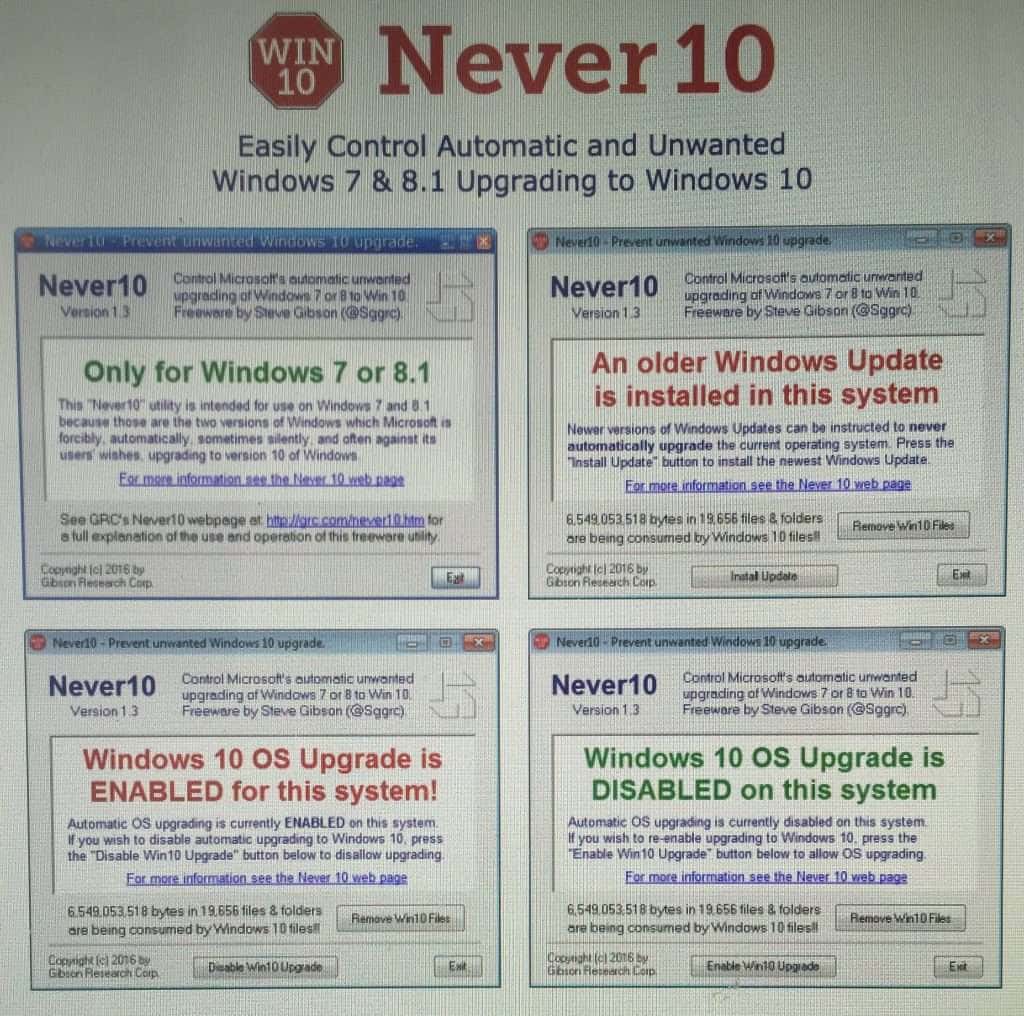
Microsoft has provided tools that allow you to block upgrades to Windows 10. The Windows 10 Update Blocker is one such tool that prevents the installation of major updates.
Steps to use the Update Blocker Tool:
Download the Windows 10 Update Blocker from Microsoft’s website.
Install and run the tool.
Follow the on-screen instructions to configure your preferences.
Select Block Updates to prevent the Windows 10 upgrade.
This tool is ideal for users who prefer a simple, hassle-free way to handle stopping Windows 10 without having to dig into the system settings.
never-10-windows-stopping-upgrade-update
3. Modify Group Policy Settings
For users with Windows Professional or Enterprise editions, modifying the Group Policy Editor is a powerful way to prevent automatic upgrades. This method allows you to take full control of how updates are handled on your device.
How to modify Group Policy settings:
Press Windows + R, type gpedit.msc, and hit Enter.
Navigate to Computer Configuration > Administrative Templates > Windows Components > Windows Update.
Double-click on Configure Automatic Updates and set it to Disabled.
Click Apply and then OK.
This method ensures that stopping Windows 10 is handled at a system level, preventing unwanted updates without interfering with other system features.
4. Edit the Windows Registry
For more advanced users, editing the Windows Registry can be a highly effective method of stopping Windows 10. However, please note that editing the registry can be risky, so it’s important to proceed with caution.
Steps to edit the registry:
Press Windows + R, type regedit, and press Enter.
Navigate to HKEY_LOCAL_MACHINE\SOFTWARE\Policies\Microsoft\Windows\WindowsUpdate.
Create a new DWORD (32-bit) Value named DisableOSUpgrade.
Set the value of DisableOSUpgrade to 1.
This will effectively prevent your system from upgrading to Windows 10. Just remember to back up your registry before making any changes.
Why You Should Be Cautious When Stopping Windows 10
While many users are focused on stopping Windows 10, it’s important to consider the potential downsides. Windows 10 offers better security features, improved system performance, and more frequent updates that keep your system safe from malware and other threats.
Here are a few things to keep in mind if you decide to stop the upgrade:
Missed Security Updates: Stopping updates may prevent critical security patches from being installed, leaving your system vulnerable.
Future Compatibility: Over time, software and hardware support for older Windows versions may decrease, making it harder to keep your system running smoothly.
Limited Support: Microsoft has stopped offering support for older versions like Windows 7, so you may be on your own for troubleshooting and repairs.
If you decide to proceed with stopping Windows 10, make sure you stay informed about security risks and keep your system backed up regularly.
How to Undo Stopping Windows 10
If you later decide that upgrading to Windows 10 is the right choice, reversing the process is fairly simple. Depending on the method you used to stop the upgrade, here’s how you can undo the block:
1. Re-enable the Windows Update Service
Open services.msc.
Locate Windows Update in the list and set the Startup type back to Automatic.
Click OK and restart your system.
2. Uninstall the Update Blocker Tool
If you used the Windows 10 Update Blocker Tool, simply uninstall the tool, and your system will resume automatic updates.
3. Modify Group Policy and Registry Settings
Undo any changes you made in the Group Policy Editor or Windows Registry to allow upgrades.
By following these steps, you can safely re-enable the upgrade process whenever you’re ready.
Conclusion: Take Control by Stopping Windows 10 Today
If you’re not ready to upgrade to Windows 10, there are several methods to ensure you’re stopping Windows 10 upgrade effectively. Whether you choose to disable updates, use a blocker tool, or modify system settings, the choice is yours. Just make sure to weigh the pros and cons carefully, considering both security and performance.
For more help with managing Windows updates or upgrading your system, contact the experts at Kingfisher Computers. We’ll guide you through the process and ensure your system stays safe and up-to-date.
The Illusion of Stability in Modern Updates For most users, operating system updates are something that simply happen. They arrive quietly, often installing in the background, requiring little more than…
Macbook Neo, How Does It Compare To Air & Pro? Over the last few years the laptop market has experienced one of the most significant architectural changes in its history.…
Apple’s latest product announcements mark one of the most significant shifts in the Mac lineup in more than a decade. While Apple routinely updates its hardware with faster chips, incremental…
There is a particular kind of frustration that only a slow computer can produce. It is not dramatic. It is not urgent. It does not scream for attention. Instead, it…
In an era where nearly every aspect of personal computer maintenance and professional life is mediated through digital systems, your computer is no longer a luxury device — it is…
Phone says charging but battery not increasing is one of the most frustrating problems smartphone users face. You plug it in.The lightning bolt appears.It says “Charging.” But the battery percentage…
Apple’s rumour cycle always looks like a thousand disconnected leaks — until you line them up and notice the same themes repeating: AI-first silicon, camera and display differentiation, form-factor experiments (foldables / spatial…
Wi-Fi connected but no internet is one of the most frustrating messages you can see on a computer or laptop. The Wi-Fi icon shows full bars.It says “Connected.”But websites won’t…
Unfortunately, there was an error submitting your request.
Please try again later, or reach out to us directly. You can call us at +44 1429 280955 or email us at sales@kingfishercomputers.co.uk for assistance. We’re here to help you get your computer back up and running!
We’ve received your booking, Our team will get in touch with you shortly to confirm the details. You’re one step closer to having your computer fixed! If you have any urgent questions, feel free to contact us. Otherwise, sit back, and we’ll handle the rest.