No Bootable Device Found: 7 critical reasons this error appears
Connor Boyle
February 3rd, 2026
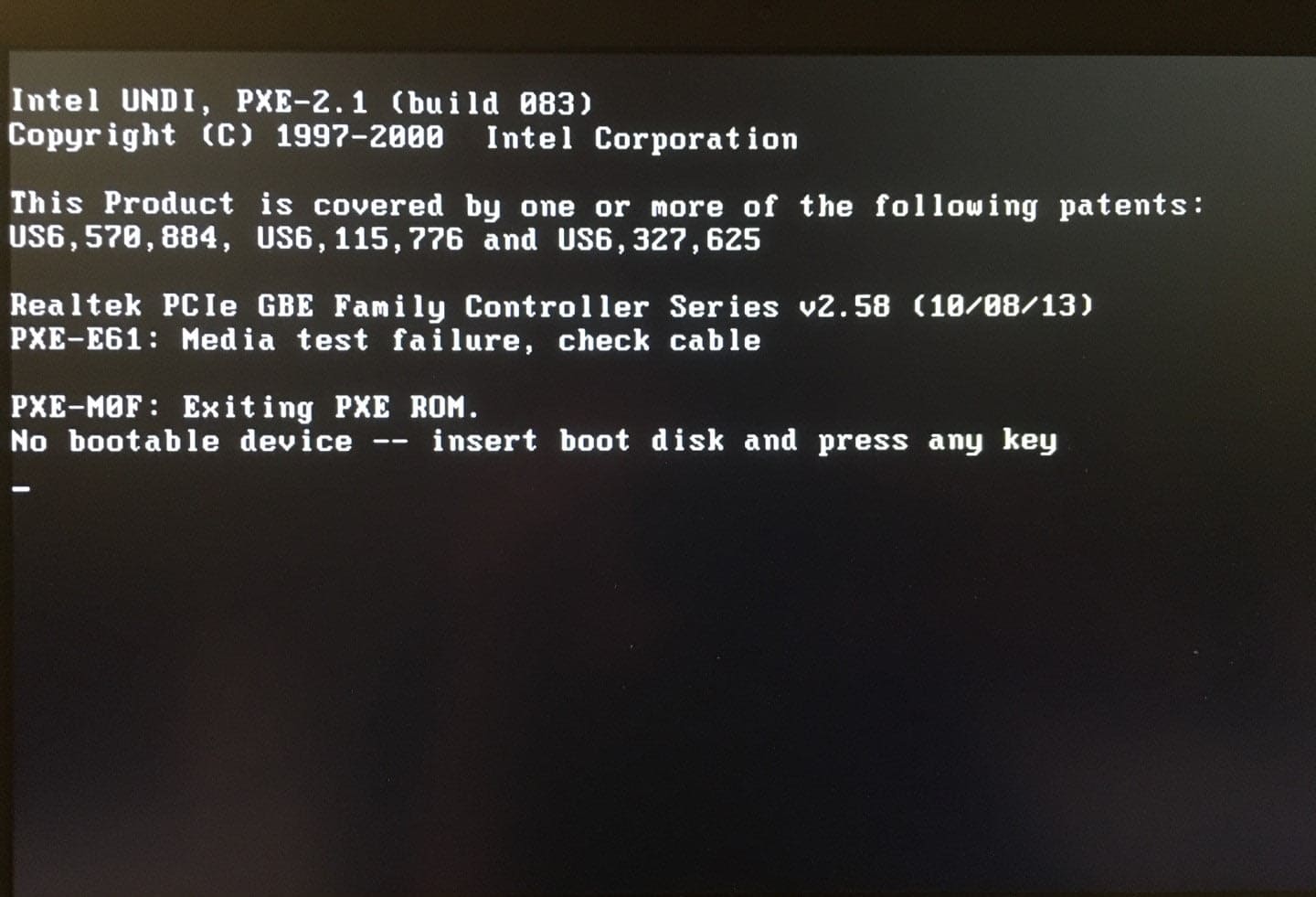
No bootable device found is one of the most alarming messages a computer can show.
One moment your PC or laptop is working. The next, you turn it on and see a black screen telling you it can’t find anything to boot from.
To most people, this feels like the computer has completely failed.
The good news? In many cases, the “no bootable device found” error is fixable, and data is often still safe.
This guide explains what the error really means, why it happens, and what we check first when a device with this problem arrives at our repair shop.
What “no bootable device found” actually means
When a computer starts, it looks for something called a boot device.
This is usually:
An internal SSD
A hard drive
Occasionally a USB drive
The boot device contains the operating system — Windows, macOS, or Linux.
When you see no bootable device found, the computer is saying:
“I turned on, but I can’t see anything I know how to start.”
That does not automatically mean your data is gone.
Why this error feels so scary
This message appears before Windows loads, which instantly makes it feel serious.
There’s:
No desktop
No login screen
No error code you can click on
No clear instructions
Just a blank screen and the words “no bootable device found.”
For many users, this is the moment they realise how much they rely on that internal drive. Photos, documents, work files, emails — everything feels suddenly out of reach.
Because the system stops so early in the startup process, it gives the impression that nothing is working at all. There’s no chance to save files, no warning, and no obvious way forward.
That uncertainty is what makes this error so unsettling.
From a repair perspective, however, no bootable device found is a very common error. We see it regularly, and in many cases, the underlying problem is far less severe than it first appears.
The most common causes of a “no bootable device found” error
There isn’t one single cause behind this message.
The no bootable device found error can appear for both simple and serious reasons — from a misconfigured setting to a failing drive.
That wide range of possibilities is exactly why proper diagnosis matters.
Without checking why the system can’t find a bootable device, it’s easy to assume the worst — or to attempt a fix that makes the situation worse.
No bootable device found due to boot order changes
This is one of the simplest causes.
What happens
The computer is told to:
Boot from USB first
Boot from network
Ignore the internal drive
This can happen after:
BIOS updates
CMOS resets
Battery failure
Accidental setting changes
Result
The drive is still there — the computer just isn’t looking at it.
Why reinstalling Windows isn’t always the right first step
Many guides online jump straight to “reinstall Windows”.
This can:
Overwrite recoverable data
Make recovery harder
Hide the real problem
When no bootable device found appears, diagnosis comes first.
How we diagnose a no bootable device found error
At Kingfisher Computers, we don’t guess, and we don’t jump straight to reinstalling Windows.
Every no bootable device found error is approached methodically, because the cause can range from a simple setting change to a failing drive. Guessing at this stage can cost data and make recovery harder.
We start by checking:
BIOS detection – to confirm whether the system can still see the drive at a hardware level
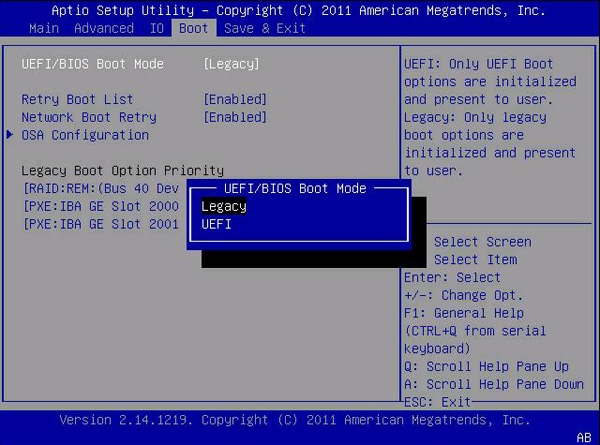
Boot mode (UEFI vs Legacy) – to ensure the firmware is trying to boot the drive in the correct way
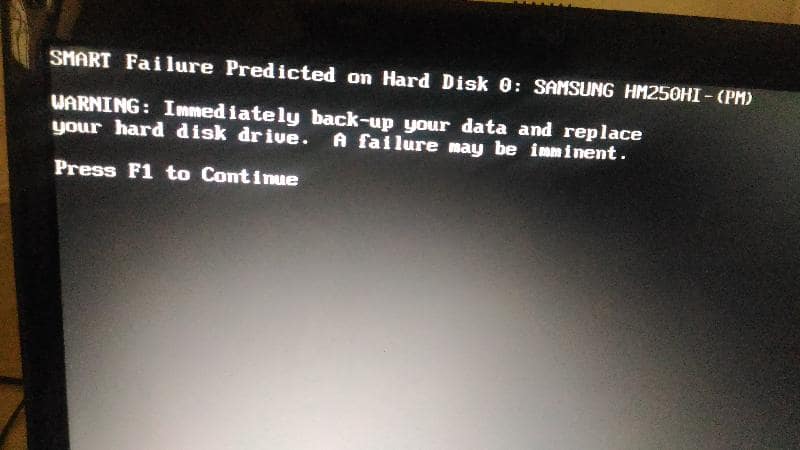
Drive health – to identify early signs of SSD or hard drive failure
Partition structure – to see whether the operating system and boot partitions still exist
Boot configuration – to check whether Windows still knows where it’s installed and how to start
By working through these steps in order, we can clearly identify whether the problem is repairable, recoverable, or not economically worth fixing — and we explain that outcome in plain English before any work goes ahead.
What you can safely try at home when “no bootable device found” appears
Before panicking or assuming the worst, there are a few safe checks you can try yourself. These won’t damage your data and won’t make the problem worse.
Restart the computer properly
It sounds simple, but it matters.
Shut the computer down fully. Wait 30 seconds. Turn it back on.
Sometimes the error appears due to a temporary firmware glitch, especially after updates or sleep mode issues.
Remove external devices
USB sticks, external hard drives, and memory cards can confuse the boot process.
If the computer tries to boot from:
A USB drive
An empty external disk
A recovery device
You may see the no bootable device found error even though the internal drive is fine.
Unplug everything except:
Power
Keyboard
Mouse
Then try again.
Check the BIOS boot menu (without changing random settings)
Most computers let you open a one-time boot menu by pressing a key like:
F12
Esc
F8
If you can see your internal drive listed here, that’s a good sign.
It means the device is detected, and the issue is likely boot configuration, not drive failure.
What you should NOT do when you see “no bootable device found”
This part is important, because well-meaning advice online can make things worse.
Don’t reinstall Windows straight away
Reinstalling Windows without understanding the cause can:
Overwrite recoverable data
Change partition structures
Make professional data recovery harder
If your files matter, pause first.
Don’t keep forcing restarts
Repeated power cycles can:
Stress a failing drive
Reduce recovery chances
Worsen hardware faults
If the error appears consistently, stop and assess.
Don’t change BIOS settings randomly
Switching options like:
UEFI ↔ Legacy
Secure Boot on/off
RAID/VMD modes
without knowing what they do can hide the drive or make the system unbootable even when the drive is healthy.
When “no bootable device found” becomes a data recovery situation
Sometimes, the focus shifts away from repairing the system and moves toward saving what matters most — your data.
This usually happens when the problem is no longer just a boot issue, but a sign that the storage itself is failing.
You’re likely in a data recovery situation if:
The drive is not detected at all in the BIOS or boot menu
The drive makes unusual noises, such as clicking or grinding
The system freezes or locks up when trying to access the disk
SMART warnings were ignored before the error appeared
In these cases, the operating system cannot load because the computer physically cannot read the drive properly.
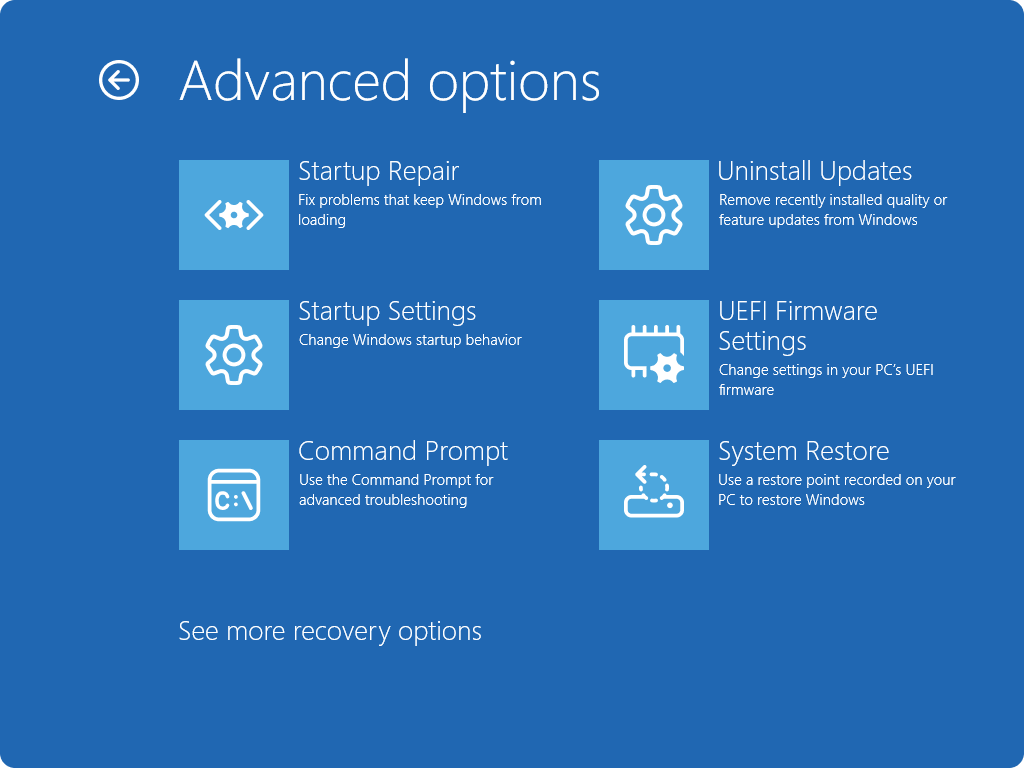
At this stage, continuing to power the device on, forcing restarts, or running repair tools can reduce recovery success by placing extra strain on already failing components.
This is why we often recommend stopping immediately and having the drive assessed professionally, rather than risking permanent data loss by continuing to experiment at home.
If the data is important, careful handling at this point makes all the difference.
How we handle no bootable device found errors in our repair shop
When a system comes in with this error, we follow a strict process.
We don’t guess. We don’t rush.
Step-by-step diagnosis process
When a device comes in with a “no bootable device found” error, we follow a structured diagnosis process rather than jumping to conclusions.
We check:
Whether the drive is electrically alive, meaning it’s receiving power and responding correctly
Whether it’s detected consistently, not just appearing once and disappearing again
Whether partitions still exist, which tells us if the data structure is intact
Whether boot files are repairable, or if they’ve been damaged beyond simple fixes
Whether data recovery is required, and how complex that recovery would be
Each of these checks gives us a clearer picture of what’s actually going on. Together, they tell us exactly which category the problem falls into — from a simple configuration issue to a more serious hardware failure.
Clear advice, not scare tactics
Once diagnostics are complete, we don’t overwhelm you with technical jargon or worst-case scenarios.
We explain, in plain English:
What’s wrong and why the error appeared
What’s still working, including whether your data is safe
What it will realistically cost to fix, with no hidden surprises
Whether the repair makes sense financially, based on the age and condition of the device
If the honest answer is “don’t repair it”, we say so. Our goal isn’t to sell unnecessary repairs — it’s to help you make the right decision with clear, honest information.
Real-world examples we see all the time
These aren’t rare edge cases. They are situations we deal with every single week in the repair shop.
They also show why the “no bootable device found” message doesn’t always mean the worst.
Example 1: Boot order reset after battery failure
A customer brought in a laptop that suddenly displayed no bootable device found after being left unused for several weeks.
The laptop would power on, but it went straight to the error message.
After checking the system, we found:
The internal drive was still detected
The data was completely intact
The internal battery had failed and reset the BIOS
The computer had simply forgotten which drive to boot from.
Once the correct boot order was restored, the laptop started normally.
Outcome: ✅ Fixed in minutes, no data loss, no parts required
Example 2: Corrupted boot files after a Windows update
In this case, a Windows update had installed overnight.
The next morning, the laptop showed no bootable device found, even though it had worked perfectly the day before.
Our checks showed:
The SSD was healthy
The drive was visible in BIOS
Windows boot files were damaged
This meant the system could not start, even though the drive itself was fine.
We rebuilt the boot files and repaired the startup configuration without touching the customer’s data.
Outcome: ✅ Boot files rebuilt, system fully restored, data preserved
Example 3: SSD failure
This was the more serious scenario.
The laptop powered on, but the drive:
Did not appear in BIOS
Did not report a capacity
Failed to initialise consistently
This indicated a failing SSD rather than a software problem.
At this point, repair was no longer possible, but data recovery was still achievable.
We recovered as much data as possible and replaced the failed drive with a new, reliable SSD.
Outcome: ⚠️ Data recovered where possible, new drive installed, system rebuilt
When repair makes sense
Fixing a no bootable device found error is usually worth it when the problem is isolated and predictable, rather than a sign of wider failure.
Repair often makes sense when:
The drive is still detected in the BIOS or boot menu, even if Windows won’t load
Your data is important, such as work files, photos, or documents you can’t easily replace
The device is otherwise in good condition, with no history of major faults
The repair cost is reasonable, especially compared to replacing the entire system
In these situations, repairs like boot file rebuilding, configuration fixes, or drive replacement can restore the system reliably without unnecessary expense.
When replacement is the smarter choice
Sometimes, the most sensible option is not to repair.
Replacement may be the better route when:
The drive has completely failed and is no longer detected at all
Multiple components are showing problems, not just the storage
Repair costs approach the price of a replacement system, without offering long-term reliability
The system is very old and struggles with modern software even when working correctly
In these cases, repairing the boot issue alone may not prevent further problems down the line.
We’ll always explain this clearly and honestly, helping you decide whether repair, replacement, or data recovery is the best next step — without pressure or guesswork.
Final thoughts: no bootable device found doesn’t always mean disaster
That message looks serious — and in some cases, it really is — but it’s not always the end of the road for your computer or your data.
In many situations:
The drive is still physically present, but the system simply can’t see it correctly
Your data is still safe, even if Windows won’t start
The fix is straightforward, once the real cause is identified
What matters most is not rushing into the wrong action.
Jumping straight to reinstalling Windows, changing random BIOS settings, or repeatedly forcing restarts can turn a fixable problem into a much bigger one. The key is proper diagnosis before action, so you know whether you’re dealing with a simple configuration issue, corrupted boot files, or genuine drive failure.
Need help with a “no bootable device found” error?
If your computer won’t boot and you’re stuck staring at this message, bring it in and let us take a proper look.
We’ll carefully assess what’s still working, explain what’s gone wrong in plain English, and help you choose the right next step — whether that’s a quick repair, a safe data recovery, or honest advice on whether repair is worth it at all.
No guesswork. No pressure. Just clear answers and the right solution for your device.
The Illusion of Stability in Modern Updates For most users, operating system updates are something that simply happen. They arrive quietly, often installing in the background, requiring little more than…
Macbook Neo, How Does It Compare To Air & Pro? Over the last few years the laptop market has experienced one of the most significant architectural changes in its history.…
Apple’s latest product announcements mark one of the most significant shifts in the Mac lineup in more than a decade. While Apple routinely updates its hardware with faster chips, incremental…
There is a particular kind of frustration that only a slow computer can produce. It is not dramatic. It is not urgent. It does not scream for attention. Instead, it…
In an era where nearly every aspect of personal computer maintenance and professional life is mediated through digital systems, your computer is no longer a luxury device — it is…
Phone says charging but battery not increasing is one of the most frustrating problems smartphone users face. You plug it in.The lightning bolt appears.It says “Charging.” But the battery percentage…
Apple’s rumour cycle always looks like a thousand disconnected leaks — until you line them up and notice the same themes repeating: AI-first silicon, camera and display differentiation, form-factor experiments (foldables / spatial…
Wi-Fi connected but no internet is one of the most frustrating messages you can see on a computer or laptop. The Wi-Fi icon shows full bars.It says “Connected.”But websites won’t…
Unfortunately, there was an error submitting your request.
Please try again later, or reach out to us directly. You can call us at +44 1429 280955 or email us at [email protected] for assistance. We’re here to help you get your computer back up and running!
We’ve received your booking, Our team will get in touch with you shortly to confirm the details. You’re one step closer to having your computer fixed! If you have any urgent questions, feel free to contact us. Otherwise, sit back, and we’ll handle the rest.