10 Maintenance Tasks to Keep Your PC Running Like New
Adam Fornal
May 14th, 2025
Table of Contents
In today’s digital age, our computers serve as essential tools for work, entertainment, and communication. To Keep Your PC Running Like New, regular maintenance is not just recommended—it’s necessary. This comprehensive guide explores ten crucial maintenance tasks that will extend your computer’s lifespan, maintain optimal performance, and help you avoid costly repairs or replacements.
Why Regular PC Maintenance Matters
Your computer is an investment, and like any investment, it requires attention to continue delivering value. Regular maintenance helps to Keep Your PC Running Like New by preventing common issues before they develop into significant problems. From dust accumulation to fragmented hard drives, numerous factors can degrade your computer’s performance over time. By implementing a consistent maintenance routine, you’ll enjoy faster speeds, improved reliability, and a longer-lasting machine.
The Hidden Costs of Neglecting Maintenance
Many users underestimate the impact of neglecting regular PC maintenance. When you fail to Keep Your PC Running Like New, you risk decreased productivity, data loss, and premature hardware failure. The cost of replacing a computer far exceeds the minimal time investment required for routine maintenance. Additionally, a poorly maintained PC consumes more electricity and may require expensive component replacements that could have been avoided with proper care.
Signs Your PC Needs Immediate Attention
Before diving into our maintenance checklist, it’s important to recognize the warning signs that your system requires care. If you’re experiencing slow startup times, frequent crashes, unusual noises, or overheating, your computer is crying out for maintenance. These symptoms indicate that you’re not taking the necessary steps to Keep Your PC Running Like New. Addressing these issues promptly can prevent further deterioration and extend your computer’s useful life.
Essential Maintenance Tasks for Optimal PC Performance
Now let’s explore the ten critical maintenance tasks that will help Keep Your PC Running Like New for years to come. Each of these procedures addresses a specific aspect of computer health, from software optimization to hardware care. By incorporating these practices into your routine, you’ll maintain peak performance and reliability.
1. Regular Dust Removal and Cleaning
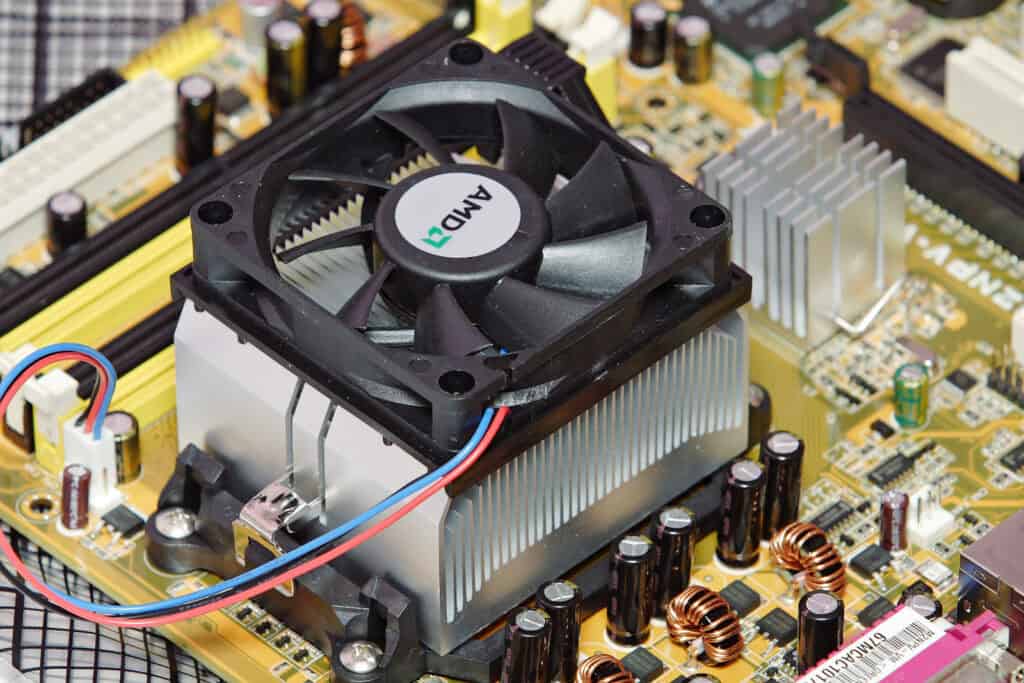
One of the simplest yet most effective ways to Keep Your PC Running Like New is regular cleaning. Dust is your computer’s enemy, causing components to run hotter and work harder than necessary. Over time, dust buildup can lead to overheating and permanent damage to sensitive components.
How to Safely Clean Your Computer
To Keep Your PC Running Like New through proper cleaning, you’ll need a few basic supplies: compressed air, microfiber cloths, and isopropyl alcohol for stubborn spots. Before cleaning, always shut down your computer and unplug all cables. For desktop computers, carefully remove the side panel to access internal components. Use short bursts of compressed air to blow dust from fans, heat sinks, and other components, being careful not to damage delicate parts. For laptops, focus on cleaning the air vents and keyboard with compressed air.
Establishing a Cleaning Schedule
How often you need to clean your PC to Keep Your PC Running Like New depends on your environment. As a general rule, desktop computers in average home environments should be cleaned internally every 3-6 months. Laptops may require more frequent attention, especially if used in dusty conditions or on soft surfaces that can block ventilation. Creating a recurring calendar reminder helps ensure this crucial maintenance task doesn’t get overlooked.
2. Storage Management and Optimization
As you use your computer, files accumulate and fragment, while temporary data can clog your system. Effective storage management is essential to Keep Your PC Running Like New and maintain responsive performance.
Disk Cleanup and Defragmentation
For traditional hard drives (HDDs), regular defragmentation is crucial to Keep Your PC Running Like New. When files become fragmented, your computer must work harder to access them, resulting in slower performance. Windows includes built-in tools for this purpose: Disk Cleanup removes temporary files, while the Defragmenter reorganizes file fragments for more efficient access. For solid-state drives (SSDs), defragmentation is unnecessary and can reduce drive lifespan, but other optimization techniques like TRIM should be enabled.
Smart File Organization and Storage Practices
Beyond system tools, your personal file management habits play a significant role in helping Keep Your PC Running Like New. Regularly review and delete unnecessary files, especially large media files that consume significant space. Consider moving older files you still need to external storage solutions. Organize remaining files into a logical folder structure for easier access. Cloud storage services can also help offload data from your local drive while maintaining accessibility.
3. Software Updates and Management
Outdated software is often responsible for security vulnerabilities and performance issues. Staying current with updates is a cornerstone habit to Keep Your PC Running Like New throughout its lifespan.
Operating System Updates
Your operating system requires regular updates to Keep Your PC Running Like New and protected. These updates not only add features but also patch security vulnerabilities and fix bugs that might affect performance. Configure your system for automatic updates, but schedule them for times when you’re not using your computer. After major updates, restart your computer and verify that all hardware and software continue to function correctly.
Application Updates and Cleanup
While keeping the operating system updated helps Keep Your PC Running Like New, application management is equally important. Regularly update all installed software to ensure compatibility with your OS and protection against known vulnerabilities. Periodically review your installed programs and uninstall those you no longer use. Unwanted applications consume storage space and may run background processes that slow down your system.
4. System Cooling Management
Proper cooling is essential to Keep Your PC Running Like New and prevent premature hardware failure due to heat damage. Modern computers generate significant heat during operation, especially when performing demanding tasks like gaming or video editing.
Monitoring System Temperatures
To effectively Keep Your PC Running Like New, you should regularly monitor internal temperatures. Several free software tools can display real-time temperature readings from sensors in your CPU, GPU, and other components. Establish baseline temperatures during normal operation and watch for significant increases that might indicate cooling problems. Most modern processors are designed to throttle performance or shut down when reaching dangerous temperatures, but persistent overheating can cause permanent damage.
Optimizing Airflow and Cooling Solutions
Strategic fan placement and management helps Keep Your PC Running Like New by maintaining optimal operating temperatures. Ensure that case fans are arranged to create consistent airflow, typically with front fans drawing in cool air and rear fans exhausting warm air. Clean or replace thermal paste between the CPU and its cooler every 2-3 years. For laptops, cooling pads can significantly improve temperature management. During intensive tasks, monitor system temperatures and adjust workloads or cooling as needed.
10 Maintenance Tasks To Keep Your Pc Running Like New 5
5. Malware Prevention and Security Maintenance
In today’s interconnected world, security threats evolve constantly. A comprehensive security strategy is essential to Keep Your PC Running Like New and protect your valuable data from malicious actors.
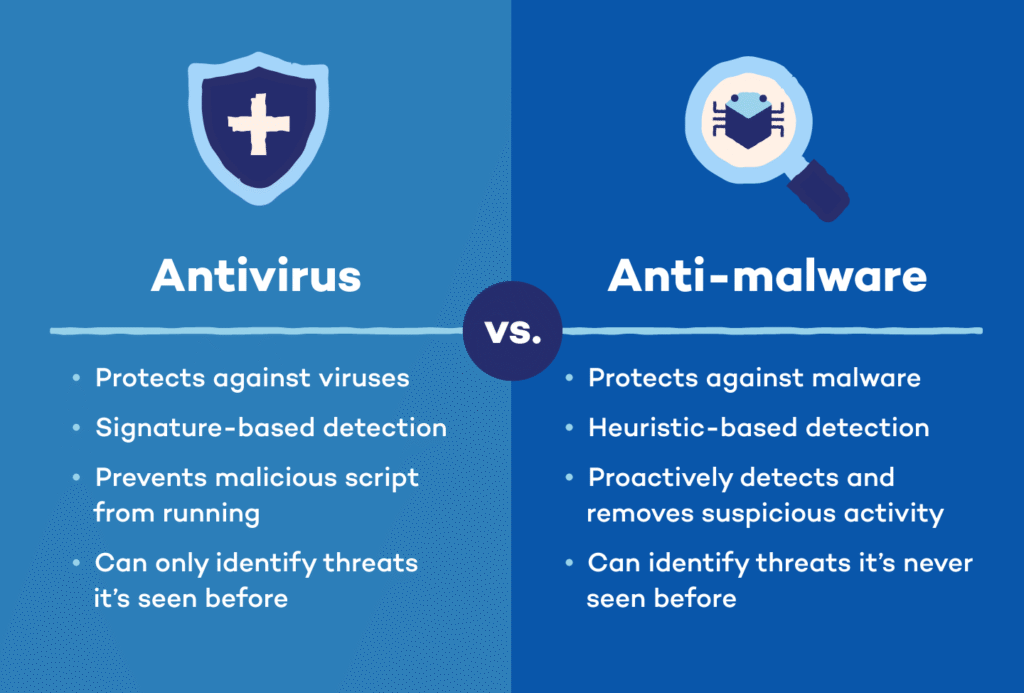
Antivirus and Anti-malware Maintenance
Regular security scans help Keep Your PC Running Like New by identifying and removing threats before they cause damage. Schedule weekly full system scans using reputable security software, and ensure real-time protection remains enabled. Keep your security applications updated to defend against the latest threats. Additionally, periodically review security settings and exclusions to ensure they align with your current usage patterns without creating unnecessary vulnerabilities.
Safe Browsing Habits and Security Best Practices
Even the best security software can’t fully Keep Your PC Running Like New without smart user habits. Practice safe browsing by avoiding suspicious websites and downloads. Be cautious with email attachments, especially those from unknown senders. Use strong, unique passwords for different services, ideally managed through a password manager. Consider using a virtual private network (VPN) when connecting to public Wi-Fi networks to protect your data in transit. These habits form a crucial second line of defense against threats that might bypass technical security measures.
10 Maintenance Tasks To Keep Your Pc Running Like New 6
Long-term Strategies to Keep Your PC Running Like New
Beyond regular maintenance tasks, certain long-term strategies can dramatically extend your computer’s useful life. These approaches require occasional attention but yield significant benefits in performance and reliability.
6. Hardware Assessment and Upgrades
Strategic hardware upgrades can Keep Your PC Running Like New even as software requirements increase over time. Rather than replacing your entire system, targeted component upgrades often provide cost-effective performance improvements.
When and What to Upgrade
To effectively Keep Your PC Running Like New through upgrades, focus on components that create bottlenecks in your specific usage scenarios. If you frequently run out of RAM when multitasking, adding memory can dramatically improve responsiveness. For storage-bound tasks, upgrading from a traditional hard drive to an SSD offers perhaps the most noticeable performance boost. Graphics card upgrades benefit gaming and creative applications, while processor upgrades typically provide more modest improvements relative to their cost.
Extending Hardware Lifespan
Proper care can help Keep Your PC Running Like New by maximizing component longevity. Stable power is crucial—use a quality surge protector or uninterruptible power supply to guard against electrical damage. Avoid overclocking unless you fully understand the associated risks and cooling requirements. For laptops, battery management practices like avoiding complete discharge cycles and extreme temperatures can significantly extend battery lifespan. Treat physical components gently, especially when upgrading or relocating your system.
7. Driver Management and Optimization
Device drivers form the critical link between your hardware and operating system. Proper driver maintenance helps Keep Your PC Running Like New by ensuring optimal communication between components.
Identifying and Updating Critical Drivers
Regular driver updates help Keep Your PC Running Like New by resolving compatibility issues and improving performance. Graphics, network, and storage controller drivers typically benefit most from updates and should be checked quarterly. Manufacturer-specific applications like NVIDIA GeForce Experience or Dell Update can simplify this process by automatically identifying and installing appropriate driver updates. After installations, restart your system and verify that all hardware functions correctly.
Troubleshooting Driver-Related Issues
Even with careful maintenance, driver problems occasionally occur. To Keep Your PC Running Like New when facing driver issues, develop basic troubleshooting skills. Windows Device Manager highlights problematic devices with warning icons. For recent issues, System Restore or driver rollback features can revert to previously working configurations. Keep records of stable driver versions, particularly for critical components like graphics cards, so you can reinstall known good versions if needed.
10 Maintenance Tasks To Keep Your Pc Running Like New 7
8. Data Backup and Recovery Planning
No matter how diligently you work to Keep Your PC Running Like New, unexpected failures can occur. A comprehensive backup strategy protects your valuable data against hardware failures, malware attacks, and user errors.
Implementing a Robust Backup System
To truly Keep Your PC Running Like New while protecting your data, follow the 3-2-1 backup rule: maintain three copies of important data, store them on at least two different media types, and keep one copy offsite. Automated backup solutions simplify this process by regularly copying changed files to designated storage locations. Cloud storage services provide convenient offsite options, while external drives offer faster local backups. Whichever methods you choose, verify your backups periodically by restoring test files.
Creating a System Recovery Plan
Beyond file backups, system recovery capabilities help Keep Your PC Running Like New by providing a path back from catastrophic failures. Create system images that capture your entire system state, including the operating system, applications, and settings. Store recovery media in a safe, accessible location. Familiarize yourself with your computer’s recovery options before you need them—understanding boot options and recovery environments reduces stress during actual emergencies.
10 Maintenance Tasks To Keep Your Pc Running Like New 8
9. Network and Peripheral Maintenance
Your computer exists within an ecosystem of connected devices and networks. Maintaining these connections helps Keep Your PC Running Like New by ensuring reliable communication with the outside world.
Router and Network Optimization
Network maintenance helps Keep Your PC Running Like New by providing stable, secure connectivity. Regularly restart your router and modem to clear temporary issues. Update router firmware to address security vulnerabilities and performance improvements. Position your router away from interference sources and consider mesh networks or range extenders for larger spaces. Secure your network with strong passwords and WPA3 encryption when available. Periodically review connected devices to identify unauthorized access.
Peripheral Care and Connections
Regular attention to peripherals helps Keep Your PC Running Like New by preventing connection issues and extending accessory lifespan. Clean keyboard keys and mouse sensors monthly to prevent erratic behavior. Organize cables to prevent damage and interference. Test rarely-used ports and connections periodically to ensure functionality. For wireless peripherals, maintain battery health by following manufacturer recommendations and replacing aging batteries before they leak and cause damage.
10. Performance Monitoring and Benchmarking
To effectively Keep Your PC Running Like New, establish baseline performance metrics and track changes over time. Regular monitoring helps identify developing issues before they become serious problems.
Establishing Performance Baselines
To consistently Keep Your PC Running Like New, run benchmark tests when your system is performing well. Record key metrics like boot time, application launch speed, disk transfer rates, and 3D rendering performance. Free utilities like CrystalDiskMark, UserBenchmark, and Windows Performance Monitor provide useful measurements. Store these baseline results for future comparison. Repeat benchmarks after major system changes like upgrades or operating system updates to assess their impact.
Diagnosing Performance Degradation
Regular comparison against baseline metrics helps Keep Your PC Running Like New by identifying performance trends. Significant deviations warrant investigation—sudden changes often indicate specific problems, while gradual degradation might result from accumulated software bloat or aging hardware. When troubleshooting, isolate variables by testing different scenarios. The Windows Reliability Monitor provides valuable historical data about system events that might correlate with performance changes.
Building a Maintenance Routine to Keep Your PC Running Like New
Consistently implementing these ten maintenance tasks will help Keep Your PC Running Like New for years beyond what most users experience. The key to success lies not in occasional intensive efforts but in developing sustainable habits that fit naturally into your computer usage patterns.
Creating Your Personalized Maintenance Schedule
To effectively Keep Your PC Running Like New, develop a maintenance schedule tailored to your specific needs. Daily habits might include closing unused applications and performing quick security scans. Weekly tasks could involve disk cleanup and checking for software updates. Monthly or quarterly sessions might focus on physical cleaning and more comprehensive system checkups. Calendar reminders or maintenance applications can help establish regular routines.
The Ongoing Benefits of Proper PC Maintenance
The time invested to Keep Your PC Running Like New pays dividends in multiple ways. Beyond the obvious performance benefits, you’ll experience fewer frustrating interruptions and reduced security risks. Your data remains better protected against loss or corruption. When replacement eventually becomes necessary, your well-maintained computer will have a higher resale value. Most importantly, you’ll develop a deeper understanding of your system that transfers to future computers.
By implementing these ten essential maintenance tasks, you’ve taken control of your computing experience. Your commitment to Keep Your PC Running Like New will reward you with reliable performance, extended lifespan, and significant cost savings over time. Remember that consistency matters more than perfection—even partial implementation of these practices will yield noticeable improvements in your computer’s performance and reliability.
The Illusion of Stability in Modern Updates For most users, operating system updates are something that simply happen. They arrive quietly, often installing in the background, requiring little more than…
Macbook Neo, How Does It Compare To Air & Pro? Over the last few years the laptop market has experienced one of the most significant architectural changes in its history.…
Apple’s latest product announcements mark one of the most significant shifts in the Mac lineup in more than a decade. While Apple routinely updates its hardware with faster chips, incremental…
There is a particular kind of frustration that only a slow computer can produce. It is not dramatic. It is not urgent. It does not scream for attention. Instead, it…
In an era where nearly every aspect of personal computer maintenance and professional life is mediated through digital systems, your computer is no longer a luxury device — it is…
Phone says charging but battery not increasing is one of the most frustrating problems smartphone users face. You plug it in.The lightning bolt appears.It says “Charging.” But the battery percentage…
Apple’s rumour cycle always looks like a thousand disconnected leaks — until you line them up and notice the same themes repeating: AI-first silicon, camera and display differentiation, form-factor experiments (foldables / spatial…
Wi-Fi connected but no internet is one of the most frustrating messages you can see on a computer or laptop. The Wi-Fi icon shows full bars.It says “Connected.”But websites won’t…
Unfortunately, there was an error submitting your request.
Please try again later, or reach out to us directly. You can call us at +44 1429 280955 or email us at sales@kingfishercomputers.co.uk for assistance. We’re here to help you get your computer back up and running!
We’ve received your booking, Our team will get in touch with you shortly to confirm the details. You’re one step closer to having your computer fixed! If you have any urgent questions, feel free to contact us. Otherwise, sit back, and we’ll handle the rest.