Essential Tips You Must Know When Buying a Computer in 2024
Buying a new computer can be overwhelming with so many options available. Whether you’re upgrading for work, gaming, or general use, making the right choice requires careful consideration. That’s why we’ve compiled the ultimate guide to the best tips when buying a computer in 2024. These insights will help you make a smart investment without regretting your purchase down the line.
From understanding specs to finding the perfect machine for your budget, we’ll break down everything you need to know. Let’s dive into these expert tips that will ensure your next computer purchase is a success.
Table of Contents
1. Define Your Purpose and Needs
Before diving into the specs and prices, it’s critical to define what you’ll be using the computer for. Will it be for gaming, graphic design, work, or general browsing? The type of tasks you plan on performing will greatly affect your decision. For instance, a gaming PC requires a powerful GPU, while a laptop for schoolwork might only need basic processing power.
Understanding your needs will help you focus on the right features and avoid overspending on components you won’t use.
2. Choose Between a Laptop or Desktop
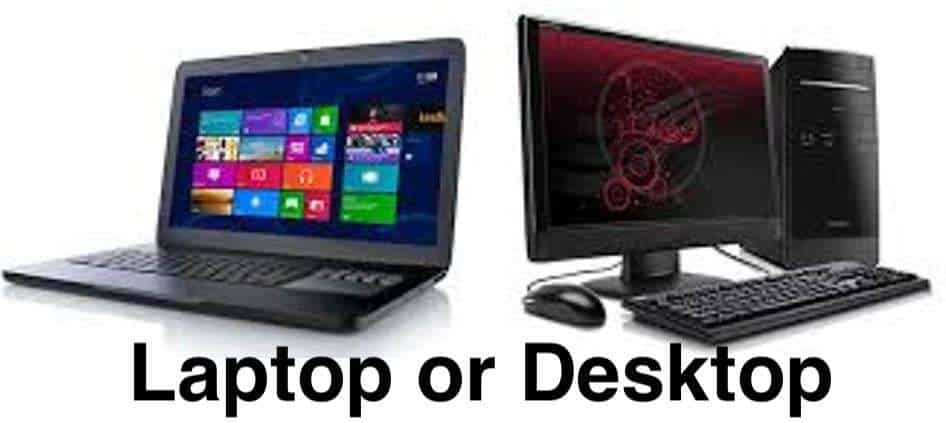
One of the most fundamental tips when buying a computer is determining whether you need a laptop or a desktop. Laptops offer portability, but desktops typically provide more power and upgradeability. If you’re always on the go, a laptop is the obvious choice. But for gaming, video editing, or running demanding applications, a desktop is often the better option.
3. Don’t Overlook the Processor (CPU)
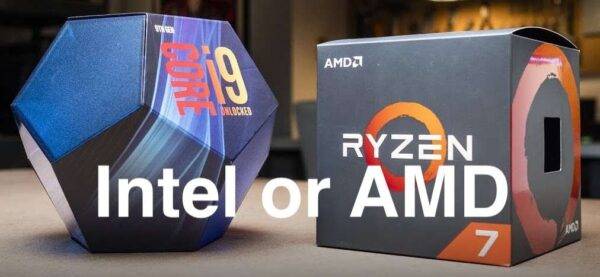
The CPU is the brain of your computer. Intel and AMD are the two main players in the processor market. When choosing between them, think about the following:
Intel i5 or i7: Great for general use, multitasking, and gaming.
AMD Ryzen series: Offers excellent performance for gaming, video editing, and streaming.
Don’t be tempted to go overboard—you might not need the most expensive CPU if your tasks are basic.
4. Pay Attention to RAM
RAM is one of the most critical factors for overall performance. For most users, 8GB of RAM is enough, but if you’re running demanding applications, opt for 16GB or more.
More RAM ensures your computer can handle multitasking without slowing down. In the world of tips when buying a computer, this one can significantly impact your everyday performance.
5. Storage: SSD vs. HDD
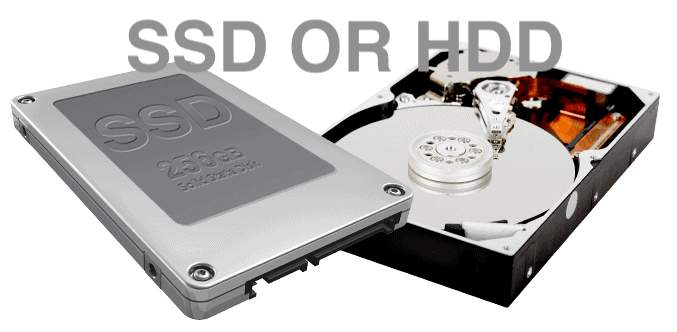
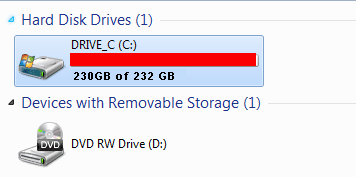
Choosing between an SSD (Solid-State Drive) and an HDD (Hard Disk Drive) is a major decision. SSDs are much faster, quieter, and more reliable but tend to be pricier. HDDs offer more storage for less cost but are slower. If you can afford it, choose an SSD for your operating system and programs, and perhaps use an HDD for extra storage.
6. Consider Your Graphics Card (GPU)
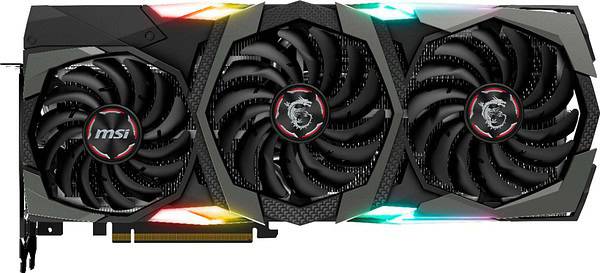
Another few tips when buying a computer If you’re into gaming, graphic design, or video editing, your graphics card (GPU) is crucial. For general users, integrated graphics on modern CPUs are often sufficient. But for high-end gaming or creative tasks, look into dedicated GPUs from NVIDIA or AMD Radeon.
7. The Importance of Ports and Connectivity
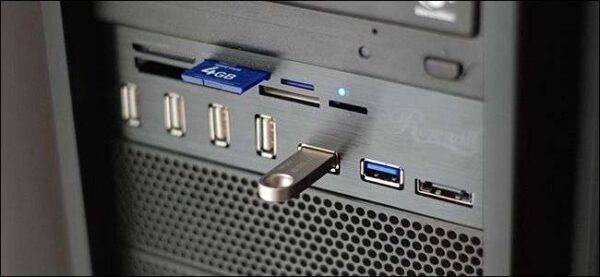
Pay attention to the ports available on your computer. Modern laptops may sacrifice ports for a slim design, so make sure it has the inputs you need. If you frequently use USB devices, HDMI outputs, or an Ethernet port, check that the computer offers enough of these options.
8. Screen Size and Display Quality
If you’re buying a laptop, consider the screen size. Smaller screens (13-15 inches) are portable, while larger screens (17+ inches) are better for detailed work or media consumption. Also, look for features like Full HD (1080p) or 4K for a sharper display, especially if you’re using the computer for content creation or entertainment.
9. Don’t Forget Battery Life
Battery life is crucial if you’re buying a laptop. A larger battery might add weight to the device, but it also ensures you can work without constantly searching for a power outlet. Consider laptops with at least 8-10 hours of battery life for all-day use.
10. Set a Realistic Budget
While it’s tempting to go for the latest and greatest tech, setting a realistic budget is key. Consider the balance between performance and price. It’s one of the best tips when buying a computer—you don’t need to break the bank to get a machine that meets your needs.
11. Future-Proofing Your Purchase
While you may not need the most powerful computer now, it’s wise to think about future-proofing. Can the machine be upgraded easily? Will it handle new software for the next 5-7 years? A little extra investment today can save you money in the long run.
12. Brand Reputation Matters
Stick to reputable brands such as Dell, HP, Apple, or Lenovo. They offer reliable machines, good customer support, and generally better warranties than lesser-known brands.
13. Check for Discounts and Deals
Always shop around for discounts and deals. Many retailers offer seasonal sales, and you can often find great deals during Black Friday or Cyber Monday. You can also consider buying from certified refurbished retailers to save money while still getting a reliable machine.
14. Warranty and Support Are Key
Make sure your purchase includes a warranty and that the company offers solid customer support. It’s important to know you have help in case something goes wrong, especially if you’re investing in an expensive system.
Conclusion: Make a Smart Computer Purchase with Confidence
By following these 14 tips when buying a computer, you can ensure that your next purchase will be well-informed and suited to your needs. Whether you’re looking for a gaming powerhouse, a workhorse for productivity, or just a budget-friendly machine, these tips will help you make the right choice.
When you’re ready, Kingfisher Computers is here to guide you through the buying process with expert advice and top-notch products.
The Illusion of Stability in Modern Updates For most users, operating system updates are something that simply happen. They arrive quietly, often installing in the background, requiring little more than…
Macbook Neo, How Does It Compare To Air & Pro? Over the last few years the laptop market has experienced one of the most significant architectural changes in its history.…
Apple’s latest product announcements mark one of the most significant shifts in the Mac lineup in more than a decade. While Apple routinely updates its hardware with faster chips, incremental…
There is a particular kind of frustration that only a slow computer can produce. It is not dramatic. It is not urgent. It does not scream for attention. Instead, it…
In an era where nearly every aspect of personal computer maintenance and professional life is mediated through digital systems, your computer is no longer a luxury device — it is…
Phone says charging but battery not increasing is one of the most frustrating problems smartphone users face. You plug it in.The lightning bolt appears.It says “Charging.” But the battery percentage…
Apple’s rumour cycle always looks like a thousand disconnected leaks — until you line them up and notice the same themes repeating: AI-first silicon, camera and display differentiation, form-factor experiments (foldables / spatial…
Wi-Fi connected but no internet is one of the most frustrating messages you can see on a computer or laptop. The Wi-Fi icon shows full bars.It says “Connected.”But websites won’t…
Unfortunately, there was an error submitting your request.
Please try again later, or reach out to us directly. You can call us at +44 1429 280955 or email us at sales@kingfishercomputers.co.uk for assistance. We’re here to help you get your computer back up and running!
We’ve received your booking, Our team will get in touch with you shortly to confirm the details. You’re one step closer to having your computer fixed! If you have any urgent questions, feel free to contact us. Otherwise, sit back, and we’ll handle the rest.