Supercharge Your PC: Essential Guide to Hardware Upgrades for Windows 10
Is your PC feeling sluggish, struggling to keep up with the demands of modern applications? Windows 10 Upgrades might be the key to giving your Windows 10 system the boost it needs. Whether you’re looking to improve performance, upgrade for gaming, or simply extend the life of your computer, Windows 10 Upgrades can transform your PC into a high-performance machine.
In this guide, we’ll dive into the most effective Windows 10 Upgrades, show you how to identify which components need upgrading, and walk you through how to get the most out of your system. By the end, you’ll have a clear roadmap to supercharging your PC.
Table of Contents
Why Hardware Upgrades Are Essential for Windows 10
Windows 10 is a versatile and powerful operating system, but even the best software can’t make up for outdated hardware. Over time, components like your RAM, hard drive, and graphics card can become bottlenecks, slowing down your system’s overall performance. With hardware upgrades, you can:
Enhance performance: Speed up your system with new components, allowing Windows 10 to run faster and more smoothly.
Improve multitasking: Upgrading your RAM can enable you to run multiple programs without slowing down.
Boost gaming and media editing capabilities: A new graphics card or SSD can dramatically improve the performance of games, video editing, and other intensive tasks.
Whether you’re a gamer, a creative professional, or just someone who wants a faster PC, hardware upgrades are the key to getting the most out of Windows 10.
Preparing for a Hardware Upgrade in Windows 10
Before jumping into any hardware upgrades, it’s essential to assess your current system and determine which components need upgrading. Here are the steps you should take to prepare:
1. Check System Specifications
Start by checking your system’s specs to identify which components are limiting your PC’s performance. You can do this easily on Windows 10:
Press Windows Key + X and select System.
Review your PC’s current specs, including RAM, CPU, and storage.
Once you know your current hardware, you can decide which upgrades are worth the investment.
2. Backup Your Data
As with any major change to your system, it’s always a good idea to back up your data. Use Microsoft OneDrive or an external hard drive to ensure that all your important files are safely stored.
Top Windows 10 Upgrades
Ready to take the plunge? Here are the most impactful hardware upgrades you can make for Windows 10.
1. Upgrade Your RAM
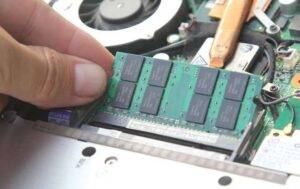
One of the simplest yet most effective ways to boost performance is to upgrade your RAM. More RAM allows your computer to handle more tasks simultaneously, making multitasking smoother and faster.
How to Upgrade Your RAM:
Identify how much RAM your system currently has (check this under System Information in Windows 10).
Determine your system’s maximum RAM capacity.
Purchase compatible RAM sticks and install them by opening your PC case.
Upgrading from 8GB to 16GB of RAM can make a noticeable difference in the overall speed of your computer, especially when running memory-hungry applications like Adobe Photoshop or when gaming.
Windows 10 Upgrades 5
2. Upgrade to a Solid-State Drive (SSD)
If your PC is still running on a traditional HDD (Hard Disk Drive), switching to an SSD (Solid-State Drive) can be a game-changer. An SSD offers faster boot times, quicker file access, and improved overall system performance.
Benefits of an SSD upgrade:
Boots up Windows 10 in seconds instead of minutes.
Provides better durability with no moving parts compared to traditional HDDs.
3. Upgrade Your Graphics Card (GPU)
If you use your PC for gaming, video editing, or graphic design, upgrading your graphics card (GPU) is one of the most important hardware upgrades you can make. A powerful GPU ensures smoother gameplay, faster rendering times, and better overall visual performance.
When upgrading your GPU, consider:
Compatibility with your motherboard and power supply.
What games or software you use most (for gaming, go for higher-end models like the NVIDIA GeForce RTX series).
Whether your case has enough room for the new GPU.
Upgrading your GPU can turn your PC into a gaming powerhouse, providing a more immersive experience.
How to Install Your Hardware Windows 10 Upgrades
Now that you’ve chosen the components you want to upgrade, here’s a quick guide on how to install them:
Installing New RAM:
Turn off your PC and unplug it from the power source.
Open your PC case (usually done by unscrewing the side panel).
Locate the RAM slots on your motherboard, remove the existing RAM sticks (if necessary), and insert the new RAM sticks.
Close the case, plug in the PC, and boot it up. Windows 10 should automatically detect the new RAM.
Installing an SSD:
Backup your current hard drive and ensure you have a bootable copy of Windows 10 on a USB drive or external disk.
Turn off the PC and open the case.
Remove the old hard drive (if replacing) and install the new SSD in its place.
Reinstall Windows 10 on the SSD and restore your backed-up data.
Installing a New GPU:
Unplug your PC and open the case.
Locate your existing graphics card and disconnect any power cables connected to it.
Remove the old GPU and insert the new one into the PCI-E slot.
Secure the GPU with screws, connect the power cables, and close the case.
Boot up the PC and install the appropriate drivers from the manufacturer’s website.
Troubleshooting Common Issues During Hardware Upgrades
Even with careful planning, you may encounter a few bumps in the road when upgrading your hardware. Here are common issues and how to fix them:
1. PC Won’t Boot After RAM Upgrade
Ensure that the RAM sticks are fully seated in their slots.
Check that the RAM is compatible with your motherboard.
Try removing one stick and booting with just one to identify any faulty RAM.
2. SSD Not Detected by Windows 10
Ensure the SSD is properly connected to both the SATA cable and power cable.
Go to Disk Management in Windows 10 and check if the SSD needs to be initialized.
3. Graphics Card Issues
Check that your power supply is sufficient to handle the new GPU.
Make sure you’ve downloaded and installed the latest drivers from the manufacturer’s website.
Conclusion: Supercharge Your Windows 10 Experience with Hardware Upgrades
If you’re looking to enhance performance, improve multitasking, or upgrade your gaming capabilities, Windows 10 Upgrades are the best way to supercharge your system. Whether it’s adding more RAM, switching to an SSD, or upgrading your GPU, these simple changes can dramatically improve how your computer runs.
Not sure where to start or need assistance with the installation? Reach out to the experts at Kingfisher Computers for guidance and support. We’ll make sure your upgrades go smoothly and help you get the most out of your Windows 10 system.
The Illusion of Stability in Modern Updates For most users, operating system updates are something that simply happen. They arrive quietly, often installing in the background, requiring little more than…
Macbook Neo, How Does It Compare To Air & Pro? Over the last few years the laptop market has experienced one of the most significant architectural changes in its history.…
Apple’s latest product announcements mark one of the most significant shifts in the Mac lineup in more than a decade. While Apple routinely updates its hardware with faster chips, incremental…
There is a particular kind of frustration that only a slow computer can produce. It is not dramatic. It is not urgent. It does not scream for attention. Instead, it…
In an era where nearly every aspect of personal computer maintenance and professional life is mediated through digital systems, your computer is no longer a luxury device — it is…
Phone says charging but battery not increasing is one of the most frustrating problems smartphone users face. You plug it in.The lightning bolt appears.It says “Charging.” But the battery percentage…
Apple’s rumour cycle always looks like a thousand disconnected leaks — until you line them up and notice the same themes repeating: AI-first silicon, camera and display differentiation, form-factor experiments (foldables / spatial…
Wi-Fi connected but no internet is one of the most frustrating messages you can see on a computer or laptop. The Wi-Fi icon shows full bars.It says “Connected.”But websites won’t…
Unfortunately, there was an error submitting your request.
Please try again later, or reach out to us directly. You can call us at +44 1429 280955 or email us at sales@kingfishercomputers.co.uk for assistance. We’re here to help you get your computer back up and running!
We’ve received your booking, Our team will get in touch with you shortly to confirm the details. You’re one step closer to having your computer fixed! If you have any urgent questions, feel free to contact us. Otherwise, sit back, and we’ll handle the rest.