Welcome to the wonderful world of making your PC more Energy Efficient! If you’ve ever wondered why your electricity bill resembles a small country’s GDP, chances are your computer is guzzling power like a thirsty elephant at a watering hole. Don’t worry—we’ve all been there. Your PC doesn’t need to consume enough electricity to power a small village just to browse cat videos and argue with strangers on social media.
Making your computer more Energy Efficient isn’t just about saving money (though your wallet will definitely thank you). It’s about reducing your carbon footprint, extending your hardware’s lifespan, and avoiding the awkward conversation with your roommate about why the power went out again. Think of it as giving your PC a diet plan—except instead of cutting carbs, we’re cutting watts, and instead of fitting into skinny jeans, your computer will fit into a more reasonable electricity budget.
The beauty of creating an Energy Efficient PC setup lies in the fact that most improvements are surprisingly simple and won’t require a PhD in electrical engineering or a toolkit that looks like it belongs on a space station. From tweaking software settings that take less time than making a cup of coffee to upgrading components that will pay for themselves faster than you can say “renewable energy,” we’ll cover everything you need to transform your power-hungry beast into an Energy Efficient machine that even Greta Thunberg would approve of.
Understanding Your PC’s Power Consumption Patterns
Before we dive into making your PC more Energy Efficient, let’s talk about where all that electricity is actually going. Your computer is basically a collection of components having an all-you-can-eat buffet at the power supply’s expense, and some of these components have bigger appetites than others. Understanding which parts are the electrical equivalent of competitive eaters will help you target your Energy Efficient improvements more effectively.
The Big Power Players in Your System
Your graphics card is essentially the Dwayne “The Rock” Johnson of power consumption—it’s massive, impressive, and consumes resources at an alarming rate. High-end graphics cards can draw anywhere from 200 to 400 watts under load, which is roughly equivalent to running four or five LED light bulbs simultaneously. If making your PC more Energy Efficient were a video game, the graphics card would be the final boss you need to defeat.
The CPU comes in second place, acting like that friend who claims they’re “not that hungry” but then proceeds to eat half your fries. Modern processors typically consume between 65 to 125 watts under normal conditions, but they can spike much higher during intensive tasks. The good news is that CPUs have become remarkably more Energy Efficient over the years, thanks to manufacturers realizing that people prefer processors that don’t double as space heaters.
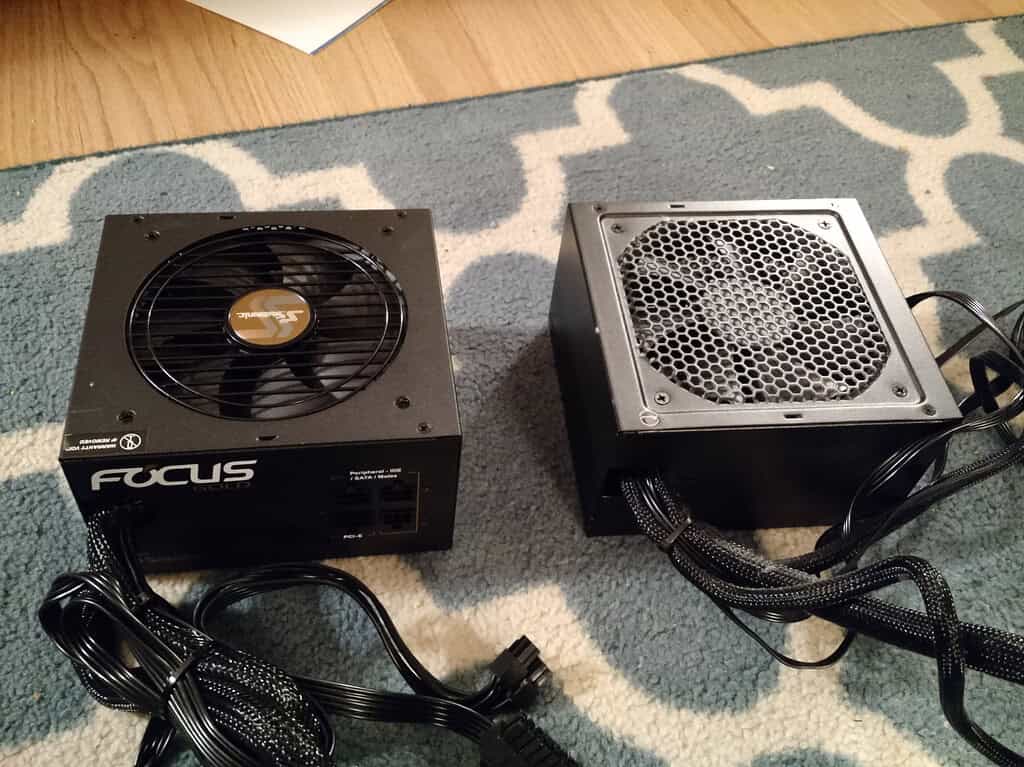
Your power supply unit deserves special mention because it’s the middleman taking a cut of every electrical transaction in your system. A poorly Energy Efficient PSU is like having a corrupt politician handling your electricity—some of it mysteriously disappears along the way. Quality power supplies achieve 80% efficiency or better, meaning only 20% of the power gets lost as heat, while cheap units might waste 30% or more of your precious electricity.
How To Make Your Pc More Energy Efficient 4
Hidden Power Vampires Lurking in Your System
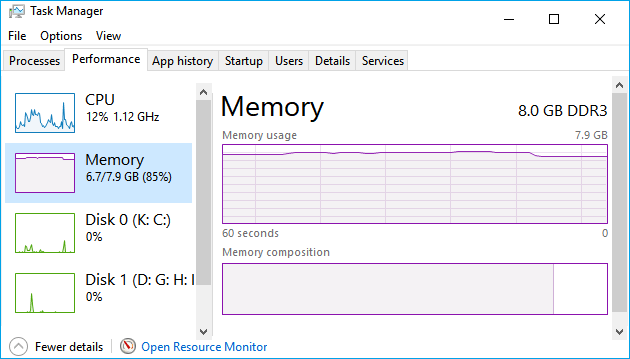
RAM might seem innocent, but it’s constantly sipping power like someone who claims they’re “just having one drink” and then closes down the bar. Each stick of DDR4 memory typically draws 3-5 watts, which doesn’t sound like much until you realize it’s doing this 24/7, even when you’re not using your computer. Making your RAM setup more Energy Efficient involves choosing lower-voltage modules and optimizing capacity for your actual needs rather than buying enough memory to run a small data center.
Storage devices are the quiet achievers of power consumption—traditional hard drives spin their mechanical hearts out consuming 6-10 watts each, while solid-state drives sip power more delicately at 2-4 watts. If you’re still running multiple mechanical drives in 2025, you’re basically operating a tiny wind farm inside your computer case. Upgrading to SSDs is one of the most effective ways to make your system more Energy Efficient while simultaneously making it faster and quieter.
Motherboards, fans, LED lights, and various peripherals might individually consume small amounts of power, but they add up like items in a shopping cart when you’re “just browsing.” Each case fan draws 1-3 watts, RGB lighting systems can consume 10-20 watts just to make your computer look like a disco, and that gaming mouse with 16.7 million color options is probably using more electricity than some small appliances. When building an Energy Efficient PC, every watt counts, and these small consumers can collectively make a significant difference.
Measuring and Monitoring Your Current Usage
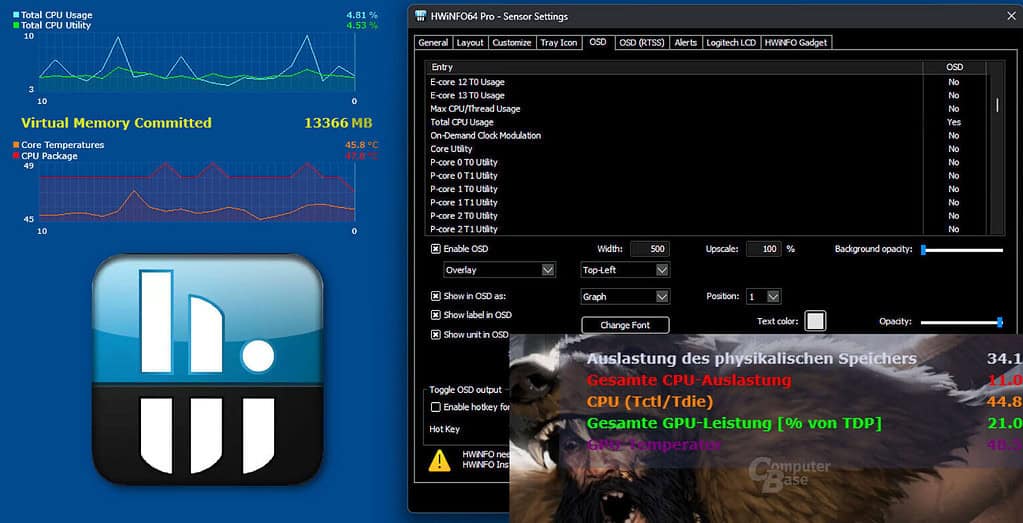
Before you can make your PC more Energy Efficient, you need to establish a baseline—think of it as weighing yourself before starting a diet, except instead of avoiding the scale, you’ll actually want to check these numbers regularly. Software monitoring tools like HWiNFO64 or MSI Afterburner can show you real-time power consumption for individual components, giving you the electrical equivalent of a calorie counter for your system.
How To Make Your Pc More Energy Efficient 5
Hardware power meters that plug into your wall outlet provide the most accurate overall system consumption readings and cost less than a fancy coffee. These devices will tell you exactly how much electricity your Energy Efficient (or not-so-efficient) PC setup is consuming, including all the phantom loads from components that never truly turn off. You might be surprised to discover your computer draws 20-50 watts even when “off,” like a guest who overstays their welcome and keeps raiding your refrigerator.
Creating a power consumption log helps identify patterns and opportunities for improvement. Note your system’s power draw during different activities—idle browsing, gaming, video editing, and sleep mode. This baseline data becomes crucial for measuring the success of your Energy Efficient modifications and justifying the cost of upgrades to skeptical family members who think you’re just looking for excuses to buy new computer parts.
Hardware Upgrades for Maximum Energy Savings
Now that we understand where your electricity is disappearing to (spoiler alert: it’s not being stolen by power fairies), let’s explore hardware upgrades that can transform your energy-guzzling monster into an Energy Efficient marvel. Think of this as giving your PC a complete makeover, except instead of new clothes and a haircut, we’re talking about new components that won’t bankrupt your electricity budget.
Power Supply Upgrades That Actually Matter
Upgrading to an 80 Plus certified power supply is like hiring a competent accountant for your electricity—suddenly, a lot less money mysteriously disappears. These Energy Efficient power supplies are rated for their efficiency levels, ranging from basic 80 Plus (80% efficient) to 80 Plus Titanium (94% efficient). The difference might seem small, but over years of operation, it adds up to real money—enough to buy several fancy coffee drinks or perhaps a small tropical vacation.
Modular power supplies deserve special mention because they allow you to connect only the cables you actually need, reducing clutter and improving airflow. It’s like having a customizable electrical system instead of a tangled mess that looks like someone sneezed spaghetti inside your computer case. Better airflow means lower temperatures, which means your fans don’t need to work as hard, creating a beautiful cascade of Energy Efficient improvements that would make any environmental scientist weep tears of joy.
The wattage rating of your power supply matters more than you might think for Energy Efficient operation. Contrary to popular belief, a 1000-watt PSU doesn’t consume 1000 watts constantly—it’s more like having a pickup truck that can tow a boat but spends most of its time commuting to work. However, power supplies operate most efficiently at 50-80% of their maximum capacity, so choose a unit that’s appropriately sized for your system rather than buying enough wattage to power a small city.
Graphics Card Efficiency Revolution
Modern graphics cards have undergone an Energy Efficient revolution that makes previous generations look like they were powered by tiny coal plants. NVIDIA’s newer architectures and AMD’s RDNA series deliver significantly more performance per watt than their predecessors, meaning you can get better gaming performance while actually reducing your electricity consumption. It’s like getting a sports car that runs on fairy dust and good intentions.
The key to Energy Efficient graphics card selection lies in matching your performance needs with power consumption. That RTX 4090 might be impressive, but if you’re playing indie games and browsing the internet, it’s like using a Formula 1 car for grocery shopping—technically possible but hilariously inefficient. Mid-range cards often provide the sweet spot of performance and efficiency, delivering excellent gaming experiences without requiring a dedicated nuclear reactor.
Undervolting your graphics card can improve efficiency without sacrificing performance, though it requires some technical knowledge and patience. It’s like teaching your graphics card to be more Energy Efficient through gentle encouragement rather than brute force. Many users report 10-20% power reductions with minimal performance impact, though your mileage may vary depending on your specific card and tolerance for tinkering with settings that have scary warning messages.
CPU and Motherboard Considerations
Modern processors have become remarkably more Energy Efficient, with manufacturers competing to deliver maximum performance per watt. Intel’s newer generations and AMD’s Ryzen processors include sophisticated power management features that automatically adjust performance and power consumption based on workload demands. It’s like having a processor that’s smart enough to know when to sprint and when to take a leisurely stroll.
Motherboard selection influences overall system efficiency through features like better voltage regulation, more Energy Efficient chipsets, and improved power delivery systems. A quality motherboard with good VRMs (voltage regulator modules) ensures your CPU receives clean, stable power without waste, while cheaper boards might deliver power like a drunk person trying to thread a needle—technically functional but with lots of spillage and inefficiency.
The importance of proper CPU cooling cannot be overstated for Energy Efficient operation. Overheating processors consume more power and throttle performance, creating a lose-lose situation where you get worse performance and higher electricity bills. Quality cooling solutions maintain optimal temperatures, allowing your processor to operate at its most Energy Efficient settings while delivering peak performance. Plus, quieter cooling solutions mean your computer won’t sound like a jet engine preparing for takeoff every time you open a web browser.
Software Optimization and Settings Tweaks
While hardware upgrades get all the glory, software optimization is the unsung hero of Energy Efficient computing—it’s free, immediately effective, and doesn’t require you to disassemble your computer with the precision of a bomb disposal expert. Think of software optimization as teaching your computer better manners so it doesn’t waste electricity like a teenager who leaves every light on in the house.
Power Management Settings That Actually Work
Windows power plans are like different driving modes in a car—you can choose between “maximum performance” (the equivalent of flooring it everywhere), “balanced” (like a responsible adult), or “power saver” (driving like someone’s grandmother on a Sunday afternoon). The balanced mode typically provides the best compromise between performance and Energy Efficient operation, automatically adjusting processor speeds and system behavior based on current demands.
Custom power plans allow you to fine-tune exactly how your system behaves, creating an Energy Efficient configuration tailored to your specific needs. You can set different behaviors for when the system is plugged in versus on battery power, adjust processor minimum and maximum states, and configure when various components enter sleep modes. It’s like having a personal trainer for your computer, except instead of making you do burpees, it’s making your system consume fewer watts.
The advanced power settings menu contains hidden gems that can significantly improve Energy Efficient operation. Settings like “Processor power management” allow you to limit maximum processor performance when full power isn’t needed, while “Hard disk” settings can specify when drives spin down to save power. These tweaks might seem minor, but they accumulate like loose change in your couch cushions—except instead of finding enough money for a coffee, you find enough energy savings for several coffees.
Display and Peripheral Optimization
Your monitor is often overlooked in Energy Efficient discussions, despite being one of the largest power consumers in your setup. LCD monitors typically consume 20-50 watts, while larger gaming monitors can draw 100 watts or more—essentially running a bright light bulb to display your spreadsheets and cat videos. Adjusting brightness levels, enabling automatic brightness adjustment, and setting aggressive sleep timers can substantially reduce display-related power consumption.
Multiple monitor setups multiply power consumption like rabbits in springtime, so consider whether you really need that third monitor or if it’s just there to make your desk look more impressive. If you do need multiple displays, look for Energy Efficient models with good power management features and consider turning off secondary monitors when not in use. Your electricity bill will appreciate the restraint, even if your ego doesn’t.
USB devices and peripherals continue drawing power even when not actively in use, creating an Energy Efficient challenge that requires some detective work. That RGB gaming keyboard, wireless mouse receiver, external hard drive, and collection of USB hubs all sip power continuously. Windows allows you to disable “USB selective suspend” for problematic devices while enabling it for others, though this requires patience and possibly some trial and error to avoid accidentally disabling your mouse mid-sentence.
Background Process Management
Background applications are the digital equivalent of that friend who crashes on your couch and never leaves—they consume resources without contributing much value. Task Manager’s startup tab reveals which programs launch automatically with Windows, many of which have no business starting up unless you’re actually planning to use them. Disabling unnecessary startup programs can improve both boot times and Energy Efficient operation by reducing idle system load.
Windows services running in the background can impact Energy Efficient performance, though modifying them requires caution and some technical knowledge. Services like Windows Update, indexing, and telemetry collection consume CPU cycles and disk activity even when you’re not actively using your computer. Selectively disabling non-essential services can reduce idle power consumption, but be careful not to disable something important unless you enjoy troubleshooting mysterious system problems.
Browser management significantly affects Energy Efficient computing, particularly if you’re someone who keeps 47 tabs open “just in case you need them later.” Each browser tab consumes memory and processing power, with video-heavy sites being particularly demanding. Extensions and plugins add additional overhead, so consider whether you really need seventeen different ad blockers and productivity tools that you haven’t used since installing them six months ago.
How To Make Your Pc More Energy Efficient 6
Advanced Cooling and Thermal Management
Proper cooling is the secret sauce of Energy Efficient computing—it’s like having a good air conditioning system in your house, except instead of keeping you comfortable, it’s keeping your expensive computer components from turning into very expensive paperweights. Counterintuitively, investing in better cooling can actually make your system more Energy Efficient by allowing components to operate at optimal temperatures and voltages.
Fan Configuration and Airflow Optimization
Case airflow is like choreographing a dance, except instead of graceful dancers, you’re coordinating spinning fans to move air through your computer without creating tiny tornadoes or dead zones where hot air sits around like teenagers in a mall parking lot. Proper Energy Efficient airflow typically follows the “in the front, out the back and top” principle, creating positive pressure that helps keep dust out while ensuring hot air doesn’t linger around sensitive components.
Fan curves allow you to balance cooling performance with noise levels and power consumption, creating an Energy Efficient cooling strategy that adapts to system demands. Instead of running fans at full speed constantly (which sounds like housing a small aircraft in your living room), smart fan curves ramp up cooling only when needed. This approach reduces power consumption, noise levels, and fan wear while maintaining optimal temperatures during demanding tasks.
The number of fans in your system represents a delicate balance—too few fans mean poor cooling and higher component temperatures, while too many fans consume unnecessary power and create enough noise to wake sleeping neighbors. Most systems achieve optimal Energy Efficient cooling with 2-4 case fans strategically positioned, though this varies depending on component selection and case design. Remember, each additional fan typically consumes 1-3 watts continuously, so choose wisely.
CPU and GPU Cooling Solutions
Aftermarket CPU coolers can dramatically improve Energy Efficient operation by maintaining lower processor temperatures, which allows the CPU to operate at more efficient voltages and clock speeds. Stock coolers are adequate for basic use but often struggle under load, causing processors to thermal throttle and consume more power while delivering worse performance. It’s like trying to run a marathon while wearing a winter coat—technically possible but highly inefficient.
Graphics card cooling deserves special attention because overheating GPUs become power-hungry and loud, like that one neighbor who plays music too loudly and drives a truck that belches black smoke. Custom cooling solutions, improved case airflow, and undervolting can keep graphics cards running efficiently and quietly. Some users even replace stock GPU coolers with aftermarket solutions, though this requires technical skill and potentially voids warranties.
Liquid cooling systems offer excellent thermal performance but consume additional power for pumps and fans, creating a complex Energy Efficient equation. While liquid cooling can enable lower temperatures and better component efficiency, the pumps typically draw 5-15 watts continuously. The decision between air and liquid cooling depends on your specific system requirements, noise preferences, and willingness to maintain more complex cooling systems.
Thermal Paste and Heat Transfer Optimization
Thermal paste application is like buttering toast—too little and it doesn’t work properly, too much and you make a mess that doesn’t improve anything. Proper thermal paste application ensures efficient heat transfer between processors and coolers, maintaining lower temperatures that enable more Energy Efficient operation. Old, dried thermal paste can increase temperatures by 10-20 degrees Celsius, forcing cooling systems to work harder and consume more power.
High-quality thermal paste can make a measurable difference in Energy Efficient operation, though the improvements are typically modest unless you’re replacing very old or poor-quality paste. Premium thermal compounds might reduce temperatures by a few degrees compared to budget options, which translates to slightly lower fan speeds and power consumption. It’s not revolutionary, but every degree counts when optimizing for efficiency.
The thermal paste replacement schedule depends on usage patterns and environmental conditions, but most applications benefit from replacement every 2-4 years. Dust buildup, temperature cycling, and paste aging gradually reduce thermal efficiency, making periodic maintenance essential for maintaining Energy Efficient operation. Think of it as changing the oil in your car, except instead of preventing engine damage, you’re preventing your processor from becoming a tiny space heater.
Conclusion: Embracing Your Energy Efficient Future
Congratulations! You’ve made it through our comprehensive guide to creating a more Energy Efficient PC without falling asleep or having an existential crisis about your electricity consumption habits. By now, you should have a solid understanding of how to transform your power-hungry computer into a lean, mean, Energy Efficient machine that would make both your wallet and the environment proud.
The journey toward Energy Efficient computing doesn’t end here—it’s an ongoing process of monitoring, tweaking, and occasionally upgrading components when they reach the end of their useful lives. Technology continues advancing, with new Energy Efficient components regularly entering the market that offer better performance per watt than their predecessors. Staying informed about these developments helps you make smart upgrade decisions when the time comes.
Remember that making your PC more Energy Efficient is ultimately about finding the right balance for your specific needs, budget, and environmental goals. You don’t need to sacrifice performance or functionality to achieve meaningful energy savings—you just need to be smarter about component selection, configuration, and usage patterns. Every small improvement contributes to larger savings over time, much like how individual raindrops eventually fill buckets.
Long-term Benefits and Maintenance
The Energy Efficient improvements you implement today will continue paying dividends for years to come through reduced electricity bills, extended component lifespans, and improved system reliability. Lower operating temperatures mean less thermal stress on components, while reduced power consumption means less heat generation and quieter operation. It’s like compound interest, except instead of money growing in the bank, your savings grow every month when the electricity bill arrives.
Regular maintenance becomes even more important for Energy Efficient systems because dust buildup, aging thermal paste, and failing fans can quickly erode the efficiency gains you’ve worked hard to achieve. Schedule periodic cleanings, monitor system temperatures, and replace consumable components before they significantly impact performance. Think of it as preventive medicine for your computer—a little attention now prevents bigger problems later.
At Kingfisher Computers, we’re committed to helping our customers achieve their Energy Efficient computing goals through expert advice, quality components, and ongoing support. Whether you’re planning a complete system overhaul or looking for specific component recommendations, our team can help you navigate the sometimes confusing world of energy-conscious computing. Because at the end of the day, the best Energy Efficient PC is the one that meets your needs while keeping your electricity bill from resembling a small mortgage payment.
The future of computing is undoubtedly heading toward greater Energy Efficient designs, driven by environmental concerns, rising energy costs, and consumer demand for quieter, cooler-running systems. By implementing the strategies outlined in this guide, you’re not just saving money and reducing your environmental impact—you’re also future-proofing your computing setup for an increasingly efficiency-focused world. Now go forth and compute responsibly, knowing that every watt saved is a small victory in the grand battle against excessive electricity consumption!
The Illusion of Stability in Modern Updates For most users, operating system updates are something that simply happen. They arrive quietly, often installing in the background, requiring little more than…
Macbook Neo, How Does It Compare To Air & Pro? Over the last few years the laptop market has experienced one of the most significant architectural changes in its history.…
Apple’s latest product announcements mark one of the most significant shifts in the Mac lineup in more than a decade. While Apple routinely updates its hardware with faster chips, incremental…
There is a particular kind of frustration that only a slow computer can produce. It is not dramatic. It is not urgent. It does not scream for attention. Instead, it…
In an era where nearly every aspect of personal computer maintenance and professional life is mediated through digital systems, your computer is no longer a luxury device — it is…
Phone says charging but battery not increasing is one of the most frustrating problems smartphone users face. You plug it in.The lightning bolt appears.It says “Charging.” But the battery percentage…
Apple’s rumour cycle always looks like a thousand disconnected leaks — until you line them up and notice the same themes repeating: AI-first silicon, camera and display differentiation, form-factor experiments (foldables / spatial…
Wi-Fi connected but no internet is one of the most frustrating messages you can see on a computer or laptop. The Wi-Fi icon shows full bars.It says “Connected.”But websites won’t…
Unfortunately, there was an error submitting your request.
Please try again later, or reach out to us directly. You can call us at +44 1429 280955 or email us at [email protected] for assistance. We’re here to help you get your computer back up and running!
We’ve received your booking, Our team will get in touch with you shortly to confirm the details. You’re one step closer to having your computer fixed! If you have any urgent questions, feel free to contact us. Otherwise, sit back, and we’ll handle the rest.