5 Common Causes of PC Damage and the Warning Signs to Check
Adam Fornal
July 22nd, 2025
Common causes of PC damage include blocked cooling, dust, unsuitable power equipment, liquid spills and physical strain. Spotting a change early can help you avoid making an existing fault worse. A noisy fan or a crash is a clue to investigate, rather than proof that a particular part has failed.
This guide explains five things worth checking, what you can do without dismantling your computer and when to leave it switched off. For routine care between faults, use our computer maintenance guide.
Table of Contents
Common causes of PC damage at a glance
Heat with a cooling problem: look for blocked vents, a failed fan or a sudden change under the same workload.
Dust: check accessible filters and vents before it builds up around cooling fins.
Power problems: pay attention to damaged cables, unsuitable chargers and unexpected losses of power.
Liquid: stop testing a wet computer and arrange an assessment.
Physical strain: protect hinges, sockets, cables and batteries from pressure or impact.
If there is smoke, a burning smell, visible battery swelling or an electrical fault, stop using the device. Disconnect mains power if it is safe to do so. Do not keep switching it on to see whether the problem has cleared.
1. Heat and a cooling fault
A computer produces more heat during gaming, video work or another demanding task. Faster fans and a warm case can be normal. What deserves attention is a change: the same task suddenly causes repeated shutdowns, performance falls sharply or a fan that normally runs has stopped.
There is no single safe temperature for every processor. Check the specification for your exact model and the computer manufacturer’s guidance. Intel explains that its processors use thermal throttling and shutdown protection, and that temperature limits depend on the product. A high reading alone does not prove permanent damage. See Intel’s processor temperature guidance.
Start with the outside. Put a laptop on a firm surface, leave its vents clear and give a desktop room to move air around the case. Note which task triggers the problem. Do not disable thermal protection or replace parts just because one monitoring app shows a red number. Our case airflow guide explains the layout checks for desktop systems.
2. Dust that restricts airflow
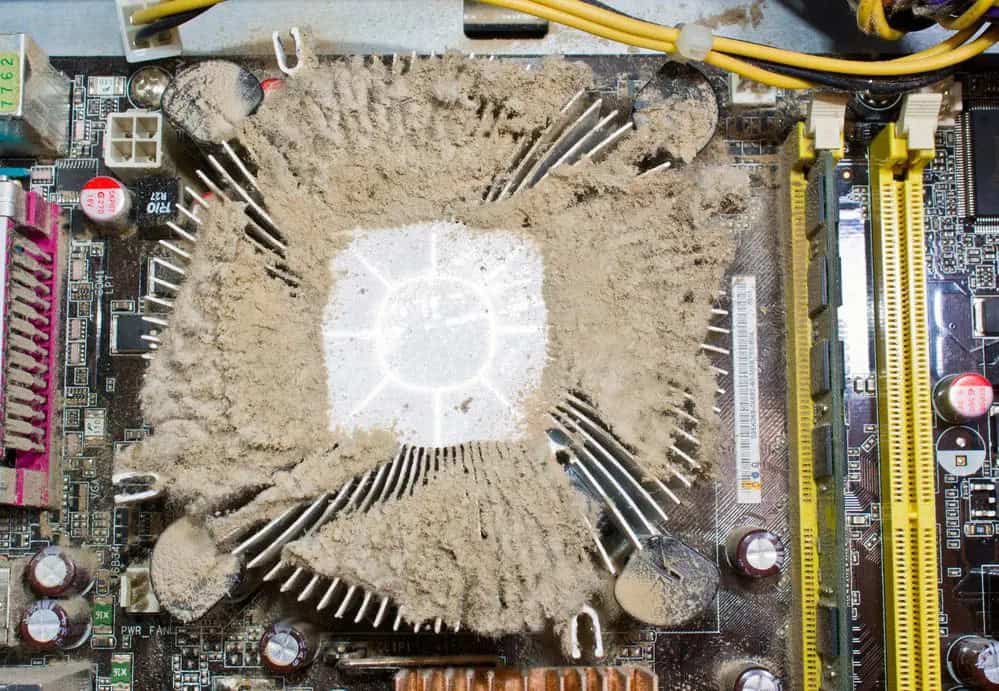
Dust can collect on filters, vents, fan blades and heatsink fins. A filter that looks tidy from the front can still hide a blocked cooling path. Pets, carpets and a computer kept near the floor can make it worth checking more often.
Dust Can Build Up On Fan Blades And Cooling Fins. Follow The Device Instructions Before Attempting Internal Cleaning.
Shut the computer down and disconnect its external power before cleaning. Follow the model’s service instructions. Clean removable filters only as directed, and let them dry fully before refitting. Avoid household vacuum cleaners inside the computer, spraying liquid through vents or forcing a tool between fan blades. Internal cleaning may need battery isolation and protection against static electricity.
There is no cleaning interval that suits every room and device. Check again sooner if visible dust returns quickly. If the computer still overheats after accessible vents are clear, a fan, cooler or another fault may need attention.
3. Power equipment and unexpected interruptions
A damaged power lead, loose charging socket or unsuitable adapter deserves attention before another stress test. Use a charger that meets the device manufacturer’s requirements. For a desktop upgrade, check the power supply’s capacity, connectors and compatibility with the new parts. Modular power supply cables are not automatically interchangeable between units.
Unexpected shutdowns can have several causes. Record whether the whole room lost power, the computer alone switched off or the problem happened only under load. That information is more useful than assuming the power supply is faulty and ordering a replacement.
A surge protector and a UPS do different jobs. A suitably specified UPS can provide battery time for a controlled shutdown during an outage; a basic surge protector does not keep the computer running when the mains fails. Capacity, runtime and protected outlet types vary. Consult the Schneider Electric UPS buying guide and the chosen unit’s instructions.
Never open a desktop power supply or mains adapter to clean or repair it. Do not continue using damaged cables or connectors that become discoloured or unusually hot. For a suspected computer fault, our PC power supply guide covers useful observations to pass on.
4. Liquid spills and moisture
Keep drinks away from a keyboard, laptop vents and the top of a desktop case. A small spill can reach places you cannot inspect from the outside. A computer working immediately afterwards does not establish that it is safe to keep using.
If liquid reaches the device, switch it off and disconnect external power if safe. Do not charge it, repeatedly try the power button or apply heat with a hairdryer. Do not open a sealed device or try to remove a built in battery without the correct procedure. Tell the repairer what was spilled, when it happened and whether the device has been powered since.
Drying the outside does not remove residue inside. An assessment is needed to establish the extent of the problem. If files matter, mention that before any repair or storage work is agreed. Avoid promising yourself that one more startup will be enough to copy them.
5. Physical strain and battery warning signs
Carry a laptop in a padded compartment and remove accessories that could put pressure on its ports. Open the lid gently, avoid lifting it by the screen and stop forcing a hinge that has become stiff or separated from the case. A loose socket can worsen when a cable is held at an angle to make it work.
When moving a desktop, shut it down, disconnect cables and support the case properly. Heavy internal components may need additional precautions in transport; use the system supplier’s instructions. A knock can affect a connector or component even when the outside looks undamaged.
A lifting trackpad, separating case or visible battery swelling needs attention. Stop using and charging the device, avoid pressure or puncture and arrange professional advice on replacement and handling. Do not try to flatten a swollen battery or force the case closed.
What to record before arranging a repair
Understanding common causes of PC damage helps you describe a fault, but a checklist cannot confirm a diagnosis remotely. Send the model, the symptom, when it began and any recent spill, drop, upgrade or power interruption. A photograph of visible damage or the exact error message can be useful. Do not dismantle the device just to get one.
If it is safe and the computer is stable, keep an independent backup of important files. If a drive clicks, disappears or repeatedly fails to read, or if an electrical or liquid fault is present, stop further testing and explain that the files are a priority.
Kingfisher Computers has served Hartlepool since 2004. We assess the fault and agree the repair work and cost before proceeding. A £24 diagnostic fee including VAT applies only if you decline the quoted repair after diagnosis has begun. There is no separate diagnostic fee if you approve the repair. Contact our Hartlepool team with your device details.
Questions about common causes of PC damage
Does a hot computer mean it is damaged?
No. Workload, design and temperature limits differ. Look for changes in behaviour and follow the exact model’s guidance. Repeated shutdowns, a failed fan or visible damage justify investigation; temperature alone does not identify the failed part.
Will cleaning fix every shutdown?
No. Clearing an obstruction can help a cooling problem, but shutdowns also occur for other hardware and software reasons. If the symptom continues, record the conditions rather than repeating increasingly demanding tests.
Should I repair or replace the computer?
That depends on the fault, the condition of the device, available parts and what you need it to do. Diagnosis gives you a basis for comparing a repair with replacement. A single symptom or the age of the computer is not enough to decide.
The Illusion of Stability in Modern Updates For most users, operating system updates are something that simply happen. They arrive quietly, often installing in the background, requiring little more than…
Macbook Neo, How Does It Compare To Air & Pro? Over the last few years the laptop market has experienced one of the most significant architectural changes in its history.…
Apple’s latest product announcements mark one of the most significant shifts in the Mac lineup in more than a decade. While Apple routinely updates its hardware with faster chips, incremental…
There is a particular kind of frustration that only a slow computer can produce. It is not dramatic. It is not urgent. It does not scream for attention. Instead, it…
Small business computer maintenance planning starts with the work you cannot afford to lose. Identify the computers, accounts and files behind those tasks, then agree when maintenance can happen and…
Phone says charging but battery not increasing is one of the most frustrating problems smartphone users face. You plug it in.The lightning bolt appears.It says “Charging.” But the battery percentage…
Apple’s rumour cycle always looks like a thousand disconnected leaks — until you line them up and notice the same themes repeating: AI-first silicon, camera and display differentiation, form-factor experiments (foldables / spatial…
Wi-Fi connected but no internet is one of the most frustrating messages you can see on a computer or laptop. The Wi-Fi icon shows full bars.It says “Connected.”But websites won’t…
Unfortunately, there was an error submitting your request.
Please try again later, or reach out to us directly. You can call us at +44 1429 280955 or email us at sales@kingfishercomputers.co.uk for assistance. We’re here to help you get your computer back up and running!
We’ve received your booking, Our team will get in touch with you shortly to confirm the details. You’re one step closer to having your computer fixed! If you have any urgent questions, feel free to contact us. Otherwise, sit back, and we’ll handle the rest.
Contact Kingfisher Computers
No appointment required. You’re welcome to pop into the shop during opening hours.
ENQUIRY RECEIVED
Thank you
Monday–Friday
9am–5pm
Saturday
9am–4:30pm
Sunday
Closed
Bank holidays
Closed
38 Church Street, Hartlepool, TS24 7DG For home visits and callouts, please wait for us to arrange a time.
Contact Kingfisher Computers
No appointment required. You’re welcome to pop into the shop during opening hours.
ENQUIRY RECEIVED
Thank you
Monday–Friday
9am–5pm
Saturday
9am–4:30pm
Sunday
Closed
Bank holidays
Closed
38 Church Street, Hartlepool, TS24 7DG For home visits and callouts, please wait for us to arrange a time.