How to Avoid Compatibility Issues When Building a PC
Adam Fornal
July 21st, 2025
Table of Contents
How to Avoid Compatibility Issues When Building a PC
Building your own computer represents one of the most rewarding experiences in technology, offering complete control over performance, aesthetics, and budget. However, the excitement of selecting components can quickly turn into frustration when parts don’t work together as expected. Learning how to Avoid Compatibility Issues before making purchases saves both time and money while ensuring your dream build becomes reality rather than an expensive lesson in component research.
The key to successful PC building lies in understanding how different components interact and depend on each other. Modern computers consist of numerous interconnected parts, each with specific requirements and limitations that must align perfectly for optimal performance. When you Avoid Compatibility Issues through careful planning and research, you create a system that not only functions flawlessly but also provides room for future upgrades and modifications.
Understanding the Foundation of PC Compatibility
PC compatibility stems from the intricate relationships between hardware components, each designed to communicate through standardized interfaces and protocols. To Avoid Compatibility Issues, you must first understand these fundamental connections and how they determine which parts can work together effectively. The motherboard serves as the central hub that connects all components, making it the most critical factor in determining overall system compatibility.
The Motherboard as Your Compatibility Starting Point
Your motherboard choice fundamentally determines your ability to Avoid Compatibility Issues throughout your build. This primary circuit board houses the CPU socket, RAM slots, expansion card connectors, and numerous other interfaces that dictate which components you can install. Different motherboard chipsets support specific processor generations, memory types, and feature sets, making motherboard selection the cornerstone of compatibility planning.
Modern motherboards use various form factors, including ATX, micro-ATX, and mini-ITX, each with different dimensions and connector layouts. The form factor affects case compatibility, expansion slot availability, and cooling clearances. When you choose a motherboard to Avoid Compatibility Issues, consider not just current component needs but also future upgrade possibilities and the physical constraints of your chosen case.
How To Avoid Compatibility Issues When Building A Pc 9
CPU and Socket Compatibility Fundamentals
Processor compatibility represents one of the most critical aspects to consider when you want to Avoid Compatibility Issues. CPUs use specific socket types that must match your motherboard exactly—Intel and AMD use different socket designs, and even within each manufacturer, different processor generations often require different sockets. Installing an incompatible CPU is impossible due to physical differences in pin arrangements and socket designs.
Beyond physical compatibility, you must also consider chipset support to Avoid Compatibility Issues. Even if a CPU fits a motherboard socket, the chipset may not support all processor features or may require BIOS updates for proper function. Newer processors might work in older motherboards with updated firmware, but you could lose access to advanced features or optimal performance. Always verify both socket compatibility and chipset support before finalizing processor and motherboard selections.
How To Avoid Compatibility Issues When Building A Pc 10
Memory Compatibility and Selection Guidelines
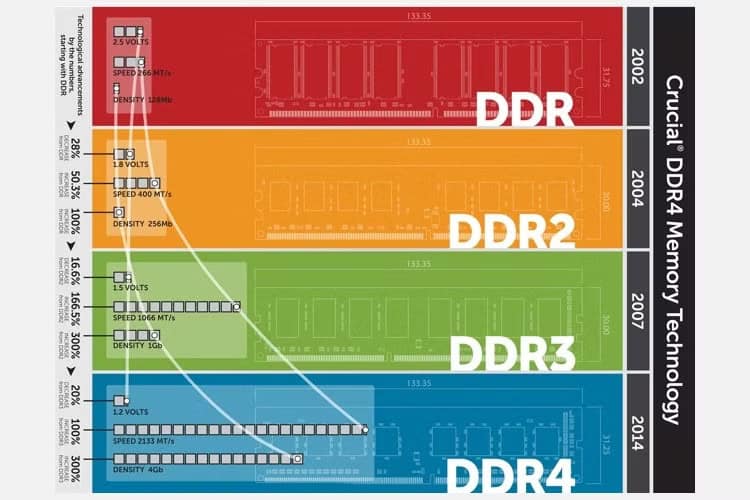
RAM compatibility extends beyond simply matching the memory type to motherboard specifications. To Avoid Compatibility Issues with memory, you must consider speed ratings, timing specifications, module configurations, and even physical clearances around memory slots. Modern systems use DDR4 or DDR5 memory, with each type offering different performance characteristics and compatibility requirements.
Understanding Memory Standards and Specifications
Memory modules must match several specifications to Avoid Compatibility Issues in your system. The most obvious requirement involves memory type—DDR4 and DDR5 use different slot designs and voltage requirements, making them physically incompatible. Within each memory generation, speed ratings indicate maximum data transfer rates, but your motherboard and CPU must support these speeds for optimal performance.
Memory timing specifications, often called latency settings, affect both performance and compatibility. To Avoid Compatibility Issues, choose memory modules with timing specifications that fall within your motherboard’s supported ranges. Some high-performance memory requires manual timing adjustments or profile activation through BIOS settings. Qualified Vendor Lists (QVL) provided by motherboard manufacturers identify specific memory modules tested for compatibility with particular motherboard models.
Dual Channel and Multi-Channel Memory Configurations
Modern systems benefit from multi-channel memory configurations that require careful planning to Avoid Compatibility Issues. Dual-channel setups use two identical memory modules installed in specific slots, typically color-coded on the motherboard. Mismatched memory modules can cause instability, reduced performance, or complete system failure to boot.
When building systems with four memory slots, you can Avoid Compatibility Issues by installing memory in pairs, starting with slots recommended by your motherboard manual. Mixing different memory speeds, brands, or capacities within a multi-channel configuration often works but may result in all modules running at the speed of the slowest module. For maximum reliability and performance, use identical memory modules from the same manufacturer and product line.
How To Avoid Compatibility Issues When Building A Pc 11
Storage and Expansion Card Compatibility
Modern PC building involves numerous storage options and expansion cards, each with specific compatibility requirements that affect system functionality and performance. Understanding these requirements helps Avoid Compatibility Issues that could limit your system’s capabilities or prevent proper operation. Storage devices use various interfaces, while expansion cards require specific slot types and adequate power delivery.
How To Avoid Compatibility Issues When Building A Pc 12
Storage Interface and Power Requirements
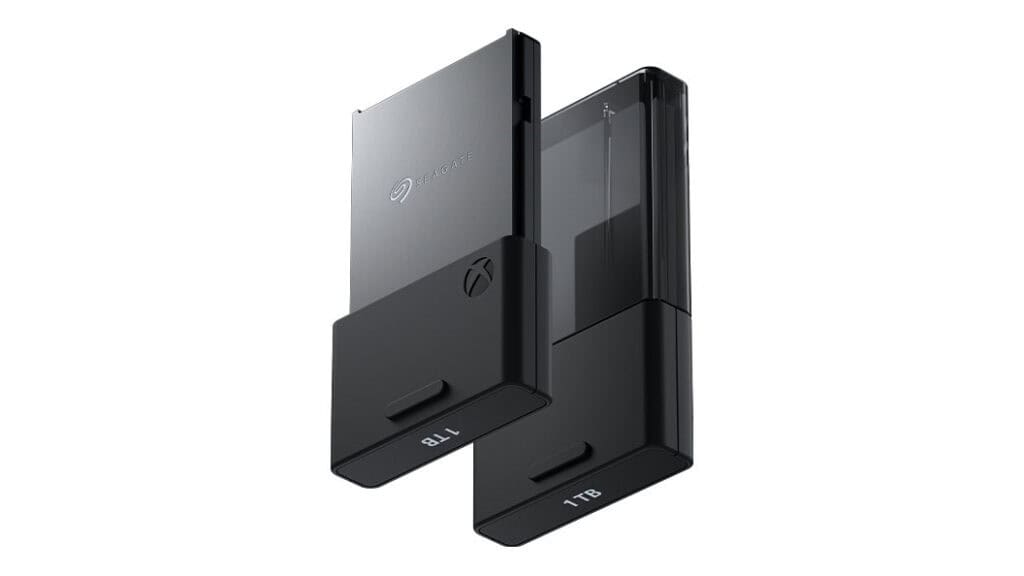
Storage compatibility encompasses both data and power connections, with different drive types requiring specific motherboard support and power supply capabilities. To Avoid Compatibility Issues with storage, you must understand the differences between SATA, NVMe, and legacy storage interfaces, along with their respective performance characteristics and installation requirements.
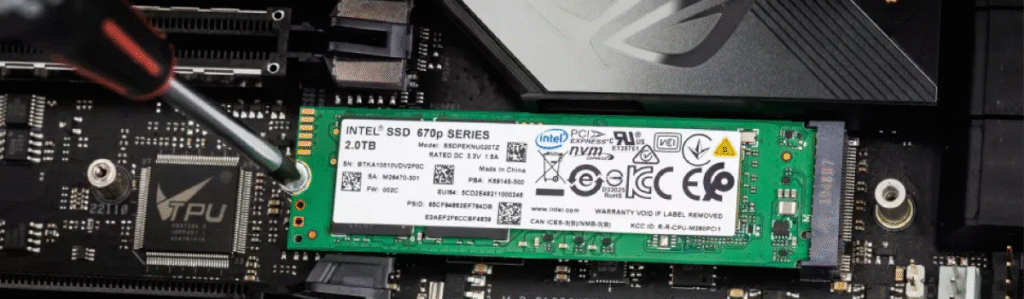
Traditional SATA drives, including both hard disk drives and solid-state drives, require both SATA data cables and power connections from your power supply. Most modern motherboards include multiple SATA ports, but you should verify sufficient connections for your planned storage configuration. M.2 NVMe drives connect directly to motherboard slots, eliminating cable requirements but potentially conflicting with other expansion cards or SATA ports depending on your motherboard’s design.
M.2 Slot Configuration and Lane Sharing
M.2 slots on motherboards often share PCIe lanes with other connectors, creating potential compatibility conflicts that you must understand to Avoid Compatibility Issues. When you install an M.2 drive, some motherboards automatically disable specific SATA ports or reduce available PCIe lanes for expansion cards. This lane sharing varies between motherboard models and chipsets, making it essential to consult your motherboard manual before finalizing storage and expansion card selections.
Different M.2 slots may support different drive lengths and interface types. Some slots accommodate only SATA M.2 drives, while others support NVMe drives or both. To Avoid Compatibility Issues, verify that your chosen M.2 drives match both the interface type and physical length supported by available motherboard slots. Drive lengths typically range from 2242 to 22110, with 2280 being the most common consumer format.
How To Avoid Compatibility Issues When Building A Pc 13
Graphics Card and PCIe Compatibility
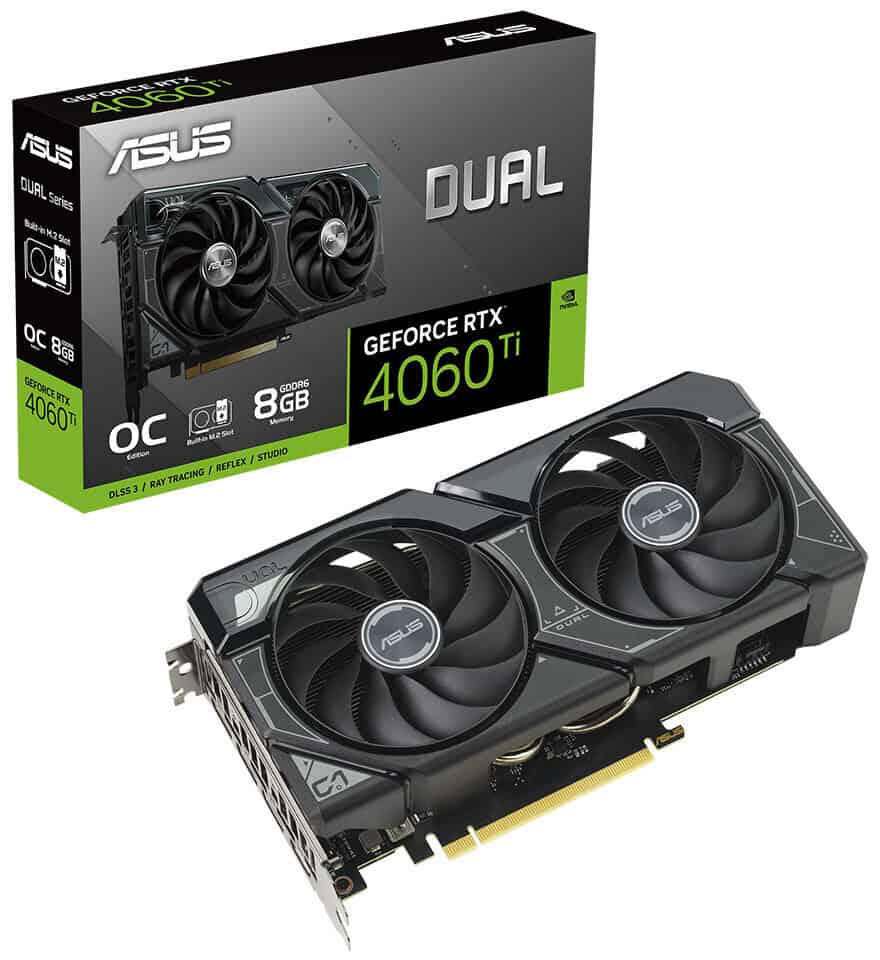
Graphics cards represent the largest and most power-hungry expansion cards in most systems, requiring careful consideration of multiple compatibility factors. To Avoid Compatibility Issues with graphics cards, you must evaluate physical clearances, power supply capacity, PCIe slot compatibility, and potential conflicts with other system components.
Modern graphics cards primarily use PCIe x16 slots, but the PCIe generation affects bandwidth availability. PCIe 3.0 x16 slots provide adequate bandwidth for most current graphics cards, while PCIe 4.0 offers additional headroom for future hardware. However, graphics cards maintain backward compatibility, allowing newer cards to function in older PCIe slots, albeit potentially with slight performance limitations in bandwidth-intensive scenarios.
How To Avoid Compatibility Issues When Building A Pc 14
Physical Clearance and Case Compatibility
Graphics card physical dimensions often create the most obvious compatibility challenges in PC building. To Avoid Compatibility Issues, measure both your case’s graphics card clearance and your chosen card’s dimensions, including length, width, and thickness. High-performance graphics cards frequently occupy two or more expansion slots and may conflict with nearby components like large CPU coolers or memory modules with tall heat spreaders.
Some graphics cards extend beyond the motherboard’s PCIe slot area, potentially interfering with drive bays, cables, or other case-mounted components. Additionally, graphics cards with non-standard cooling solutions may require additional clearance around the motherboard area. Always verify compatibility between your chosen case, motherboard, and graphics card before making final purchases to Avoid Compatibility Issues that could necessitate component returns or exchanges.
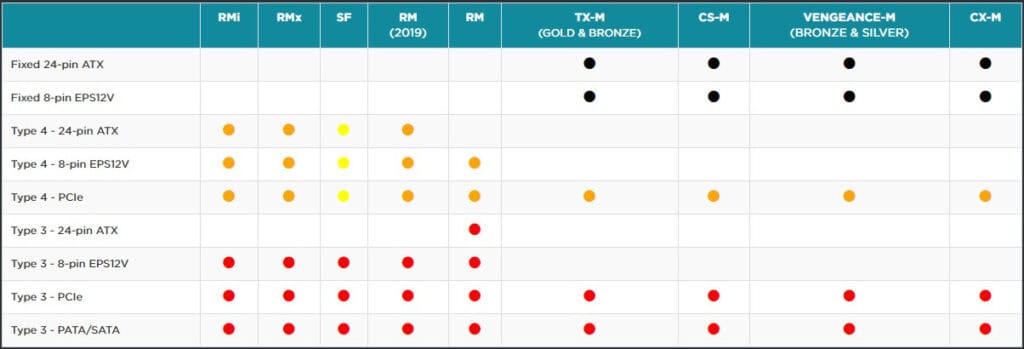
Power supply compatibility extends far beyond simply providing adequate wattage for your components. To Avoid Compatibility Issues with power delivery, you must consider connector types, cable lengths, efficiency ratings, and physical dimensions. Modern components often require specific power connectors that older power supplies may lack, while high-performance systems demand stable power delivery under varying load conditions.
Calculating Power Requirements and Connector Needs
Accurate power calculation helps Avoid Compatibility Issues related to insufficient power delivery or system instability under load. Online power calculators provide estimates based on your component selections, but you should add a safety margin of 20-30% to account for power supply aging, efficiency curves, and potential future upgrades. High-performance graphics cards and processors can create significant power spikes that require adequate power supply headroom.
Power connector compatibility represents another critical factor to consider when you want to Avoid Compatibility Issues. Modern graphics cards require dedicated PCIe power connectors, typically 6-pin, 8-pin, or combinations thereof. Some high-end cards require multiple connectors or newer 12VHPWR connectors for next-generation hardware. Ensure your power supply includes all necessary connectors for your chosen components, or plan to use quality adapter cables if needed.
How To Avoid Compatibility Issues When Building A Pc 15
Modular vs Non-Modular Power Supply Considerations
Modular power supplies allow custom cable configurations that can help Avoid Compatibility Issues in compact builds or systems with complex routing requirements. These units let you connect only necessary cables, reducing clutter and improving airflow. However, modular power supplies typically cost more than non-modular units and require compatible cables for proper operation.
When selecting a modular power supply to Avoid Compatibility Issues, verify that included cables match your component requirements. Some manufacturers offer additional cable sets for specific use cases, while third-party cable manufacturers provide custom length and sleeving options. Always use cables specifically designed for your power supply model, as connector pinouts can vary between manufacturers and product lines.
Cooling System Compatibility and Planning
Cooling system compatibility affects both system performance and longevity, requiring careful consideration of physical clearances, power requirements, and thermal design. To Avoid Compatibility Issues with cooling, you must understand the relationships between CPU coolers, case fans, and overall airflow design while ensuring adequate clearance for all components.
CPU Cooler Compatibility and Clearances
CPU cooler compatibility involves multiple factors including socket support, physical dimensions, and mounting hardware. To Avoid Compatibility Issues, verify that your chosen cooler supports your specific CPU socket and includes appropriate mounting hardware. Different CPU generations and manufacturers use various mounting systems, with some coolers requiring separate mounting kits for different sockets.
Physical clearance represents the most common source of cooling-related compatibility problems. Large tower coolers may interfere with memory modules, particularly those with tall heat spreaders or RGB lighting elements. Additionally, oversized CPU coolers can conflict with case side panels, expansion cards, or motherboard components like capacitors and heat sinks.
How To Avoid Compatibility Issues When Building A Pc 16
Memory Clearance and Cooler Height Restrictions
Memory clearance issues frequently arise when building systems with large CPU coolers. To Avoid Compatibility Issues, check both cooler specifications and memory module dimensions before making purchases. Many CPU cooler manufacturers provide clearance specifications indicating maximum memory height that fits under their coolers’ overhang.
Some CPU coolers offer adjustable mounting heights or asymmetrical designs that provide additional memory clearance. When you need to Avoid Compatibility Issues in compact builds, consider low-profile coolers or all-in-one liquid cooling systems that move heat dissipation away from the CPU socket area. These alternatives often provide better compatibility with tall memory modules and nearby motherboard components.
Case Compatibility and Airflow Planning
Case compatibility extends beyond simple dimension matching to include airflow design and fan placement strategies. To Avoid Compatibility Issues, ensure your case can accommodate your chosen CPU cooler’s height, width, and mounting requirements while maintaining adequate airflow paths. Some cases include maximum cooler height specifications, while others may have internal obstructions that limit cooler placement.
Airflow planning helps Avoid Compatibility Issues related to thermal performance and component temperatures. Positive pressure configurations, where intake fans move more air than exhaust fans, help reduce dust accumulation while maintaining adequate cooling. Negative pressure setups can improve cooling performance but may increase dust buildup. Balance fan placement and speeds to optimize temperatures while minimizing noise levels and avoiding conflicts with other system components.
Liquid Cooling Compatibility Considerations
All-in-one liquid coolers and custom cooling loops introduce additional compatibility challenges related to radiator placement, pump power, and tubing routing. To Avoid Compatibility Issues with liquid cooling, you must consider radiator dimensions, fan configurations, and potential conflicts with other system components like graphics cards or memory modules.
Radiator placement options depend on case design and available mounting locations. Top-mounted radiators may conflict with tall memory modules or motherboard heat sinks, while front-mounted radiators can interfere with long graphics cards or reduce front panel airflow. Side-mounted radiators, when supported, often provide good compatibility but may affect case aesthetics or cable routing.
Liquid cooling pumps require specific power connections and control capabilities that vary between motherboard models. To Avoid Compatibility Issues, verify that your motherboard includes appropriate pump headers or plan to use alternative power connections like SATA or Molex adapters. Some motherboards provide dedicated pump control features, while others require manual speed adjustment or third-party software.
Pump placement and tubing routing can create compatibility challenges in compact builds or systems with complex component layouts. When you plan liquid cooling installations to Avoid Compatibility Issues, consider tubing flexibility, minimum bend radii, and potential interference with other components during installation and maintenance. Some liquid coolers include rotatable pump heads or flexible tubing that simplifies installation in challenging configurations.
Pre-Build Planning and Compatibility Verification
Successful PC building requires thorough planning and compatibility verification before purchasing components. This preparation phase helps Avoid Compatibility Issues that could delay your build, increase costs, or compromise system performance. Systematic approach to component research and verification prevents costly mistakes while ensuring optimal system design.
Component Research and Specification Verification
Comprehensive component research forms the foundation of successful PC building and helps Avoid Compatibility Issues before they occur. Start by identifying your primary use cases, performance requirements, and budget constraints to guide component selection. Create a prioritized list of features and performance targets that will influence your compatibility decisions throughout the planning process.
Manufacturer specifications provide essential compatibility information, but real-world testing and user reviews often reveal practical considerations not covered in official documentation. To Avoid Compatibility Issues, consult multiple sources including professional reviews, user forums, and compatibility databases. Pay particular attention to reported problems, workarounds, and successful build configurations that match your planned setup.
Using Compatibility Tools and Resources
Online compatibility checking tools and PC building websites help Avoid Compatibility Issues by automatically flagging potential conflicts between selected components. These tools maintain databases of component specifications and known compatibility relationships, providing warnings about socket mismatches, power requirements, and physical clearance problems.
While automated tools provide valuable guidance, they may not catch every potential issue or consideration specific to your build requirements. To Avoid Compatibility Issues comprehensively, supplement automated checking with manual research and specification verification. Read motherboard manuals, review component dimensions, and verify power requirements independently to catch issues that automated tools might miss.
Building Component Lists and Alternatives
Creating detailed component lists with alternative options helps Avoid Compatibility Issues while maintaining flexibility in your build planning. Include primary choices along with backup options that maintain compatibility and performance targets. This approach provides alternatives if preferred components become unavailable or if compatibility issues arise during the planning process.
Document specific model numbers, revision levels, and firmware versions when relevant to compatibility. Some components receive updates that affect compatibility or feature support, making specific version identification important for avoiding conflicts. When you maintain detailed records to Avoid Compatibility Issues, you can quickly identify suitable alternatives or troubleshoot problems that arise during building or operation.
Final Verification and Quality Assurance
Before finalizing purchases, conduct comprehensive compatibility verification using multiple methods and sources. To Avoid Compatibility Issues, create a final checklist covering all critical compatibility factors including physical dimensions, electrical requirements, and feature compatibility. This systematic approach catches problems before money changes hands and components arrive.
Mock assembly planning helps Avoid Compatibility Issues by identifying potential installation challenges before beginning your build. Visualize the assembly process, considering component installation order, cable routing requirements, and potential interference points. Some builders create detailed installation plans or even cardboard mockups to verify clearances and identify optimal assembly sequences.
Documentation and Support Preparation
Gather all relevant documentation and support resources before beginning your build to Avoid Compatibility Issues during assembly. Download motherboard manuals, component installation guides, and driver packages in advance. Create a organized workspace with adequate lighting, proper tools, and easy access to documentation and support resources.
Prepare troubleshooting resources including component manufacturer support contacts, community forums, and diagnostic tools. When you Avoid Compatibility Issues through thorough preparation, you’re better equipped to handle unexpected problems and complete your build successfully. Having proper documentation and support resources available reduces stress and improves your chances of successful completion.
Building with Confidence Through Compatibility Planning
Successfully learning how to Avoid Compatibility Issues transforms PC building from a stressful gamble into an enjoyable and rewarding experience. Through systematic planning, thorough research, and careful component selection, you can create systems that not only function flawlessly but also provide excellent performance and upgrade potential. The time invested in compatibility verification pays dividends in reduced frustration, lower costs, and superior end results.
The Long-Term Benefits of Compatibility Planning
When you Avoid Compatibility Issues during initial planning, you create a foundation for long-term system success and upgrade potential. Compatible systems operate more reliably, experience fewer conflicts, and typically offer better performance optimization. Additionally, systems built with compatibility foresight often accommodate future upgrades more easily, extending their useful lifespan and improving return on investment.
The knowledge gained through compatibility planning transfers to future builds and upgrades, making you a more capable and confident PC builder. Understanding component relationships, interface standards, and compatibility principles helps Avoid Compatibility Issues in subsequent projects while enabling you to help others with their building challenges. This expertise becomes increasingly valuable as component technologies continue evolving and new compatibility considerations emerge.
Embracing the PC Building Journey
Building PCs with compatibility confidence transforms what could be an intimidating process into an engaging technical challenge. When you Avoid Compatibility Issues through proper planning and research, you can focus on optimization, aesthetics, and performance tuning rather than troubleshooting basic functionality problems. This shift in focus makes PC building more enjoyable and educational while producing better end results.
The PC building community offers extensive resources, support, and shared knowledge that makes learning to Avoid Compatibility Issues easier and more accessible than ever before. Engaging with experienced builders, sharing your own experiences, and contributing to community knowledge creates a positive cycle that benefits everyone involved in the hobby. Your successful builds and compatibility planning experiences become valuable resources for future builders facing similar challenges.
Remember that compatibility planning is an investment in both your current build and future projects. The systematic approach to Avoid Compatibility Issues becomes second nature with practice, enabling you to tackle increasingly complex builds with confidence and success. Whether building gaming systems, workstations, or specialized computers, the fundamental principles of compatibility verification remain constant and valuable throughout your PC building journey.
The Illusion of Stability in Modern Updates For most users, operating system updates are something that simply happen. They arrive quietly, often installing in the background, requiring little more than…
Macbook Neo, How Does It Compare To Air & Pro? Over the last few years the laptop market has experienced one of the most significant architectural changes in its history.…
Apple’s latest product announcements mark one of the most significant shifts in the Mac lineup in more than a decade. While Apple routinely updates its hardware with faster chips, incremental…
There is a particular kind of frustration that only a slow computer can produce. It is not dramatic. It is not urgent. It does not scream for attention. Instead, it…
In an era where nearly every aspect of personal computer maintenance and professional life is mediated through digital systems, your computer is no longer a luxury device — it is…
Phone says charging but battery not increasing is one of the most frustrating problems smartphone users face. You plug it in.The lightning bolt appears.It says “Charging.” But the battery percentage…
Apple’s rumour cycle always looks like a thousand disconnected leaks — until you line them up and notice the same themes repeating: AI-first silicon, camera and display differentiation, form-factor experiments (foldables / spatial…
Wi-Fi connected but no internet is one of the most frustrating messages you can see on a computer or laptop. The Wi-Fi icon shows full bars.It says “Connected.”But websites won’t…
Unfortunately, there was an error submitting your request.
Please try again later, or reach out to us directly. You can call us at +44 1429 280955 or email us at [email protected] for assistance. We’re here to help you get your computer back up and running!
We’ve received your booking, Our team will get in touch with you shortly to confirm the details. You’re one step closer to having your computer fixed! If you have any urgent questions, feel free to contact us. Otherwise, sit back, and we’ll handle the rest.