SSD vs HDD, 10 Shocking Facts That You Didn’t know!
Connor Boyle
April 18th, 2025
Table of Contents
SSD vs HDD? In today’s digital world, where speed, performance, and reliability are paramount, the debate between SSD and HDD continues to be a significant topic among tech enthusiasts, casual users, and professionals alike. Whether you’re building a new computer, upgrading an existing one, or simply trying to understand your storage options, knowing the advantages of a Solid State Drive (SSD) over a traditional Hard Disk Drive (HDD) can make a huge difference in your computing experience. In this blog, we’ll explore the key benefits of SSDs and why they have become the preferred choice for many users.
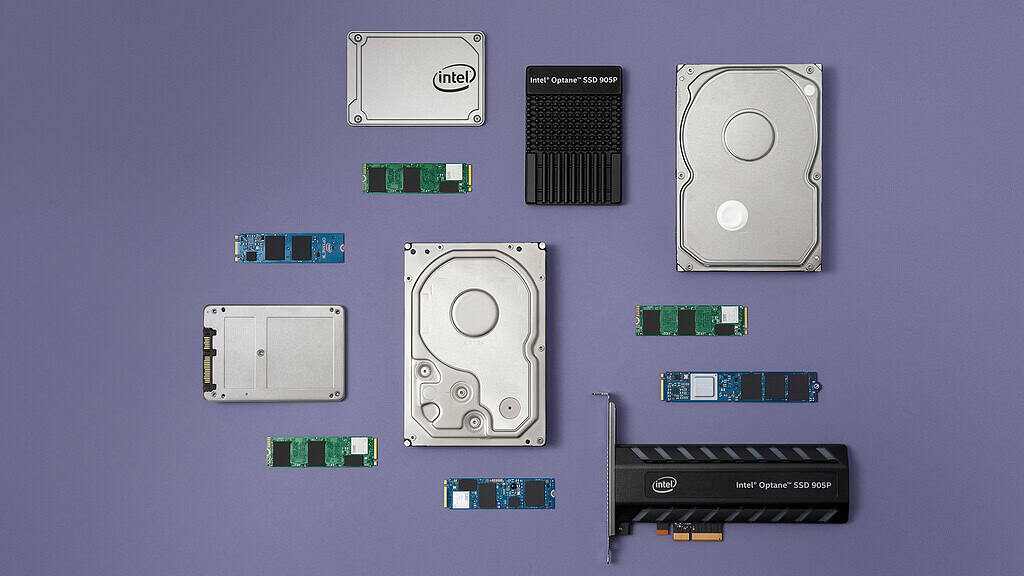
Ssd And Ssd Options Flat Lay Photo. This Image Contains 16×9, 4×3 And 1×1 Jpgs Renditions Suitable For Online And Social Media.
What is the Difference Between an SSD vs HDD?
1. Before diving into the benefits, it’s essential to understand the fundamental differences between SSDs and HDDs.
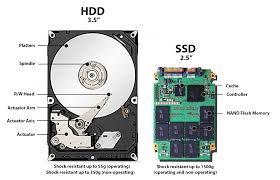
HDD (Hard Disk Drive): Traditional hard drives use spinning magnetic platters to read and write data. They have moving parts, such as an actuator arm and spinning disks, which can make them more prone to mechanical failure.
SSD (Solid State Drive): SSD vs HDD, on the other hand, use flash memory to store data. This means there are no moving parts, resulting in faster performance and increased durability.
SSD vs HDD Speed and Performance
2. One of the most noticeable benefits of an SSD over an HDD is the dramatic increase in speed.
Boot Times: SSDs can boot up a system in seconds, whereas HDDs often take significantly longer.
File Transfers: Copying files and installing software is much quicker with an SSD.
Application Load Times: Programs, especially large ones like Photoshop or video editing software, open almost instantaneously on SSDs.
This speed boost translates into a more responsive and efficient user experience.
Ssd Vs Hdd, 10 Shocking Facts That You Didn't Know! 4
Since SSDs have no moving parts, they are more resistant to physical shock and wear.
3. Since SSDs have no moving parts, they are more resistant to physical shock and wear.
Longer Lifespan: SSDs typically last longer than HDDs because there are fewer components that can fail.
Data Integrity: SSDs are less likely to suffer from data loss due to mechanical issues or drops.
This makes SSD vs HDD especially suitable for laptops and portable devices that are frequently moved.
Energy Efficiency
4. SSDs consume less power compared to traditional HDDs, which translates to several benefits:
Extended Battery Life: In laptops, this can lead to longer battery life.
Lower Power Bills: For desktop computers, especially those in office environments, the savings can add up over time.
This efficiency is crucial in today’s eco-conscious world, where reducing energy consumption is a priority.
Ssd Vs Hdd, 10 Shocking Facts That You Didn't Know! 5
5. SSD vs HDD Noise and Heat Because SSDs don’t have moving parts, they operate silently and produce significantly less heat.
Quiet Operation: Ideal for environments where noise can be a distraction, such as in a home office or recording studio.
Less Heat Generation: Reduced heat output means less cooling is required, which can also reduce energy use and improve the overall longevity of your device.
6. Compact and Lightweight Design SSDs are generally smaller and lighter than HDDs, making them perfect for modern laptops, ultrabooks, and compact PCs.
Slimmer Devices: The compact nature allows manufacturers to design thinner, lighter laptops.
Better Portability: Reduces the overall weight of devices, which is beneficial for mobile users.
7. Gaming and Creative Workflows For gamers and content creators, SSDs provide a tangible performance advantage.
Faster Load Times: Games load quicker, and scenes render faster.
Efficient Editing: Video and photo editing programs benefit from faster data access, making workflows smoother and more efficient.
Whether it’s reducing lag in online gaming or shortening render times for videos, SSD vs HDD offer noticeable improvements.
8. Data Access and Multitasking SSDs provide faster access to data and support better multitasking capabilities.
Quick File Searches: Searching for files and folders is significantly faster.
Smooth Multitasking: Running multiple programs simultaneously is more seamless, with less lag or freezing.
This is particularly advantageous for professionals who need to juggle multiple applications at once.
9. Security and Encryption Many SSDs come with built-in encryption features.
Data Protection: This helps protect sensitive information, especially important for businesses and professionals.
Faster Encryption: SSDs can encrypt and decrypt data faster than traditional HDDs, ensuring security without sacrificing speed.
Suggested Photo: Illustration of an SSD with a digital lock symbol.
10. Cost Efficiency Over Time While SSDs are typically more expensive upfront compared to HDDs, the total cost of ownership often tells a different story.
Lower Maintenance Costs: Fewer failures mean less downtime and fewer replacements.
Time Savings: Faster performance translates into increased productivity.
When considering longevity, performance, and maintenance, SSDs often prove to be more cost-effective in the long run.
Conclusion The transition from HDD to SSD is more than just a technological upgrade; it’s a shift towards a faster, more efficient, and more reliable computing experience. Whether you’re a casual user, a dedicated gamer, a business professional, or a creative artist, the benefits of SSDs far outweigh the traditional HDDs in almost every category. While HDDs may still have a place for archival storage or extremely budget-conscious builds, SSDs are clearly the future of data storage.
So, if you’re still relying on an old hard drive, it might be time to consider making the switch. The improvements in speed, durability, and efficiency are more than worth the investment.
Additional Tips for Transitioning to SSD:
Use cloning software to easily transfer your OS and files.
Opt for at least a 500GB SSD for a balance of performance and storage.
Consider NVMe SSDs for the fastest speeds if your motherboard supports it.
By embracing SSD technology, you’re not only upgrading your hardware but enhancing your overall digital lifestyle. Make the move today and experience the SSD revolution.
The Illusion of Stability in Modern Updates For most users, operating system updates are something that simply happen. They arrive quietly, often installing in the background, requiring little more than…
Macbook Neo, How Does It Compare To Air & Pro? Over the last few years the laptop market has experienced one of the most significant architectural changes in its history.…
Apple’s latest product announcements mark one of the most significant shifts in the Mac lineup in more than a decade. While Apple routinely updates its hardware with faster chips, incremental…
There is a particular kind of frustration that only a slow computer can produce. It is not dramatic. It is not urgent. It does not scream for attention. Instead, it…
In an era where nearly every aspect of personal computer maintenance and professional life is mediated through digital systems, your computer is no longer a luxury device — it is…
Phone says charging but battery not increasing is one of the most frustrating problems smartphone users face. You plug it in.The lightning bolt appears.It says “Charging.” But the battery percentage…
Apple’s rumour cycle always looks like a thousand disconnected leaks — until you line them up and notice the same themes repeating: AI-first silicon, camera and display differentiation, form-factor experiments (foldables / spatial…
Wi-Fi connected but no internet is one of the most frustrating messages you can see on a computer or laptop. The Wi-Fi icon shows full bars.It says “Connected.”But websites won’t…
Unfortunately, there was an error submitting your request.
Please try again later, or reach out to us directly. You can call us at +44 1429 280955 or email us at sales@kingfishercomputers.co.uk for assistance. We’re here to help you get your computer back up and running!
We’ve received your booking, Our team will get in touch with you shortly to confirm the details. You’re one step closer to having your computer fixed! If you have any urgent questions, feel free to contact us. Otherwise, sit back, and we’ll handle the rest.