Unlock New Possibilities: Running Windows on an Apple Mac Made Simple
Have you ever wondered if it’s possible to run Windows on an Apple Mac? Whether you’re looking to use Windows-specific software, play games only available on Windows, or just prefer certain features of the Windows operating system, you can make it happen! Despite the differences between macOS and Windows, running Windows on an Apple Mac is entirely doable and opens up a whole new realm of possibilities.
In this article, we’ll explore the most popular methods for running Windows on an Apple Mac, discuss the pros and cons, and guide you through choosing the best solution for your needs.
Table of Contents
Why Run Windows on an Apple Mac?
Apple Macs are known for their sleek design and powerful performance, but there are still many reasons why someone might want to run Windows on an Apple Mac. Some software and applications are only available for Windows, especially in fields like gaming, finance, or engineering. Running Windows on an Apple Mac allows you to take advantage of both operating systems’ strengths without having to buy a separate PC.
Here’s why you might want to consider running Windows on an Apple Mac:
Access to Windows-Only Software: Many business and professional programs only run on Windows, making dual-booting or virtualization necessary.
Better Gaming Experience: Windows has a broader selection of games, and many of them perform better on the Windows platform than macOS.
Cross-Platform Development: For developers working across platforms, running Windows on an Apple Mac allows you to test software on multiple operating systems without needing multiple machines.
How to Run Windows on an Apple Mac: Two Popular Methods
There are two primary ways to run Windows on an Apple Mac: using Boot Camp or a virtual machine. Both methods have their advantages, so let’s dive into each one to help you choose the right solution for your needs.
1. Boot Camp: Dual-Boot Windows on Your Mac
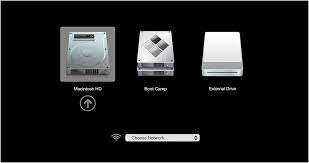
Boot Camp is Apple’s built-in tool that allows you to install Windows on a separate partition of your hard drive, giving you the ability to choose between Windows and macOS when you start your computer.
Advantages of Boot Camp:
Full Performance: Since you’re running Windows on an Apple Mac natively (without virtual emulation), you get the full power of your Mac’s hardware.
Ideal for Gaming: Boot Camp is an excellent option if you’re a gamer looking for the best possible performance while playing Windows games on your Mac.
Disadvantages of Boot Camp:
No Simultaneous macOS and Windows Use: You have to reboot your Mac to switch between macOS and Windows, which can be inconvenient.
Requires Space for Windows Partition: You’ll need to allocate a chunk of your hard drive for Windows, which can take up valuable space.
How to Set Up Boot Camp:
Open Boot Camp Assistant on your Mac.
Follow the on-screen instructions to partition your hard drive and install Windows.
After installation, choose between Windows or macOS whenever you start up your Mac.
Boot Camp Os Choice Windows Or Mac
2. Virtual Machines: Run Windows and macOS Simultaneously
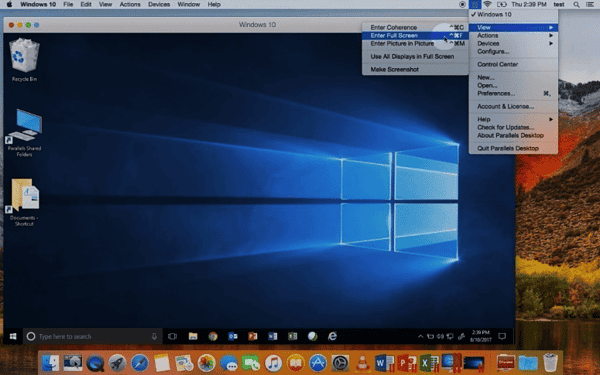
If you want to run Windows on an Apple Mac while still using macOS at the same time, a virtual machine (VM) might be the best option. Programs like Parallels Desktop or VMware Fusion allow you to create a virtualized version of Windows that runs inside macOS.
Advantages of Virtual Machines:
Run Windows and macOS Together: You can switch between macOS and Windows applications seamlessly without rebooting your computer.
Easy to Set Up: Virtual machines are simple to set up, and you don’t need to partition your hard drive like you do with Boot Camp.
Disadvantages of Virtual Machines:
Performance Limitations: Since you’re running Windows on an Apple Mac in a virtual environment, it may not perform as well as a native installation, especially for resource-intensive tasks like gaming or video editing.
Uses More Resources: Running two operating systems simultaneously requires more RAM and CPU power, which could slow down your Mac.
Follow the setup wizard to install Windows inside the virtual machine.
Run both macOS and Windows applications side by side with ease.
Windows 10 Running On Mac On ParallelsWindows 7 Running On Apple Mac In Parallels
Which Option Is Best for You?
When deciding whether to use Boot Camp or a virtual machine to run Windows on an Apple Mac, consider how you plan to use Windows. If you need maximum performance, especially for gaming or high-demand applications, Boot Camp is likely your best option. On the other hand, if you need the convenience of running macOS and Windows simultaneously, a virtual machine will give you more flexibility.
System Requirements for Running Windows on an Apple Mac
Before diving into setting up Windows on an Apple Mac, make sure your Mac meets the system requirements for running Windows smoothly. Here’s what you’ll need:
Intel-based Mac: Boot Camp and most virtual machines require an Intel processor.
At least 64 GB of free disk space: Windows installation files and additional software can take up significant space, so make sure you have enough storage available.
Windows ISO: To install Windows, you’ll need a licensed copy of the Windows ISO file, which you can download from Microsoft’s website.
8 GB of RAM or more: For running Windows in a virtual machine, at least 8 GB of RAM is recommended for optimal performance.
Potential Challenges When Running Windows on an Apple Mac
While running Windows on an Apple Mac opens up many new possibilities, it can come with a few challenges:
Driver Issues: Sometimes, hardware drivers (like graphics cards) don’t work as smoothly in Windows on a Mac. Boot Camp provides drivers for most Apple hardware, but compatibility can still be an issue.
Performance Slowdowns: Virtual machines, in particular, can slow down if you’re running resource-intensive programs on both operating systems at once.
Security Considerations: Running two operating systems requires you to maintain security updates and virus protection for both macOS and Windows.
Conclusion: Unlock Your Mac’s Full Potential with Windows
Running Windows on an Apple Mac gives you the best of both worlds—allowing you to use the sleek, reliable hardware of a Mac with the versatility and compatibility of Windows. Whether you choose Boot Camp for performance or a virtual machine for convenience, you’ll have access to a powerful dual-OS setup that meets all your needs.
Need help setting up Windows on an Apple Mac? Contact the team at Kingfisher Computers for expert advice and support!
The Illusion of Stability in Modern Updates For most users, operating system updates are something that simply happen. They arrive quietly, often installing in the background, requiring little more than…
Macbook Neo, How Does It Compare To Air & Pro? Over the last few years the laptop market has experienced one of the most significant architectural changes in its history.…
Apple’s latest product announcements mark one of the most significant shifts in the Mac lineup in more than a decade. While Apple routinely updates its hardware with faster chips, incremental…
There is a particular kind of frustration that only a slow computer can produce. It is not dramatic. It is not urgent. It does not scream for attention. Instead, it…
In an era where nearly every aspect of personal computer maintenance and professional life is mediated through digital systems, your computer is no longer a luxury device — it is…
Phone says charging but battery not increasing is one of the most frustrating problems smartphone users face. You plug it in.The lightning bolt appears.It says “Charging.” But the battery percentage…
Apple’s rumour cycle always looks like a thousand disconnected leaks — until you line them up and notice the same themes repeating: AI-first silicon, camera and display differentiation, form-factor experiments (foldables / spatial…
Wi-Fi connected but no internet is one of the most frustrating messages you can see on a computer or laptop. The Wi-Fi icon shows full bars.It says “Connected.”But websites won’t…
Unfortunately, there was an error submitting your request.
Please try again later, or reach out to us directly. You can call us at +44 1429 280955 or email us at sales@kingfishercomputers.co.uk for assistance. We’re here to help you get your computer back up and running!
We’ve received your booking, Our team will get in touch with you shortly to confirm the details. You’re one step closer to having your computer fixed! If you have any urgent questions, feel free to contact us. Otherwise, sit back, and we’ll handle the rest.