Master the Upgrade: How to Download and Install MacOS Catalina
Are you ready to take your Mac to the next level? Installing MacOS Catalina will unlock new features, improved security, and better performance. But to make sure everything goes smoothly, it’s important to follow the proper steps when you install MacOS Catalina.
In this guide, we’ll walk you through the process of downloading and installing MacOS Catalina, from system requirements to the installation itself. Whether you’re a seasoned Mac user or upgrading for the first time, this guide has everything you need to know about how to install MacOS Catalina.
Table of Contents
Why Install MacOS Catalina?
Upgrading your Mac to MacOS Catalina offers a host of benefits. But why should you make the switch?
1. New Features
With MacOS Catalina, you’ll gain access to innovative tools like Sidecar, which allows you to use your iPad as a second screen. Catalyst lets developers bring iPad apps to your Mac, expanding your app library. Plus, with Voice Control, you can now fully control your Mac with just your voice.
2. Enhanced Security
Security is always a priority. Installing MacOS Catalina ensures that your Mac is protected by the latest security updates. The operating system now runs on a dedicated, read-only volume, meaning that system files are more secure from any unintended changes or malware.
3. Streamlined Apps
Say goodbye to iTunes! MacOS Catalina introduces the new Apple Music, Apple TV, and Apple Podcasts apps, making it easier to manage your media. These apps are designed for a better user experience, and they offer a more seamless integration with the Apple ecosystem.
System Requirements Before You Install MacOS Catalina
Before you begin the installation process, make sure your Mac meets the following system requirements for MacOS Catalina:
OS Requirement: You must be running MacOS 10.9 or later.
Memory: At least 4GB of RAM.
Storage: 12.5GB of available storage (or up to 18.5GB if upgrading from an earlier version).
Supported Models: MacBook (2015 or later), MacBook Air (2012 or later), MacBook Pro (2012 or later), Mac Mini (2012 or later), iMac (2012 or later), iMac Pro (2017 or later), Mac Pro (2013 or later).
It’s crucial to verify that your Mac is compatible before you install MacOS Catalina, as older models may not support the upgrade.
Macos Catalina Announcement
How to Backup Your Data Before You Install MacOS Catalina
It’s always a good idea to back up your files before upgrading your operating system. While the installation process for MacOS Catalina is generally smooth, unexpected errors can occur.
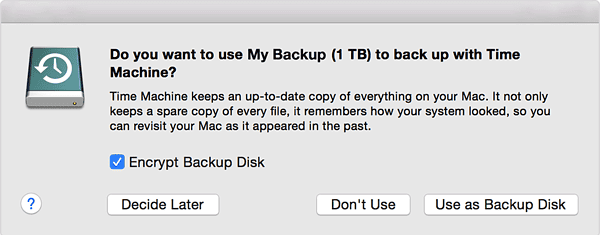
1. Time Machine Backup
Apple’s built-in Time Machine tool allows you to easily create a backup of your system. Here’s how to use it:
Connect an external hard drive to your Mac.
Open Time Machine and select Back Up Now.
Wait until the backup process is complete.
Using Time Machine Is Simple And Effective For Full System Backups
2. Cloud Backup
If you prefer to store your files in the cloud, consider using iCloud or another cloud service like Google Drive or Dropbox. Make sure all important files are securely backed up before you install MacOS Catalina.
Step-by-Step Guide to Install MacOS Catalina
Now that you’ve ensured your Mac meets the system requirements and backed up your data, it’s time to install MacOS Catalina.
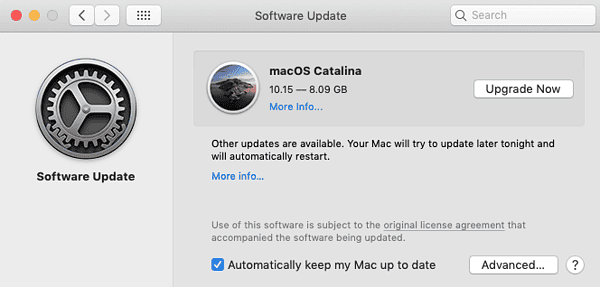
1. Download MacOS Catalina
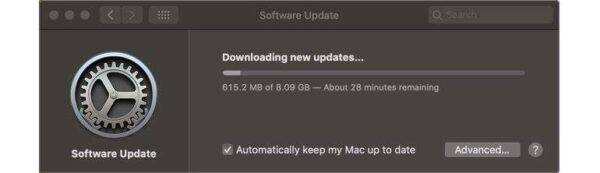
The first step is to download the update from the Mac App Store.
Once the download is complete, the installation process will begin:
After the download is complete, you’ll see a prompt to begin the installation.
Follow the on-screen instructions and select the disk where you want to install MacOS Catalina.
The installation process may take 30 minutes to an hour, depending on your system.
3. Post-Installation Setup
After the installation is complete, you’ll be prompted to set up MacOS Catalina. Follow the instructions to customize settings such as iCloud, Siri, and more.
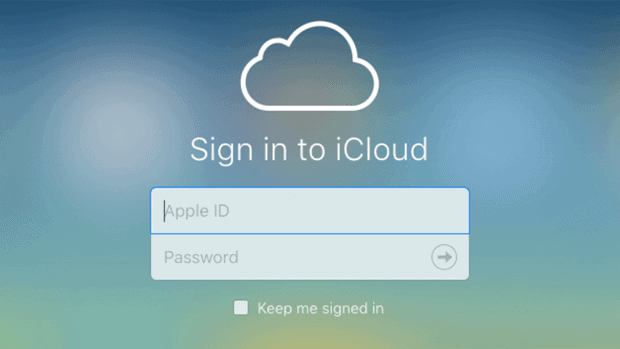
Make Sure You Know Your Apple Id And Check It!
Troubleshooting Common Issues During Installation
While installing MacOS Catalina is generally straightforward, you might run into a few issues. Here’s how to troubleshoot the most common problems:
1. Low Disk Space
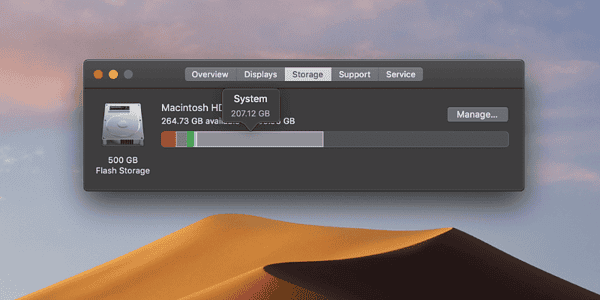
If you get an error about insufficient storage space, make sure you have at least 12.5GB of free space available. You can check your storage by clicking the Apple Menu > About This Mac > Storage.
Macos 10.14 Storage
2. Slow Installation
The installation process can take some time, especially if you’re upgrading from an older version of macOS. Make sure your Mac is plugged in, and avoid using it during the installation to speed up the process.
3. App Compatibility Issues
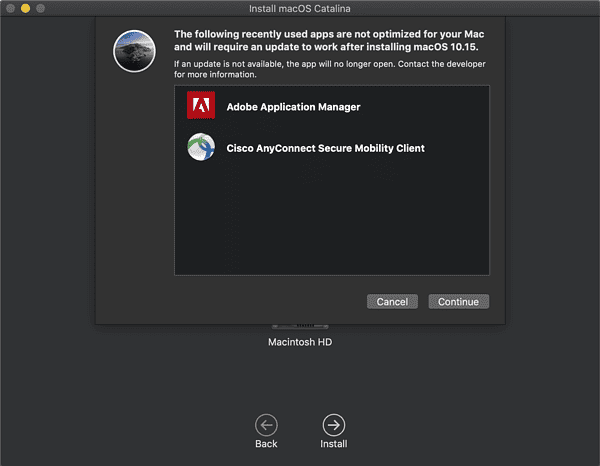
If you experience issues with apps after upgrading, check to see if those apps are 64-bit. MacOS Catalina no longer supports 32-bit apps, so you may need to update or replace older software.
Macos Catalina Compatibility Checker
Should You Install MacOS Catalina?
While MacOS Catalina offers numerous improvements, it’s not a one-size-fits-all solution. Here’s a quick rundown of who should consider upgrading:
Yes, Upgrade If…: You want better performance, enhanced security, and access to the latest macOS features like Sidecar and Catalyst.
Wait If…: You rely on 32-bit apps or use older hardware that might struggle with the update.
Conclusion: Is MacOS Catalina Worth the Upgrade?
The decision to install MacOS Catalina largely depends on your individual needs and the compatibility of your system. For most users, the benefits of upgrading — including better security, improved performance, and new features — outweigh the potential downsides. However, if you rely heavily on 32-bit apps, you may want to consider your options before making the jump.
Ready to install MacOS Catalina and enjoy all the new features? Follow the steps outlined above to ensure a smooth upgrade. If you need any help along the way, don’t hesitate to contact Kingfisher Computers for expert support.
The Illusion of Stability in Modern Updates For most users, operating system updates are something that simply happen. They arrive quietly, often installing in the background, requiring little more than…
Macbook Neo, How Does It Compare To Air & Pro? Over the last few years the laptop market has experienced one of the most significant architectural changes in its history.…
Apple’s latest product announcements mark one of the most significant shifts in the Mac lineup in more than a decade. While Apple routinely updates its hardware with faster chips, incremental…
There is a particular kind of frustration that only a slow computer can produce. It is not dramatic. It is not urgent. It does not scream for attention. Instead, it…
In an era where nearly every aspect of personal computer maintenance and professional life is mediated through digital systems, your computer is no longer a luxury device — it is…
Phone says charging but battery not increasing is one of the most frustrating problems smartphone users face. You plug it in.The lightning bolt appears.It says “Charging.” But the battery percentage…
Apple’s rumour cycle always looks like a thousand disconnected leaks — until you line them up and notice the same themes repeating: AI-first silicon, camera and display differentiation, form-factor experiments (foldables / spatial…
Wi-Fi connected but no internet is one of the most frustrating messages you can see on a computer or laptop. The Wi-Fi icon shows full bars.It says “Connected.”But websites won’t…
Unfortunately, there was an error submitting your request.
Please try again later, or reach out to us directly. You can call us at +44 1429 280955 or email us at sales@kingfishercomputers.co.uk for assistance. We’re here to help you get your computer back up and running!
We’ve received your booking, Our team will get in touch with you shortly to confirm the details. You’re one step closer to having your computer fixed! If you have any urgent questions, feel free to contact us. Otherwise, sit back, and we’ll handle the rest.