The 5 Dirtiest Places Inside Your PC (and How to Clean Them)
Adam Fornal
July 9th, 2025
Table of Contents
The 5 Dirtiest Places Inside Your PC (and How to Clean Them)
Your computer might look clean on the outside, but the Dirtiest Places Inside Your PC are silently sabotaging your system’s performance. These hidden accumulations of dust, debris, and grime can cause overheating, hardware failure, and significantly reduced lifespan. Understanding where dirt collects most and how to properly clean these areas is essential for maintaining optimal computer performance.
Most users never realize that the Dirtiest Places Inside Your PC are actively working against their system’s efficiency. As dust and debris accumulate in critical areas, your computer’s cooling system becomes less effective, components run hotter, and performance degrades. This comprehensive guide reveals the five most problematic areas and provides step-by-step instructions for safely cleaning each location.
Why the Dirtiest Places Inside Your PC Matter More Than You Think
The Dirtiest Places Inside Your PC don’t just affect aesthetics—they directly impact your computer’s health and performance. When dust accumulates in critical areas, it acts as an insulating blanket, trapping heat and forcing components to work harder. This increased thermal stress accelerates wear, reduces efficiency, and can lead to premature hardware failure.
Understanding the impact of the Dirtiest Places Inside Your PC helps explain why regular cleaning is so crucial. Dust buildup in fans reduces airflow, causing processors and graphics cards to throttle performance to prevent overheating. In extreme cases, excessive dust can cause complete system shutdowns or permanent component damage. The cost of cleaning supplies and time invested in maintenance pales compared to replacing damaged hardware.
The Hidden Costs of Neglecting PC Cleanliness
Many users underestimate how the Dirtiest Places Inside Your PC affect their daily computing experience. Beyond the obvious performance issues, dirty components consume more electricity as they work harder to maintain normal operation. Dust accumulation also creates additional noise as fans spin faster to compensate for reduced efficiency. These seemingly minor issues compound over time, creating a noticeably degraded user experience.
The Dirtiest Places Inside Your PC also pose risks to data integrity and system stability. Overheating components are more prone to errors, crashes, and unexpected shutdowns that can corrupt important files. Regular cleaning prevents these issues while extending your computer’s useful life. The small investment in cleaning supplies and time pays dividends in improved reliability and reduced replacement costs.
Signs Your PC Needs Immediate Cleaning Attention
Recognizing when the Dirtiest Places Inside Your PC require attention helps prevent serious problems. Common warning signs include increased fan noise, higher operating temperatures, frequent crashes, and reduced performance during demanding tasks. If your computer feels unusually warm or the fans run constantly, dust accumulation is likely affecting cooling efficiency.
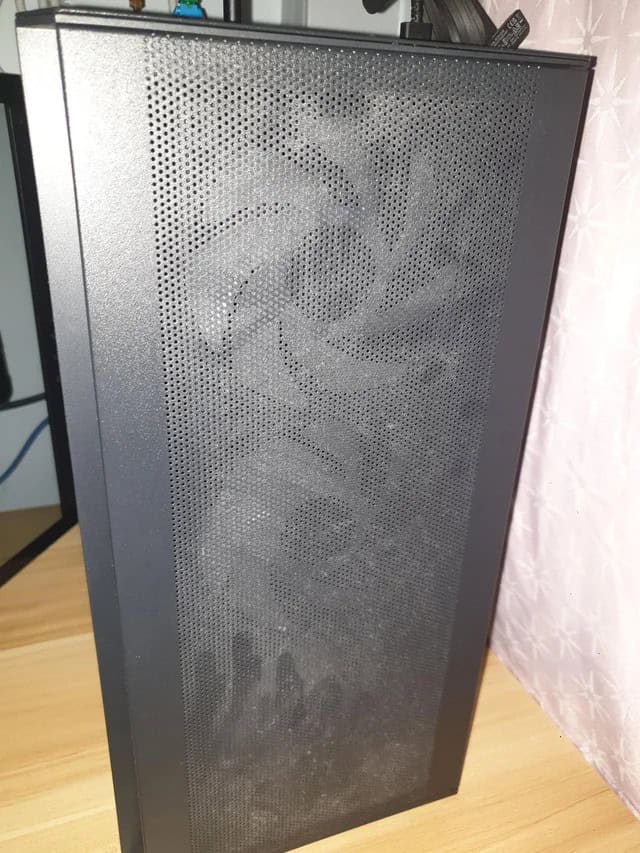
Visual inspection can reveal the Dirtiest Places Inside Your PC even before performance issues arise. Look for dust buildup around air vents, fan grilles, and intake areas. If you can see dust accumulation from the outside, the internal components are likely much dirtier. Addressing these issues promptly prevents more serious problems and maintains optimal system performance.
The 5 Dirtiest Places Inside Your Pc (And How To Clean Them) 6
Identifying and Cleaning the Dirtiest Places Inside Your PC
Now let’s explore the five most problematic areas where dirt and debris accumulate. Each of these locations represents one of the Dirtiest Places Inside Your PC and requires specific cleaning techniques to restore optimal performance. Understanding these areas and their cleaning requirements empowers you to maintain your computer effectively.
1. CPU Fan and Heat Sink Assembly
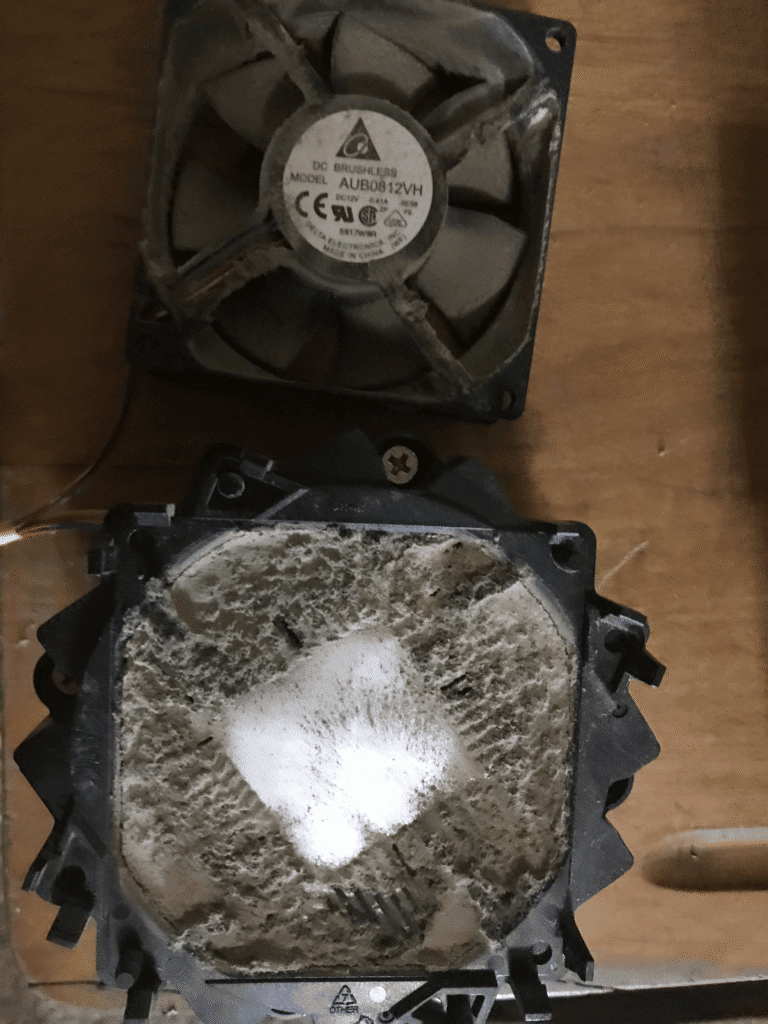
The CPU fan and heat sink assembly consistently ranks among the Dirtiest Places Inside Your PC due to its critical cooling function. This component works continuously to remove heat from your processor, drawing air through its fins and creating a prime location for dust accumulation. Over time, this area becomes clogged with dust, pet hair, and other debris that dramatically reduces cooling efficiency.
Why CPU Cooling Areas Collect So Much Debris
The CPU fan and heat sink represent one of the Dirtiest Places Inside Your PC because they’re designed to move large volumes of air. As air passes through the heat sink’s fins, particles become trapped and accumulate over time. The constant airflow creates an electrostatic charge that attracts dust and other small particles, accelerating the buildup process.
The design of most CPU coolers makes them particularly susceptible to becoming one of the Dirtiest Places Inside Your PC. The closely spaced fins that provide efficient heat transfer also create narrow channels where dust can easily become trapped. Once initial accumulation begins, it creates a surface that catches even more debris, leading to exponential buildup if left uncleaned.
The 5 Dirtiest Places Inside Your Pc (And How To Clean Them) 7
Safe Cleaning Techniques for CPU Cooling Systems
Cleaning the CPU cooling system requires careful attention to avoid damaging delicate components. Before addressing this area among the Dirtiest Places Inside Your PC, ensure your computer is completely powered down and unplugged. Remove the side panel and locate the CPU cooler, which typically sits near the center of the motherboard.
Use compressed air to blow dust out of the heat sink fins, working from multiple angles to ensure thorough cleaning. For stubborn buildup in the Dirtiest Places Inside Your PC, use a soft brush to gently dislodge debris before applying compressed air. Be careful not to spin the fan too rapidly with air pressure, as this can damage bearings. If the fan is removable, consider detaching it for more thorough cleaning access.
When to Consider Professional CPU Cooler Maintenance
While basic cleaning can address most issues with the Dirtiest Places Inside Your PC, some situations require professional attention. If thermal paste between the CPU and heat sink has dried out or if the cooling system requires complete disassembly, professional service may be warranted. Signs that professional help is needed include persistent overheating after cleaning or visible damage to cooling components.
2. Graphics Card Fans and Heat Sinks
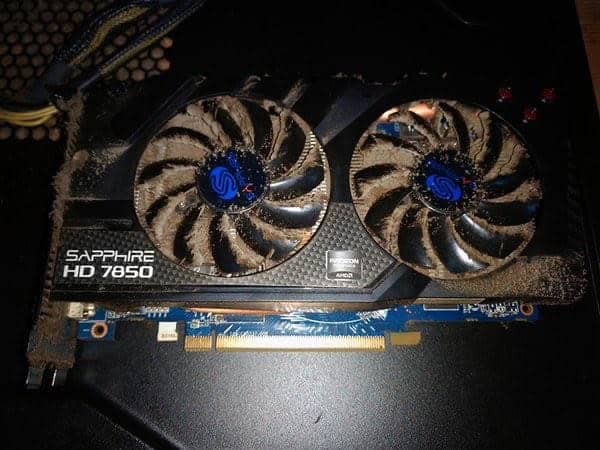
Graphics cards often harbor some of the Dirtiest Places Inside Your PC due to their high heat output and powerful cooling systems. These components generate significant heat during operation, requiring robust cooling solutions that inevitably accumulate dust and debris. The combination of multiple fans and dense heat sink arrays creates numerous locations where contaminants can collect.
Graphics cards develop into the Dirtiest Places Inside Your PC through several mechanisms. The large fans used for cooling draw substantial amounts of air through the heat sink assemblies, naturally collecting airborne particles. The position of most graphics cards in the lower portion of the case means they’re exposed to dust that settles due to gravity.
The shroud design of modern graphics cards can trap dust in the Dirtiest Places Inside Your PC, making cleaning more challenging than CPU coolers. Multiple fans operating at different speeds create complex airflow patterns that can cause dust to accumulate in unexpected locations. Additionally, the plastic shrouds can develop electrostatic charges that attract and hold dust particles.
The 5 Dirtiest Places Inside Your Pc (And How To Clean Them) 8
Step-by-Step Graphics Card Cleaning Process
Cleaning graphics cards requires more care than most other Dirtiest Places Inside Your PC due to their complex construction. Begin by powering down the system and removing the graphics card from its slot. This provides better access to all cooling components and prevents damage to other system parts during cleaning.
Remove the graphics card shroud if possible, as this provides access to the Dirtiest Places Inside Your PC that are otherwise difficult to reach. Use compressed air to blow dust from the heat sink fins, working systematically across the entire cooling assembly. Pay special attention to the area around the fans and any ventilation openings in the shroud.
For heavily soiled areas among the Dirtiest Places Inside Your PC, use a soft brush to break up stubborn deposits before applying compressed air. Clean the fan blades individually, being careful not to bend or damage them. If the thermal pads or paste are visible and appear degraded, consider professional replacement to maintain optimal cooling performance.
3. Power Supply Unit Air Vents and Filters
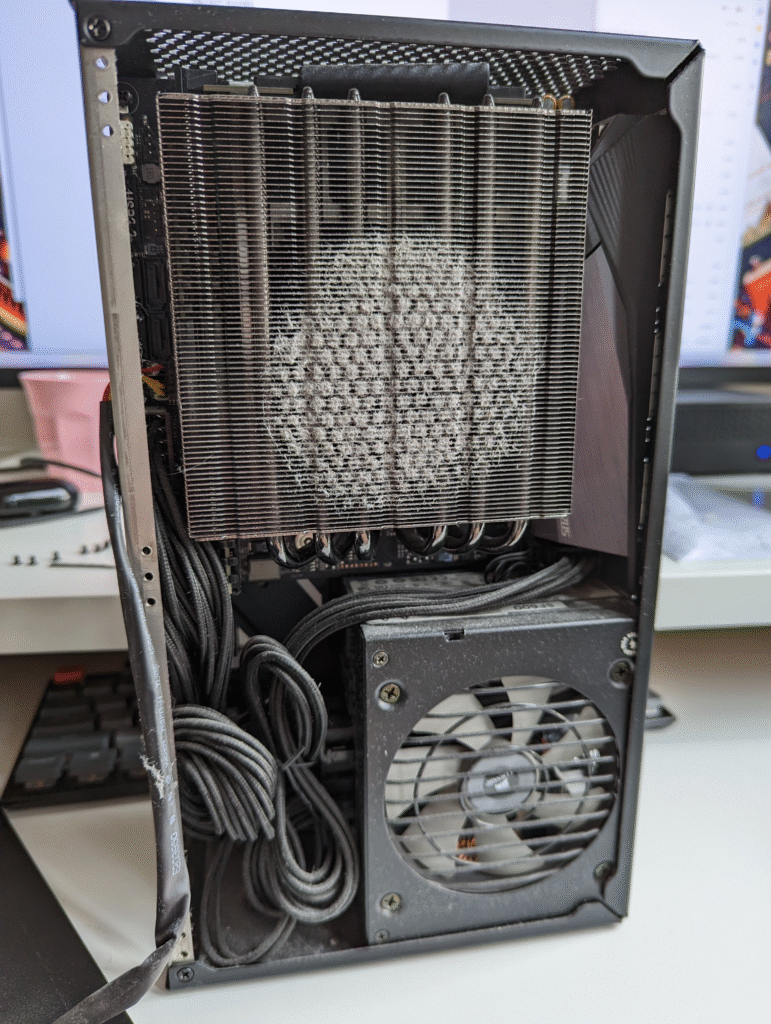
The power supply unit (PSU) contains some of the most neglected Dirtiest Places Inside Your PC, yet proper cleaning is essential for system stability and safety. The PSU’s internal fan draws air through the unit to cool electrical components, creating a pathway for dust accumulation. Unlike other components, PSU cleaning requires extra caution due to stored electrical energy even when unplugged.
The Critical Importance of PSU Cleanliness
Power supply units become some of the Dirtiest Places Inside Your PC because they operate continuously and handle high electrical loads. Dust accumulation in the PSU can cause overheating, reduced efficiency, and potential safety hazards. A dirty PSU may fail to provide stable power to other components, leading to system instability or crashes.
The internal components of power supplies are particularly sensitive to dust contamination. The Dirtiest Places Inside Your PC within the PSU include the internal fan, heat sinks, and electronic components that can malfunction if dust interferes with their operation. Regular external cleaning helps prevent these issues while maintaining safe operation.
The 5 Dirtiest Places Inside Your Pc (And How To Clean Them) 9
Safe External PSU Cleaning Methods
Cleaning the PSU requires extreme caution due to electrical safety concerns. Never attempt to open the PSU case, as it contains high-voltage components that can remain dangerous even when unplugged. Instead, focus on the external areas that represent the accessible Dirtiest Places Inside Your PC.
Use compressed air to blow dust out of the PSU’s external vents, working from multiple angles to ensure thorough cleaning. If your PSU has a removable dust filter, carefully remove and clean it according to manufacturer instructions. Pay attention to the fan grille and any other ventilation openings that may have accumulated debris.
For stubborn deposits around the Dirtiest Places Inside Your PC on the PSU exterior, use a slightly damp cloth to wipe surfaces clean. Ensure the unit is completely dry before reconnecting power. If you suspect internal contamination or hear unusual noises from the PSU fan, consult a professional technician rather than attempting internal cleaning.
4. Case Intake and Exhaust Fans
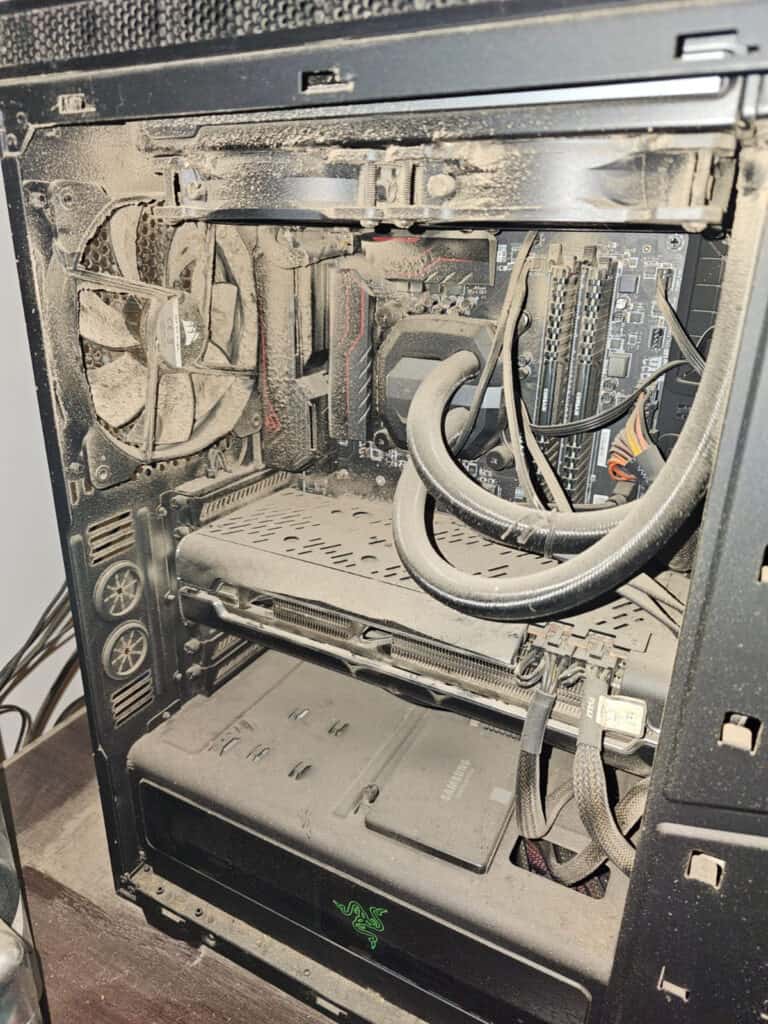
Case fans create some of the most visible Dirtiest Places Inside Your PC while playing a crucial role in overall system cooling. These fans move air through the entire case, creating airflow that removes heat from components. Their constant operation and direct exposure to incoming air makes them prime locations for dust accumulation.
How Case Fans Become Dust Magnets
Case fans become the Dirtiest Places Inside Your PC due to their function as the primary air movers in the cooling system. Intake fans draw unfiltered air from the environment, carrying dust, pet hair, and other particles into the case. The fan blades and motor housing provide surfaces where this debris can accumulate over time.
The electrostatic charge generated by spinning fan blades attracts dust particles to the Dirtiest Places Inside Your PC. This charge becomes stronger over time, increasing the rate of dust accumulation. Additionally, the turbulent airflow created by fans can cause particles to stick to nearby surfaces, spreading contamination throughout the case.
The 5 Dirtiest Places Inside Your Pc (And How To Clean Them) 10
Comprehensive Case Fan Cleaning Techniques
Cleaning case fans requires attention to both the fan assembly and surrounding areas. These components represent some of the most accessible Dirtiest Places Inside Your PC, making them ideal starting points for system cleaning. Begin by identifying all intake and exhaust fans in your case, noting their locations and orientations.
Use compressed air to blow dust from fan blades, working from multiple directions to ensure complete cleaning. For the Dirtiest Places Inside Your PC around fan mounting points, use a soft brush to dislodge stubborn debris before applying compressed air. Pay special attention to the motor housing and any dust filters that may be present.
If fans are easily removable, consider detaching them for more thorough cleaning. This allows access to the Dirtiest Places Inside Your PC that are normally hidden behind fan assemblies. Clean both sides of the fan and the mounting areas before reassembly. Check that all fans spin freely after cleaning and that no debris remains that could cause balance issues.
Fan Filter Maintenance and Replacement
Many modern cases include dust filters at intake locations to prevent the Dirtiest Places Inside Your PC from becoming severely contaminated. These filters require regular cleaning or replacement to maintain effectiveness. Clogged filters reduce airflow and can cause pressure imbalances that affect cooling performance.
Remove and clean dust filters according to manufacturer instructions, typically involving gentle washing with water and mild soap. Ensure filters are completely dry before reinstallation to prevent moisture damage. For heavily contaminated filters in the Dirtiest Places Inside Your PC, replacement may be more effective than cleaning.
5. Motherboard Components and Expansion Slots
The motherboard and its components often harbor hidden Dirtiest Places Inside Your PC that are easily overlooked during routine cleaning. These areas include expansion slots, RAM slots, and the spaces around capacitors and other components. While these areas may not accumulate as much visible dust as fans, contamination can still affect performance and reliability.
Why Motherboard Areas Accumulate Dust
Motherboard components become some of the Dirtiest Places Inside Your PC due to their low-profile design and electrostatic properties. The complex layout of circuits, capacitors, and connectors creates numerous small spaces where dust can settle. Additionally, the electrical activity on the motherboard can create static charges that attract and hold particles.
The Dirtiest Places Inside Your PC on the motherboard are often located in areas with limited airflow, such as spaces between components or under expansion cards. These locations may not receive the air circulation that helps keep other areas clean, allowing dust to accumulate undisturbed over long periods.
Careful Motherboard Cleaning Procedures
Cleaning motherboard components requires extreme care to avoid damaging sensitive electronic parts. These represent some of the most delicate Dirtiest Places Inside Your PC and should only be cleaned when the system is completely powered down and unplugged. Remove all expansion cards and RAM modules to access hidden contamination.
Use compressed air at low pressure to blow dust from motherboard components, maintaining a safe distance to avoid damaging small parts. For stubborn deposits in the Dirtiest Places Inside Your PC around connectors and slots, use a soft brush to gently dislodge debris before applying air pressure. Avoid using liquids near motherboard components unless specifically designed for electronics cleaning.
Special Considerations for Expansion Slots
Expansion slots represent particularly challenging Dirtiest Places Inside Your PC due to their design and function. These slots can accumulate dust that interferes with proper card seating and electrical connections. Use compressed air to blow dust from slots, working from multiple angles to ensure thorough cleaning.
For heavily contaminated slots among the Dirtiest Places Inside Your PC, consider using specialized electronics cleaning products designed for connectors. These products can help remove stubborn deposits without damaging sensitive components. Always follow manufacturer instructions and ensure complete drying before installing cards.
Advanced Cleaning Strategies for the Dirtiest Places Inside Your PC
Beyond basic cleaning techniques, advanced strategies can help maintain the Dirtiest Places Inside Your PC more effectively. These approaches combine preventive measures with thorough cleaning techniques to minimize future accumulation while ensuring optimal system performance.
Preventive Measures to Reduce Dust Accumulation
The most effective approach to managing the Dirtiest Places Inside Your PC involves preventing excessive accumulation in the first place. Environmental controls, case modifications, and regular maintenance schedules can significantly reduce the amount of cleaning required while maintaining system performance.
Environmental Control Strategies
Controlling your computer’s environment helps minimize contamination in the Dirtiest Places Inside Your PC. Position your computer away from high-traffic areas, pet sleeping areas, and locations with poor air circulation. Use air purifiers in computer rooms to reduce airborne particles that eventually settle in your system.
Regular cleaning of the computer room helps prevent the Dirtiest Places Inside Your PC from becoming severely contaminated. Vacuum carpets and upholstery regularly, as these surfaces can release particles into the air. Consider using positive pressure ventilation in dedicated computer rooms to prevent dust infiltration.
Case Modification and Filtration Improvements
Upgrading case filtration systems can dramatically reduce contamination in the Dirtiest Places Inside Your PC. Install high-quality dust filters at all intake locations, choosing filters with appropriate mesh density for your environment. Fine filters provide better protection but may require more frequent cleaning or replacement.
Creating positive pressure inside the case helps prevent dust from entering through unfiltered openings. Configure intake fans to provide slightly more airflow than exhaust fans, forcing air to exit through controlled locations rather than drawing unfiltered air through case gaps. This strategy reduces accumulation in the Dirtiest Places Inside Your PC while maintaining effective cooling.
Professional Cleaning Services and When to Use Them
While most cleaning tasks can be performed safely at home, some situations involving the Dirtiest Places Inside Your PC require professional expertise. Understanding when to seek professional help can prevent damage and ensure thorough cleaning of sensitive components.
Situations Requiring Professional Intervention
Professional cleaning services become necessary when the Dirtiest Places Inside Your PC involve sealed components, liquid cooling systems, or extremely heavy contamination. If you’re uncomfortable disassembling components or lack the proper tools, professional service ensures safe and effective cleaning.
Liquid cooling systems represent specialized Dirtiest Places Inside Your PC that require expertise to clean properly. These systems may need coolant replacement, pump maintenance, or radiator cleaning that exceeds typical user capabilities. Professional technicians have the tools and knowledge to service these systems safely.
Choosing the Right Cleaning Service
When selecting professional help for the Dirtiest Places Inside Your PC, choose technicians with specific computer cleaning experience. Look for services that use appropriate cleaning products and techniques for electronic components. Verify that the service provider has insurance coverage for potential damage during cleaning.
Long-term Maintenance Strategies
Developing a systematic approach to maintaining the Dirtiest Places Inside Your PC ensures consistent performance and extends component lifespan. Regular maintenance schedules, proper documentation, and gradual system improvements create a comprehensive strategy for computer care.
Creating a Maintenance Schedule
Establish regular cleaning intervals based on your environment and usage patterns. The Dirtiest Places Inside Your PC in dusty environments may require monthly attention, while clean environments might allow quarterly cleaning. Document your cleaning activities to track effectiveness and identify areas needing more frequent attention.
Seasonal cleaning schedules often work well for managing the Dirtiest Places Inside Your PC. Spring and fall cleaning sessions can coincide with HVAC system maintenance, creating a comprehensive approach to environmental control. Adjust schedules based on observed accumulation patterns and system performance.
Monitoring System Performance
Regular performance monitoring helps identify when the Dirtiest Places Inside Your PC begin affecting system operation. Track temperature readings, fan speeds, and system stability to establish baselines for comparison. Significant changes in these metrics may indicate cleaning needs before visible accumulation becomes apparent.
Use system monitoring software to track long-term trends in component temperatures and fan performance. These tools can help identify gradual changes that indicate accumulation in the Dirtiest Places Inside Your PC. Early detection allows for proactive cleaning before performance issues develop.
Maintaining Clean Computing for Optimal Performance
Understanding and regularly cleaning the Dirtiest Places Inside Your PC is essential for maintaining optimal system performance and reliability. These five critical areas—CPU cooling systems, graphics card assemblies, power supply units, case fans, and motherboard components—require specific attention and cleaning techniques to prevent performance degradation and hardware damage.
The Ongoing Benefits of Regular PC Cleaning
Consistent attention to the Dirtiest Places Inside Your PC provides numerous benefits beyond improved performance. Clean systems operate more quietly, consume less energy, and experience fewer crashes and stability issues. Regular cleaning also extends component lifespan, reducing replacement costs and improving overall system reliability.
The time invested in cleaning the Dirtiest Places Inside Your PC pays dividends in improved user experience and reduced frustration. Systems that maintain optimal temperatures perform better during demanding tasks and provide more consistent performance over time. This reliability becomes particularly important for users who depend on their computers for work or creative projects.
Building Sustainable Cleaning Habits
Success in maintaining the Dirtiest Places Inside Your PC comes from developing sustainable cleaning habits rather than sporadic intensive efforts. Regular light cleaning prevents heavy accumulation that requires extensive disassembly and deep cleaning. Simple monthly checks and quarterly thorough cleaning can maintain system performance with minimal time investment.
Remember that the Dirtiest Places Inside Your PC don’t develop overnight, and consistent attention prevents most serious problems. Start with basic cleaning techniques and gradually develop more advanced skills as you become comfortable with your system. The investment in proper cleaning supplies and techniques will serve you well throughout your computer’s lifespan.
By implementing these cleaning strategies and maintaining regular attention to the Dirtiest Places Inside Your PC, you’ll enjoy better performance, improved reliability, and extended component life. Your computer will thank you with quieter operation, cooler temperatures, and consistent performance for years to come.
The Illusion of Stability in Modern Updates For most users, operating system updates are something that simply happen. They arrive quietly, often installing in the background, requiring little more than…
Macbook Neo, How Does It Compare To Air & Pro? Over the last few years the laptop market has experienced one of the most significant architectural changes in its history.…
Apple’s latest product announcements mark one of the most significant shifts in the Mac lineup in more than a decade. While Apple routinely updates its hardware with faster chips, incremental…
There is a particular kind of frustration that only a slow computer can produce. It is not dramatic. It is not urgent. It does not scream for attention. Instead, it…
In an era where nearly every aspect of personal computer maintenance and professional life is mediated through digital systems, your computer is no longer a luxury device — it is…
Phone says charging but battery not increasing is one of the most frustrating problems smartphone users face. You plug it in.The lightning bolt appears.It says “Charging.” But the battery percentage…
Apple’s rumour cycle always looks like a thousand disconnected leaks — until you line them up and notice the same themes repeating: AI-first silicon, camera and display differentiation, form-factor experiments (foldables / spatial…
Wi-Fi connected but no internet is one of the most frustrating messages you can see on a computer or laptop. The Wi-Fi icon shows full bars.It says “Connected.”But websites won’t…
Unfortunately, there was an error submitting your request.
Please try again later, or reach out to us directly. You can call us at +44 1429 280955 or email us at sales@kingfishercomputers.co.uk for assistance. We’re here to help you get your computer back up and running!
We’ve received your booking, Our team will get in touch with you shortly to confirm the details. You’re one step closer to having your computer fixed! If you have any urgent questions, feel free to contact us. Otherwise, sit back, and we’ll handle the rest.