Upgrading Catalina to Mojave – the easy way (step by step guide)
Darren Waggott
October 16th, 2019
Is Downgrading from Catalina to Mojave the Best Move for Your Mac?
Apple’s Catalina operating system brought many new features, but not all users are thrilled with the changes. Many Mac users are considering downgrading from Catalina to Mojave for a more stable and familiar experience. In this comprehensive guide, we’ll explore why you might want to make the switch from Catalina to Mojave, how to downgrade your system safely, and what you should expect during the process.
Table of Contents
Why Downgrade from Catalina to Mojave?
Downgrading from Catalina to Mojave can be beneficial for several reasons, particularly if you’re dealing with compatibility issues or simply prefer Mojave’s more familiar environment.
1. Software Compatibility
One of the most common reasons for downgrading from Catalina to Mojave is software compatibility. Catalina dropped support for 32-bit apps, which means many older applications won’t work. If you rely on these programs, switching back to Mojave is your best option to continue using them without issues.
2. Performance Issues
Many users have reported slower performance and increased memory usage with Catalina. Mojave is often seen as a more stable and faster alternative for certain older Mac models. If your Mac has been sluggish since upgrading to Catalina, going back to Mojave might resolve these issues.
3. Familiarity with iTunes
Catalina replaced iTunes with three separate apps: Music, Podcasts, and TV. If you’re used to managing everything within iTunes, the switch can be jarring. Downgrading from Catalina to Mojave will restore iTunes to your system, making it easier for those who prefer an all-in-one media management solution.
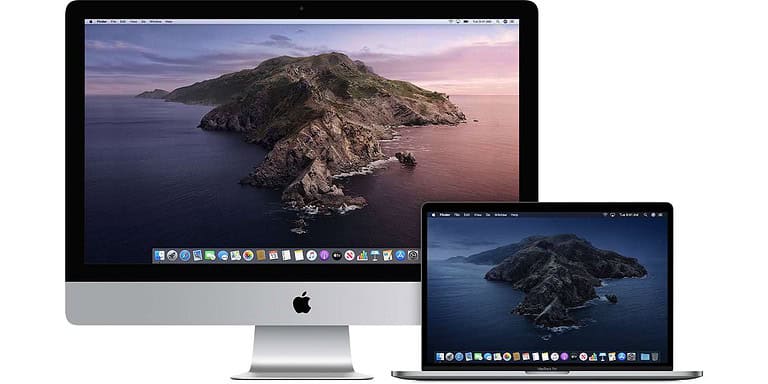
Apple Macos 10.15 On Imac And Macbook Pro.
How to Downgrade from Catalina to Mojave: Step-by-Step Guide
Before you begin the downgrade process from Catalina to Mojave, it’s important to back up your data. The downgrade will erase your hard drive, so you’ll need a Time Machine backup or another backup solution to restore your files afterward.
Step 1: Create a Bootable Mojave Installer
To downgrade from Catalina to Mojave, you first need a bootable installer. Here’s how to create one:
Insert a USB drive with at least 16 GB of storage.
Open Terminal and run the following command: “sudo /Applications/Install\ macOS\ Mojave.app/Contents/Resources/createinstallmedia --volume /Volumes/MyVolume“
Press Enter and follow the on-screen prompts to complete the process
Step 2: Erase Your Mac’s Hard Drive
Once your bootable installer is ready, it’s time to erase your hard drive. Here’s how to do it:
Restart your Mac and hold down Command + R to enter Recovery Mode.
Open Disk Utility and select your startup disk.
Click Erase and choose APFS or Mac OS Extended (Journaled) as the format.
Confirm the action, and your Mac’s hard drive will be wiped.
Step 3: Install macOS Mojave
Now that your hard drive is clean, you can install macOS Mojave:
Insert the bootable installer you created earlier.
Restart your Mac and hold down the Option key to access the Startup Manager.
Select the bootable installer and follow the on-screen instructions to install Mojave.
Step 4: Restore Your Backup
After installing Mojave, you’ll need to restore your data from a Time Machine backup or manually transfer your files:
Choose the backup you made before downgrading and restore your files.
What to Expect After Downgrading from Catalina to Mojave
Once you’ve successfully downgraded from Catalina to Mojave, your system should feel more familiar and responsive, especially if you were dealing with performance issues on Catalina. Here are a few things to keep in mind after the switch:
1. Restored 32-bit App Support
With Mojave, you’ll regain the ability to run 32-bit apps. This is particularly important for professionals or hobbyists who rely on older software that hasn’t been updated for 64-bit systems.
2. Familiar iTunes Experience
If you missed iTunes after upgrading to Catalina, you’ll be happy to know that downgrading to Mojave will restore the full functionality of iTunes. You’ll be able to manage your music, podcasts, and TV shows in one place again.
3. Fewer New Features
While Mojave is more stable for some users, you’ll lose access to Catalina’s newer features, such as Sidecar, which allows you to use your iPad as a second display, and enhanced security protocols. Make sure you’re comfortable giving up these features before committing to the downgrade.
Potential Challenges When Downgrading from Catalina to Mojave
While many users experience a smoother ride on Mojave, downgrading isn’t always without its challenges. Here are some potential roadblocks:
1. Incompatibility with Newer Apps
Some newer applications are optimized for Catalina and may not run as smoothly on Mojave. Be sure to check the system requirements of your most-used apps before downgrading.
2. Losing Data
If you don’t back up your data correctly, you could lose important files during the downgrade. Always make sure to double-check your backups before proceeding.
Conclusion: Is Downgrading from Catalina to Mojave Right for You?
Deciding whether to downgrade from Catalina to Mojave depends on your personal preferences and how you use your Mac. If you’re experiencing performance issues, software compatibility problems, or simply prefer the stability and familiarity of Mojave, then downgrading may be the perfect solution. However, if you rely on Catalina’s newer features, it might be worth sticking it out or finding workarounds for the problems you’re facing.
Ultimately, both Catalina and Mojave have their strengths, and understanding the trade-offs is key to making an informed decision. If you’re unsure or need help with the process, contact Kingfisher Computers for expert advice and support.
The Illusion of Stability in Modern Updates For most users, operating system updates are something that simply happen. They arrive quietly, often installing in the background, requiring little more than…
Macbook Neo, How Does It Compare To Air & Pro? Over the last few years the laptop market has experienced one of the most significant architectural changes in its history.…
Apple’s latest product announcements mark one of the most significant shifts in the Mac lineup in more than a decade. While Apple routinely updates its hardware with faster chips, incremental…
There is a particular kind of frustration that only a slow computer can produce. It is not dramatic. It is not urgent. It does not scream for attention. Instead, it…
In an era where nearly every aspect of personal computer maintenance and professional life is mediated through digital systems, your computer is no longer a luxury device — it is…
Phone says charging but battery not increasing is one of the most frustrating problems smartphone users face. You plug it in.The lightning bolt appears.It says “Charging.” But the battery percentage…
Apple’s rumour cycle always looks like a thousand disconnected leaks — until you line them up and notice the same themes repeating: AI-first silicon, camera and display differentiation, form-factor experiments (foldables / spatial…
Wi-Fi connected but no internet is one of the most frustrating messages you can see on a computer or laptop. The Wi-Fi icon shows full bars.It says “Connected.”But websites won’t…
Unfortunately, there was an error submitting your request.
Please try again later, or reach out to us directly. You can call us at +44 1429 280955 or email us at sales@kingfishercomputers.co.uk for assistance. We’re here to help you get your computer back up and running!
We’ve received your booking, Our team will get in touch with you shortly to confirm the details. You’re one step closer to having your computer fixed! If you have any urgent questions, feel free to contact us. Otherwise, sit back, and we’ll handle the rest.