Run Windows on a Mac: start with the processor and the application
To run Windows on a Mac, first check whether the Mac uses Intel or Apple silicon, then identify the Windows application you need. The right route depends on both. Boot Camp applies to supported Intel models; an Apple silicon Mac needs a compatible virtual machine or access to a separate Windows computer. Neither route guarantees that every Windows program, game or accessory will work.
This guide explains the choices before you buy software or change a disk. It also keeps the original screenshots as clearly labelled historical examples. Windows 7 and Windows 10 interfaces in those pictures are not a recommendation to install an older system today.
Table of Contents
Check whether you need Windows for the whole task
Write down the application name, version and what you use it for. A bookkeeping package, a specialist USB device and a competitive game can have very different requirements. Check whether the software provider offers a supported Mac application or browser version that covers the features you need. Opening a document is different from supporting its macros, extensions or connected equipment.
Next, open About This Mac from the Apple menu. Apple explains how to identify an Apple silicon or Intel Mac. Record the model, chip or processor, memory, macOS version and available storage. A model’s marketing name alone is not enough, because several Mac families span both processor types.
If this is a work or school device, ask the IT team before installing a virtual machine, sharing work folders or moving company data. Existing management, security and software licensing requirements still apply inside Windows.
Compare a separate Windows installation with a virtual machine
A separate installation starts Windows instead of macOS. A virtual machine runs a Windows environment while macOS remains open. The difference affects how you switch tasks, allocate storage, connect equipment and protect files. Identify the exact Mac and application before choosing between them.
1. Boot Camp is an Intel Mac route with legacy Windows limits
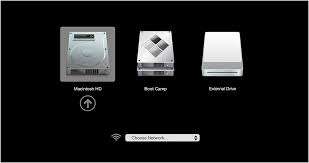
Apple’s Boot Camp instructions describe installing Windows 10 on listed Intel Macs. They do not describe a Boot Camp installation on Apple silicon or promise supported Windows 11 on every Intel Mac. Boot Camp requires a restart to move between operating systems and creates a separate Windows partition.
Windows support needs a separate decision. Microsoft ended ordinary Windows 10 support on 14 October 2025. Check Microsoft’s current support and extended update guidance for the edition, eligibility and dates that apply. An existing Windows installation continuing to start does not establish that it still receives appropriate security updates.
Do not follow an old installation video to erase, format or resize a disk without a verified backup and a clear plan for the files. An unsupported installation workaround is not equivalent to official model and operating system support. For a Windows application that needs ongoing support, a suitable Windows PC or managed remote computer may be the better fit.
Historical Intel Mac Startup Options. This Is Not An Apple Silicon Installation Screen.
2. Virtual machines depend on processor and application compatibility
A virtual machine shares the Mac’s memory, processor and storage. On Apple silicon, a compatible product generally runs the Arm version of Windows. That is different from installing an Intel Windows system directly on the Mac. Check the virtualization provider’s current support for your exact chip, macOS release and Windows edition.
Microsoft describes Windows 11 options for specified Apple silicon Macs, including authorized Parallels configurations and Windows 365 Cloud PCs. Its named versions and models have a defined scope. For newer hardware, check the provider’s current compatibility list as well rather than assuming that an older support article covers every model.
Windows licensing is separate from the virtualization software. Check the Windows edition, the licence needed for each instance and any employer agreement before purchasing. Do not assume a virtualization subscription includes Windows or that an existing licence can be transferred to a new virtual machine.
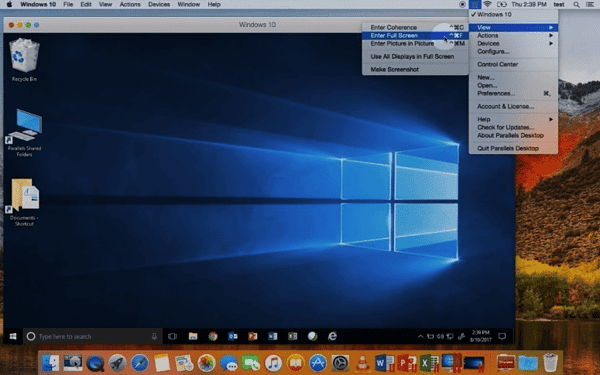
Historical Windows 10 Virtual Machine. Current Windows Support And Product Compatibility Need Separate Checks.Historical Windows 7 Example Retained From The Original Article. It Is Not A Current Installation Recommendation.
Choose around your application, accessories and working day
If you need occasional access to a business application while keeping Mac software open, a supported virtual machine may be convenient. If an employer already provides a remote Windows computer, ask whether that service meets your needs. A remote service depends on its subscription, network connection and the organisation’s access rules.
For games, engineering tools or equipment with specialist drivers, check the software publisher’s actual support statement. Do not choose Boot Camp just because an older guide calls it the best gaming option. Graphics features, copy protection, anti cheat systems and connected hardware can prevent a particular title or device from working in a virtual machine.
Before committing, test a representative file and the equipment you rely on using a lawful trial or a provider approved evaluation where available. Check printing, export formats, extensions and updates, not just whether the application’s opening screen appears. Keep the original files untouched during testing.
Plan memory, storage, updates and recovery before installation
There is no single memory or storage figure that makes every Windows application suitable for every Mac. Check the Mac, macOS, virtualization product, Windows edition and application’s requirements together. The Mac still needs enough resources for its own work while a virtual machine is running.
Allow space for Windows updates, applications, their data and the virtual machine’s working files. A backup or snapshot can consume additional storage. Avoid filling the Mac’s startup disk with a virtual disk that has no room to grow. On a Boot Camp installation, partition planning is a separate operation and should follow the exact model’s official guidance.
Back up the Mac before changing its configuration. Decide how Windows files will be backed up as well, including any shared folders. A virtual machine snapshot can help return to an earlier state but is not an independent backup if the Mac or its storage fails. Keep recovery information and access to the necessary software accounts available.
The original article included this older demonstration. It is retained for historical context, not as current installation, compatibility or licensing advice. Use the current provider documentation for the configuration you intend to use.
Check Arm applications, drivers and security separately
Windows on Arm can run many conventional Windows applications through emulation, but that does not translate every hardware driver. Microsoft’s explanation of application emulation distinguishes applications from driver support. A USB security key, scanner, audio interface or specialist controller may need a compatible driver even when the main application opens normally.
Check the publisher’s position on virtual machines and the required graphics features. Avoid a blanket promise of full hardware performance or complete game compatibility. If the work depends on a particular device, request confirmation for that exact model and connection method.
Maintain updates and protection in macOS, Windows and the virtualization product. Review shared folders, clipboard and device access according to the information involved. A virtual machine is not permission to run untrusted software against your normal documents. If the setup handles business records, involve the person responsible for those systems.
Get a compatibility check before changing your Mac
The practical way to run Windows on a Mac starts with the task, processor and support requirements. Keep an existing working setup intact until you know where your files, applications and connected devices will go. If the Windows software is the main reason for buying a computer, compare a suitable Windows device with the total cost and limits of the Mac route.
Tell our Hartlepool team the Mac model, chip or processor, Windows application and any connected equipment. Mention whether there is a current backup. Do not send passwords, verification codes or software licence keys in an enquiry. For wider Mac faults, see the Apple repair service; the compatibility discussion should come before an installation or repair is agreed.
The Illusion of Stability in Modern Updates For most users, operating system updates are something that simply happen. They arrive quietly, often installing in the background, requiring little more than…
Macbook Neo, How Does It Compare To Air & Pro? Over the last few years the laptop market has experienced one of the most significant architectural changes in its history.…
Apple’s latest product announcements mark one of the most significant shifts in the Mac lineup in more than a decade. While Apple routinely updates its hardware with faster chips, incremental…
There is a particular kind of frustration that only a slow computer can produce. It is not dramatic. It is not urgent. It does not scream for attention. Instead, it…
Small business computer maintenance planning starts with the work you cannot afford to lose. Identify the computers, accounts and files behind those tasks, then agree when maintenance can happen and…
Phone says charging but battery not increasing is one of the most frustrating problems smartphone users face. You plug it in.The lightning bolt appears.It says “Charging.” But the battery percentage…
Apple’s rumour cycle always looks like a thousand disconnected leaks — until you line them up and notice the same themes repeating: AI-first silicon, camera and display differentiation, form-factor experiments (foldables / spatial…
Wi-Fi connected but no internet is one of the most frustrating messages you can see on a computer or laptop. The Wi-Fi icon shows full bars.It says “Connected.”But websites won’t…
Unfortunately, there was an error submitting your request.
Please try again later, or reach out to us directly. You can call us at +44 1429 280955 or email us at sales@kingfishercomputers.co.uk for assistance. We’re here to help you get your computer back up and running!
We’ve received your booking, Our team will get in touch with you shortly to confirm the details. You’re one step closer to having your computer fixed! If you have any urgent questions, feel free to contact us. Otherwise, sit back, and we’ll handle the rest.
Contact Kingfisher Computers
No appointment required. You’re welcome to pop into the shop during opening hours.
ENQUIRY RECEIVED
Thank you
Monday–Friday
9am–5pm
Saturday
9am–4:30pm
Sunday
Closed
Bank holidays
Closed
38 Church Street, Hartlepool, TS24 7DG For home visits and callouts, please wait for us to arrange a time.
Contact Kingfisher Computers
No appointment required. You’re welcome to pop into the shop during opening hours.
ENQUIRY RECEIVED
Thank you
Monday–Friday
9am–5pm
Saturday
9am–4:30pm
Sunday
Closed
Bank holidays
Closed
38 Church Street, Hartlepool, TS24 7DG For home visits and callouts, please wait for us to arrange a time.