The Ultimate Guide: Should You Do a Fresh Install or Upgrade to macOS Catalina?
If you’re ready to update your Mac, you’re likely wondering whether it’s better to perform a fresh install or upgrade to macOS Catalina. macOS Catalina brought many exciting new features, from Sidecar (which lets you use your iPad as a second display) to enhanced security updates. But with the benefits of upgrading come decisions—should you go for a fresh install or a standard upgrade?
In this guide, we’ll help you understand the pros and cons of both approaches so you can make the best decision for your system. By the end, you’ll have a clear understanding of whether you should choose a fresh install or upgrade to macOS Catalina for optimal performance and longevity.
Table of Contents
Why macOS Catalina?
Before deciding whether you should do a fresh install or upgrade to macOS Catalina, let’s explore why macOS Catalina is such a significant update. Apple introduced several performance improvements, additional privacy features, and a streamlined user experience.
Key Features of macOS Catalina:
Sidecar: Use your iPad as a second screen for more productivity.
Improved Security: With Catalina, apps must get permission before accessing your files, and the system is stored on a dedicated read-only volume, making it more secure.
Apple Arcade: Access new games across all Apple devices.
Separation of iTunes: iTunes has been replaced by Apple Music, Apple Podcasts, and Apple TV for a more organized experience.
macOS Catalina is a robust system upgrade, but deciding between a fresh install or upgrade to macOS Catalina depends on your current system’s performance and needs.
Fresh Install vs. Upgrade: What’s the Difference?
When it comes to upgrading your macOS, you have two options: a fresh install or a standard upgrade. But what’s the difference between the two?
What is a Fresh Install?
A fresh install means completely erasing your hard drive and installing macOS Catalina from scratch. This approach gives you a clean slate, free from old files, system junk, or unnecessary apps that might be slowing down your system.
What is an Upgrade?
An upgrade simply means installing macOS Catalina over your existing operating system. It preserves all your files, apps, and settings, while still giving you access to all the new features in Catalina.
Now that you understand the difference, let’s dive into the advantages and disadvantages of each method, so you can decide which one is best for you.
When to Choose a Fresh Install of macOS Catalina
If your Mac has been running slower or experiencing frequent bugs, a fresh install might be the best option. A fresh installation clears out everything, allowing your Mac to run more efficiently.
Pros of a Fresh Install:
Clean System: By starting with a fresh installation, you remove any lingering issues, malware, or junk files that might have accumulated over time.
Improved Speed: A fresh install of macOS Catalina ensures that only necessary files and apps are on your Mac, improving overall performance.
Maximized Storage Space: A clean install allows you to reclaim space by eliminating old files that you don’t need anymore.
Cons of a Fresh Install:
Time-Consuming: A fresh install takes more time since you’ll need to back up your files, reinstall your apps, and reconfigure your settings.
Data Loss Risk: If you forget to back up your important files, you risk losing data during the process.
When to Choose an Upgrade to macOS Catalina
An upgrade is a much faster option and keeps all your existing files, apps, and settings intact. If your system is running smoothly and you’re simply looking to access the latest features in macOS Catalina, an upgrade is the easiest way to go.
Pros of an Upgrade:
Quick and Convenient: An upgrade to macOS Catalina is straightforward and can be completed in a short time without having to erase or reinstall anything.
Preserve Your Data: Since it doesn’t require wiping your hard drive, you won’t need to worry about restoring files or reinstalling apps.
Cons of an Upgrade:
Possible Carryover of Old Problems: If your system has been slow or buggy, an upgrade might not solve these issues. Old system junk or corrupted files can still cause problems.
Less Efficient Storage Management: Over time, your system may accumulate unnecessary files, which a simple upgrade won’t remove.
Which Should You Choose: Fresh Install or Upgrade to macOS Catalina?
Choosing between a fresh install or upgrade to macOS Catalina comes down to your current system’s performance and your needs.
Choose a Fresh Install If:
Your Mac has been slow, buggy, or prone to crashes.
You haven’t done a clean install in years and want to start fresh.
You’re low on disk space and want to get rid of junk files and old apps.
Choose an Upgrade If:
Your system is already running smoothly, and you just want to access Catalina’s new features.
You don’t have time for a fresh install and don’t want to deal with the hassle of backing up and reinstalling everything.
How to Perform a Fresh Install of macOS Catalina
If you’ve decided that a fresh install of macOS Catalina is the best choice for you, here’s a step-by-step guide to get started:
Step 1: Back Up Your Mac
Before performing a fresh install, make sure you back up all important files and documents using Time Machine or an external hard drive.
Step 2: Create a Bootable macOS Catalina Installer
You’ll need a USB flash drive to create a bootable installer. Download macOS Catalina from the Mac App Store, then use Disk Utility to create the bootable drive.
Step 3: Erase Your Hard Drive
Restart your Mac and hold down Command + R to enter Recovery Mode. From there, select Disk Utility and erase your primary hard drive.
Step 4: Install macOS Catalina
Once your hard drive is erased, restart your Mac, and install macOS Catalina using the bootable USB installer.
“Setting Up Your Mac” Macos Catalina
How to Upgrade to macOS Catalina
If you’ve opted for the quicker and easier method of an upgrade to macOS Catalina, follow these simple steps:
Step 1: Back Up Your Data
Just like with a fresh install, it’s always a good idea to back up your data before any major system upgrade.
Step 2: Download macOS Catalina
Go to the Mac App Store and search for macOS Catalina. Click Download and follow the on-screen instructions to begin the installation process.
Step 3: Install macOS Catalina
Once the download is complete, macOS will prompt you to begin the upgrade. Click Install and follow the prompts. Your files, apps, and settings will be preserved during the upgrade.
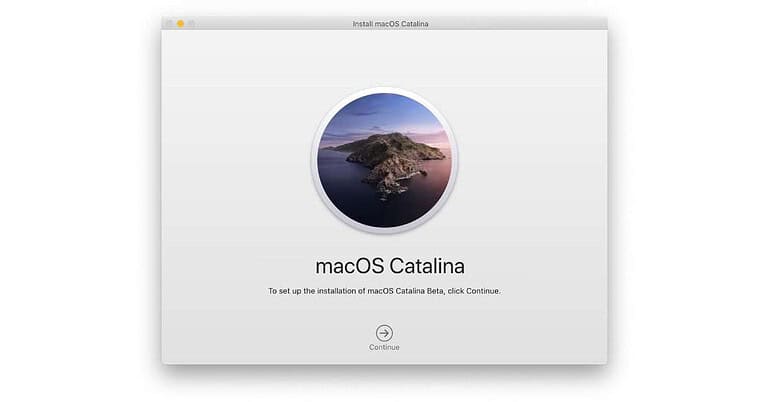
Install Macos Catalina
Conclusion: Fresh Install or Upgrade to macOS Catalina? The Choice is Yours!
Whether you decide to do a fresh install or upgrade to macOS Catalina, both methods offer a range of benefits depending on your system’s needs. A fresh install ensures maximum performance and a clean system, while an upgrade offers convenience and simplicity. Ultimately, the choice is yours based on how you use your Mac and the current state of your system.
The Illusion of Stability in Modern Updates For most users, operating system updates are something that simply happen. They arrive quietly, often installing in the background, requiring little more than…
Macbook Neo, How Does It Compare To Air & Pro? Over the last few years the laptop market has experienced one of the most significant architectural changes in its history.…
Apple’s latest product announcements mark one of the most significant shifts in the Mac lineup in more than a decade. While Apple routinely updates its hardware with faster chips, incremental…
There is a particular kind of frustration that only a slow computer can produce. It is not dramatic. It is not urgent. It does not scream for attention. Instead, it…
In an era where nearly every aspect of personal computer maintenance and professional life is mediated through digital systems, your computer is no longer a luxury device — it is…
Phone says charging but battery not increasing is one of the most frustrating problems smartphone users face. You plug it in.The lightning bolt appears.It says “Charging.” But the battery percentage…
Apple’s rumour cycle always looks like a thousand disconnected leaks — until you line them up and notice the same themes repeating: AI-first silicon, camera and display differentiation, form-factor experiments (foldables / spatial…
Wi-Fi connected but no internet is one of the most frustrating messages you can see on a computer or laptop. The Wi-Fi icon shows full bars.It says “Connected.”But websites won’t…
Unfortunately, there was an error submitting your request.
Please try again later, or reach out to us directly. You can call us at +44 1429 280955 or email us at sales@kingfishercomputers.co.uk for assistance. We’re here to help you get your computer back up and running!
We’ve received your booking, Our team will get in touch with you shortly to confirm the details. You’re one step closer to having your computer fixed! If you have any urgent questions, feel free to contact us. Otherwise, sit back, and we’ll handle the rest.