Boost Performance: 7 Proven Ways to Speed Up Your PC
Is your PC running slower than it used to? Over time, even the most powerful computers can become sluggish, making simple tasks like browsing the web or opening applications frustrating. But don’t worry—you don’t need to be a tech expert to speed up your PC. With a few strategic tweaks, you can restore your computer’s performance and get it running smoothly again.
In this guide, we’ll walk you through step-by-step solutions to identify what’s slowing down your PC and provide actionable tips to speed up your PC immediately.
Table of Contents
Why Is My PC So Slow?
There are multiple reasons your PC might be running slower than normal. Some of the most common culprits include:
Too many background programs: Running too many programs at once can eat up your system’s resources, slowing everything down.
Outdated hardware: Old components like hard drives and RAM may not handle modern software as efficiently.
Malware and viruses: Malicious software can bog down your system by using resources behind the scenes.
Full hard drive: A lack of available storage can reduce your PC’s ability to process tasks efficiently.
By understanding the causes, you can better target the fixes that will make the biggest impact when you aim to speed up your PC.
Step 1: Clean Up Startup Programs
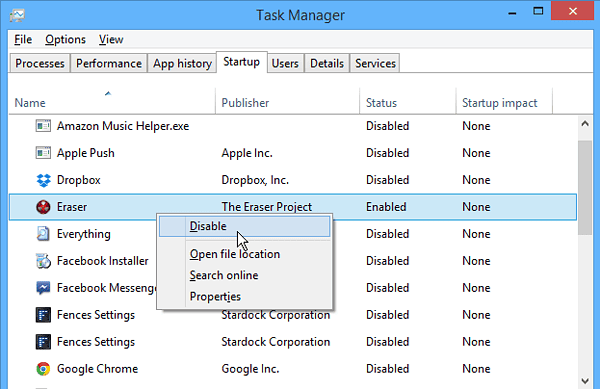
One of the fastest ways to speed up your PC is by managing the programs that start automatically when you boot up your computer. Many programs sneak into your startup list without you realizing, and they consume resources even when you’re not using them.
How to Disable Startup Programs:
Press Ctrl + Shift + Esc to open the Task Manager.
Navigate to the Startup tab.
Disable programs that you don’t need to run at startup.
Pro Tip: Be cautious when disabling programs. While many programs don’t need to start automatically, some like antivirus software should be left running to ensure your system stays protected.
Step 2: Uninstall Unnecessary Programs
Over time, you may install programs that you rarely use or even forget about. These programs take up valuable storage and may run background processes that slow down your computer. To speed up your PC, it’s essential to remove programs you no longer need.
How to Uninstall Programs:
Open Control Panel and go to Programs > Uninstall a Program.
Review the list of installed software and remove anything you no longer use.
Uninstalling unnecessary programs is a quick and effective way to free up system resources and improve your computer’s speed.
Step 3: Run Disk Cleanup
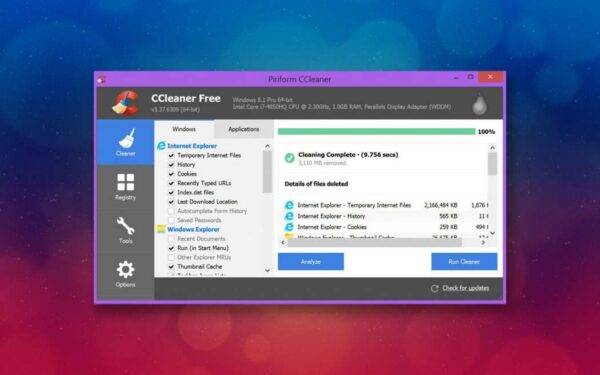
If your hard drive is nearly full, your system won’t have the space it needs to run optimally. Windows has a built-in tool called Disk Cleanup that can help you reclaim space by removing temporary files, cached data, and unnecessary system files.
How to Use Disk Cleanup:
In the Windows search bar, type Disk Cleanup and open the program.
Select the drive you want to clean (usually your C: drive).
Check the boxes for files you want to remove, such as temporary files, system logs, and recycle bin contents.
Click OK to begin the cleanup.
By regularly using Disk Cleanup, you can free up space and speed up your PC without much effort.
Step 4: Upgrade to a Solid-State Drive (SSD)
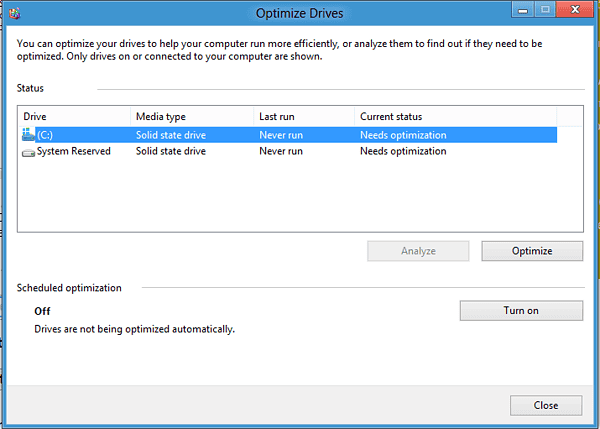
One of the most impactful upgrades you can make to speed up your PC is switching from a traditional hard drive (HDD) to a Solid-State Drive (SSD). SSDs are much faster than HDDs, which means your PC will boot up quicker, load programs faster, and overall performance will improve significantly.
Why an SSD Is a Game-Changer:
Faster boot times: Your PC will start in seconds rather than minutes.
Improved responsiveness: Programs will load nearly instantly, and system tasks will be faster.
Durability: SSDs are more resistant to physical damage, making them a longer-lasting option.
Pro Tip: Upgrading to an SSD is a straightforward process. If you’re unsure how to do it, reach out to a professional service like Kingfisher Computers for expert assistance.
Step 5: Increase Your RAM
Another key upgrade to speed up your PC is adding more RAM (Random Access Memory). If your computer is struggling with multitasking, increasing the amount of RAM can significantly boost performance, especially for tasks like video editing, gaming, and running multiple programs simultaneously.
How to Upgrade RAM:
Determine how much RAM your system currently has. You can check this by right-clicking This PC > Properties.
Purchase compatible RAM modules and install them in your system. Most modern PCs allow for easy RAM upgrades.
Once installed, your system should automatically recognize the new memory.
Upgrading your RAM is an easy way to speed up your PC and increase its ability to handle demanding tasks.
Step 6: Run Regular Virus Scans
Malware and viruses can secretly run in the background, hogging system resources and slowing down your computer. Running regular antivirus scans ensures your system stays protected and performs optimally.
Best Antivirus Tools for Speed and Protection:
Bitdefender: Known for its lightweight, fast protection without slowing down your PC.
Malwarebytes: A great tool for detecting and removing malware that traditional antivirus programs may miss.
By keeping your system malware-free, you can speed up your PC and ensure it stays secure.
Step 7: Keep Windows Updated
While some people avoid updates because they don’t want to deal with the reboot process, keeping Windows updated is crucial for maintaining speed and security. Updates often include bug fixes and performance improvements that can help speed up your PC.
How to Check for Windows Updates:
Open Settings > Update & Security.
Click Check for updates and install any available updates.
Keeping your system up to date ensures that it runs as efficiently as possible.
Conclusion: Take Action to Speed Up Your PC Today
A slow computer doesn’t have to be your reality. By following these steps, you can speed up your PC, enhance its performance, and extend its lifespan. From simple fixes like managing startup programs to upgrading key components like an SSD or RAM, these solutions will have your system running faster in no time.
If you need help with upgrades or want expert advice, don’t hesitate to contact Kingfisher Computers. Our team can guide you through the process and help you maximize your computer’s potential.
The Illusion of Stability in Modern Updates For most users, operating system updates are something that simply happen. They arrive quietly, often installing in the background, requiring little more than…
Macbook Neo, How Does It Compare To Air & Pro? Over the last few years the laptop market has experienced one of the most significant architectural changes in its history.…
Apple’s latest product announcements mark one of the most significant shifts in the Mac lineup in more than a decade. While Apple routinely updates its hardware with faster chips, incremental…
There is a particular kind of frustration that only a slow computer can produce. It is not dramatic. It is not urgent. It does not scream for attention. Instead, it…
In an era where nearly every aspect of personal computer maintenance and professional life is mediated through digital systems, your computer is no longer a luxury device — it is…
Phone says charging but battery not increasing is one of the most frustrating problems smartphone users face. You plug it in.The lightning bolt appears.It says “Charging.” But the battery percentage…
Apple’s rumour cycle always looks like a thousand disconnected leaks — until you line them up and notice the same themes repeating: AI-first silicon, camera and display differentiation, form-factor experiments (foldables / spatial…
Wi-Fi connected but no internet is one of the most frustrating messages you can see on a computer or laptop. The Wi-Fi icon shows full bars.It says “Connected.”But websites won’t…
Unfortunately, there was an error submitting your request.
Please try again later, or reach out to us directly. You can call us at +44 1429 280955 or email us at sales@kingfishercomputers.co.uk for assistance. We’re here to help you get your computer back up and running!
We’ve received your booking, Our team will get in touch with you shortly to confirm the details. You’re one step closer to having your computer fixed! If you have any urgent questions, feel free to contact us. Otherwise, sit back, and we’ll handle the rest.