Ever notice your computer slowing down for no obvious reason, especially during gaming or heavy workloads? One major culprit could be something called thermal throttling. In 2025, as processors and GPUs grow more powerful, managing heat becomes more important than ever. Thermal throttling is your system’s built-in defense against overheating — but while it’s useful for protecting your components, it can seriously impact performance.
This guide will explain what thermal throttling is, why it happens, how to spot it, and most importantly, how to stop it. We’ll cover real solutions for both desktops and laptops using simple language so even beginners can understand and apply them.
What Is Thermal Throttling?
Throttling is a process where your computer automatically reduces the performance of its components — such as the CPU or GPU — when temperatures get too high. It’s a safety mechanism built into modern chips to prevent permanent heat damage. Instead of letting the component overheat and potentially fry itself, the system slows it down to reduce heat output.
Why Does Thermal Throttling Happen?
There are a few key triggers for throttling:
Poor cooling systems: If your fans or heatsinks aren’t doing their job, heat builds up.
Dust and debris: Blocked vents and dirty fans reduce airflow.
Overclocking: Pushing your hardware too far without proper cooling.
High ambient temperatures: Especially during summer or in poorly ventilated rooms.
What Parts Are Affected by Thermal Throttling?
Thermal throttling typically affects the CPU and GPU — the most heat-intensive parts of your computer. But it can also impact RAM, SSDs, and even your VRMs (Voltage Regulator Modules) on the motherboard. In laptops, throttling is even more common due to compact builds and limited cooling.
How Does It Impact Performance?
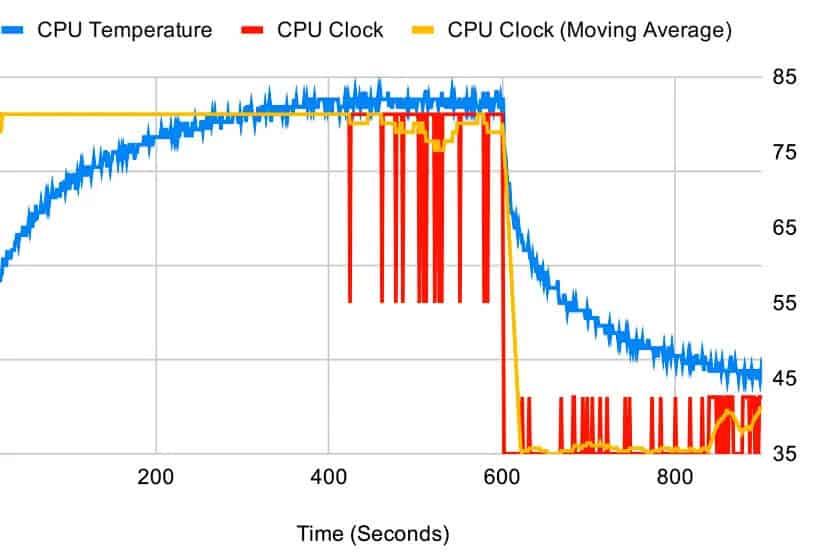
When thermal throttling kicks in, your system slows down clock speeds to reduce heat. This can result in:
Lower frame rates in games
Slower rendering and processing times
Stuttering and lag in heavy tasks
A sluggish overall experience
In severe cases, thermal throttling can make even basic tasks feel painfully slow, especially on laptops.
How to Detect Throttling
Use Monitoring Software
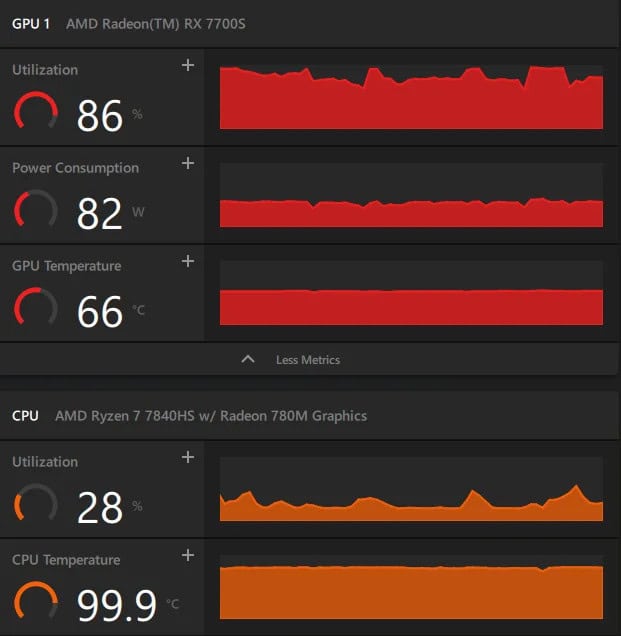
Programs like HWMonitor, MSI Afterburner, HWiNFO, or Core Temp can show you your CPU/GPU temps and whether they’re being throttled. Look for sudden drops in clock speeds or warnings in the logs.
Benchmark Drops Over Time
Run a stress test (like Cinebench or 3DMark) and observe if performance drops after a few minutes. If the system starts strong but scores fall off, that’s likely thermal throttling.
Fan Noise and Heat
If your fans are running loudly and constantly, but performance still drops, you’re probably running into thermal throttling. Touch your device — if it’s too hot to rest your hand on, that’s a bad sign.
System Logs and Warnings
Some BIOS/UEFI settings or Windows Event Viewer logs may show thermal warnings. Newer motherboards even provide throttling history stats.
How to Stop Thermal Throttling
Now let’s look at actionable steps to prevent or reduce thermal throttling. Most of these solutions apply to both desktops and laptops, unless otherwise noted.
Improve Cooling Systems
Upgrade your CPU cooler: Replace the stock cooler with a better air or liquid cooling solution.
Add more case fans: Improve airflow throughout the case.
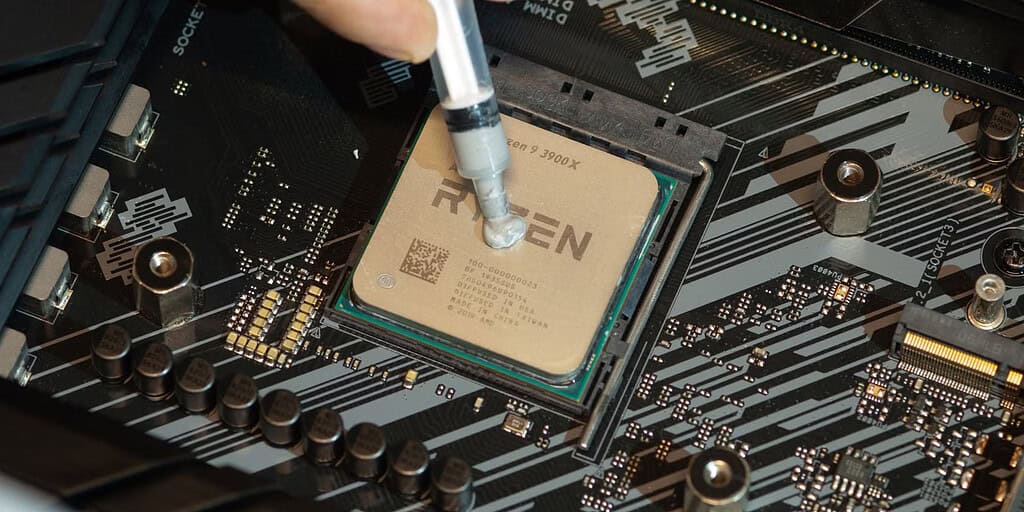
Use thermal paste correctly: Reapply with a high-quality paste every couple of years.
For laptops: Use a cooling pad or elevate the rear of the device to improve airflow.
Undervolt Your CPU or GPU
Undervolting reduces voltage without significantly impacting performance, which lowers heat output. Tools like Intel XTU or AMD Ryzen Master let you do this safely.
Control Fan Curves
Adjust fan speed settings in BIOS or software like Argus Monitor or FanControl. You can create aggressive curves that ramp up fans earlier to fight heat.
Limit Background Tasks
Running lots of background apps puts extra stress on the CPU and GPU. Clean up startup programs and use tools like Task Manager to shut down anything unnecessary.
What Is Thermal Throttling And How To Stop It 4
Advanced Methods to Handle Thermal Throttling
Repaste or Replace Thermal Pads
Over time, thermal paste dries out, reducing heat transfer. Reapplying paste or replacing thermal pads (especially on laptops) can reduce throttling.
Undervolt + Power Limit Adjustments
Combining undervolting with setting power limits can drastically reduce heat while keeping performance stable. Use tools like ThrottleStop or MSI Afterburner for this.
Clean the Inside of Your PC
Dust builds up fast — especially in fans, heatsinks, and filters. A can of compressed air and 15 minutes can make a huge difference in fighting throttling.
Upgrade to a Better Case or Layout
If your case has poor airflow or limited fan support, upgrading to a better-ventilated model could help. Also, tidy your cables — they restrict airflow too!
What Is Thermal Throttling And How To Stop It 5
Is Thermal Throttling Ever Good?
Built-In Safety Net
In some cases, throttling is doing its job — saving your hardware from real damage. It’s better to throttle performance than to permanently kill your CPU or GPU.
Helps Extend Lifespan
Letting parts run at max temperature constantly degrades them faster. Thermal throttling helps prevent this, giving your hardware a longer life.
Keeps Laptops Quiet and Efficient
In ultraportables or fanless designs, thermal throttling is expected. Manufacturers design them this way to stay cool and quiet.
Useful in Emergency Conditions
If your cooler fails or ambient temps spike suddenly, throttling prevents a total crash until you can fix the issue.
What Is Thermal Throttling And How To Stop It 6
Conclusion: Beat the Heat Before It Beats You
Thermal throttling is a real performance killer — but also a smart safety feature. Understanding when it’s happening and how to reduce or eliminate it will keep your computer running fast, smooth, and healthy in 2025 and beyond.
If you notice sluggish performance, high fan speeds, or hot surfaces, don’t ignore the signs. Take action using the solutions above.
The Illusion of Stability in Modern Updates For most users, operating system updates are something that simply happen. They arrive quietly, often installing in the background, requiring little more than…
Macbook Neo, How Does It Compare To Air & Pro? Over the last few years the laptop market has experienced one of the most significant architectural changes in its history.…
Apple’s latest product announcements mark one of the most significant shifts in the Mac lineup in more than a decade. While Apple routinely updates its hardware with faster chips, incremental…
There is a particular kind of frustration that only a slow computer can produce. It is not dramatic. It is not urgent. It does not scream for attention. Instead, it…
In an era where nearly every aspect of personal computer maintenance and professional life is mediated through digital systems, your computer is no longer a luxury device — it is…
Phone says charging but battery not increasing is one of the most frustrating problems smartphone users face. You plug it in.The lightning bolt appears.It says “Charging.” But the battery percentage…
Apple’s rumour cycle always looks like a thousand disconnected leaks — until you line them up and notice the same themes repeating: AI-first silicon, camera and display differentiation, form-factor experiments (foldables / spatial…
Wi-Fi connected but no internet is one of the most frustrating messages you can see on a computer or laptop. The Wi-Fi icon shows full bars.It says “Connected.”But websites won’t…
Unfortunately, there was an error submitting your request.
Please try again later, or reach out to us directly. You can call us at +44 1429 280955 or email us at [email protected] for assistance. We’re here to help you get your computer back up and running!
We’ve received your booking, Our team will get in touch with you shortly to confirm the details. You’re one step closer to having your computer fixed! If you have any urgent questions, feel free to contact us. Otherwise, sit back, and we’ll handle the rest.