Gaming performance has become a crucial selling point for modern operating systems, and Microsoft’s Game Mode in Windows 11 promises to deliver enhanced gaming experiences through intelligent resource management. But does this feature live up to the marketing promises, or is it simply another example of tech industry hype? This comprehensive analysis examines the real-world impact of Game Mode in Windows 11, exploring its functionality, benefits, limitations, and whether it truly makes a difference for today’s gamers.
Since its introduction, Game Mode in Windows 11 has generated considerable discussion among gaming enthusiasts and tech professionals. Microsoft claims this feature optimizes system resources specifically for gaming applications, potentially improving frame rates, reducing input lag, and providing smoother gameplay experiences. However, the gaming community remains divided on its effectiveness, with some users reporting significant improvements while others notice minimal differences. Understanding the truth behind Game Mode in Windows 11 requires examining both the technical implementation and real-world performance data.
Understanding the Technology Behind Game Mode in Windows 11
Game Mode in Windows 11 represents Microsoft’s attempt to address the complex challenge of optimizing a general-purpose operating system for gaming workloads. Unlike dedicated gaming consoles that run games directly on hardware with minimal overhead, Windows computers must balance numerous background processes, system services, and applications that can interfere with gaming performance. The implementation of Game Mode in Windows 11 involves sophisticated algorithms that detect when gaming applications are running and automatically adjust system behavior to prioritize gaming performance over other tasks.
How Game Mode Prioritizes System Resources
When activated, Game Mode in Windows 11 employs several strategies to optimize system performance for gaming applications. The feature increases CPU thread priority for the active game, ensuring that processing power is allocated preferentially to the gaming application rather than background tasks. Memory management also receives optimization, with the system attempting to keep more RAM available for the game while temporarily reducing memory allocation to non-essential processes. Additionally, Game Mode in Windows 11 can disable certain Windows services and background applications that might compete for system resources during gameplay.
The GPU scheduling improvements in Game Mode in Windows 11 represent perhaps the most significant technical advancement. The feature works closely with hardware-accelerated GPU scheduling to reduce input lag and improve frame timing consistency. This technology allows the graphics card to manage its own memory and scheduling tasks more efficiently, reducing the CPU overhead typically associated with graphics processing. For users with compatible hardware, Game Mode in Windows 11 can deliver measurable improvements in both performance metrics and subjective gaming experience quality.
Background Process Management and Optimization
One of the primary functions of Game Mode in Windows 11 involves intelligently managing background processes that might interfere with gaming performance. The system maintains a database of known applications and services, categorizing them based on their importance and resource usage patterns. When Game Mode in Windows 11 activates, it can temporarily suspend or throttle non-essential background processes, freeing up CPU cycles and memory for the gaming application.
Windows Update installations, antivirus scans, and system maintenance tasks represent common sources of performance interference during gaming sessions. Game Mode in Windows 11 addresses these issues by deferring certain maintenance activities until after gaming sessions conclude. However, critical security processes and essential system services continue running to maintain system stability and security. This balanced approach ensures that Game Mode in Windows 11 improves gaming performance without compromising system integrity or user safety.
Game Mode In Windows 11: Helpful Or Hype? 4
Real-World Performance Analysis of Game Mode in Windows 11
Understanding the practical impact of Game Mode in Windows 11 requires examining performance data from various gaming scenarios and hardware configurations. Independent testing and user reports provide valuable insights into the feature’s effectiveness across different gaming genres, system specifications, and usage patterns.
Benchmarking Results Across Different Gaming Scenarios
Comprehensive benchmarking reveals that Game Mode in Windows 11 delivers variable results depending on specific gaming conditions and system configurations. In CPU-intensive games like strategy titles and simulation games, users often report measurable frame rate improvements ranging from 5-15% when Game Mode in Windows 11 is enabled. These improvements typically become more pronounced on systems with modest hardware specifications or those running multiple background applications simultaneously.
Graphics-intensive games present a more complex picture for Game Mode in Windows 11 effectiveness. High-end systems with powerful dedicated graphics cards may see minimal improvements because the GPU already receives sufficient resources for optimal performance. However, systems with integrated graphics or older discrete GPUs can benefit significantly from the resource prioritization that Game Mode in Windows 11 provides. The feature’s impact also varies based on game engine optimization and how individual titles interact with Windows system services.
The effectiveness of Game Mode in Windows 11 varies significantly based on underlying hardware specifications. Systems with limited RAM (8GB or less) tend to show more dramatic improvements when the feature is enabled, as the memory management optimizations can prevent performance-degrading situations like excessive paging to virtual memory. Conversely, high-end gaming systems with abundant RAM and powerful processors may experience minimal benefits from Game Mode in Windows 11 because they already have sufficient resources for optimal gaming performance.
Storage configuration also influences Game Mode in Windows 11 effectiveness. Systems using traditional mechanical hard drives benefit more from the feature’s optimizations compared to those with solid-state drives. The reduced background disk activity that Game Mode in Windows 11 provides can significantly improve loading times and reduce stuttering on HDD-based systems, while SSD users may notice smaller improvements due to the inherently faster storage technology.
Competitive Gaming and Esports Performance
For competitive gamers and esports enthusiasts, even marginal performance improvements can provide meaningful advantages. Game Mode in Windows 11 addresses several factors that affect competitive gaming performance, including input lag reduction, frame time consistency, and system responsiveness during intense gaming sessions. Professional esports players and serious competitive gamers often report that Game Mode in Windows 11 helps maintain more consistent performance during extended practice sessions and tournaments.
Input lag represents a critical concern for competitive gaming, and Game Mode in Windows 11 includes optimizations specifically designed to reduce the delay between user actions and on-screen responses. By minimizing background process interference and optimizing GPU scheduling, the feature can reduce input lag by several milliseconds in optimal conditions. While these improvements may seem minimal, they can make a noticeable difference in fast-paced competitive games where reaction time is crucial.
Frame Rate Stability and Consistency
Beyond raw performance improvements, Game Mode in Windows 11 focuses on delivering more consistent gaming experiences through improved frame timing and reduced performance fluctuations. Many gamers prefer stable frame rates over peak performance, as consistent timing provides smoother visual experiences and more predictable gameplay. The feature achieves this stability by preventing background processes from causing sudden performance drops or stuttering during critical gaming moments.
The frame time analysis reveals that Game Mode in Windows 11 can reduce performance variance by preventing background tasks from interrupting gaming workloads. This improvement becomes particularly noticeable during extended gaming sessions when background maintenance tasks might otherwise interfere with gameplay. Users often report that games feel smoother and more responsive with Game Mode in Windows 11 enabled, even when average frame rates remain similar.
Productivity and Multi-tasking Considerations
While Game Mode in Windows 11 optimizes system performance for gaming, users must consider its impact on multitasking and productivity applications. The feature’s resource prioritization can affect the performance of applications running simultaneously with games, potentially impacting streaming software, voice chat applications, and other gaming-adjacent tools that many users rely upon during gaming sessions.
Content creators who stream their gameplay or record gaming footage may experience mixed results with Game Mode in Windows 11. While the feature can improve game performance, it might simultaneously reduce resources available to streaming and recording applications. Users must balance the gaming performance benefits against potential impacts on their content creation workflows. Some streamers report better overall experiences with Game Mode in Windows 11 disabled when running resource-intensive streaming setups.
Modern gaming often involves multitasking with web browsers, Discord, and other communication applications running alongside games. Game Mode in Windows 11 attempts to balance resource allocation between gaming applications and these essential secondary applications. However, users may notice reduced responsiveness in web browsers or communication apps when Game Mode in Windows 11 is actively prioritizing game performance.
The impact on communication applications can affect online gaming experiences, particularly for team-based games that rely heavily on voice communication. Some users report audio quality issues or increased latency in voice chat applications when Game Mode in Windows 11 is enabled. These trade-offs highlight the importance of testing the feature with your specific application combination to determine optimal settings for your gaming setup.
Advanced Configuration and Optimization Strategies
Game Mode in Windows 11 offers various configuration options that allow users to customize its behavior based on their specific hardware and gaming preferences. Understanding these options enables users to maximize the feature’s benefits while minimizing potential drawbacks.
Customizing Game Mode Settings for Optimal Performance
The Windows 11 Settings application provides several options for configuring Game Mode in Windows 11 behavior. Users can enable or disable the feature globally, configure automatic activation for specific applications, and adjust various performance-related settings. The Game Bar overlay also provides quick access to Game Mode in Windows 11 controls during gameplay, allowing users to toggle the feature without interrupting their gaming experience.
Advanced users can further customize Game Mode in Windows 11 through Windows Registry modifications and Group Policy settings. These advanced configurations allow for more granular control over resource allocation, background process management, and system optimization parameters. However, modifying these settings requires technical expertise and carries risks if not performed correctly. Users should research specific modifications thoroughly and create system backups before making advanced changes to Game Mode in Windows 11 settings.
Integration with Third-Party Gaming Software
Many gaming peripheral manufacturers and software developers have optimized their applications to work effectively with Game Mode in Windows 11. Gaming software suites from companies like ASUS, MSI, and Razer often include features that complement or enhance the Windows Game Mode functionality. These integrations can provide additional performance optimizations, hardware-specific tuning, and more detailed performance monitoring capabilities.
Graphics driver software from NVIDIA and AMD also includes features that work alongside Game Mode in Windows 11 to optimize gaming performance. NVIDIA’s GeForce Experience and AMD’s Radeon Software can automatically configure game-specific settings that complement the system-level optimizations provided by Game Mode in Windows 11. Users should ensure that all gaming-related software is updated to the latest versions to maintain compatibility and optimal performance.
Troubleshooting Common Game Mode Issues
Despite its benefits, Game Mode in Windows 11 can occasionally cause compatibility issues or unexpected behavior with certain games or system configurations. Understanding common problems and their solutions helps users maintain optimal gaming performance while avoiding potential pitfalls.
Some users report that certain older games experience compatibility issues when Game Mode in Windows 11 is enabled. These problems can manifest as crashes, performance degradation, or unusual behavior during gameplay. In such cases, users can disable Game Mode for specific applications through the Windows Settings application or by using compatibility settings for individual game executables. Maintaining a list of problematic games and their optimal settings helps ensure consistent gaming experiences.
Performance Monitoring and Optimization
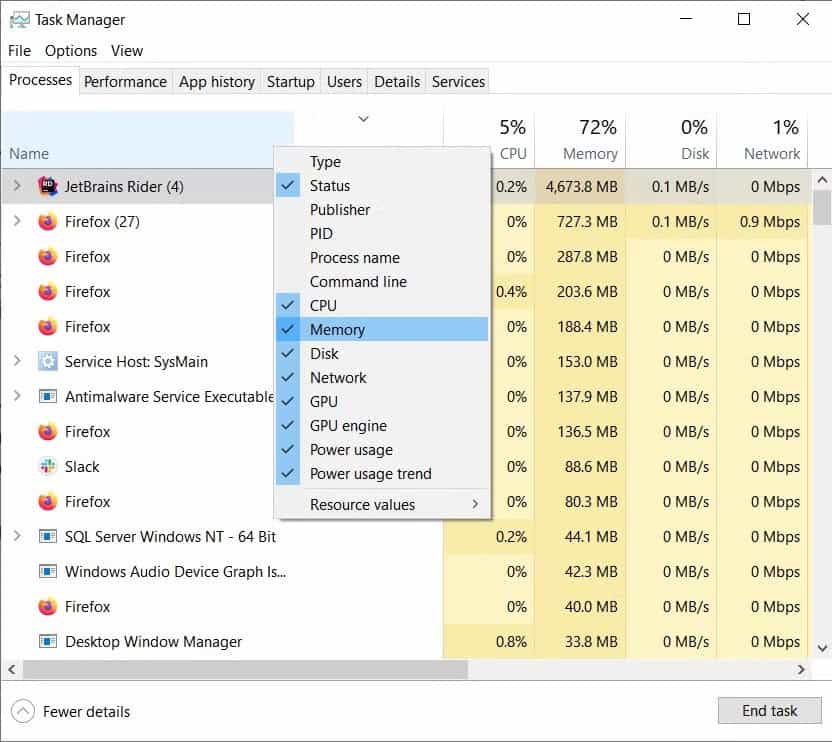
Effective use of Game Mode in Windows 11 requires ongoing monitoring and adjustment based on gaming performance metrics. Windows 11 includes built-in performance monitoring tools that can help users assess the impact of Game Mode on their specific gaming scenarios. The Task Manager’s performance tab provides real-time data on CPU, memory, and GPU utilization that can reveal whether Game Mode in Windows 11 is effectively optimizing resource allocation.
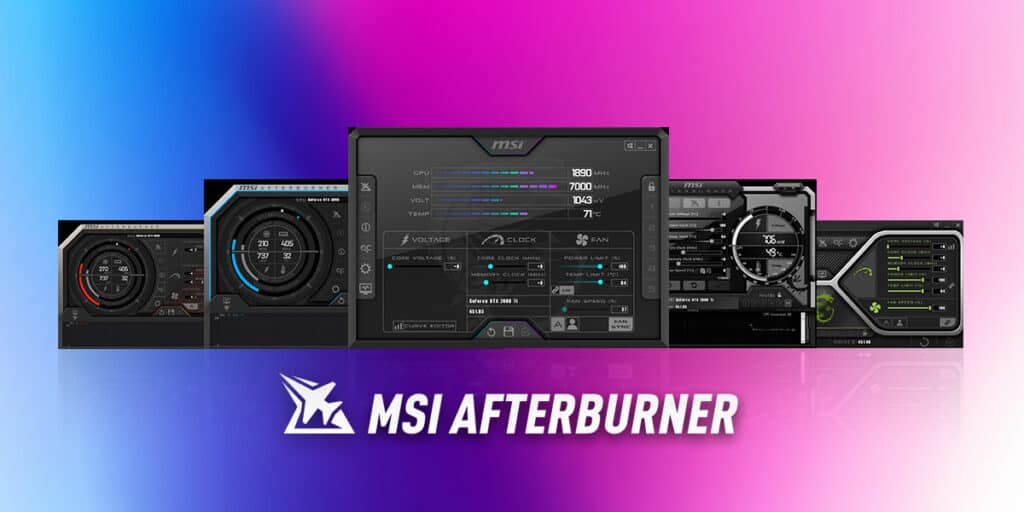
Third-party monitoring software can provide more detailed analysis of Game Mode in Windows 11 effectiveness. Applications like MSI Afterburner, HWiNFO64, and FrameView offer comprehensive performance metrics that help users understand exactly how the feature affects their gaming performance. Regular monitoring allows users to fine-tune their Game Mode in Windows 11 configuration and identify optimal settings for different games and usage scenarios.
Game Mode In Windows 11: Helpful Or Hype? 5
Future Developments and Microsoft’s Gaming Strategy
Microsoft continues to develop and refine Game Mode in Windows 11 based on user feedback and evolving gaming technology. Recent updates have introduced additional optimizations for newer hardware technologies, improved compatibility with popular games, and enhanced integration with Xbox gaming services. Understanding Microsoft’s roadmap for Game Mode in Windows 11 helps users prepare for future improvements and changes to the feature.
The integration of Game Mode in Windows 11 with Microsoft’s broader gaming ecosystem, including Xbox Game Pass and cloud gaming services, represents an important strategic direction. Future updates may include enhanced optimizations for cloud gaming, improved integration with Xbox Live services, and additional features designed to bridge the gap between PC and console gaming experiences. These developments could significantly expand the relevance and effectiveness of Game Mode in Windows 11 for different types of gamers.
DirectStorage and Next-Generation Gaming Technologies
Microsoft’s DirectStorage technology represents a significant advancement in PC gaming performance that works in conjunction with Game Mode in Windows 11. This technology enables games to load assets directly from storage to graphics memory, bypassing traditional CPU bottlenecks that can limit performance. As more games adopt DirectStorage, Game Mode in Windows 11 will likely evolve to optimize resource allocation for these advanced loading techniques.
The ongoing development of Windows 11 gaming features suggests that Game Mode will continue receiving updates and improvements. Microsoft’s commitment to PC gaming, demonstrated through initiatives like Xbox Game Pass for PC and continued investment in gaming technologies, indicates that Game Mode in Windows 11 will remain a priority for future Windows development. Users can expect continued refinements and new features that enhance the gaming experience on Windows 11 systems.
Game Mode In Windows 11: Helpful Or Hype? 6
The Verdict: Is Game Mode in Windows 11 Worth Using?
After extensive analysis of Game Mode in Windows 11 functionality, performance data, and user experiences, the answer to whether this feature is helpful or hype depends largely on individual system configurations and gaming preferences. For many users, Game Mode in Windows 11 provides measurable benefits that justify its use, while others may find minimal improvements in their specific gaming scenarios.
When Game Mode Provides Clear Benefits
Game Mode in Windows 11 delivers the most significant improvements for users with modest hardware specifications, those who frequently multitask while gaming, or gamers who play CPU-intensive titles. Systems with limited RAM, older processors, or integrated graphics often see substantial performance improvements when Game Mode in Windows 11 is enabled. Additionally, users who run multiple background applications during gaming sessions typically benefit from the feature’s resource prioritization capabilities.
Competitive gamers and esports enthusiasts represent another group that can benefit significantly from Game Mode in Windows 11. The input lag reduction and frame time consistency improvements can provide meaningful advantages in competitive gaming scenarios, even on high-end systems. For these users, every millisecond of improvement can translate into better performance and more consistent gaming experiences.
Scenarios Where Game Mode May Not Help
High-end gaming systems with abundant resources may see minimal benefits from Game Mode in Windows 11. When hardware specifications already exceed game requirements by substantial margins, the resource optimization provided by Game Mode becomes less relevant. Similarly, users who maintain clean systems with minimal background processes running may not experience significant improvements from the feature’s optimization algorithms.
Some specific games and applications may actually perform worse with Game Mode in Windows 11 enabled due to compatibility issues or resource allocation conflicts. Users should test the feature with their preferred games and be prepared to disable it for applications that experience problems. The variable nature of Game Mode effectiveness means that individual testing remains the best method for determining its value in specific gaming setups.
Making the Decision for Your Gaming Setup
The decision to use Game Mode should be based on careful testing with your specific hardware configuration and preferred games. The feature’s low overhead and easy activation make it simple to test in various gaming scenarios. Users can enable Game Mode in Windows 11, monitor performance metrics during typical gaming sessions, and compare results with the feature disabled to determine its effectiveness for their specific setup.
Consider your gaming habits and system configuration when evaluating Game Mode. If you frequently multitask while gaming, have modest hardware specifications, or play competitive games where consistency matters, the feature is likely worth enabling. However, if you have high-end hardware and prefer to manually optimize your system, Game Mode may provide minimal additional benefits.
The ongoing development of Game Mode means that its effectiveness will likely improve over time as Microsoft continues refining the feature. Even if current benefits seem minimal for your setup, future updates may introduce optimizations that provide greater value. Given the feature’s negligible impact on system resources when games aren’t running, most users can safely leave Game Mode in Windows 11 enabled without significant drawbacks.
Ultimately, Game Mode represents a legitimate attempt to optimize Windows for gaming workloads rather than mere marketing hype. While its effectiveness varies based on individual circumstances, the feature provides measurable benefits for many users and continues improving through regular updates. For most gamers, Game Mode in Windows 11 is worth enabling and testing, as the potential benefits outweigh the minimal risks associated with using the feature.
The Illusion of Stability in Modern Updates For most users, operating system updates are something that simply happen. They arrive quietly, often installing in the background, requiring little more than…
Macbook Neo, How Does It Compare To Air & Pro? Over the last few years the laptop market has experienced one of the most significant architectural changes in its history.…
Apple’s latest product announcements mark one of the most significant shifts in the Mac lineup in more than a decade. While Apple routinely updates its hardware with faster chips, incremental…
There is a particular kind of frustration that only a slow computer can produce. It is not dramatic. It is not urgent. It does not scream for attention. Instead, it…
In an era where nearly every aspect of personal computer maintenance and professional life is mediated through digital systems, your computer is no longer a luxury device — it is…
Phone says charging but battery not increasing is one of the most frustrating problems smartphone users face. You plug it in.The lightning bolt appears.It says “Charging.” But the battery percentage…
Apple’s rumour cycle always looks like a thousand disconnected leaks — until you line them up and notice the same themes repeating: AI-first silicon, camera and display differentiation, form-factor experiments (foldables / spatial…
Wi-Fi connected but no internet is one of the most frustrating messages you can see on a computer or laptop. The Wi-Fi icon shows full bars.It says “Connected.”But websites won’t…
Unfortunately, there was an error submitting your request.
Please try again later, or reach out to us directly. You can call us at +44 1429 280955 or email us at [email protected] for assistance. We’re here to help you get your computer back up and running!
We’ve received your booking, Our team will get in touch with you shortly to confirm the details. You’re one step closer to having your computer fixed! If you have any urgent questions, feel free to contact us. Otherwise, sit back, and we’ll handle the rest.
Contact Kingfisher Computers
No appointment required. You’re welcome to pop into the shop during opening hours.
ENQUIRY RECEIVED
Thank you
Monday–Friday
9am–5pm
Saturday
9am–4:30pm
Sunday
Closed
Bank holidays
Closed
38 Church Street, Hartlepool, TS24 7DG For home visits and callouts, please wait for us to arrange a time.