Ultimate Guide: Cleaning Up Your Mac for Peak Performance
If your Mac has been running slower than usual, it’s time to focus on cleaning up your Mac. Over time, files, applications, and background processes can clutter your system, affecting its speed and performance. But don’t worry, with the right steps, you can bring your Mac back to optimal condition. This guide will walk you through effective ways to free up space, enhance speed, and keep your Mac running like new.
By the end of this article, you’ll have the tools and knowledge to efficiently manage your Mac’s storage and performance—ensuring a faster, smoother experience.
Table of Contents
Why Cleaning Up Your Mac is Important
Macs are known for their reliability and smooth user experience, but even the best systems need maintenance. Cleaning up your Mac helps ensure that unnecessary files don’t take up valuable space or slow down your machine. Without regular cleanups, Macs can become sluggish, and performance can degrade, causing frustration and reduced productivity.
Here’s why cleaning up your Mac is essential:
Free Up Space: Over time, Macs accumulate temporary files, logs, and unused applications that waste storage.
Boost Speed: Clearing out old files and optimizing your system can significantly improve the speed of your Mac.
Improve Performance: When your Mac runs more efficiently, it can handle tasks better, reducing lag or slowdowns.
Step-by-Step Guide to Cleaning Up Your Mac
Now let’s dive into actionable steps for cleaning up your Mac. Whether you’re using built-in macOS tools or third-party software, these tips will help you reclaim space and improve performance.
1. Uninstall Unused Applications
Start by removing applications you no longer use. Unused apps take up storage and may run background processes that slow down your Mac.
How to uninstall applications:
Open Finder and go to the Applications folder.
Drag any unnecessary apps to the Trash.
Empty the Trash to permanently delete the files.
For a more thorough cleanup, use a tool like AppCleaner to ensure all related files are removed.
2. Clean Up Your Downloads Folder
The Downloads folder is often a hotspot for unused files that you forgot about. Cleaning it regularly is an essential step in cleaning up your Mac.
How to clean your Downloads folder:
Open Finder and navigate to Downloads.
Sort the files by size or date and delete any files you no longer need.
Don’t forget to empty the Trash to free up space completely.
3. Clear Cache Files
Cache files are created by your system and apps to speed up processes, but over time, they can pile up and slow down your Mac. Regularly clearing them is a key part of cleaning up your Mac.
How to clear cache files:
Open Finder, press Shift + Command + G, and type ~/Library/Caches/.
Delete the contents of the folder, but be careful not to remove essential system files.
For a safer option, you can use CleanMyMac X to automatically clean caches and other junk files.
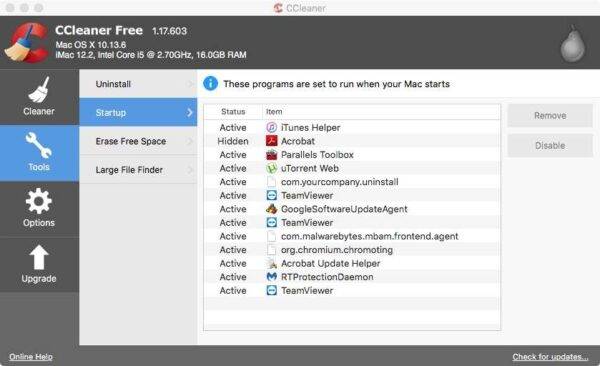
4. Remove Unnecessary Startup Items
Some apps start automatically when you turn on your Mac, using up valuable resources. Removing these startup items can help boost performance and is another important step in cleaning up your Mac.
How to remove startup items:
Go to System Preferences > Users & Groups > Login Items.
Select the apps you don’t need at startup and click the minus (-) button to remove them.
By reducing the number of startup apps, your Mac will boot up faster and run more smoothly.
Startup Menu For A Quicker Startup In Ccleaner
5. Manage Large Files
Large files like videos, images, and backups can take up significant space on your hard drive. Identifying and deleting these files is crucial for cleaning up your Mac.
How to find large files:
Click on the Apple menu > About This Mac > Storage > Manage.
Under the Documents section, you’ll see a list of large files.
Review the files and delete those you no longer need.
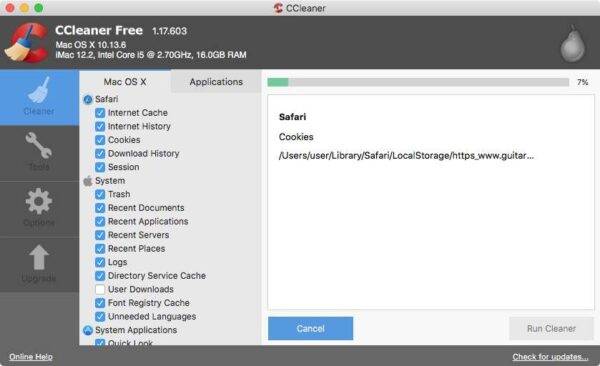
Ccleaner Mac
6. Empty the Trash
It’s easy to forget that files in the Trash are still taking up space. Emptying the Trash regularly is a simple yet essential part of cleaning up your Mac.
How to empty the Trash:
Right-click the Trash icon in your Dock.
Select Empty Trash.
For a faster way, set your Mac to automatically empty the Trash every 30 days by going to Finder > Preferences > Advanced and checking the box.
Using CCleaner for Cleaning Up Your Mac
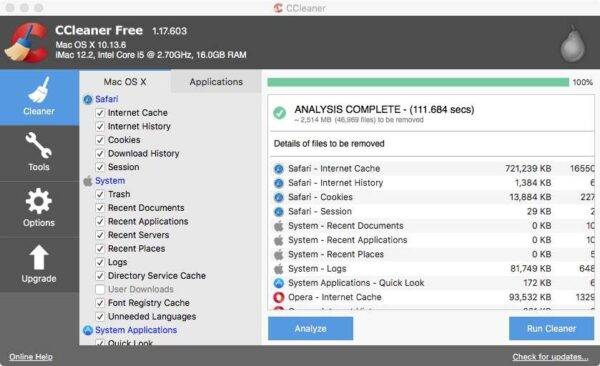
For users looking for an all-in-one solution for cleaning up your Mac, CCleaner is a trusted option. This third-party app helps you clean junk files, manage startup programs, and remove unnecessary applications with ease.
Features of CCleaner for macOS:
Junk File Removal: Automatically deletes temporary files and system logs.
Browser Cleanup: Clears browser caches, history, and cookies for all major browsers.
Uninstaller: Easily remove unwanted apps and their associated files.
Using CCleaner can save you time and effort, ensuring that all aspects of your Mac are cleaned thoroughly.
Analysis Complete With Cleaning Mac
Why Regular Cleaning Is Necessary
Just like any other machine, your Mac needs regular maintenance to perform at its best. Cleaning up your Mac isn’t a one-time task; it should be done regularly to prevent performance issues and free up space.
Here’s why regular cleaning up your Mac is important:
Prevents Slowdowns: A cluttered Mac will eventually become slower as more files accumulate and storage fills up.
Extends Mac’s Lifespan: Keeping your Mac clean ensures that it runs efficiently, extending its lifespan.
Maintains Peak Performance: Regular cleaning keeps your Mac in optimal condition, so it can handle any task smoothly.
Conclusion: Keep Your Mac Running Like New
By following these steps, you can easily keep your Mac running at peak performance. From uninstalling unused apps to managing large files, cleaning up your Mac ensures that you have the space and speed you need to work efficiently.
For those looking for a more automated solution, using tools like CCleanercan help simplify the process and keep your Mac in top shape.
If you need further assistance with cleaning up your Mac, contact the team at Kingfisher Computers. We’re here to help you get the most out of your device!
The Illusion of Stability in Modern Updates For most users, operating system updates are something that simply happen. They arrive quietly, often installing in the background, requiring little more than…
Macbook Neo, How Does It Compare To Air & Pro? Over the last few years the laptop market has experienced one of the most significant architectural changes in its history.…
Apple’s latest product announcements mark one of the most significant shifts in the Mac lineup in more than a decade. While Apple routinely updates its hardware with faster chips, incremental…
There is a particular kind of frustration that only a slow computer can produce. It is not dramatic. It is not urgent. It does not scream for attention. Instead, it…
In an era where nearly every aspect of personal computer maintenance and professional life is mediated through digital systems, your computer is no longer a luxury device — it is…
Phone says charging but battery not increasing is one of the most frustrating problems smartphone users face. You plug it in.The lightning bolt appears.It says “Charging.” But the battery percentage…
Apple’s rumour cycle always looks like a thousand disconnected leaks — until you line them up and notice the same themes repeating: AI-first silicon, camera and display differentiation, form-factor experiments (foldables / spatial…
Wi-Fi connected but no internet is one of the most frustrating messages you can see on a computer or laptop. The Wi-Fi icon shows full bars.It says “Connected.”But websites won’t…
Unfortunately, there was an error submitting your request.
Please try again later, or reach out to us directly. You can call us at +44 1429 280955 or email us at sales@kingfishercomputers.co.uk for assistance. We’re here to help you get your computer back up and running!
We’ve received your booking, Our team will get in touch with you shortly to confirm the details. You’re one step closer to having your computer fixed! If you have any urgent questions, feel free to contact us. Otherwise, sit back, and we’ll handle the rest.