Friendly and professional rang me to help with my computer issue and ran me though my options recommend their services


Check the software you need before changing macOS
Catalina is an older macOS release for compatible Intel Macs. Choosing it should have a clear purpose, such as a specific application requirement, rather than treating it as the latest system.
Bring your Mac model and current version. Our Hartlepool team will discuss the software, connected equipment and important files that matter to your decision.
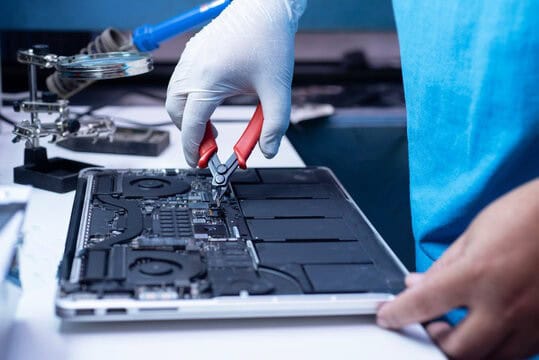
We assess your device, explain the fault and agree the repair costs with you before work begins.
If you decline the quoted repair after diagnosis has started, a £24 diagnostic fee, including VAT, covers our assessment time and technical expertise.
Approve the repair and there is no separate diagnostic fee.
No. The exact model must support the release. Tell us the model and year, the current system and why Catalina is needed. A newer Mac is not automatically compatible with an older version of macOS.
Tell us what you want to do that your current setup cannot support. A named application, printer or work requirement is more useful than a general request for a newer system. Include the version of each essential application so the compatibility discussion reflects your actual setup.
Catalina does not run 32 bit applications. An older program may need a compatible replacement before you change systems. See Apple’s application compatibility guidance, then check with the software developer about the version you use.
Use the model name and year from About This Mac when available. Apple’s archived Catalina compatibility list identifies supported models. This is a model check, not a promise that any newer Mac can use an older installer.
Explain whether you are moving from an older system, already using Catalina or trying to replace a newer installation. Those are different starting points. A request to return to an older release needs its own discussion about files, applications and an appropriate installation route.
Before you upgrade to macOS Catalina, identify the documents, photographs and working files you cannot lose. Check your independent backup and note when it last completed. If the Mac will not start, explain whether those files exist anywhere else before an installation is considered.
Agree what is included in the work and which everyday tasks should be checked afterwards. Opening a required application and using your usual printer are more useful checks than simply reaching the desktop. Installation does not automatically include replacing old software or resolving an unrelated hardware fault.
If your aim is to start with erased storage, read about a clean Catalina installation. For help choosing between releases, use our macOS upgrade advice.
For general fault checks, read our macOS troubleshooting guide. For other work, browse our repair and support services.
Catalina cannot run 32 bit apps. Check the developer’s requirements for each essential program before agreeing the change. A replacement licence or updated application may need to be arranged separately.
Do not choose an older release just because its name is familiar. Explain the websites, applications and equipment you use. We can discuss a compatible, supported system option and any reason an older workflow still needs Catalina.
Note your Mac model, current system and the reason you want to upgrade to macOS Catalina. List essential applications and equipment, including older software you cannot replace.
Check your separate backup and tell us about an important deadline. Keep passwords, licence keys and verification codes out of your initial enquiry.
No. An erased installation is a separate proposal. Agree how files, applications and settings will be handled and what the backup contains before approving any erase.
Tell us the message on screen, the previous system and what you have tried. Mention any files that have no other copy. Avoid erasing storage as a way to bypass an unexplained installation fault.
Our shop is at 38 Church Street, Hartlepool, TS24 7DG. Call 01429 280955 or use the contact page to discuss the service and suitable arrangements before travelling.
Friendly and professional rang me to help with my computer issue and ran me though my options recommend their services
Fixed my PC within a day. Diagnosed quickly, repaired and now working great. Would highly recommend this company! Thank you.
Very helpful and excellent advice, top class work, I highly recommend them for repairs or a new system, you won’t regret it.
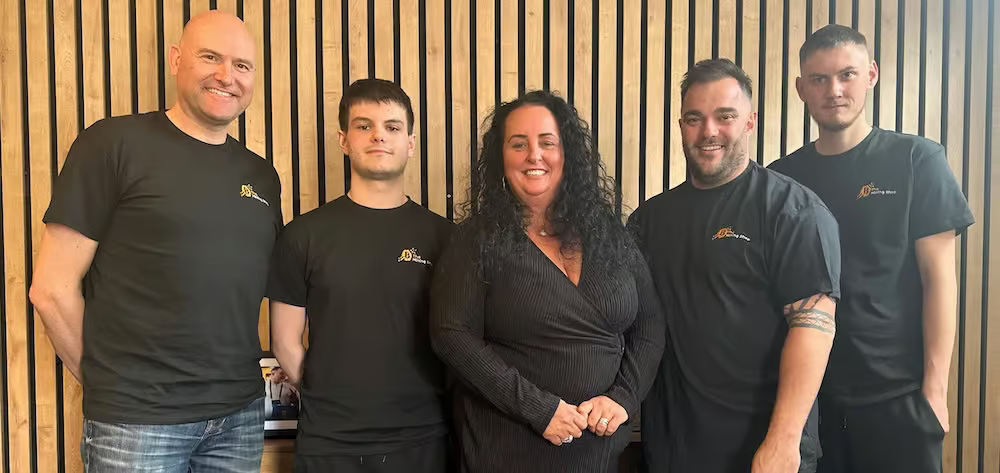
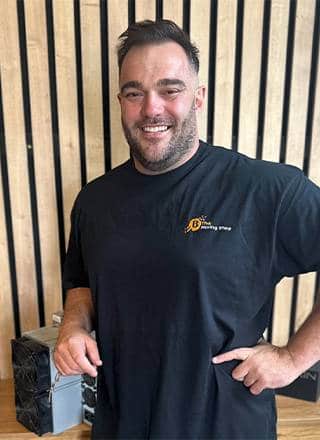
Darren Waggott founded Kingfisher Computers in 2004. It was his first business, and he has continued to run and develop it ever since, helping local people and businesses look after their computers.
Kingfisher and The Mining Shop are part of the same business group. Our work across everyday PCs, gaming computers, ASIC miner repairs and data centre hardware brings together complementary technical experience. Kingfisher remains focused on practical computer repair and clear advice from Hartlepool.
Find us at 38 Church Street, Hartlepool, TS24 7DG. Call 01429 280955 with your model and the symptoms before you travel.
Opening hours and visit information · Get directions · Contact our team

No appointment required. You’re welcome to pop into the shop during opening hours.
ENQUIRY RECEIVED
38 Church Street, Hartlepool, TS24 7DG
For home visits and callouts, please wait for us to arrange a time.
No appointment required. You’re welcome to pop into the shop during opening hours.
ENQUIRY RECEIVED
38 Church Street, Hartlepool, TS24 7DG
For home visits and callouts, please wait for us to arrange a time.